

iPhone users are flooding forums with the same complaint: you type the way you always have, yet your screen fills with typos. Simple words fall apart, letters swap places, and you spend more time fixing text than writing it.
In one recent discussion, several iPhone 15 Pro and iPhone 17 Pro Max owners said they suddenly started hitting the wrong keys after updating to iOS 26. They insisted that nothing about their typing habits had changed. Yet the keyboard began to feel unreliable, especially around keys like i/o, a/s, and the spacebar area.
As more people chimed in, a pattern formed. Many users blamed themselves at first and wondered if they had just become “worse at typing.” However, once they compared notes, it became clear that the problem appeared around the same time: after recent system updates and keyboard changes.
Don’t miss the best of The Mac Observer
Set us as a preferred source and our Apple reporting ranks higher in your Google Search results and Discover feed — one tap, no account changes.
Users say the keyboard now “fights back”
Across multiple models, people describe the same kind of chaos. They try to type a normal sentence, but letters drop, repeat, or shift into neighboring keys.
Some users say they cannot even type short words like “that” at normal speed because the last letter fails to register. Others see the keyboard turn two correctly typed words into two completely different ones that make no sense. After that happens enough times, you start to feel like you forgot how to use your phone.
Then there is the spacebar problem. Several users report hitting “n” or “b” when they reach for the spacebar. Instead of a clean sentence, they get a string of words glued together with random letters in between. It looks messy, and it feels worse when friends start joking about the constant typos.
At the same time, a few people who stayed on older iOS versions say their keyboards still feel stable. That contrast makes the current experience on iOS 26 stand out even more for those who upgraded and now regret it.
Turning off swipe typing quietly fixes the issue for many
In the middle of the complaints, one simple tip started to spread: turn off swipe typing.
Several users discovered that, once they disabled the swipe or “slide to type” feature in the keyboard settings, their typing went back to normal almost instantly. They did not change their speed or technique. They just flipped a switch and saw most of the mis-taps disappear.
To try this yourself, you can:
- Open the Settings app.
- Go to General and then Keyboard.
- Look for the option related to swipe or slide to type.
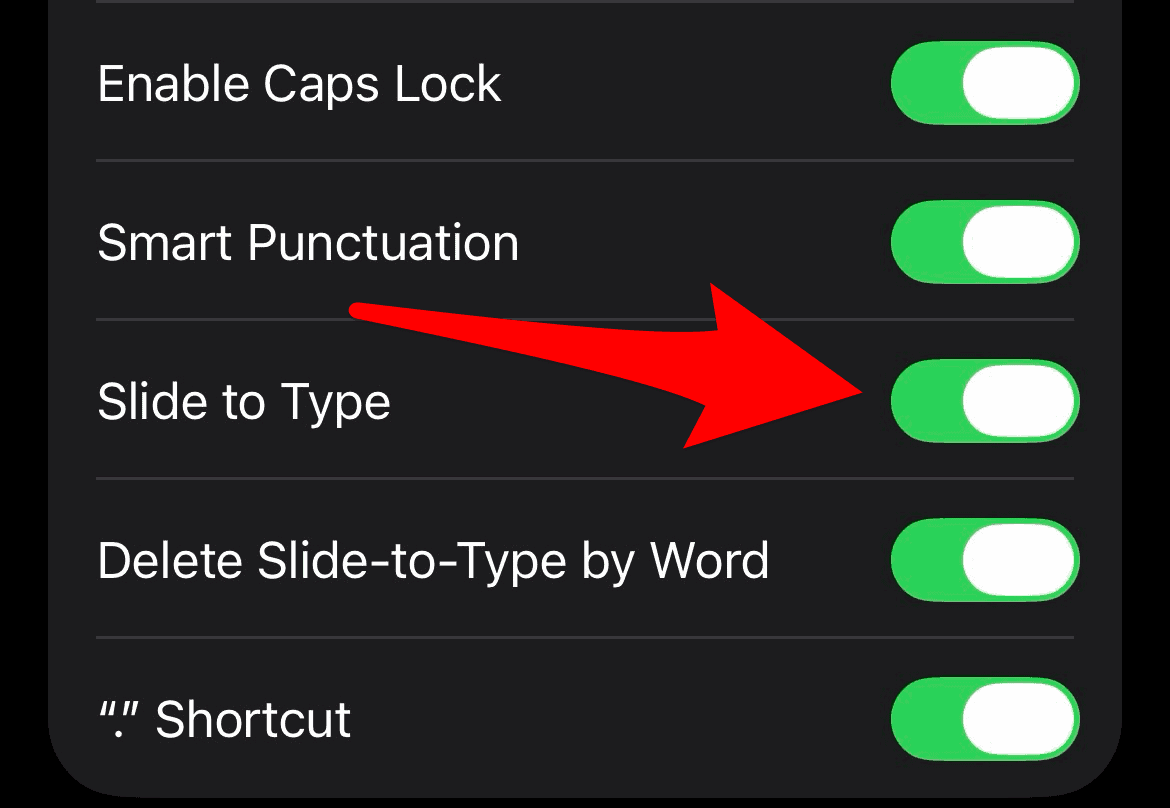
- Turn it off.

Interestingly, many of the people who found relief said they never use swipe typing at all. They did not even realize it was turned on, possibly enabled by default at some point. Yet the system still tried to interpret subtle finger movements as swipes, which likely confused the touch detection and prediction engine.
Other quick tweaks if your keyboard still feels off
If turning off swipe typing does not fully solve the problem for you, there are a few more steps you can try before giving up on the default iOS keyboard.
First, restart your iPhone. It sounds basic, but a fresh boot often clears out odd behavior in system services, including the keyboard. After the restart, test your typing in a few different apps, such as Messages, Notes, and your browser, to see if the issue remains consistent.
Next, you can reset the keyboard dictionary. To do that, go to Settings > General > Transfer or Reset iPhone > Reset > Reset Keyboard Dictionary. This step erases any custom words and habits the keyboard learned over time. It sometimes helps if autocorrect and predictions feel more aggressive or inaccurate than before.
Some users also report that the keyboard behaves differently across languages. For example, they see far more errors when typing in one language, while their native language still feels normal. That suggests the newer prediction models affect some layouts or dictionaries more than others, so testing in another language can give you a clue about what is going on.
Why this feels worse than old autocorrect problems
You have dealt with autocorrect drama before, but this issue feels different for many people. Instead of only changing one word, the keyboard often rewrites multiple words at once or merges them into a single, unreadable line.
Part of the frustration comes from how “intelligent” the system now tries to be. As it predicts text, corrects spelling, and recognizes swipes, it sometimes overreacts. So, you type one thing, and the phone decides you meant something else entirely. When that happens dozens of times a day, it starts to feel like the device is arguing with you.
Because of this, many users say they began to question their own skills. They thought their fingers lost accuracy or that the larger size of phones like the 17 Pro Max made them clumsy. Only after reading that others felt the same did they realize the problem likely sits with software, not with them.
What you can do right now
If your iPhone suddenly started producing more typos on iOS 26, you are not alone. You can start with the simplest fix: turn off swipe or slide typing in the keyboard settings. For a large number of users, that single change made the keyboard feel “normal” again.
After that, you can restart your phone and, if needed, reset the keyboard dictionary to clear out bad learned behavior. You can also test your typing in different apps and languages to see whether the problem appears everywhere or only in specific situations.
Most importantly, do not assume you just became worse at typing overnight. Many users with years of iPhone experience report the same sudden decline in accuracy. Until Apple fine-tunes the keyboard in future updates, these small tweaks give you the best chance to take back control of your typing and stop your messages from turning into a wall of unwanted typos.


Yes. Having same annoying problem with my new iPhone 17 pro max.
turned everything off. issues persists. ive been taking notes on my phone for so long, and i might just have to swap keyboards entirely…
No effect for me: it’s the keyboard as a whole and the guy who designed it; it’s a much larger problem: My buddy says it’s dyslexic. When it says “the” spelled wrong, you know designers’ have problems:. Sick gl having to use the back button because of how stubbornly stupid and literally dumb the keyboard and its language have become but that’s Apple.
The n and b problem always bothered me. May be bad typing habits? But it seems much worse, plus a few others. Plus at times types very slowly, and I am not a fast typist.
Yes, me too. “Some users say they cannot even type short words like “that” at normal speed because the last letter fails to register.” Every time I type the word, that.
I like slide to type and don’t want to disable it.
But even more annoying is the slow speed that I have to type if I plan on using the suggested words. If I pick one too fast or type one letter too many, the word I wanted to select changes.
I also dislike the random words or letters that appear if I use the space button and when placing the cursor. Half the time, when doing that, it doesn’t move (or move where I want) and instead creates a space, while inserting something random that I then have to correct.
And went using talk to text, it often gets the words right initially and later changes the words, so much that I forget what I initially said. So I can’t even correct it.
Strangely every time I type “I” it changes to “ai” Creepy
This was really helpful. I didn’t have to reset the dictionary but I did deactivate a few other smart features from accessibility> keyboard. One problem remains for me: I am a polyglot and use several different keyboards daily (more than 3). The Arabic one doesn’t show up. When I toggle to Arabic it keeps an English keyboard. I’ve already deleted the transliteration smart option. I will keep searching for the answer. This update is infuriating but the fact I was able to type this at all without punching a hole in a wall is a relief. Thank you!!!!!