

Forgetting your iPad passcode locks you out completely. After too many failed attempts, the device disables itself, leaving you with only one option: erase and restore. Apple requires you to wipe the iPad before setting it up again, either from a backup or as new. With iPadOS 17, Apple also introduced an on-device reset flow that simplifies the process. But no matter which method you choose, you’ll need your Apple ID to clear Activation Lock.
The best way to make sure your passwords or passcodes are safe is with the help of professional tools such as AnyRecover. This will allow you to safely restore the passcodes from most devices and the allow you to store them securely so that issues like this never happen again.
Don’t miss the best of The Mac Observer
Set us as a preferred source and our Apple reporting ranks higher in your Google Search results and Discover feed — one tap, no account changes.
Table of contents
How to Recover
Apple supports three official recovery options: using a Mac or PC in recovery mode, using the on-device “Forgotten Passcode” reset (iPadOS 17+), or erasing the iPad remotely with Find My. A temporary “Use Old Passcode” option may appear if you recently changed your code. Every path wipes data, so having an iCloud or computer backup is crucial.
1. Reset via Mac or PC (Recovery Mode)

This method erases the iPad and reinstalls iPadOS using a computer. It works on all iPad models and is Apple’s primary recovery option when the passcode is forgotten or the device shows “iPad Unavailable/Security Lockout.” You’ll need a data cable, internet access on the computer, and the Apple ID for Activation Lock after restore.
- Prepare the computer: On macOS Catalina or later use Finder, on macOS Mojave or earlier use iTunes, and on Windows install the Apple Devices app (or latest iTunes if the app is not available). Ensure stable broadband to download iPadOS.
- Use an Apple-certified USB-C or Lightning cable. Avoid charging-only cables.
- Turn off the iPad: Hold the Top button and slide to power off. If unresponsive, force shutdown using the model’s button combination.
- Enter recovery mode: For iPads without a Home button, press Volume Up, then Volume Down, then hold the Top button until the recovery screen appears. For iPads with a Home button, hold Home and Top together until recovery screen shows.
- Connect to the computer: Open Finder, Apple Devices, or iTunes and select the iPad. Choose Update first if available; if it fails, select Restore to erase and reinstall iPadOS.
- Complete setup: After restore, the iPad restarts. Follow the setup assistant, sign in with your Apple ID for Activation Lock, then restore from an iCloud or computer backup, or set up as new.
Troubleshooting
If the computer doesn’t recognize the iPad, try a different cable or port. On Windows, reinstall Apple Mobile Device drivers. For repeated errors like 4013 or 4014, switch cable/port, use another computer, or attempt a DFU restore. If hardware buttons are broken, use Find My (Method 3) or visit an Apple Authorized Service Provider.
If you want a detailed walkthrough, check our step-by-step guide on how to restore an iPad to factory settings.
2. On-device Security Lockout Reset (iPadOS 17+)
On iPadOS 17 or later, repeated failed attempts trigger “iPad Unavailable” or “Security Lockout.” A “Forgotten Passcode?” option appears, allowing the iPad to erase itself without a computer. The process requires Wi-Fi or cellular connectivity. Activation Lock remains in place and must be cleared with the Apple ID.
- Enter wrong passcodes until “iPad Unavailable” or “Security Lockout” shows.
- Wait for the “Forgotten Passcode?” option, then tap it.
- Tap Start iPad Reset and confirm. Keep the iPad connected to Wi-Fi or power until erasure completes.
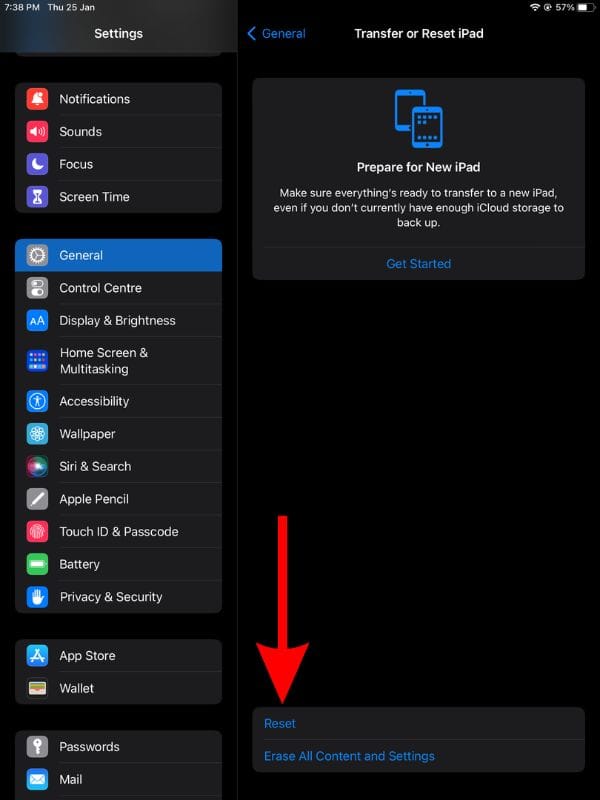
- After reset, complete setup. Sign in with the Apple ID if Find My was enabled. Restore from iCloud or computer backup, or continue as new.

Troubleshooting:
- If “Forgotten Passcode?” never appears: the device isn’t on iPadOS 17+. Use Recovery Mode or Find My.
- If the iPad is offline: bring it within Wi-Fi/cellular range. If still blocked, reset via computer.
- If Apple ID password is forgotten: reset the Apple ID on another device or at appleid.apple.com, then return to Activation Lock.
You can also learn more about the different ways to reset your iPad safely.
3. Erase via Find My (iCloud.com or Find My app)

If Find My was enabled before lockout, you can erase the iPad remotely. This works even if the buttons are damaged or no computer is available. The erase removes data and the passcode, but Activation Lock still requires the Apple ID during setup.
- Sign in at iCloud.com > Find Devices or use the Find My app on another Apple device.
- Select the locked iPad.
- Choose Erase iPad and confirm. The erase happens immediately if online, or when the iPad next connects.
- Afterward, set up the iPad and sign in with the Apple ID. Restore from iCloud/computer backup or set up as new.
Troubleshooting:
- If offline: the erase action will queue until the device comes online.
- If not listed in Find My: the feature was disabled then use Recovery Mode instead.
- If transferring ownership: after erase, select “Remove from Account” in Find My so the next user can activate without Activation Lock.
Here’s how to use Find My iPad to locate or erase your device.
4. Use Old Passcode (recently changed, iPadOS 17+)
If you recently changed your passcode, iPadOS 17 sometimes allows a temporary unlock with the previous passcode. This grace period lets you correct mistakes without erasing data. If the option doesn’t appear, use another method.
- Wake the iPad and check for a prompt such as “Use Old Passcode to Unlock or Enter Previous Passcode.”

- Enter the previous passcode to unlock.
- Immediately go to Settings > Face ID/Touch ID & Passcode > Change Passcode and set a new code.
- If no old-passcode option shows or the window has expired, use Recovery Mode, Security Lockout reset, or Find My erase.

If you simply want to update your code, follow this guide on changing your iPad password.
Tips
- Enable iCloud or computer backups to avoid permanent data loss.
- Keep your Apple ID credentials handy; you’ll need them for Activation Lock.
- Use only Apple’s documented reset paths. Third-party “unlock tools” often replicate these steps and add unnecessary risk.
- Learn the recovery mode button combinations for your iPad model.
- If the “Security Lockout” screen appears on iPadOS 17+, it is often the fastest option.
FAQs
Yes. All official methods erase the iPad. Data can only be restored from iCloud or computer backups.
No. Even after erasing, you must sign in with the Apple ID linked to the device.
Use the on-device Security Lockout reset (iPadOS 17+) or remote erase via iCloud.com. Otherwise, borrow a computer or visit an Apple Authorized Service Provider.
No. Apple does not allow bypassing the passcode without erasure. Only a temporary old-passcode unlock (iPadOS 17+) exists in some cases.
Use the latest version of iTunes. Mac users on Catalina or later use Finder.
Summary
- Apple supports recovery mode on Mac/PC, on-device reset (iPadOS 17+), or remote erase with Find My.
- All methods erase the device and remove the passcode.
- Activation Lock requires your Apple ID to reactivate the iPad.
- Recovery mode button combinations differ by iPad model.
- A “Use Old Passcode” option may appear briefly after a recent change.
- Backups are the only safeguard against permanent data loss.
Conclusion
The only reliable way to recover a forgotten iPad passcode is to erase the device, then restore it during setup. You can use a Mac or PC in recovery mode, the on-device Security Lockout flow (iPadOS 17+), or remote erase via Find My. Each requires Apple ID verification to clear Activation Lock. Regular backups and knowing your account credentials reduce downtime and make recovery straightforward.




I forgot my pincode but I don’t have no computer