

Hey Siri is one of those features you forget exists until you need it. When it’s set up right, you can ask for directions, set a timer, or send a message without touching your phone. When it’s not, it just sits there ignoring you. Let’s fix that.
Here’s how to enable Hey Siri properly, plus a few tweaks that make it more reliable in real life.
Table of contents
Turn on Hey Siri in settings
If Hey Siri isn’t enabled, nothing else matters. Start here.
Don’t miss the best of The Mac Observer
Set us as a preferred source and our Apple reporting ranks higher in your Google Search results and Discover feed — one tap, no account changes.
- Open the Settings app
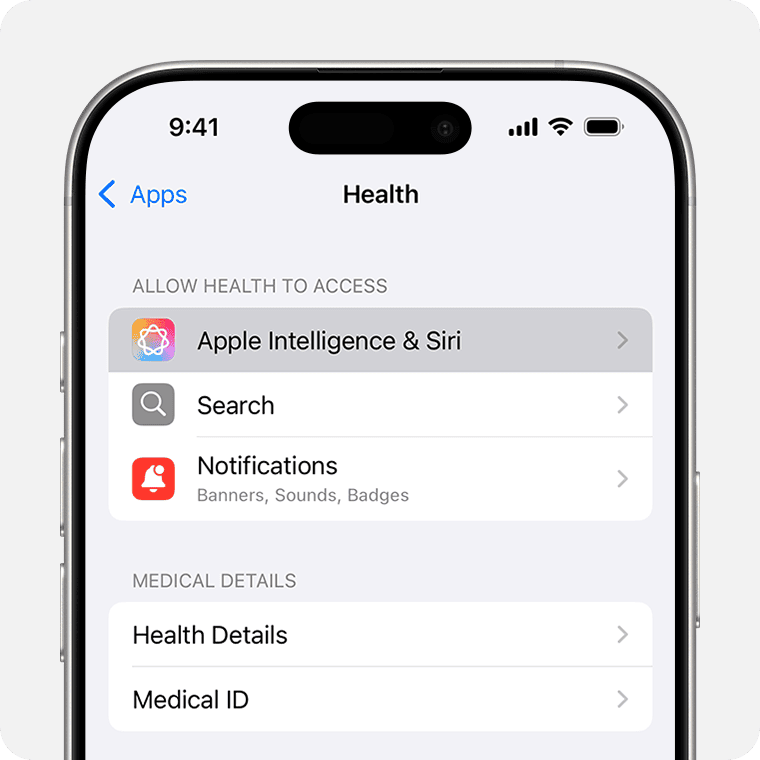
- Tap Apple Intelligence & Siri or Siri, depending on your iOS version
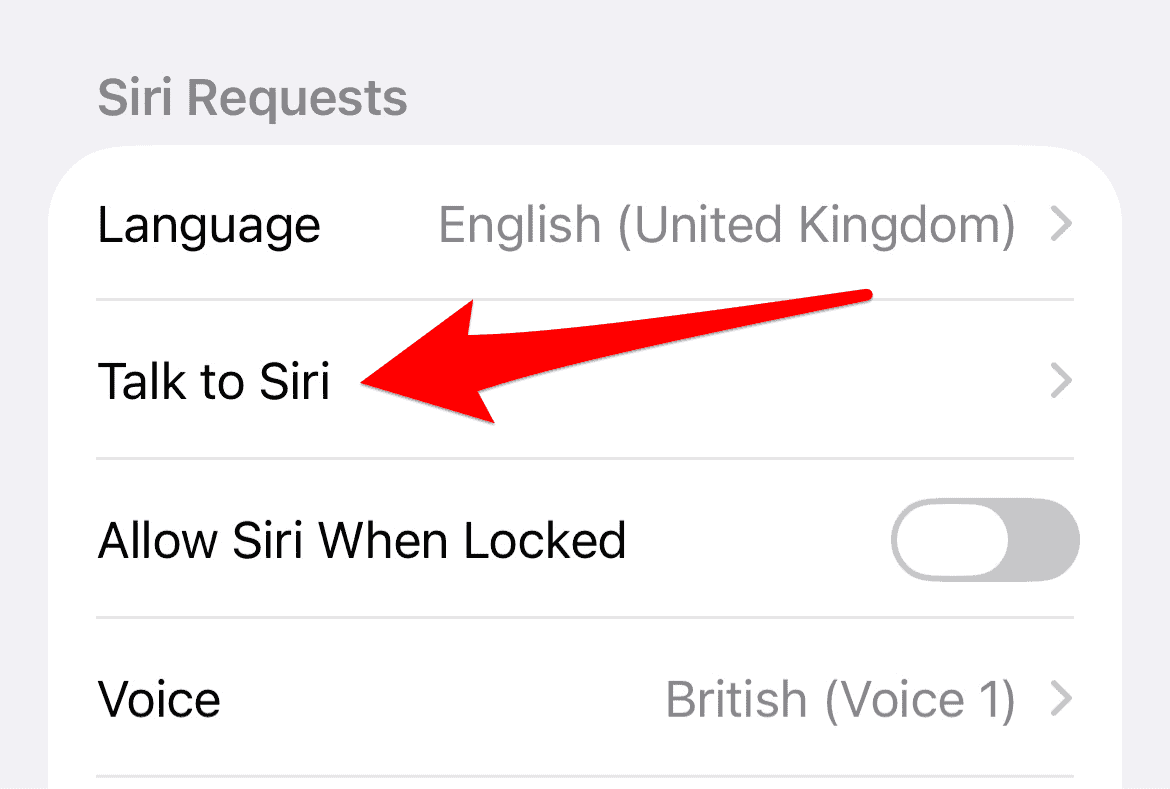
- Tap Talk to Siri or Talk & Type to Siri
- Turn on Siri or Hey Siri, or just Hey Siri
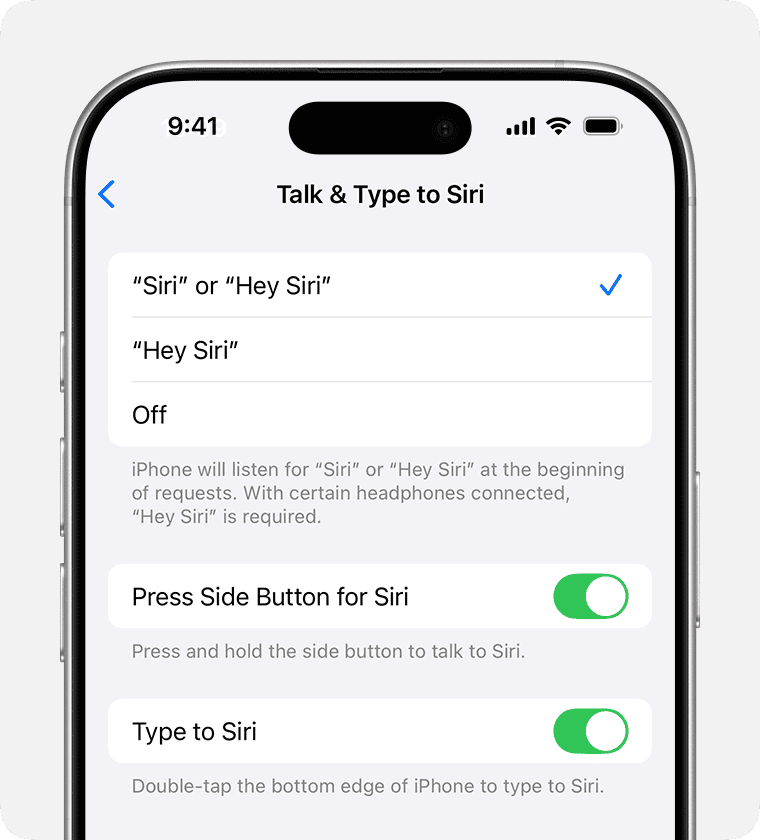
If you want a backup option, also turn on Press Side Button for Siri. That way you can still use Siri even if voice detection fails.
Train Siri to recognize your voice
Here’s the thing. Hey Siri works best when Siri knows what you sound like.
When you turn on Listen for Siri or Hey Siri, you’ll see a short setup screen:
- Tap Continue
- Say the phrases Siri shows you
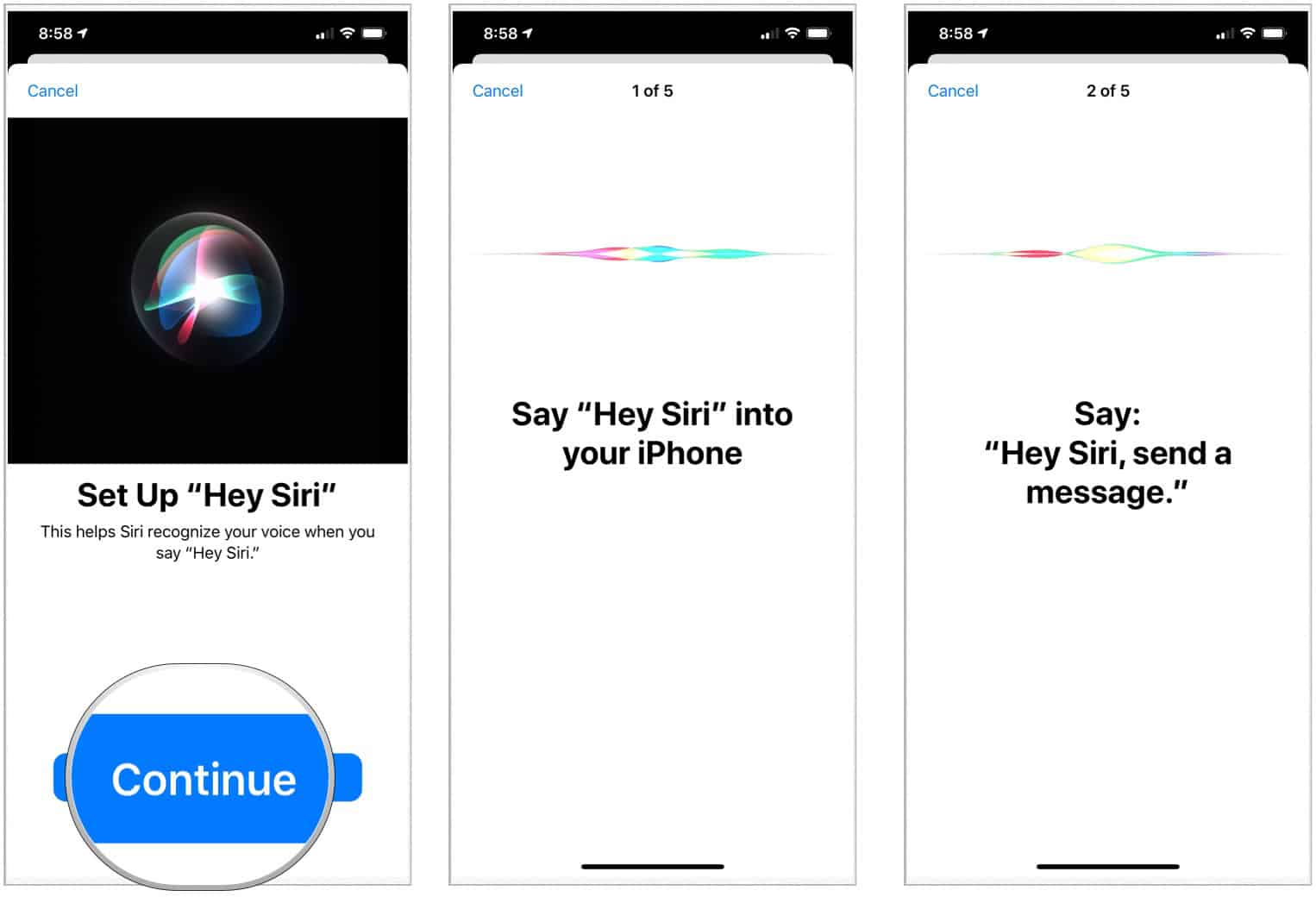
- Tap Done when finished
If Hey Siri responds inconsistently, turn the feature off and back on again to retrain it.
Make sure Siri can actually respond
Sometimes Siri is listening, but staying quiet.
Go to:
- Settings
- Apple Intelligence & Siri
- Siri Responses
Turn on Prefer Spoken Responses if you want Siri to speak even when your iPhone is in silent mode. You can also adjust Siri’s speaking speed and volume here.
Check the small settings that quietly break Hey Siri
If Hey Siri still isn’t working, check these common blockers.
Internet connection
Siri needs an active internet connection. No Wi-Fi or cellular data means no response.
Face down detection
If your iPhone is placed face down, it won’t respond to Hey Siri. This is intentional.
VPN profiles
Some VPNs block Siri entirely. If Siri disappears from Settings after a restart, temporarily disable your VPN and check again.
Software updates
Siri requires a reasonably current version of iOS. Keeping your iPhone updated fixes a surprising number of issues.
Use Hey Siri without repeating yourself
On supported devices and regions, you can make back-to-back requests.
Say:
- Hey Siri, what’s the weather today?
- What about tomorrow?
No need to say Hey Siri again. Just keep talking while Siri is active.
If Siri misunderstands you, interrupt it and restate the request. You don’t need to start over.
Type to Siri if voice isn’t ideal
Sometimes speaking isn’t practical. Typing works just as well.
To enable it:
- Open Settings
- Tap Accessibility
- Tap Siri
- Turn on Type to Siri
Now when you activate Siri, a keyboard appears so you can type instead of talking.
Temporarily disable Hey Siri
If your phone responds when it shouldn’t:
- Place it face down
- Or go to Settings > Siri and turn off Listen for Siri
You can still use the side button if you leave that option enabled.
If Hey Siri still doesn’t work
Try this quick reset:
- Restart your iPhone
- Turn Hey Siri off and back on
- Retrain voice recognition
- Confirm you’re signed in to your Apple ID
If issues persist, Apple provides detailed troubleshooting through Apple support resources.
The short version
To enable Hey Siri, turn it on in Settings, train it to recognize your voice, and make sure Siri is allowed to speak and access the internet. Once it’s set up correctly, it’s fast, reliable, and genuinely useful.




when on the iphone screen talk to siri – auto OFF defaults – how to change to hey siri?