

You can require Face ID verification for App Store downloads and purchases by adjusting iPhone settings. This adds an extra security step before apps install.
Table of Contents
Ways To Require Face ID for the App Store
Turn On Face ID for Purchases
While the main use case is unlocking your iPhone with Face ID, there are many other uses for the feature. The App Store can require biometric verification before downloads. This option controls whether Face ID confirms purchases and free app installs.
Time needed: 3 minutes
- Open Settings on your iPhone.
- Tap Face ID & Passcode.
- Enter your device passcode.
- Enable iTunes & App Store under Use Face ID For.
Once enabled, Face ID confirms downloads instead of relying only on your Apple ID password.
Enable Face ID Verification for Free Downloads
Even free apps can install without confirmation unless verification is required. You can change this behavior from your Apple ID settings.
- Go to Settings and tap on your name or photo to open the Apple ID settings.
- Go to Media & Purchases > Password Settings.
- Enable verification for free downloads.
This ensures Face ID appears every time an app installs.
Require Face ID To Open the App Store
You can also protect the access to the App Store with biometric authentication. Since iOS 18, you can lock apps with Touch ID or Face ID. To do that:
- Find the App Store icon on your Home Screen. If it’s not there, open the App Library by tapping the search bar in the rightmost panel.
- Tap and hold on the App Store icon.
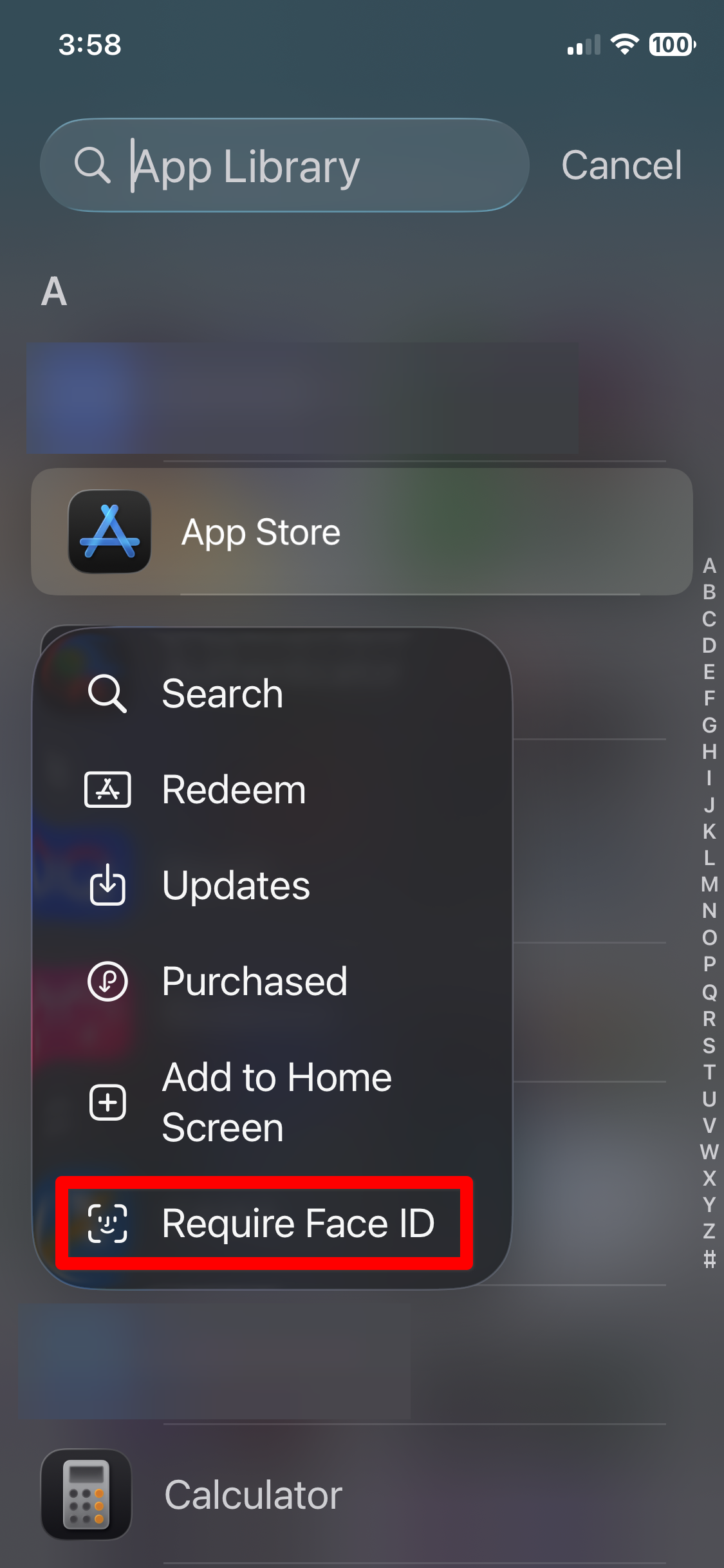
- Select Require Face ID from the options list.

Use Screen Time To Restrict App Store Access
Screen Time adds another way to lock App Store access. This method works well for shared devices or family setups.
- Open Settings > Screen Time.
- Go to Content & Privacy Restrictions > iTunes & App Store Purchases.
- Adjust the app installation rules to your liking.
Screen Time requires a separate passcode, adding another security layer.
What Face ID Protects in Each Setting
Face ID verification applies to purchases, subscriptions, and some account changes. It does not, by default, block browsing the App Store.
For stronger protection, you can enable a setting to require Face ID when opening the App Store. Combine this with Screen Time restrictions for maximum security.
In general, the Face ID lock does not prevent sideloading. This way, one can still install apps without the App Store on iPhone. However, the sideloading process itself requires a lot of security checks, including Face ID verification.
Require Face ID To Open App Store: Tips
- Keep Face ID enabled after iOS updates.
- Set verification for free downloads.
- Use Screen Time for shared devices.
- Update Face ID if recognition fails.
FAQ
By default, no. It only confirms downloads and purchases. You can turn that feature on, though.
Yes. Touch ID works the same way on compatible devices.
Automatic updates usually do not require confirmation.
Summary
- Face ID can be used to confirm app downloads and purchases.
- Free apps can require verification as well.
- You can enable authentication when opening the App Store.
- Screen Time adds extra protection.
- Browsing remains unrestricted.
Requiring Face ID for the App Store improves security and prevents unwanted downloads. Combining settings offers the strongest protection.


