

Encountering the Apple Music error -50 on your Mac can be a frustrating disruption to your listening experience. This error code typically indicates a communication timeout or a synchronization failure between your device and Apple’s servers. Whether you are trying to stream your favorite playlist or download tracks for offline use, this error prevents the Music app from functioning correctly and requires immediate troubleshooting to resolve.
Table of contents
How to Fix Apple Music Error -50 on macOS
When your Apple Music isn’t loading or shows this numerical error code, it often indicates cached data conflicts, authorization issues, or network instability. Use the following five verified solutions to restore your connection and clear the error.
1. Refresh Your Apple ID Session
Often, the error stems from a temporary authentication glitch between your Mac and your subscription data. By signing out and back in, you force the Music app to re-establish a secure handshake with the iCloud Music Library servers.
Don’t miss the best of The Mac Observer
Set us as a preferred source and our Apple reporting ranks higher in your Google Search results and Discover feed — one tap, no account changes.
- Open the Music app on your Mac.
- Click on Account in the top menu bar.
- Select Sign Out.
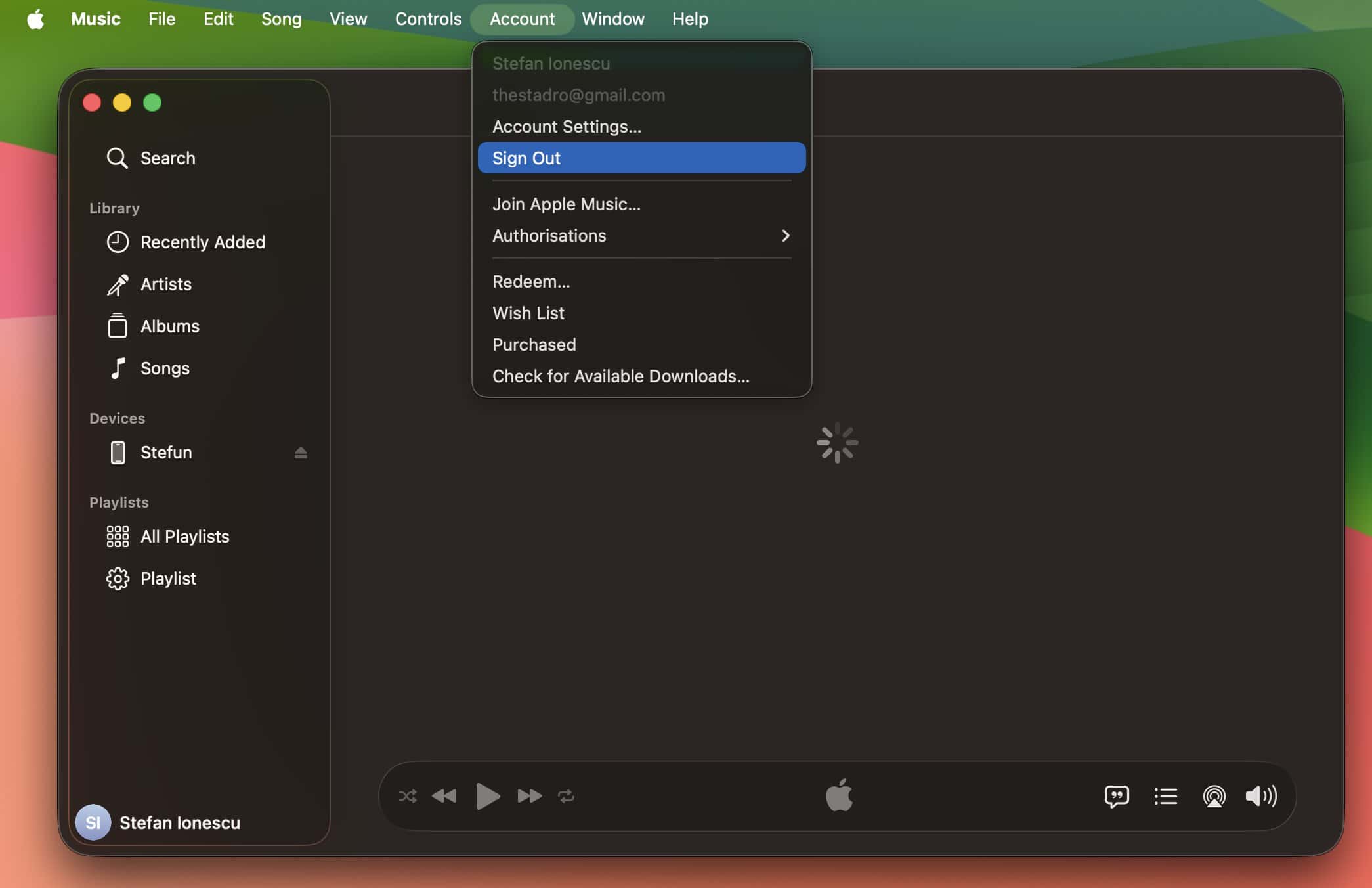
- Restart the Music app and go back to Account to Sign In with your Apple ID.

2. Reset the Music App Cache
Corrupted temporary files can cause the application to hang or trigger communication timeouts. Clearing the cache forces the app to redownload fresh metadata, which often resolves playback and communication issues instantly.
- Quit the Music app completely.
- Open Finder and select Go > Go to Folder.
- Type
~/Library/Cachesand press Enter.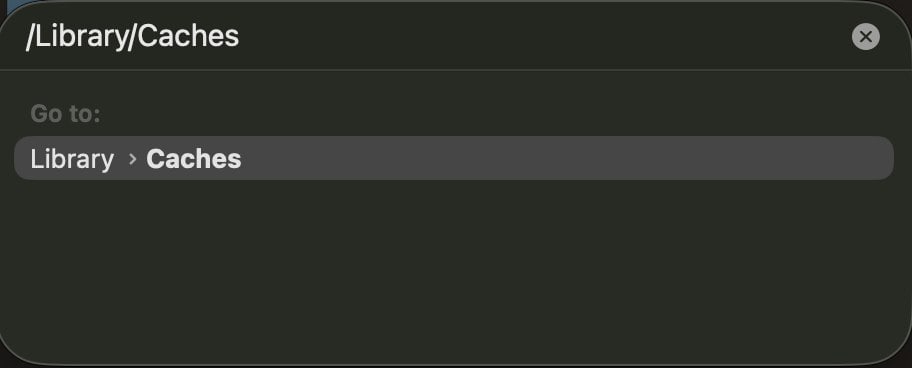
- Locate the folder named
com.apple.Music, move it to the Trash, and restart the app.

3. Check Network and Firewall Settings
A restrictive firewall or a fluctuating internet connection can block the specific ports Apple Music requires. If you find your Apple Music not playing through headphones or failing to sync, ensuring your Mac has a stable internet connection is vital.
- Navigate to System Settings > Network.
- Ensure your Wi-Fi or Ethernet connection is active and stable.
- Check System Settings > Network > Firewall to ensure it isn’t blocking the Music app.
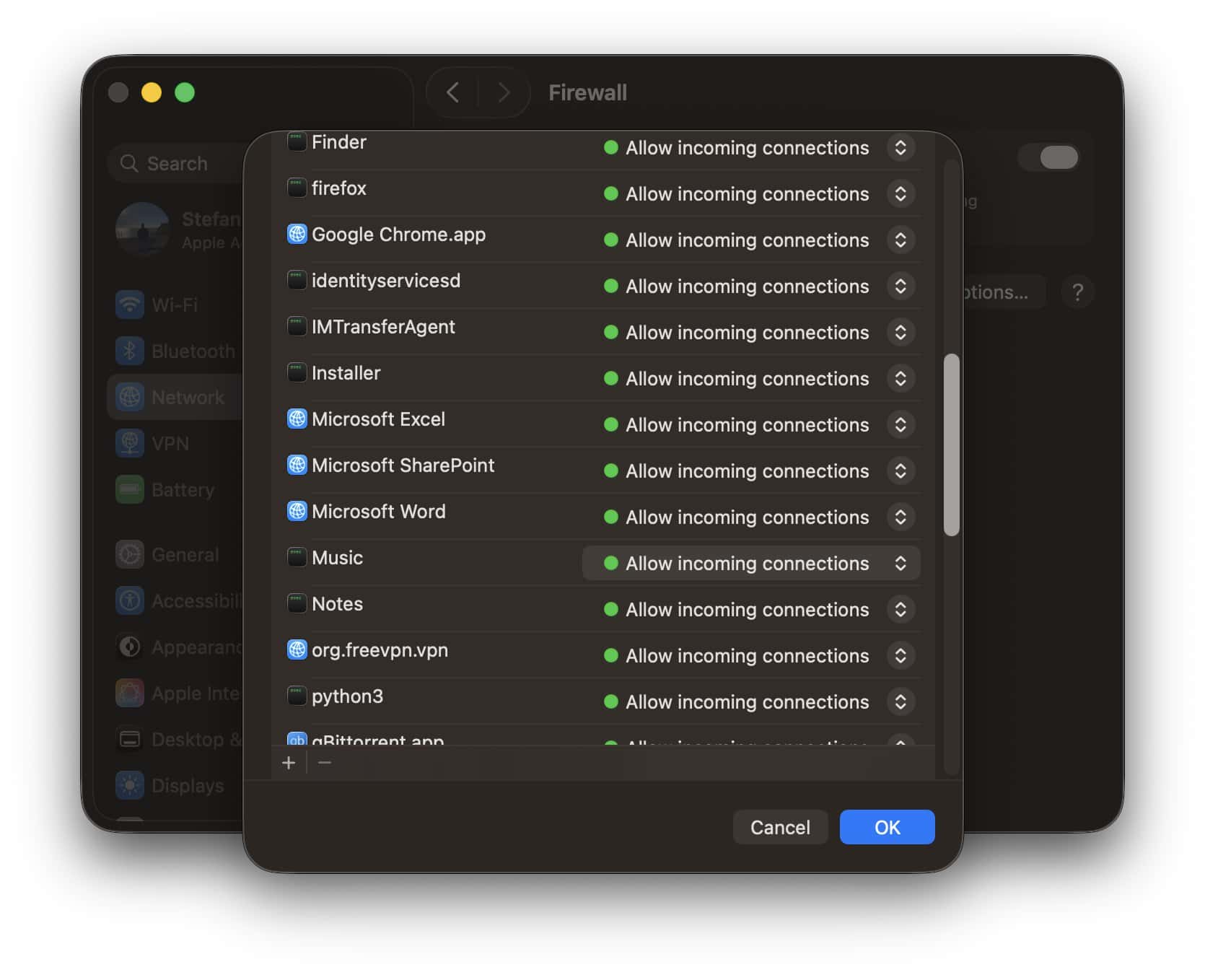
- Restart your router to refresh your local IP address.

4. Update macOS to the Latest Version
Software bugs in older macOS versions can cause compatibility issues with the Music app. Some users have noted that Apple Music on macOS Tahoe is a mess, making it even more important to stay up to date with the latest system patches.
- Click the Apple Menu and select System Settings.
- Go to General > Software Update.
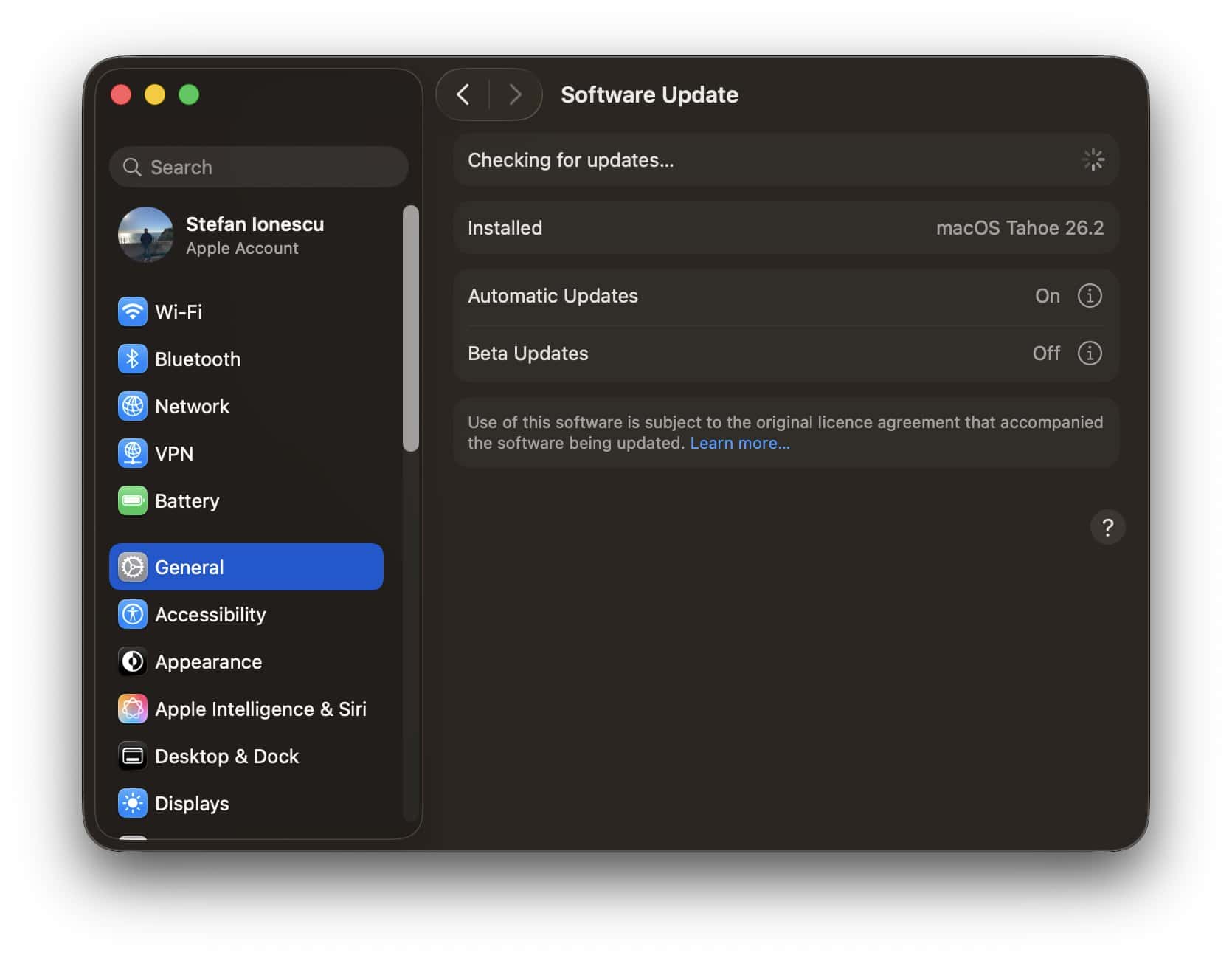
- If an update is available, click Update Now and follow the prompts.
- Restart your Mac once the installation is complete.

5. Re-authorize Your Computer
Error -50 can occur if there is a conflict in the Digital Rights Management (DRM) licensing. Re-authorizing your Mac refreshes your permissions to play and download your purchased or streamed content.
- In the Music app, click Account in the menu bar.
- Hover over Authorizations and select Deauthorize This Computer.
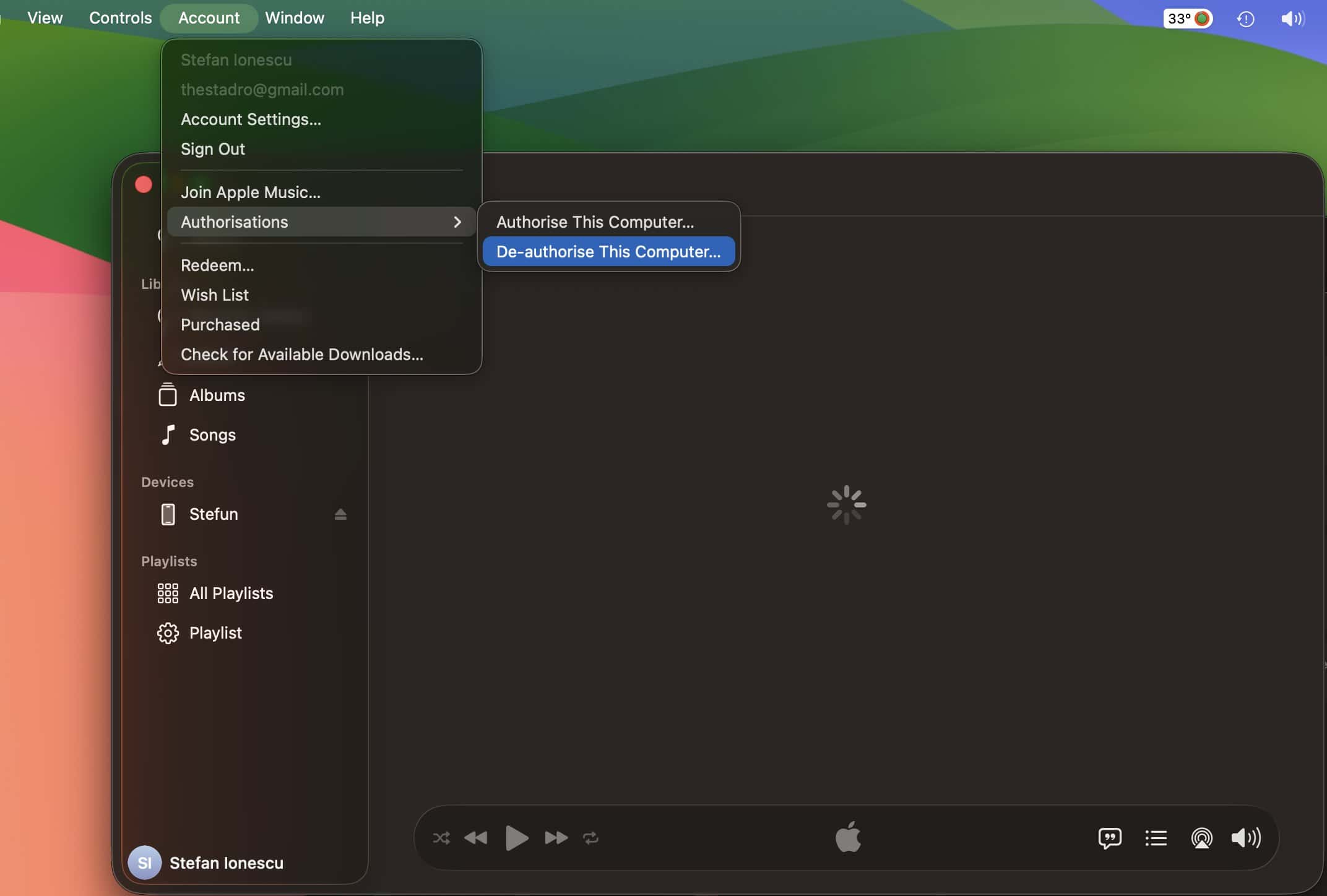
- Log out and then go back to Account > Authorizations > Authorize This Computer.
- Enter your Apple ID credentials to confirm.

FAQ
It is a generic “timed out” error indicating that the Mac could not complete a request to the Apple servers, often due to network interference or corrupted local library files.
No, clearing the cache only removes temporary files and metadata. Your library and downloaded songs remain safe, though the app may take a moment to reload artwork.
Restoring Your Apple Music Experience
Resolving the Apple Music error -50 usually requires a few simple steps to refresh your system’s connection to the cloud. Once your library is synced and the error is cleared, you can return to enjoying your library or learn how to shuffle all songs to discover new favorites. Following these troubleshooting steps ensures a seamless, uninterrupted audio experience on your Mac.


Discussion