

You can make songs blend smoothly in Apple Music by turning on the fade feature, also called Crossfade. This setting lowers the volume of the current track while the next one starts. You avoid hard stops between songs, and playlists feel more polished.
Apple keeps this option inside the Music app settings, but the steps change by device. iPhone, Android, Mac, and Windows all handle Crossfade a little differently. Once you know where to look, setup takes less than a minute.
Below you will find every current method, with clear steps and practical tips. Follow the section that matches your device.
Don’t miss the best of The Mac Observer
Set us as a preferred source and our Apple reporting ranks higher in your Google Search results and Discover feed — one tap, no account changes.
Table of contents
Enable Crossfade on iPhone and iPad
Apple added Crossfade to iOS and iPadOS in recent versions. You control it from system settings, not inside the Music app.
Turn on Crossfade in iOS Settings
Crossfade works only when you stream songs. Downloads and certain transitions ignore the setting.
- Open Settings on your iPhone or iPad
- Scroll down and tap Music

- Find Crossfade under the Playback section
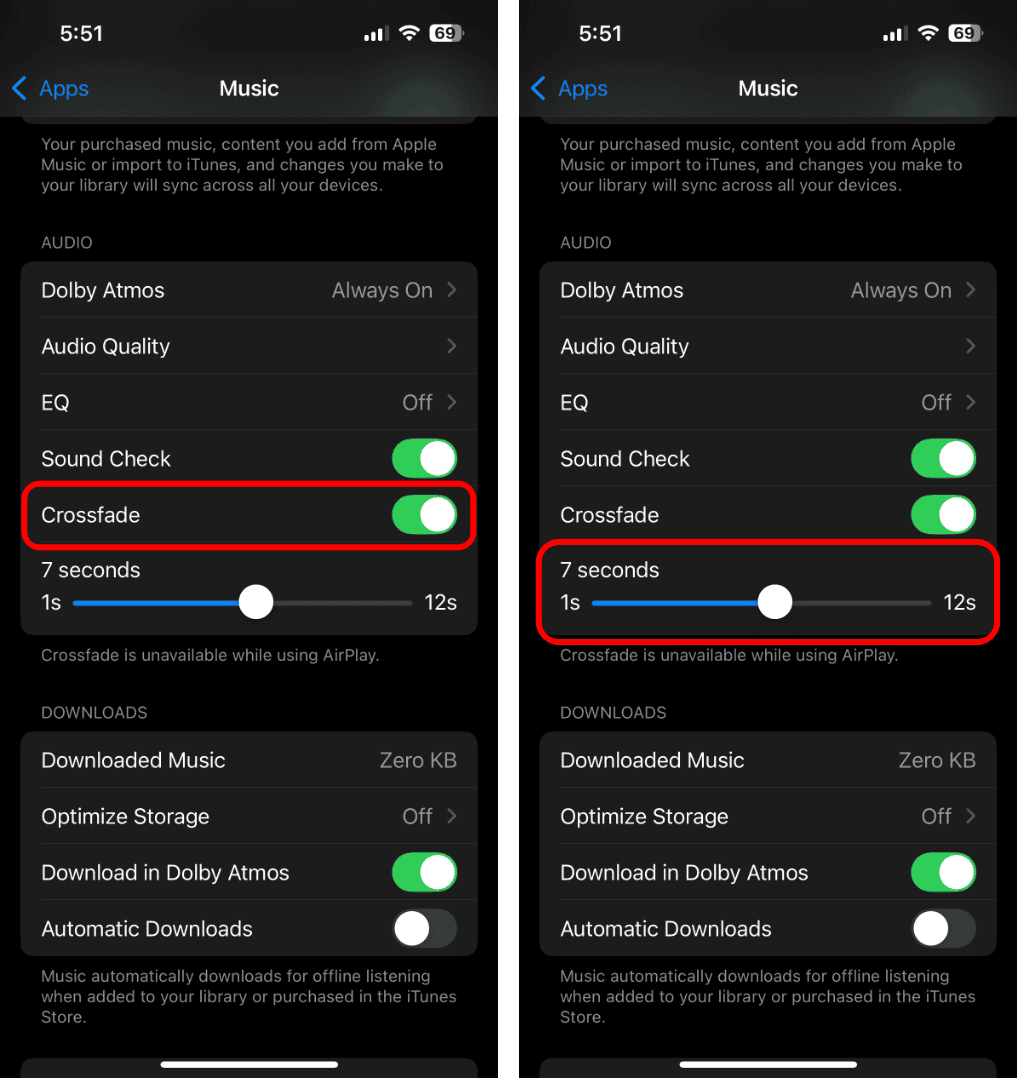
- Turn the switch on
- Adjust the slider to set fade length, from 1 to 12 seconds


The longer the fade, the more overlap you hear between tracks. Short fades sound cleaner for pop songs. Longer fades suit ambient or live albums.
Enable Crossfade on Android
Android offers the same feature, but Apple places it directly inside the app.
Turn on Crossfade in the Apple Music Android App
This option works for both streaming and some cached tracks, depending on your device.
- Open the Apple Music app
- Tap the three-dot menu or your profile icon
- Go to Settings
- Tap Playback
- Turn on Crossfade
- Set your preferred fade duration
Android gives you finer control in some versions, especially on newer phones.
Enable Crossfade on Mac
macOS handles Crossfade inside the Music app itself.
Turn on Crossfade in macOS Music App
This method works for both streamed and local files.
- Open the Music app on your Mac
- Click Music in the top menu
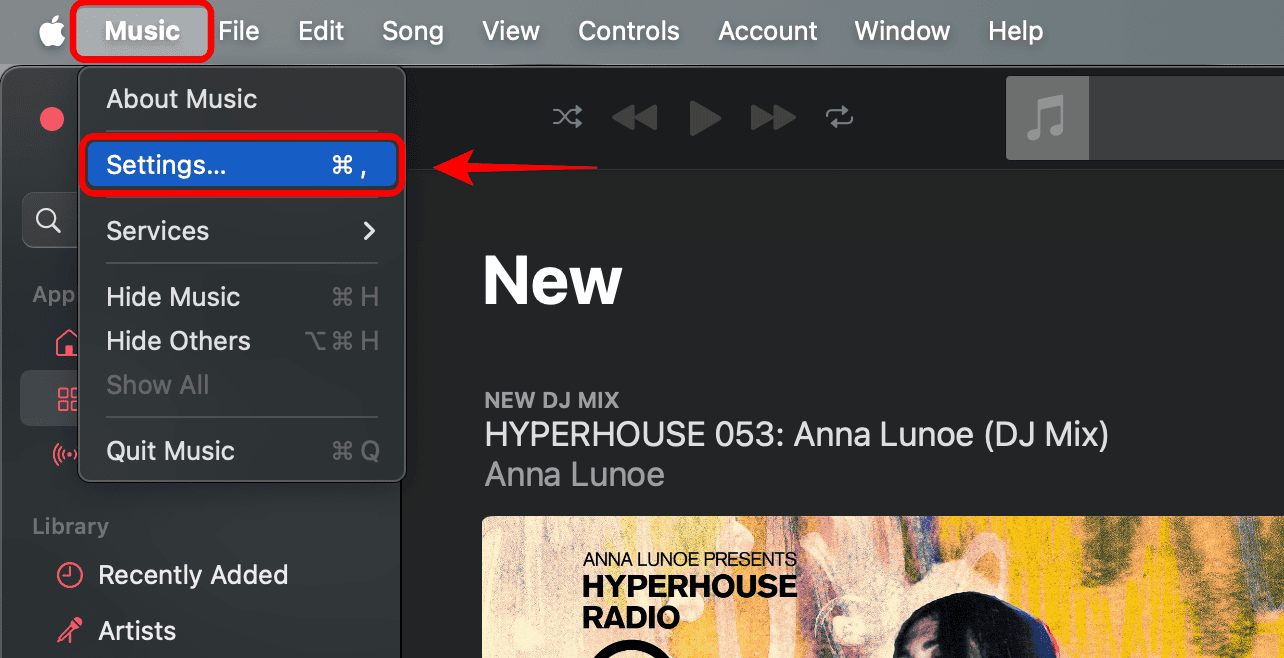
- Select Settings or Preferences
- Open the Playback tab
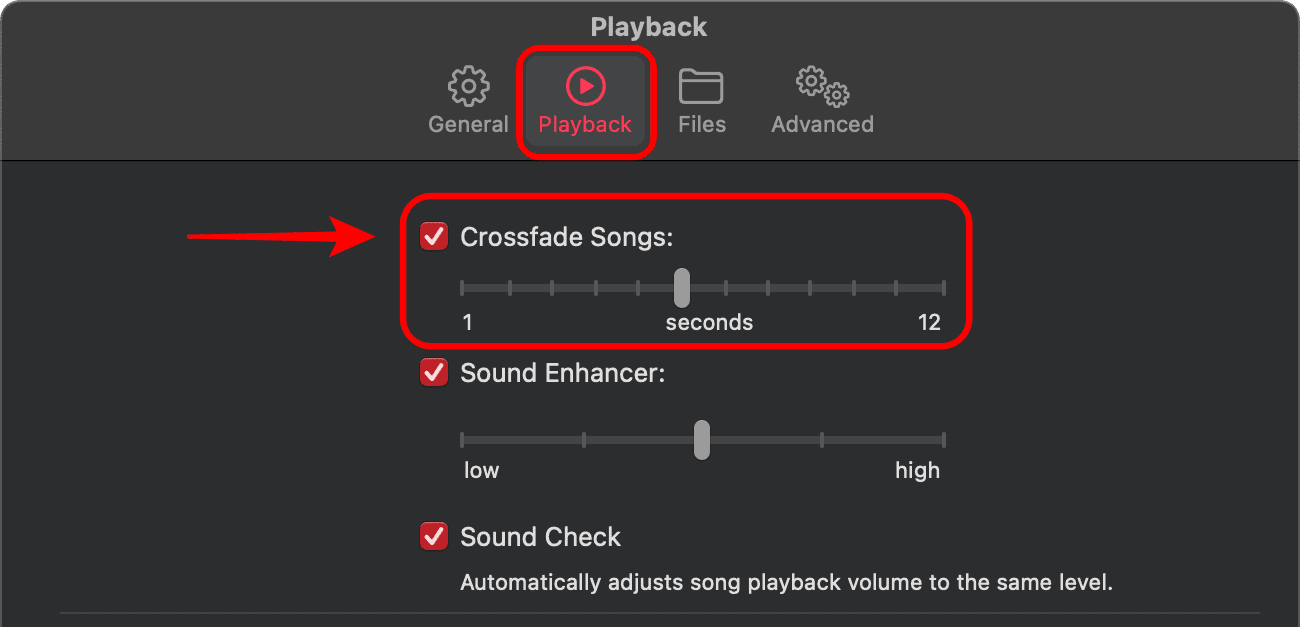
- Check Crossfade Songs
- Set the fade time using the slider


Mac allows the cleanest transitions, especially with playlists and albums you own.
Enable Crossfade on Windows
Windows still uses iTunes for Apple Music playback.
Turn on Crossfade in iTunes on Windows
This option affects all music played through iTunes.
- Open iTunes
- Click Edit in the menu bar
- Select Preferences
- Open the Playback tab
- Check Crossfade Songs
- Choose the fade length in seconds
Older systems may limit the maximum fade duration.
Tips for Better Fade Results
- Keep fade time between 4 and 8 seconds for most playlists
- Disable Crossfade for classical or concept albums
- Expect Crossfade to turn off during gapless playback
- Live tracks may sound odd with long fades
- Crossfade does not work with Dolby Atmos tracks on some devices
FAQs
Does Apple Music Crossfade work offline?
It works on Mac and Windows with local files. On iPhone, streaming works best.
Why does Crossfade turn off sometimes?
Gapless albums, Atmos tracks, and certain formats override it.
Can you use Crossfade with lossless audio?
Yes, but some transitions may ignore fade to preserve audio accuracy.
Is Crossfade available on all plans?
Yes. Apple includes it with every Apple Music subscription.
Summary
- Crossfade blends songs smoothly by overlapping tracks
- iPhone and iPad use system Music settings
- Android controls Crossfade inside the app
- Mac uses Music app playback preferences
- Windows relies on iTunes playback settings
Conclusion
You control how Apple Music handles song transitions by adjusting the fade setting on your device. Once you turn it on and fine tune the timing, playlists feel smoother and more natural. Pick a fade length that fits your listening style, and change it when your music mood shifts.


Discussion