

Adding music to your Apple Music library is how you turn a massive streaming catalog into something personal. It’s the difference between browsing endlessly and opening the app to music that actually feels like yours. Here’s the thing: once a song, album, or playlist is in your library, it syncs across devices, can be downloaded for offline listening, and becomes part of your long-term setup. Let’s break it down, step by step.
Table of contents
What “Add to Library” Actually Means

When you add music in Apple Music, you’re not downloading it yet. You’re saving it to your personal library so it’s easy to find later. Think of it as bookmarking music you care about. From there, you can stream it anytime or download it when you want offline access.
How to Add Music on iPhone, iPad, or Android
This is the most common setup, and it’s simple once you know where to tap.
Don’t miss the best of The Mac Observer
Set us as a preferred source and our Apple reporting ranks higher in your Google Search results and Discover feed — one tap, no account changes.
- Open the Apple Music app.
- Find a song, album, or playlist.
- Do one of the following:
- Tap Add at the top of an album or playlist.
- Tap the More button next to a song, then tap Add.
- Touch and hold any item, then tap Add to Library.
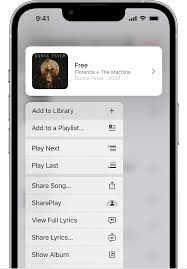

That’s it. The music now lives in your library and syncs to your other devices if Sync Library is turned on.
Tip: You can also say something like “Add this to my library” while a song is playing, and Siri will handle it.
How to Add Music on Mac or PC

If you’re using Apple Music on a computer, the idea is the same, just with a mouse instead of taps.
- Open the Apple Music app.
- Find the music you want.
- Hover over a song and click Add, or click Add at the top of an album or playlist.
Once added, it appears in your library and stays there across devices.
Adding Classical Music from Apple Music Classical

Classical listeners get a dedicated app, but the library still connects back to Apple Music.
- Open the Apple Music Classical app.
- Find a track, album, or playlist.
- Tap Add or Add to Library.
When you add a single track, Apple Music also adds the full album to your library. That’s intentional, and honestly, it makes sense for classical works.
Making Sure Your Library Syncs Everywhere
If you add music on one device and don’t see it on another, Sync Library is usually the reason.
- On iPhone or iPad:
Go to Settings → Apps → Music → Sync Library and turn it on. - On Mac:
Open Music, go to Music → Settings → General, then enable Sync Library. - On Windows:
Open Apple Music, go to Settings → General, and turn on Sync Library.
Once this is on, anything you add shows up everywhere you’re signed in with the same Apple Account.
Adding Music Without an Apple Music Subscription
No subscription? You still have options.
- Buy songs or albums from the iTunes Store.
- Import music from CDs.
- Import audio files you already own on your computer.
All of that music can live alongside Apple Music tracks in the same library.
Managing and Removing Music Later
Adding music doesn’t lock you into anything.
- To remove something from your library, touch and hold it, then tap Delete from Library.
- If you only want to free up space, remove the download but keep the item in your library.
- You can also let Apple Music automatically remove older downloads if storage runs low.
The Bottom Line
Adding music to your Apple Music library is how you take control of the service. It’s fast, reversible, and works the same across phones, tablets, and computers. Once you get used to adding what you like instead of searching for it every time, Apple Music starts to feel a lot less like a feed and a lot more like your own collection.


Discussion