

Downloading an album from Apple Music sounds simple, and on the surface, it is. But there’s a gap between what Apple lets you do inside the app and what most people actually want, which is reliable offline access and some sense of control. Let’s break it down so you know exactly what your options are and where the limits sit.
Table of contents
How Album Downloads Work Inside Apple Music
Here’s the straightforward part. If you’re subscribed to Apple Music, you can download albums for offline listening on iPhone, iPad, Android, Mac, and PC.
On mobile:
Don’t miss the best of The Mac Observer
Set us as a preferred source and our Apple reporting ranks higher in your Google Search results and Discover feed — one tap, no account changes.
- Open the Apple Music app, find the album, tap Add to Library
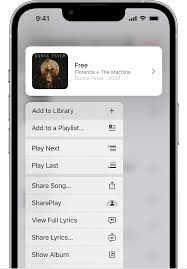
- Then tap the Download button at the top of the album page.

That’s it. The full album saves to your device and plays without an internet connection.
On Mac or PC:
- Open the Apple Music app, add the album to your library.
- Then click the Download button.
The files are stored locally, but they stay locked inside Apple Music.
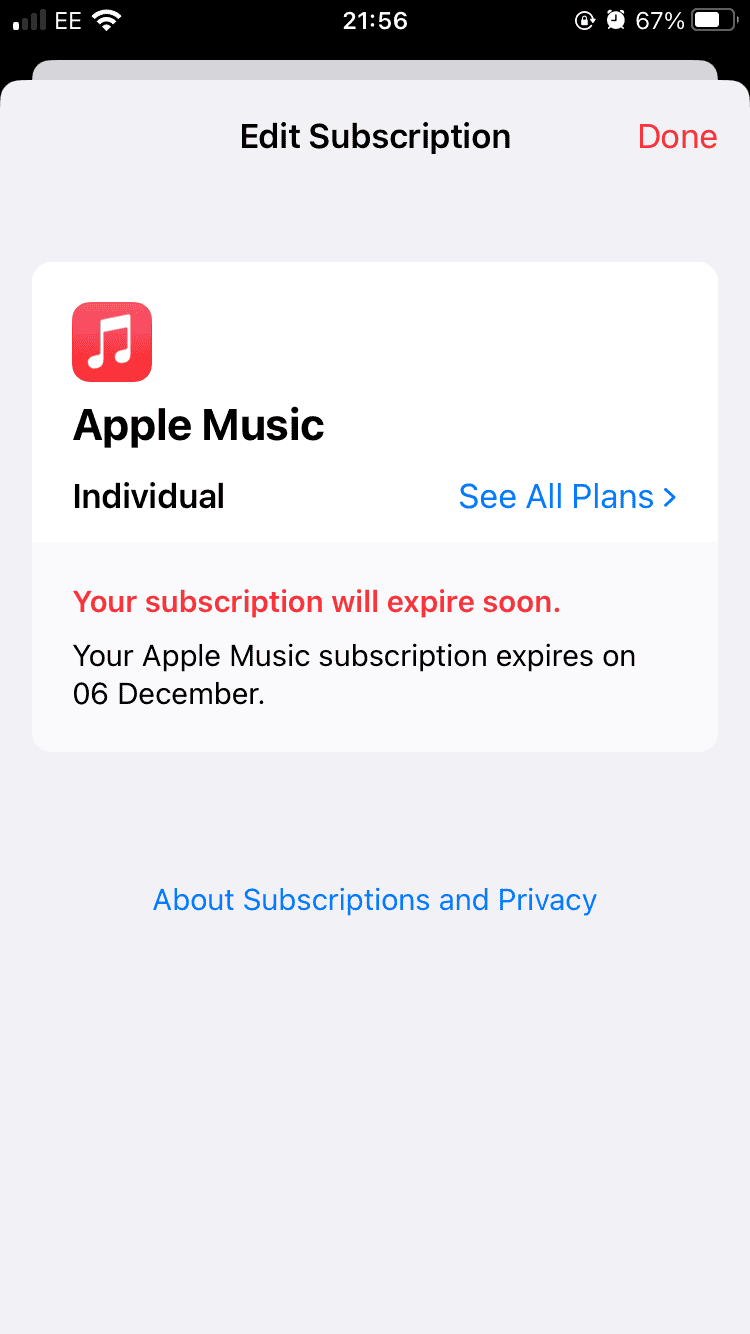
Here’s the thing though. These downloads aren’t ownership. They’re temporary. If your subscription ends, the album stops playing. You can’t move the files, copy them to another device, or load them into a car stereo or DJ software. Apple controls the gate.
What Apple Music Downloads Can’t Do
This is where expectations often break. Apple Music albums are DRM protected. That means:
- You can only play them in the Apple Music app
- They disappear when your subscription ends
- You can’t convert or transfer them freely
- They don’t work on standard MP3 players

If your goal is casual offline listening on your phone, Apple’s built-in download works fine. If your goal is long-term access, backups, or cross-device use, it falls short.
Downloading Albums to Keep Them Permanently
If you want an album as a standard MP3 that you actually control, you need a third-party tool. Desktop converters like Sidify Apple Music Converter let you download full albums from your Apple Music library and save them as MP3, AAC, or FLAC with track names, artwork, and album order intact.
Image Source: Sidify
The process is simple. Open the converter, add the album from Apple Music, choose MP3 as the output, and convert. Once done, the album lives on your computer like any other music file. Subscription or not, it keeps playing.

Image Source: Apple
If you don’t want to install software, web tools like AAPLmusicdownloader let you paste an album link and download tracks directly from your browser. It’s faster, lighter, and works well for one-off albums.
Which Option Should You Use
If you just want offline listening on your phone, use Apple Music’s download button. It’s easy and built in.
If you want albums you can keep, move, or play anywhere, use a converter. Apple doesn’t offer that path, so this is the only practical workaround.
Once you understand the difference, choosing the right method gets a lot easier.


Record it with analog equipment!
ALL music is analog. You can only play an analog signal even on a 100% digital device.
You can tape, write to CD, DSD or convert any signal to digital storage. Get a digital recorder– they are cheap!