

If you’ve built up a big Apple Music library, playing it straight through can feel stale fast. Shuffling all your songs is the quickest way to surface forgotten tracks, break habits, and let your library surprise you again. Here’s the thing: Apple Music can shuffle everything you own, but the steps aren’t always obvious depending on the device you’re using. Let’s break it down.
Table of contents
Shuffle All Songs on iPhone or Android
This is the most common scenario, and also the one people get wrong most often.
- Open Apple Music and tap Library.
- Go to Songs. This view matters. If you’re inside an album or playlist, you’re only shuffling that section.
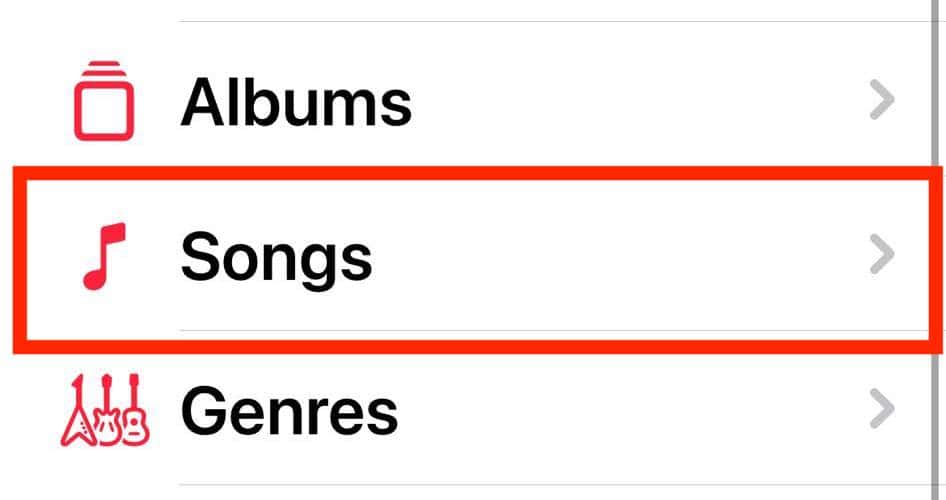
- At the top of the Songs list, tap Shuffle. That’s it. Apple Music immediately starts playing every song in your library in random order.
- If a song is already playing, tap the mini player, open Up Next, and tap the Shuffle icon. Make sure it’s highlighted. If it isn’t, shuffle is off.
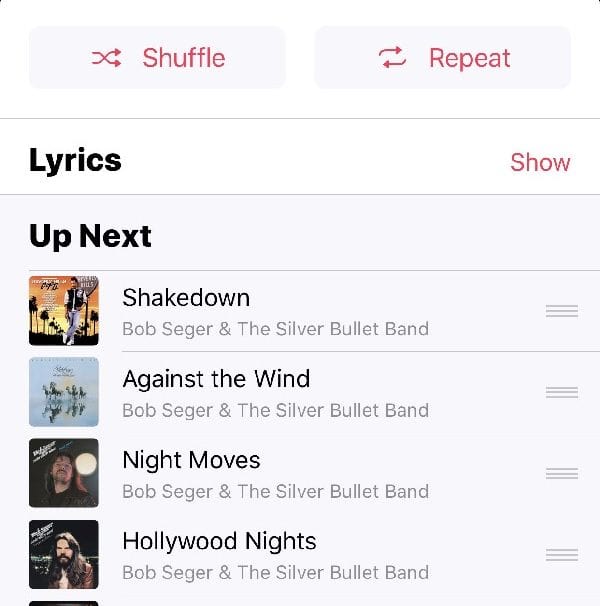


One important catch: if AutoPlay is enabled, shuffle and repeat controls are disabled. Turn AutoPlay off first, then try again.
Don’t miss the best of The Mac Observer
Set us as a preferred source and our Apple reporting ranks higher in your Google Search results and Discover feed — one tap, no account changes.
Shuffle All Songs on Mac
On a Mac, Apple Music gives you a little more control.
- Open the Music app and click Songs in the sidebar. Start playing any track. Shuffle won’t activate unless music is already playing.
- Now click the Shuffle button in the playback controls. When it changes color, shuffle is on. From that point forward, Apple Music pulls randomly from your entire Songs list.
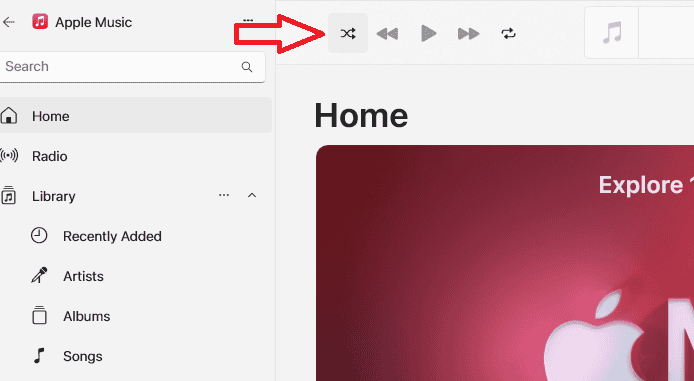

You can also use the menu bar. Go to Controls > Shuffle to toggle it on or off. Same result, different route.
Shuffle All Songs on Windows

Windows works almost the same way as macOS.
- Open the Apple Music app or iTunes. Go to Songs in your library and play any track.
- Click the Shuffle icon in the playback controls. When it’s highlighted, you’re shuffling every song you have.
- You can also use Controls > Shuffle from the top menu if you prefer menus over buttons.
Quick Tips That Actually Help
If shuffle feels repetitive, it’s usually not broken. Smaller libraries repeat more often. Bigger libraries feel more random.
If shuffle won’t turn on, restart the app first. That alone fixes most issues.
Voice fans can say “Shuffle all my songs” to Siri on Apple devices. It works, and it’s faster than tapping around.
The Bottom Line
Shuffling all songs in Apple Music only works if you start from the Songs view. Albums and playlists limit what shuffle can touch. Once you know that rule, the feature behaves exactly how you’d expect.
Your library already has the variety. Shuffle just unlocks it.


Discussion