

Apple Music not loading is one of those problems that feels bigger than it is. You tap a song, the spinner spins, and nothing happens. No error. No explanation. Just silence. Here’s the thing. Most Apple Music loading issues come down to a short list of causes, and you can usually fix them in minutes if you know where to look.
Table of contents
Force Quit Apple Music and Reopen It
If Apple Music is stuck loading, don’t assume it’s broken. Apps hang sometimes.
- On iPhone, swipe up from the middle of the screen, pause, then flick Apple Music off the screen.

- On Android, go to Settings, Apps, Apple Music, then Force Stop.
- On Mac, right click the Music icon in the Dock and choose Quit. If it refuses, open Activity Monitor and force quit it there.

Open the app again and try loading the same song. This alone fixes a surprising number of issues.
Don’t miss the best of The Mac Observer
Set us as a preferred source and our Apple reporting ranks higher in your Google Search results and Discover feed — one tap, no account changes.
Restart Your Device
Yes, it sounds basic. It works anyway.
A restart clears stuck background processes, refreshes network connections, and resets anything quietly misbehaving. If Apple Music won’t load tracks, albums, or playlists, reboot before digging deeper. It’s often the difference between frustration and five seconds of relief.
Check Your Internet Connection
Apple Music depends on a stable connection, even for downloads you already started.

Open a browser and load a few sites. If pages stall or partially load, that’s your problem. Toggle Wi-Fi off and back on. If that fails, restart your router. If you’re on mobile data, make sure Apple Music is allowed to use it in system settings.
Slow or unstable internet often looks like an Apple Music problem when it isn’t.
Make Sure Apple Music Isn’t Down
Sometimes the issue isn’t you.
Check Apple’s System Status page and look for Apple Music. Green means it’s up. Red or yellow means waiting is the only real fix. Server outages are rare, but they happen, and no amount of troubleshooting will fix them.
Update the Apple Music App
Outdated apps cause loading bugs more often than people realize.
- On iPhone, open the App Store, tap your profile, and update Apple Music if it’s listed.

- On Android, do the same through the Play Store.
- On Mac, check the App Store Updates tab.
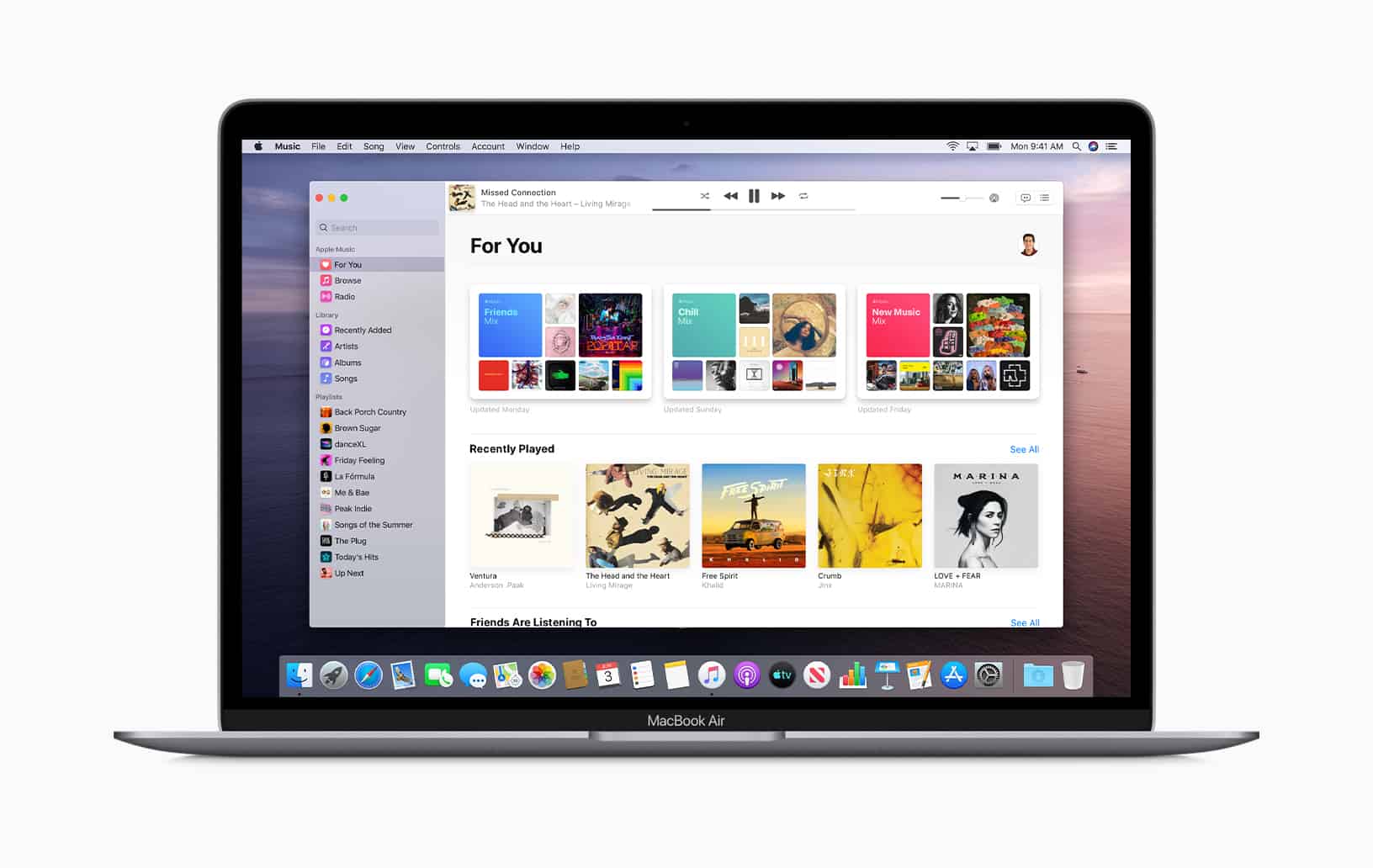


Bug fixes and performance patches often target loading and playback issues directly.
Update Your Device Software
If the app is current but Apple Music still won’t load, check your system software.
iOS, Android, and macOS updates quietly fix audio services, networking bugs, and background sync issues. Skipping them makes problems more likely, not less.
Check Your Subscription Status
It’s easy to forget a renewal.
If your subscription expired, Apple Music may open but refuse to load content. Check your subscription status in your Apple account settings and make sure everything is active.
Remove and Re-Add the Problem Music
If one album or playlist refuses to load, remove it and add it again. Corrupt downloads happen. Re-adding forces Apple Music to fetch a clean copy.
When Nothing Works
If Apple Music still isn’t loading after all this, contact Apple Support. At that point, you’ve ruled out the common causes and saved yourself hours of guesswork.
Most of the time, though, you won’t need to. Apple Music loading issues are usually boring problems with simple fixes. Once you know the pattern, they stop being a mystery.




Nothing I do works to get the Apple Music app running. I can’t find this app anywhere on Apple Store. I have restored by operating system and used Apple Time Machine too to restore my Desktop files. Don’t help.