

Scanning a U.S. passport into Apple Wallet sometimes fails even when everything looks correct. This guide shows you how to fix repeated scan failures and what to do if the feature still doesn’t work on your iPhone.
Table of contents
Why passport scan can fail in Apple Wallet
The Digital ID feature in Apple Wallet requires scanning your physical U.S. passport using your iPhone’s camera and NFC reader. When the scan fails, device compatibility, region settings, or problems reading the passport chip are usually responsible.
Users in multiple Apple Discussion threads reported scan failures even on supported devices, especially during the NFC chip-reading step.
Don’t miss the best of The Mac Observer
Set us as a preferred source and our Apple reporting ranks higher in your Google Search results and Discover feed — one tap, no account changes.
What to check before trying again
Check these requirements first to avoid repeated failures.
Device compatibility and software version
You need an iPhone 11 or newer running iOS 26.1 or later. Older hardware or outdated software prevents successful scanning. If the passport option doesn’t appear in Wallet, confirm your device meets Digital ID requirements and update iOS:
Time needed: 30 minutes
- Go to Settings > General > Software Update.
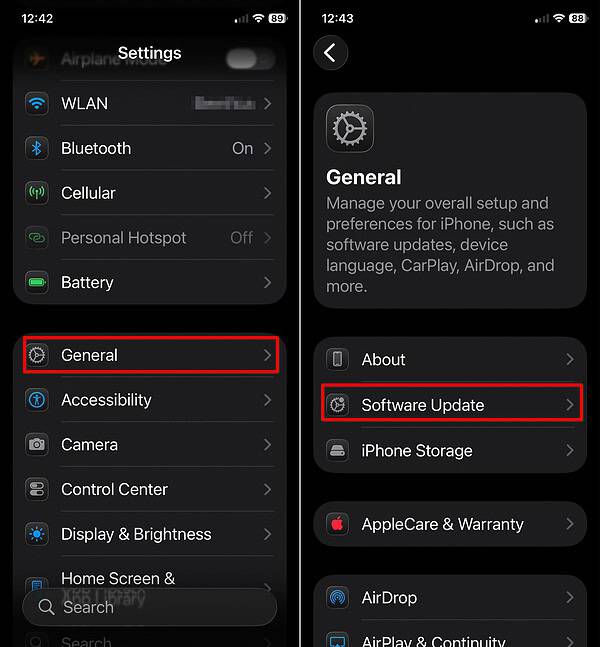
- If you see updates avaliable, install them and try adding the passport again after restarting.

Passport validity and chip condition
- Your physical passport must include a readable NFC chip. Look for the biometric-passport icon on the cover to confirm support.
- If the passport is worn, damaged, or older than the biometric rollout, it may fail during chip reading.
Security settings and iCloud/Apple ID config
- Enable Face ID or Touch ID, set a passcode, and make sure two-factor authentication is active for your Apple ID.
- Also verify your device region is set to United States. Passport scanning fails if the region is set elsewhere.
How to improve your chances if Apple Wallet can’t scan your passport

Follow these steps carefully. Many users in the Apple Discussion forums reported success only after applying this exact technique.
- Remove your phone case to avoid NFC interference.
- Lay the passport flat on a table and open it to the back page. Place the top edge of the iPhone on the center of the passport’s back page.
- Tilt the top of the iPhone upward about 30 degrees to align the NFC reader with the passport chip, then hold still.
- Use good lighting for the camera portion of the scan. Avoid glare or shadows.
- Disable any active VPN. Network filtering causes connection and verification failures for some users.
When it still fails
If the scan still fails, try these fallback steps.
- Try scanning with another iPhone, ideally a different model. Several users succeeded only after switching devices.
- Restart the iPhone and retry with the case removed.
- Submit feedback to Apple so they can diagnose issues with specific passport batches or chip placements.
Apple Wallet not scanning U.S. passport: tips to remember
- A pre-biometric passport cannot be added to Wallet.
- Use iPhone 11 or later with the most recent iOS update.
- Keep the passport flat and hold the iPhone’s top edge firmly against the back page.
- Turn off VPNs when scanning and verifying your digital passport.
- Try another device if all else fails.
If the feature fails consistently even on supported hardware, wait for an iOS update or try adding the passport again later. Apple may refine the scanning process in upcoming releases.
U.S. passport scan failing in Apple Wallet: FAQ
No. Apple Wallet’s Digital ID does not replace your physical passport for international travel.
Scanning requires your device region set to United States. It does not depend on your physical location.
The chip placement varies slightly between batches. Some devices read it more easily than others.
Summary
- Confirm your iPhone model and software meet Digital ID requirements.
- Use the correct scanning posture: passport flat, iPhone tilted 30 degrees during NFC read.
- Disable VPNs and ensure all security settings are active.
- Retry using another compatible iPhone if your device has repeated failures.
- Report persistent problems to Apple so they can address system-level issues.
Most passport scan failures in Apple Wallet come down to technique or device compatibility. Once those are corrected, the passport usually scans successfully. If not, another device or future software updates may resolve the issue.


Discussion