

If your iPhone stopped sending or receiving messages after updating to iOS 26, a lot of users have been running into the same problem: messages stuck on “Not Delivered,” group chats freezing, or texts never arriving at all. The good news is that the issue usually isn’t serious. It’s often a small network glitch, a setting that got reset during the update, or a temporary software bug.
Here’s how to troubleshoot and get your messages flowing again.
Table of contents
How to Fix Messages on iOS 26
1. Start With the Basics
Before diving deep into settings, try the simplest fix: tap the red exclamation mark next to your failed message and choose Try Again. Sometimes, that’s all it takes.
Don’t miss the best of The Mac Observer
Set us as a preferred source and our Apple reporting ranks higher in your Google Search results and Discover feed — one tap, no account changes.
If it doesn’t work, check your signal. Poor service or unstable Wi-Fi can stop both iMessages and SMS from sending.
Look at the signal bars in the top-right corner of your screen. If you see No Service, SOS, or Searching, your phone isn’t connected to a network. Move to an area with better reception, or toggle Airplane Mode on and off to reset your connection.
2. Turn Off Airplane Mode
Airplane Mode cuts off all cellular signals, and unless you’re connected to Wi-Fi, your messages won’t go anywhere.
- Swipe down from the top-right corner of your screen to open Control Center.
- If the airplane icon is orange, tap it to disable the mode.
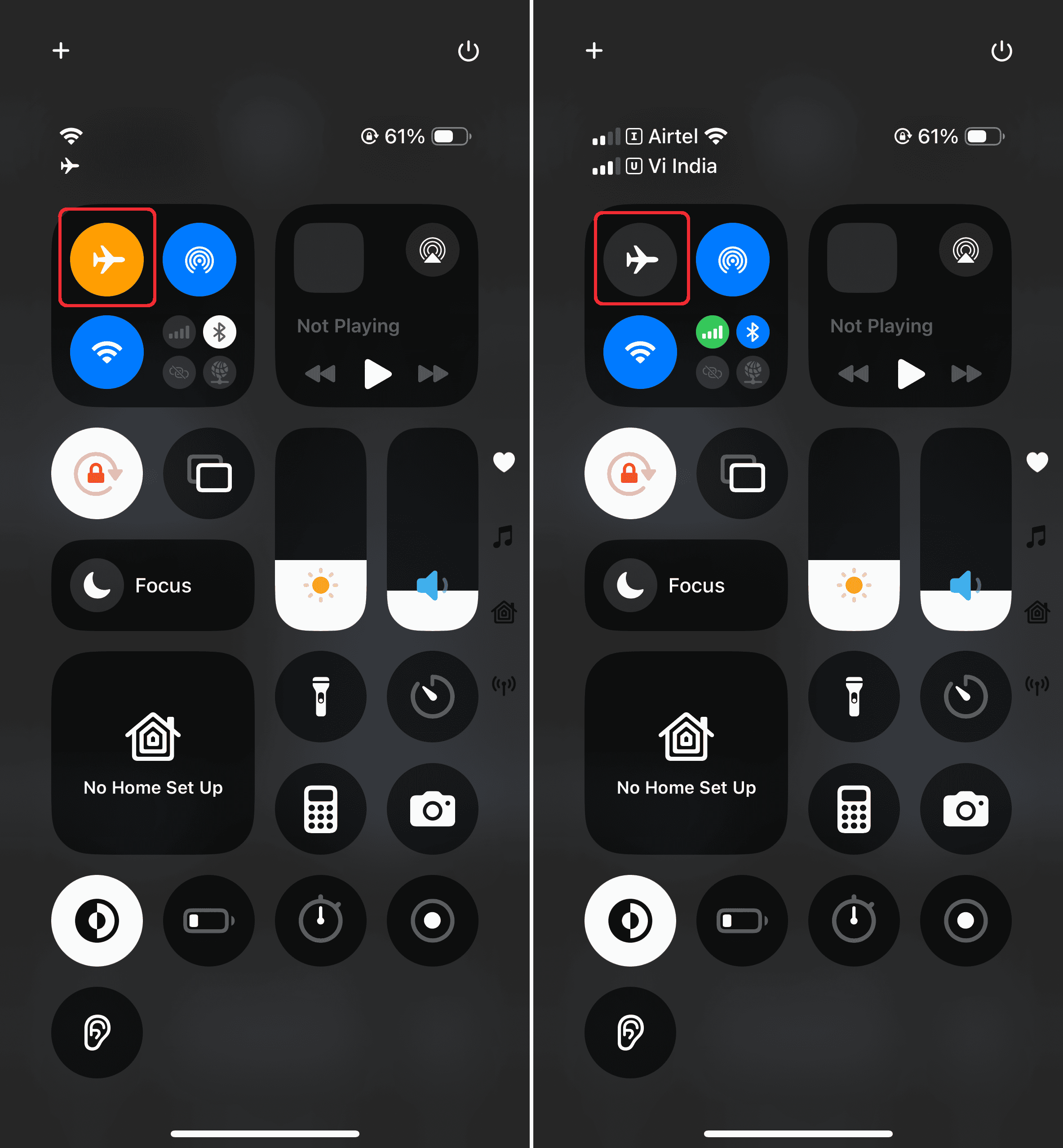

Fun fact: toggling Airplane Mode off and back on again can also help reset your network connection.
3. Check Message Settings
- Open Settings > Apps > Messages.
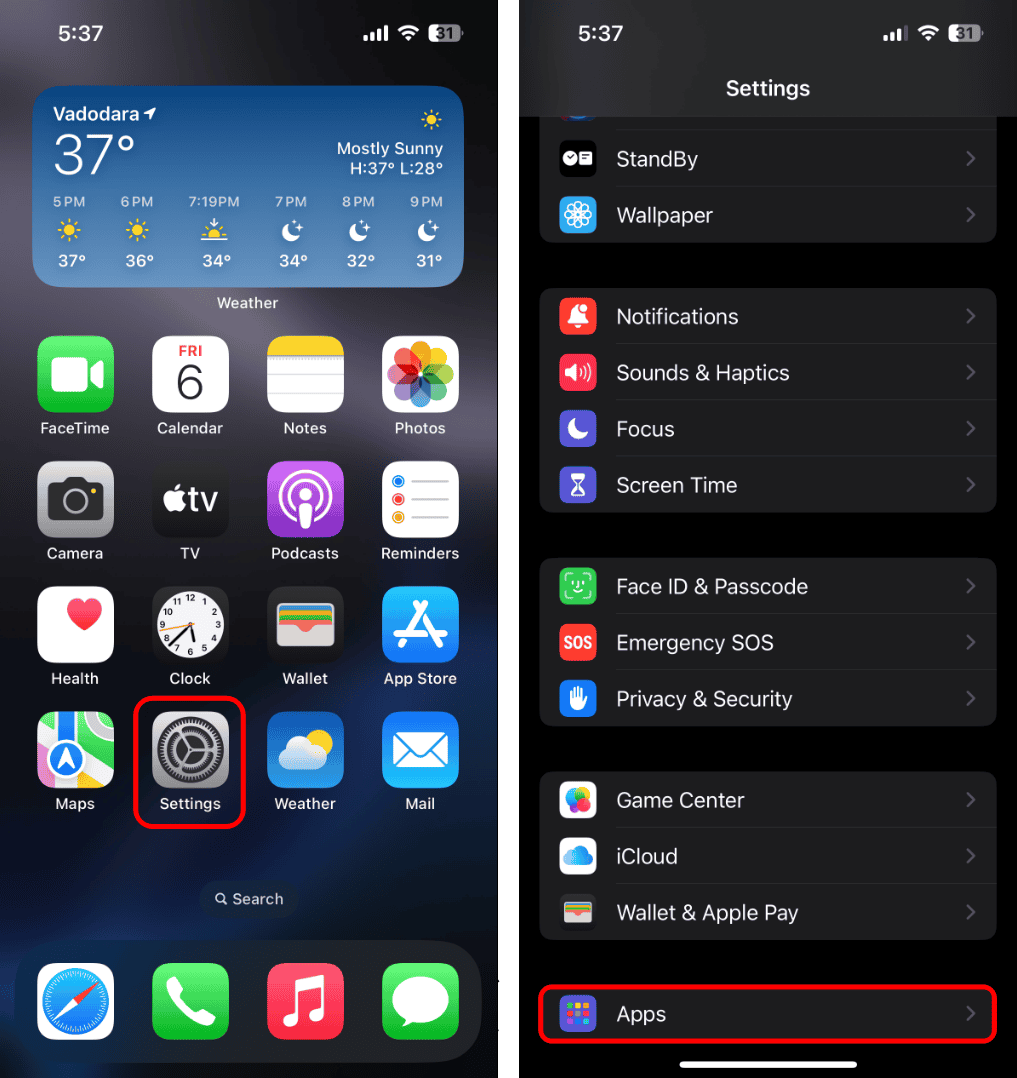
- Make sure these switches are turned on (green):
- iMessage – needed for sending blue-bubble messages between Apple devices.
- Send as SMS – lets your iPhone fall back to standard text messages if iMessage fails.
- MMS Messaging – required for sending or receiving pictures or group messages.

Sometimes, an iOS update turns one of these off, so double-check before moving on.
4. Make Sure You Have a Working Mobile Plan
If your mobile plan expired or you’ve hit your limit on text messages, nothing will send — no matter what you try. Contact your carrier to confirm your plan is active and your account is in good standing.
5. Double-Check the Phone Number
It sounds obvious, but if you’re messaging an old or inactive number, your texts won’t go through. Confirm that the number is still correct and active. If the recipient recently changed phones or carriers, your messages might be getting lost.
6. Restart the Messages App
Sometimes, Messages just needs a reset. Swipe up from the bottom of the screen and pause halfway to open the app switcher. Find Messages and swipe it up to close. Wait a few seconds, then reopen it and try sending a message again.
7. Restart Your iPhone
If the problem continues, restart your device. This clears temporary memory and resets background processes that might be causing the issue.
Press and hold the Side button and one Volume button until the power slider appears. Slide it off, wait ten seconds, then power the phone back on.
8. Update iOS
Sometimes, the fix for your issue is already waiting in the next patch. Apple regularly pushes small updates to address bugs like this.
- Go to Settings > General > Software Update and check if a newer iOS 26 version is available.
- If you see Update Now, tap it.
- Connect to Wi-Fi and plug in your iPhone while it installs.
9. Reset Network Settings
If messages still won’t send or arrive, your network configuration might be corrupted. Resetting it can help.
- Go to Settings > General > Transfer or Reset iPhone > Reset > Reset Network Settings.
- This will delete saved Wi-Fi networks, Bluetooth pairings, and VPNs — but it often clears up stubborn connection problems.
Afterward, reconnect to Wi-Fi and test messaging again.
10. Contact Apple or Your Carrier
If none of these steps fix it, it might be an issue with your SIM card, carrier service, or hardware. Start by calling your carrier’s support line to check for outages or account issues.
If everything checks out on their end, contact Apple Support or book a Genius Bar appointment. They can run diagnostics to see if it’s a deeper system issue.


Discussion