
If you’ve moved to another country or want access to different apps and content, you can easily change your country on your iPhone’s Apple ID account.
That being said, there are still some important pre-requisites that need consideration, especially if you have subscriptions.
How to Change Your Country on Your iPhone’s Apple ID Account
Changing your Apple ID country updates your App Store, payment methods, and available content. Here’s how to change the country on your Apple ID from your iPhone on iOS 26.
Don’t miss the best of The Mac Observer
Set us as a preferred source and our Apple reporting ranks higher in your Google Search results and Discover feed — one tap, no account changes.
- Settings: Go to Settings on your iPhone. Then, tap your Apple ID name at the top of the scre
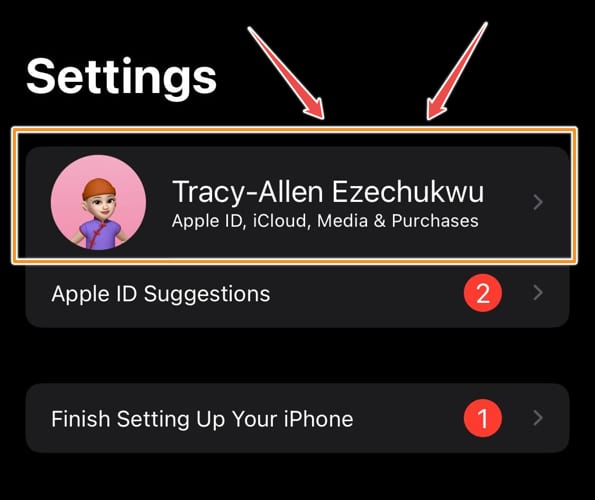
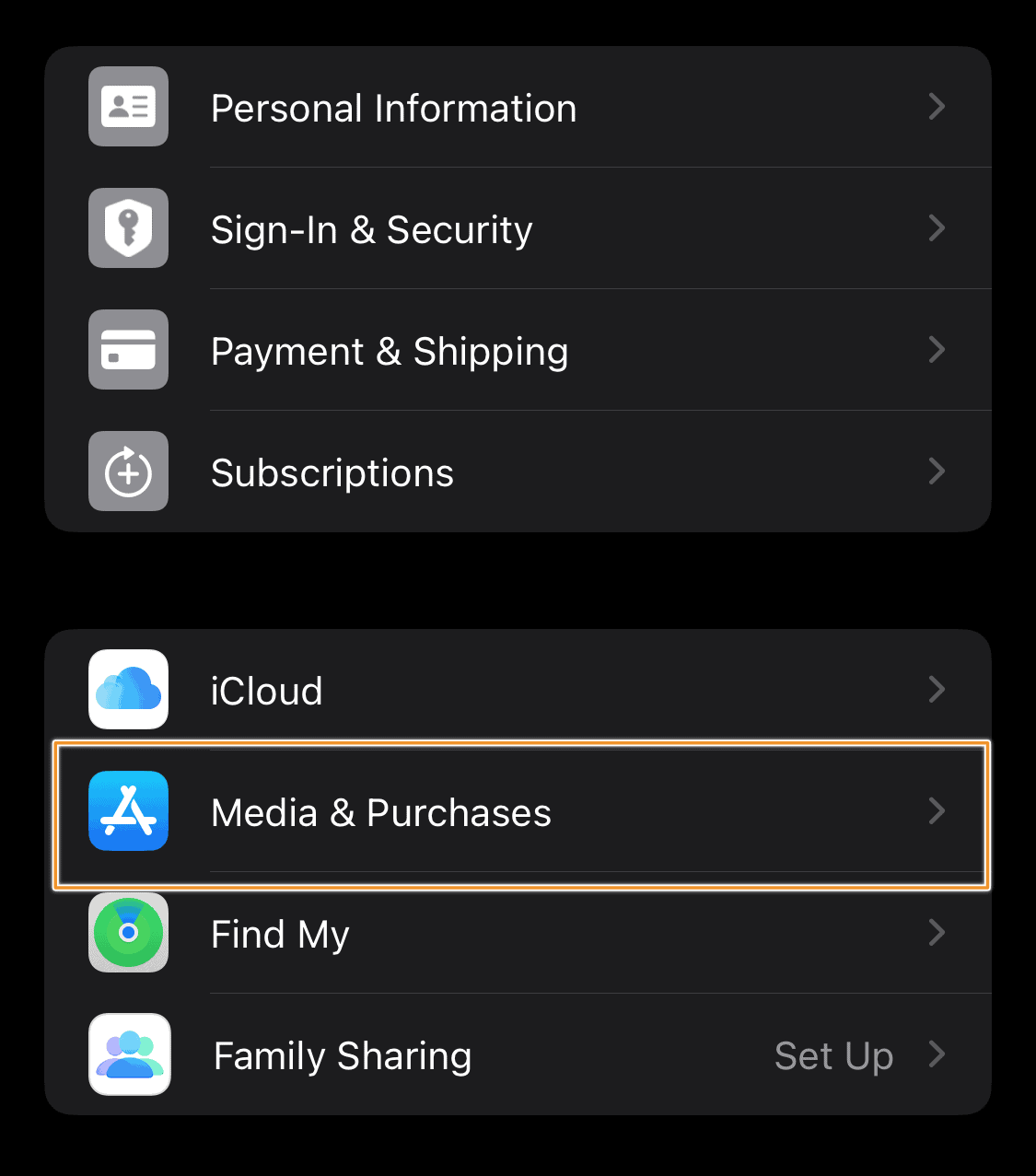
- Media & Purchases: Tap Media & Purchases. Then, choose View Account when the pop-up appears. You may need to sign in with your Apple ID password or Face ID.
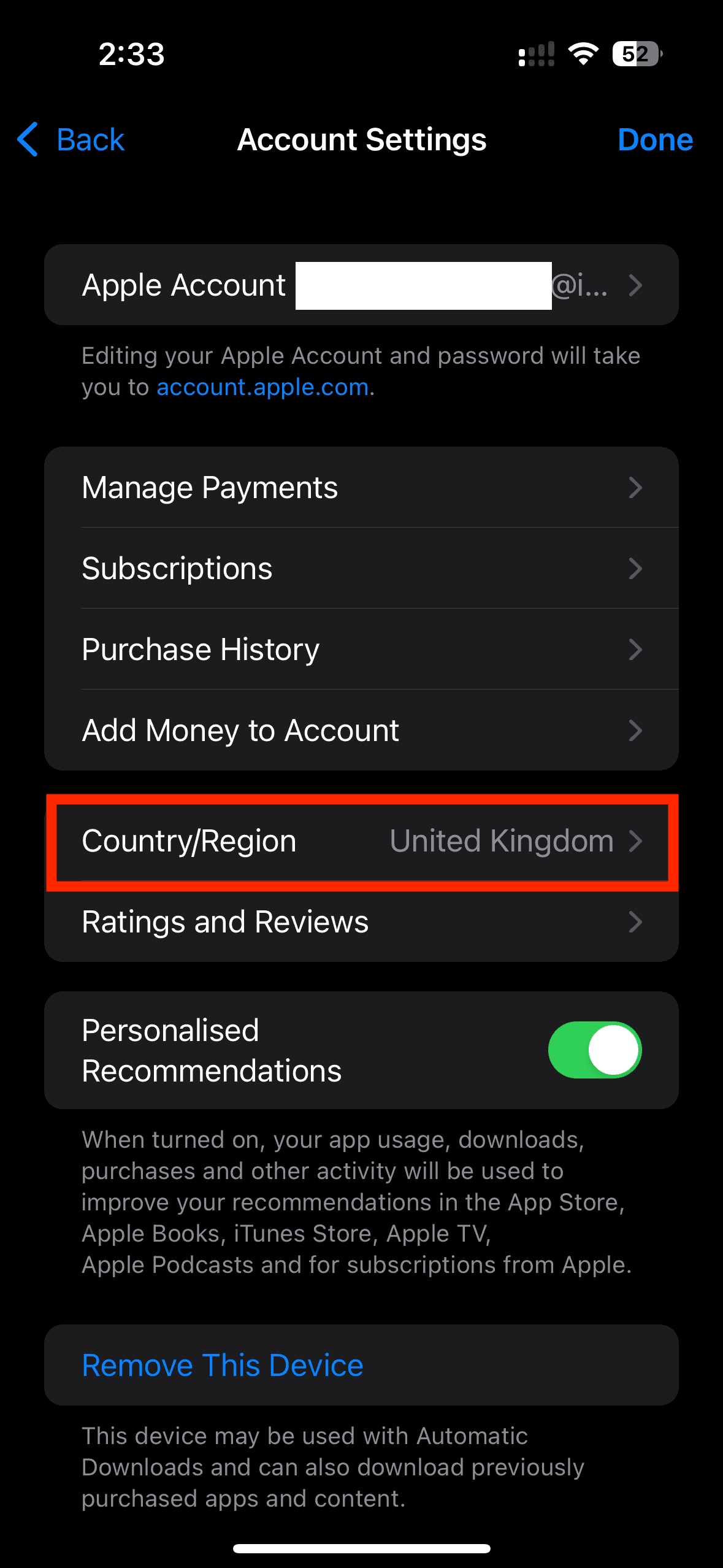
- Country/Region Settings: Tap Country/Region. Then change Country/Region.
- Choose Your New Country: Scroll through the list and select your new country or region. Review the terms and conditions, then tap Agree.
- Update Payment and Billing Information. Choose a valid payment method for your new country (credit card, PayPal, or None). Enter your new billing address and tap Next.
Your Apple ID account will now be updated to your new country or region.
Note: You must spend any remaining Apple ID balance and cancel active subscriptions before you can change your country.
What you need to do before changing your country or region
This is a very important step. Before you do anything regarding updating your location, it’s important to cancel your subscription, and immediately set up a different payment method. Otherwise, you may lose your subscription, or any credit you might have had on your account. Be sure to:
- Transfer your remaining balance from your Apple ID or spend them.
- Cancel your subscription.
- If you have any reservations, movie subscriptions, or any other credit, make sure you wait for them to be complete.
- Ensure your payment method is valid for the new country you choose. Check the payment methods you can use.
Yes. Your Apple ID data stays safe, but content available only in your old region might disappear.
You can repeat the same steps to switch your Apple ID back to your previous country.
Yes, but you’ll still need a valid billing address for the region you choose.
Check that you don’t have active subscriptions, ongoing rentals, or store credit balance. These must be cleared first.




Discussion