

Some users notice that copy-paste stops responding shortly after installing macOS Tahoe. This can appear as text not copying, files not pasting, or clipboard actions taking longer than expected. The behavior is often linked to background activity, system changes introduced by the update, or apps that have not yet adapted to Tahoe. By using one of these steps, you can restore the clipboard quickly without requiring advanced tools.
Table of contents
- Why is this happening?
- Here’s how to fix the problem
- 1. Restart the Mac to refresh clipboard services
- 2. Close apps that may interfere with clipboard operations
- 3. Restart the system clipboard process (pboard)
- 4. Disable Universal Clipboard temporarily
- 5. Install available macOS and app updates
- 6. Check for memory pressure
- 7. Test copy and paste across different apps
- 8. Restart WindowServer to refresh UI processes
- 9. Remove accessories that create background load
- 10. Test in a new macOS user account
- Tips
- Conclusion
- FAQs
Why is this happening?
Copy-paste issues on macOS Tahoe usually occur when the clipboard service becomes stuck or overloaded during system changes. Tahoe can temporarily increase CPU and memory use, which affects responsiveness in ways similar to the early performance dips noted after updates, including the slowdowns explored in reports about freeze and lag issues on Tahoe.
Power load changes may also influence clipboard behavior, which often appears alongside the patterns mentioned in guides on battery drain in macOS Tahoe. External devices and background services can add more strain, especially when macOS tries to communicate with accessories such as drives or printers.
Don’t miss the best of The Mac Observer
Set us as a preferred source and our Apple reporting ranks higher in your Google Search results and Discover feed — one tap, no account changes.
Here’s how to fix the problem
1. Restart the Mac to refresh clipboard services
A restart clears temporary processes that interfere with copying and pasting.
- Save your work.
- Select Restart from the Apple menu.
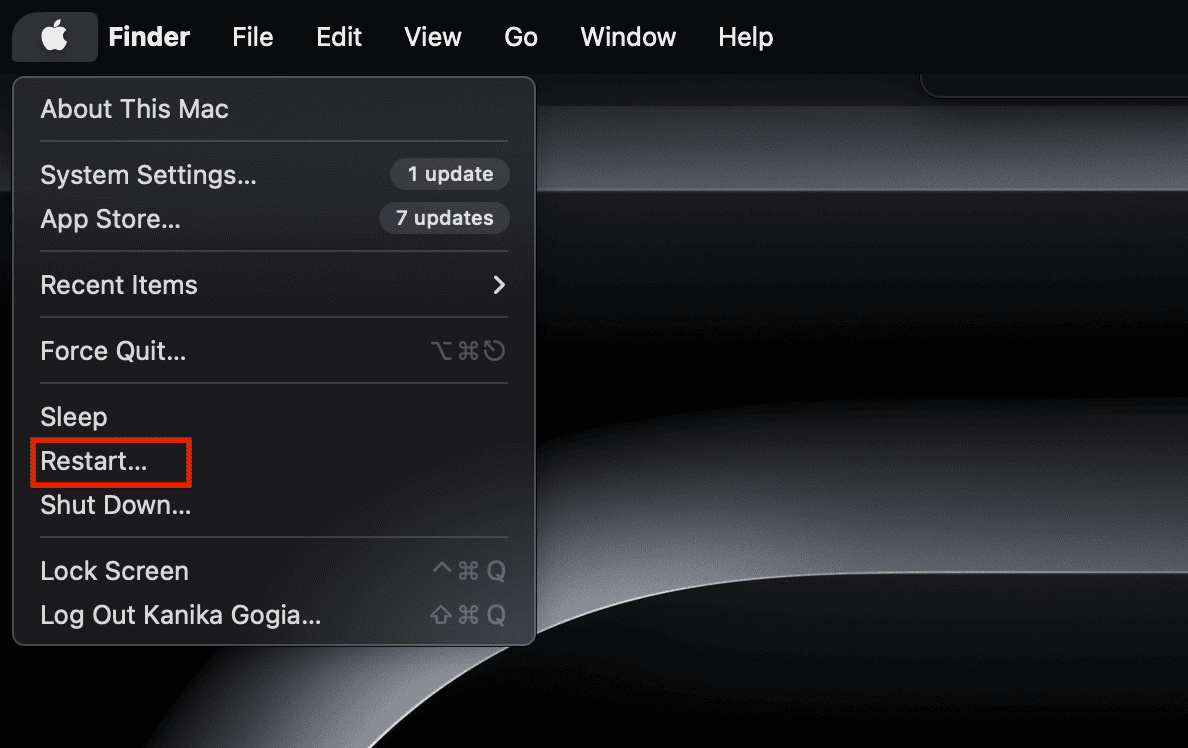
- Test copy-paste after the system stabilizes.

This often resolves issues caused by early post-update indexing and background load.
2. Close apps that may interfere with clipboard operations
Some apps use more CPU on Tahoe, leading to system slowdowns.
- Open Activity Monitor.
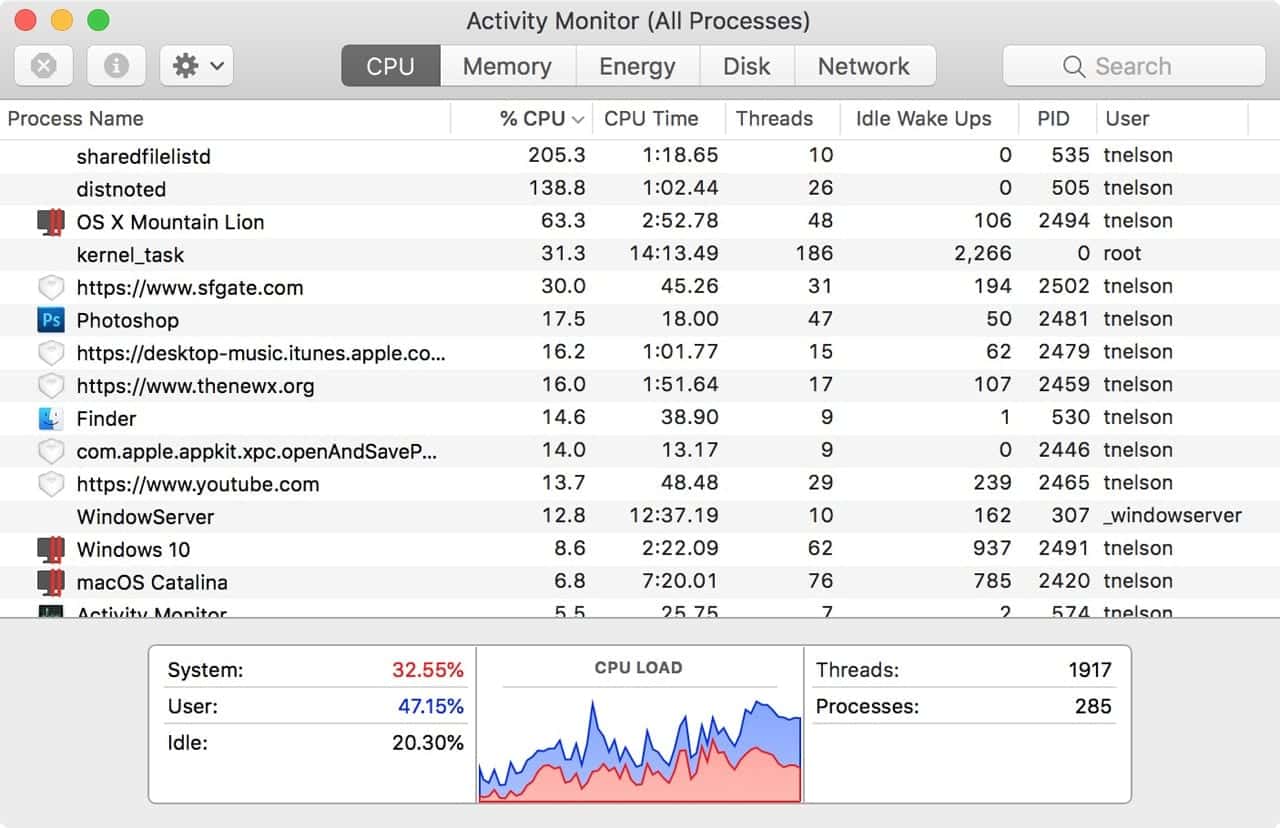
- Sort by CPU or Memory.
- Quit any app using excessive resources.

This is helpful when the system behaves similarly to the lag patterns described in early Tahoe performance reviews.
3. Restart the system clipboard process (pboard)
The clipboard relies on the pboard service, which can stop responding.
- Open Terminal.
- Run: killall pboard
- Try copying and pasting again.
This refresh is quick and does not require restarting the Mac.
4. Disable Universal Clipboard temporarily
Clipboard syncing between devices may fail when the system is under load.
- Go to Settings > General > AirDrop & Handoff.
- Turn off Handoff.
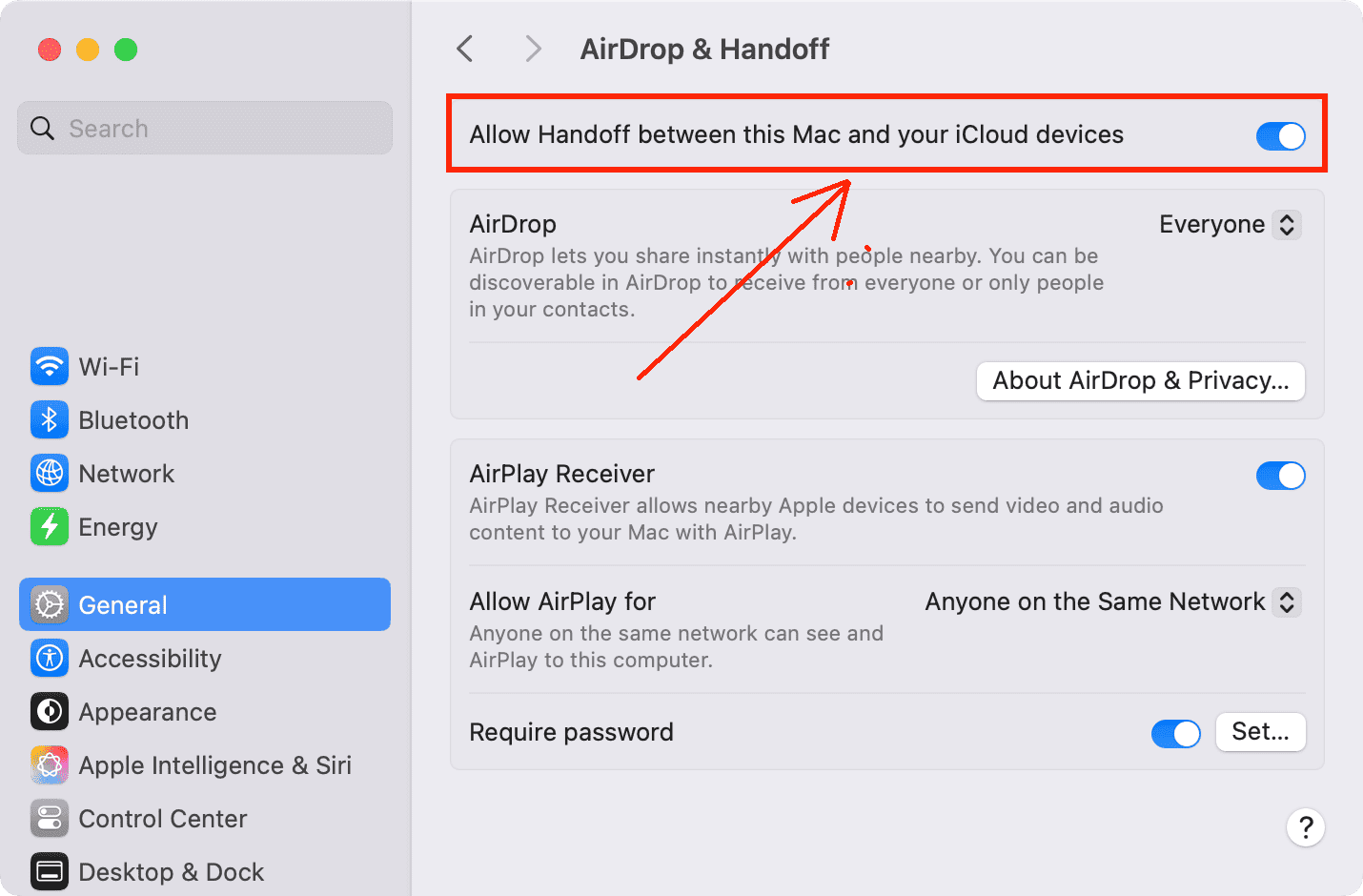
- Test copy-paste locally.

You can turn Handoff on again after confirming the issue.
5. Install available macOS and app updates
App compatibility improves gradually after a system update.
- Open Software Update.
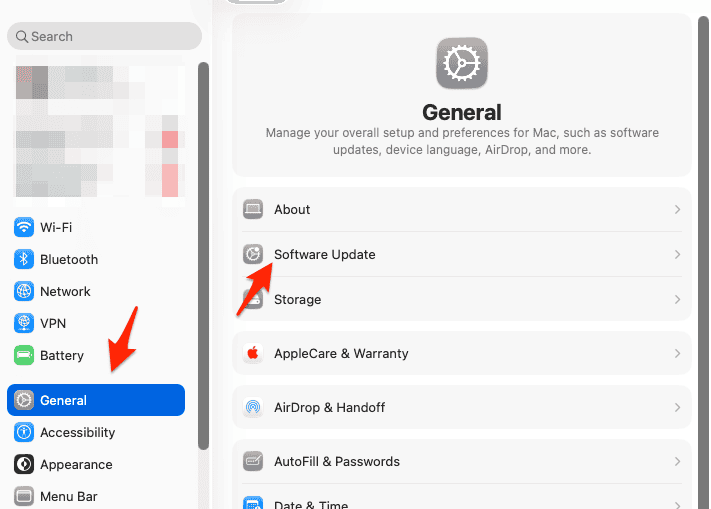
- Install updates.
- Update third-party apps through the App Store.

This helps resolve conflicts similar to the ones seen in early Tahoe feature rollouts.
6. Check for memory pressure
When memory is strained, clipboard actions may fail.
- Open Activity Monitor.
- Look at Memory Pressure.
- Close apps if the graph turns yellow or red.
Memory load often spikes while macOS reindexes files.
7. Test copy and paste across different apps
Some apps handle clipboard data differently.
- Copy text in Notes.
- Paste into Safari or Mail.
If it works in some apps but not others, the issue may be isolated to a single program.
8. Restart WindowServer to refresh UI processes
WindowServer controls how apps and text interactions display.
- Open Activity Monitor.
- Search for WindowServer.
- Restart it.
Your screen will briefly refresh, and copy-paste may begin working again.
9. Remove accessories that create background load
External devices can cause tasks that interfere with QuickLook and clipboard services.
- Disconnect drives, printers, hubs, or docks.
- Wait a moment.
- Try copying and pasting again.
This can help when the Mac is handling accessory issues similar to those noted in Tahoe-related hardware complaints.
10. Test in a new macOS user account
This helps determine whether the issue is system-wide or profile-specific.
- Go to Users & Groups.
- Create a new user.
- Test copy-paste there.
If it works, the problem might be due to settings or apps in your main account.
Tips
- Restart the Mac regularly to prevent clipboard stalls.
- Keep macOS updated during the first weeks after a major upgrade.
- Avoid using too many clipboard managers or extensions.
- Reduce browser tabs when copying from heavy web apps.
- Allow indexing to finish before running multiple tasks.
Conclusion
Copy-paste failures after upgrading to macOS Tahoe are usually caused by heavy system activity, clipboard services that stall during updates, or resource-intensive apps running in the background. By closing high usage apps, resetting clipboard services, applying updates, and removing accessory-related load, most users can restore normal copy-paste behavior.
Once the system completes its post-update tasks, the clipboard usually becomes stable again.
FAQs
Not all, but many users experience temporary clipboard issues during early system activity.
No, the issue is nearly always fixable with the steps above.
It can, especially when multiple Apple devices sync at once.
Sometimes, if macOS is struggling to communicate with the device.
Yes, for many users, the clipboard stabilizes once macOS finishes background tasks.




Discussion