

Some users report that Excel becomes extremely slow after updating their Mac to macOS Tahoe 26.0.1. The Apple Support thread shows that performance issues usually come from outdated Excel builds and incomplete updates. A few targeted steps can restore normal behavior on your Mac.
Table of Contents
Excel Running Slow on macOS Tahoe 26.0.1: Solutions
Update macOS to Version 26.1
The top reply in this Apple Support Forums thread explains that macOS 26.1 includes changes that improve Excel performance on affected devices running macOS 26.0.1. That’s just one of many issues reported with Microsoft Office in macOS Tahoe.
Time needed: 30 minutes
- Open System Settings on your Mac.
- Select General, then Software Update.
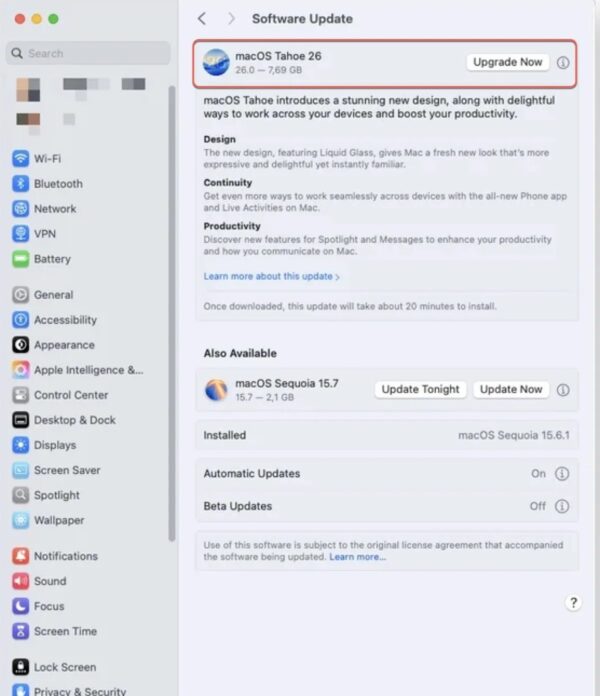
- Check for macOS 26.1.
- Install the update and restart your Mac.
- Open Excel and test performance again.

Update Excel Using the Mac App Store
The App Store sometimes delivers newer Excel builds that fix slow behavior on macOS Tahoe, though updates may appear later than on Microsoft’s site.
Don’t miss the best of The Mac Observer
Set us as a preferred source and our Apple reporting ranks higher in your Google Search results and Discover feed — one tap, no account changes.
- Open the App Store.
- Select Updates from the sidebar.
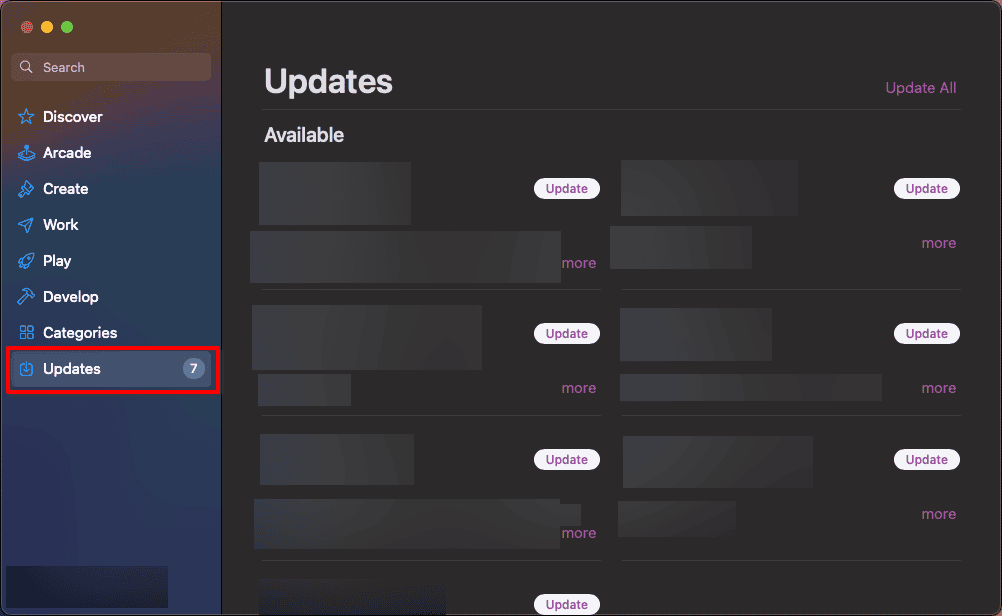
- Look for Excel or Microsoft Office updates.
- Install the newest version available.
- Relaunch Excel and check performance.

Download the Excel .pkg Installer Directly From Microsoft
One user reports that Excel runs smoothly after installing the newest .pkg version, which can appear earlier than the App Store update on macOS Tahoe.
- Download the newest Excel installer from Microsoft’s official site. You can find Microsoft Excel version 16.103.25110922 by clicking here.
- Open Finder and go to Applications.
- Remove the old Excel application bundle.
- Run the downloaded .pkg installer.
- Open Excel and test speed on your usual spreadsheets.
Contact Microsoft if the Issue Continues
If Excel remains slow after updating macOS and installing the latest build, you should escalate to Microsoft so they can review your system details.
- Gather screenshots or screen recordings showing the performance issue.
- Check your version number using Excel > About Excel in the menu bar.
- Visit the Microsoft Support website.
- Start a chat or request a call.
- Share your macOS version, Excel version, and a description of the slowdown.
Tips
- Restart your Mac after major updates to clear temporary caches.
- Keep Excel and macOS updated to reduce the chance of slow performance.
- Test a large spreadsheet after every update to confirm improvements.
- Use the .pkg installer when App Store updates appear delayed.
- Document version numbers before contacting support.
FAQ
The Apple Support thread suggests that Excel builds released before macOS 26.1 may not perform correctly on Tahoe 26.0.1.
Possibly. Some users report that removing the old app and installing the .pkg version resolves slow performance on macOS Tahoe.
It may help, but the direct .pkg installer often receives the newest Excel build sooner than the App Store.
Summary
- Update macOS to 26.1
- Update Excel via App Store
- Install the newest .pkg version
- Contact Microsoft if needed
Slow Excel performance on macOS Tahoe usually comes from outdated builds that do not match the updated system. Installing macOS 26.1 and updating Excel with the newest .pkg installer restores speed for most users. If performance remains slow, contacting Microsoft provides the next steps.



Discussion