
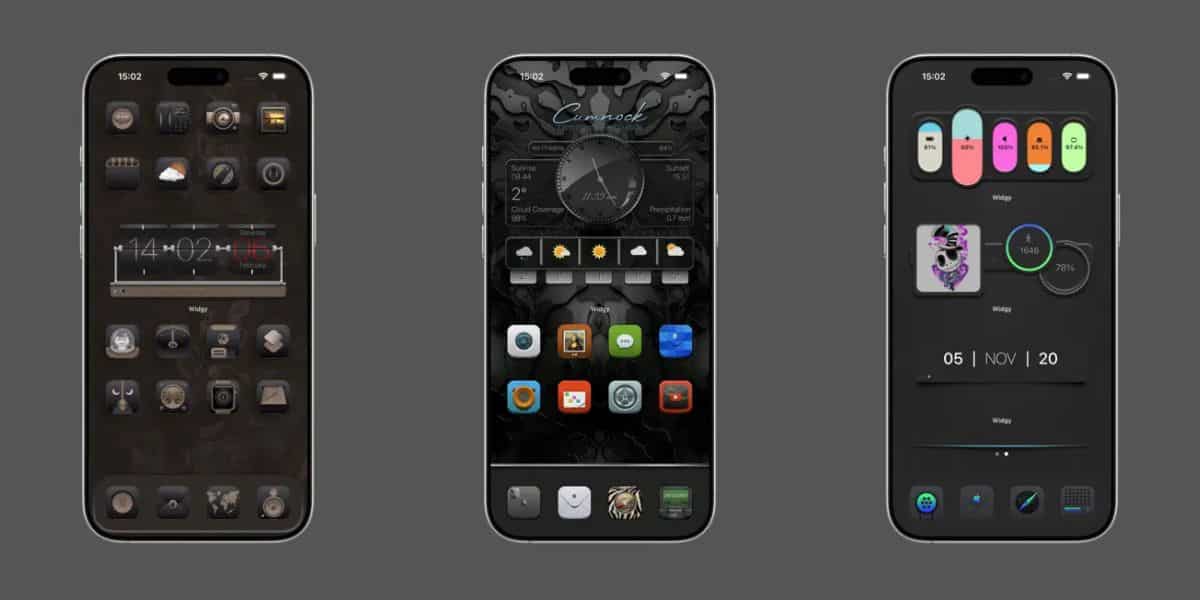
Apple’s iOS 26 introduced a visually stunning design language called Liquid Glass, which emphasizes translucent UI elements across the home screen. While this aesthetic upgrade enhances depth and layering, it has created a usability issue for Widgy users: widgets often appear washed out or unreadable due to excessive transparency. If you’re among the affected, here’s how to fix it so you can maximize the iPhone experience across iOS 26.
Table of contents
The Helper Widgy Fix: Step-by-Step
The Helper Widgy method works by generating a custom background image that neutralizes iOS 26’s transparency. You’ll create a separate widget with a solid background, export it as an image, and apply it to your main Widgy.
Part 1: Create the Helper Widgy
- Open Widgy and create a new widget with the same size and position as your target widget.
- Tap Add New Layer in the Layers tab.
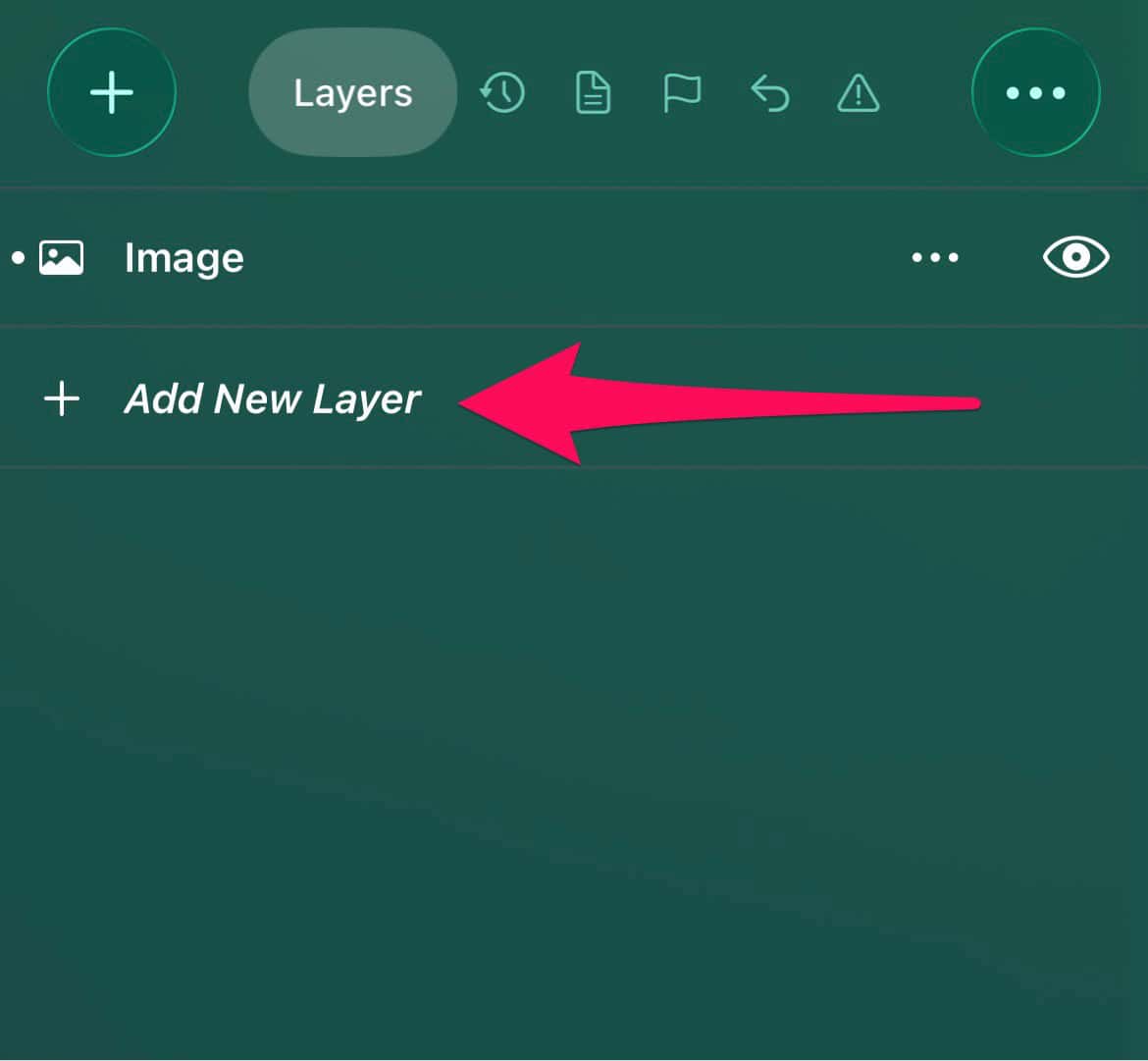
- Tap Image.
- In the Background tab, set it to a transparent color.
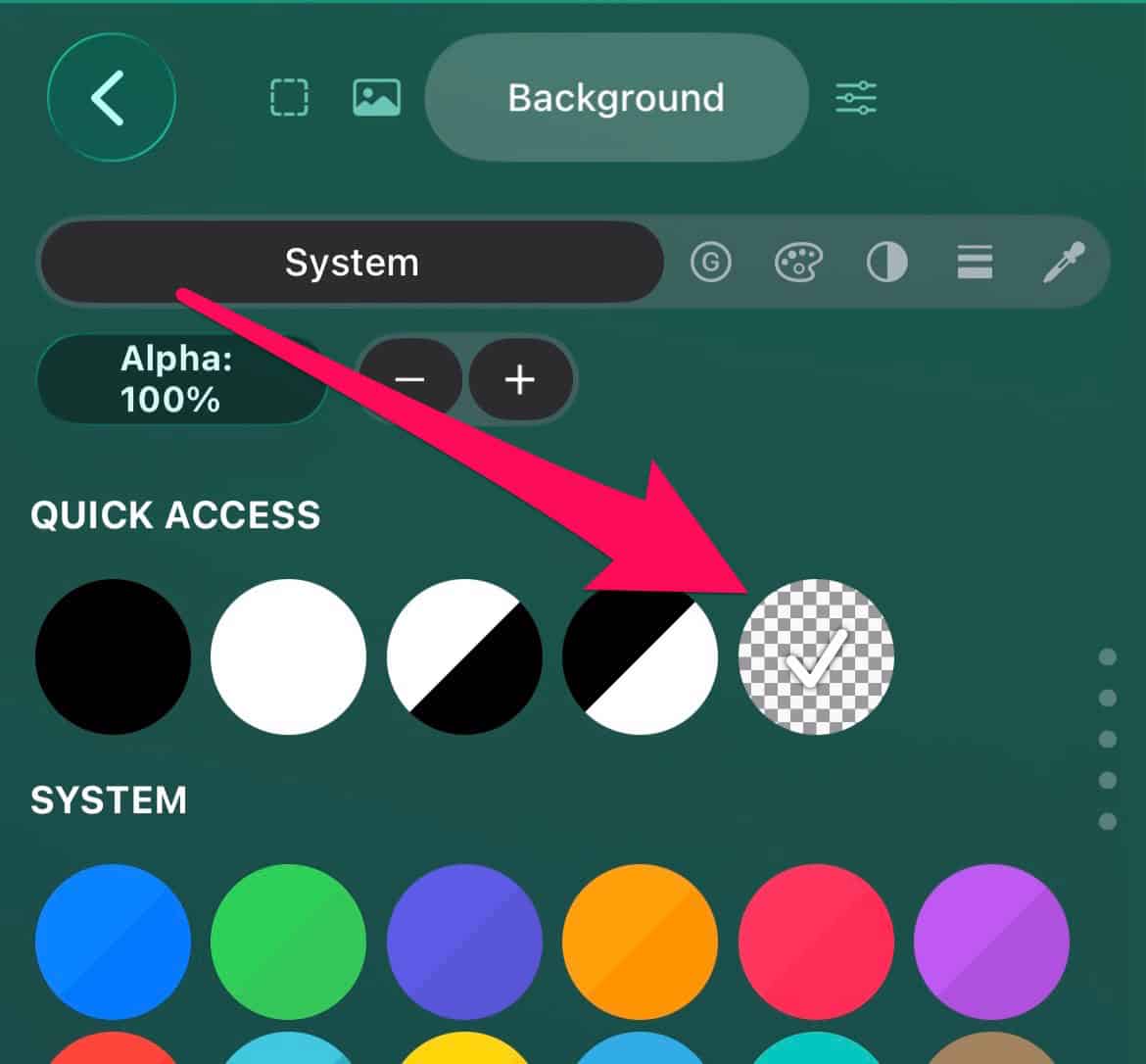
- Tap the back arrow in the top-left of the menu to bring back the tabs
- In the Document tab, toggle on Edit Transparency Layer.
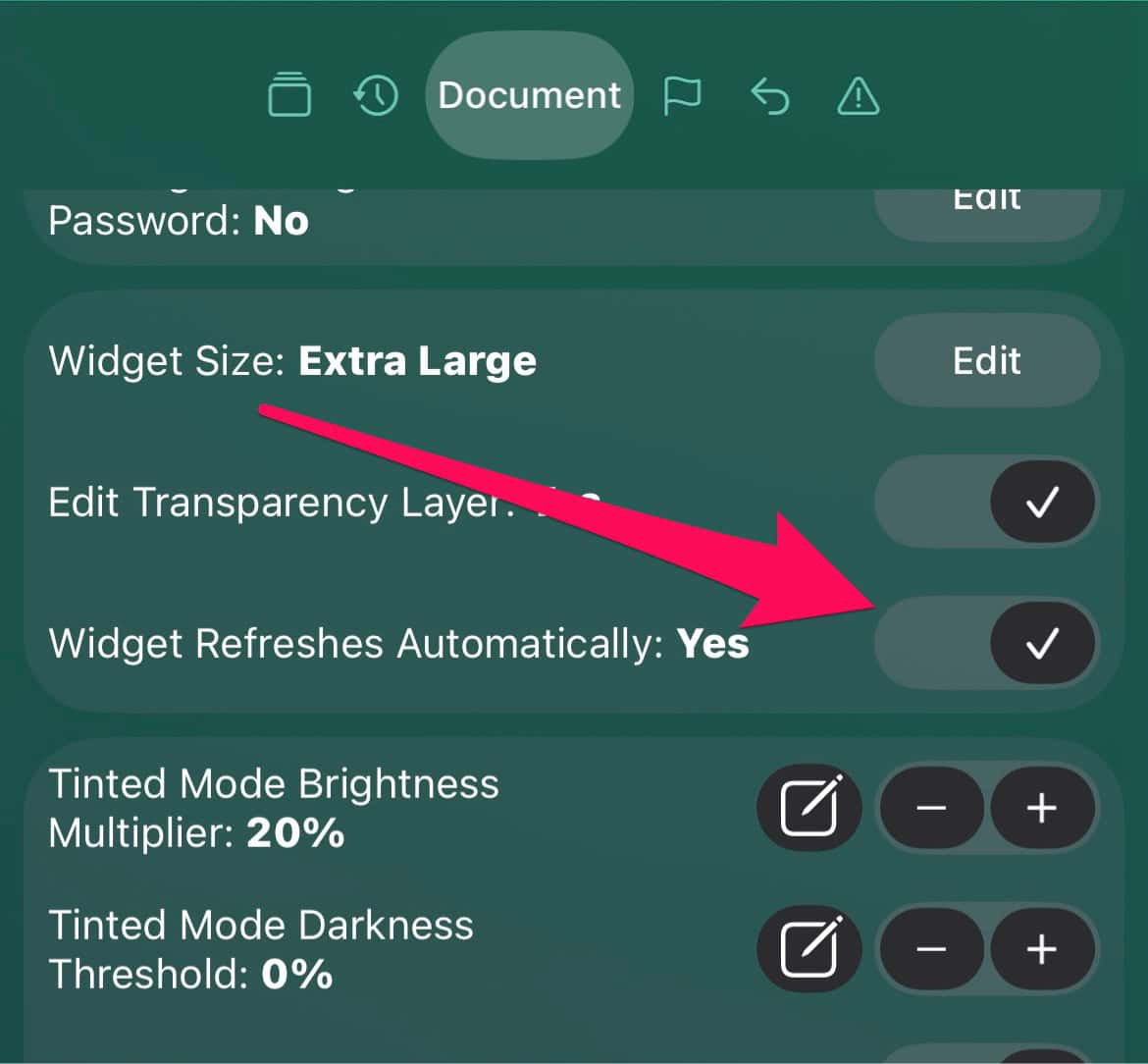
- Select the Image layer
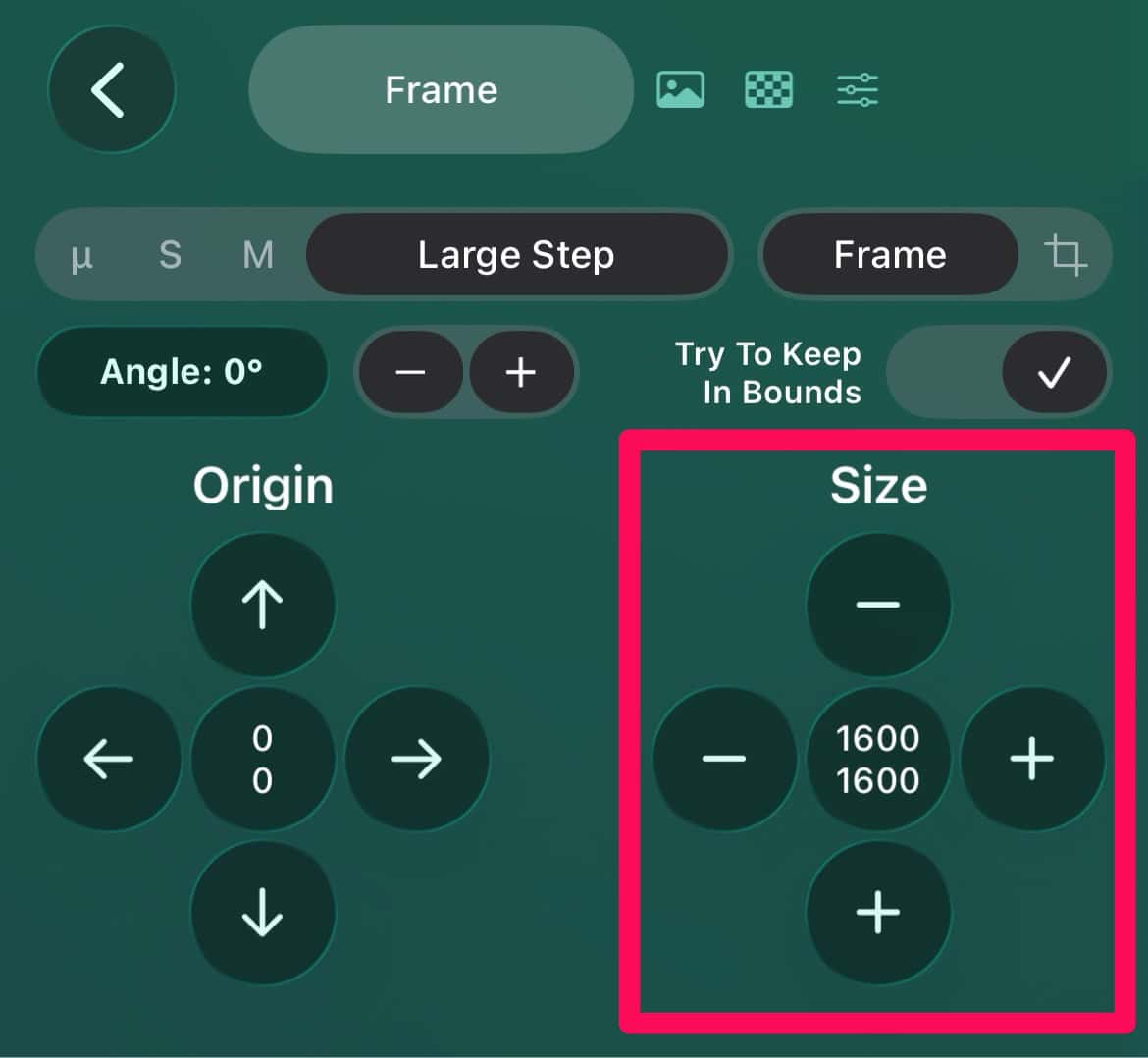
- In the Frame tab, adjust the Size to ensure the image fills the entire canvas.
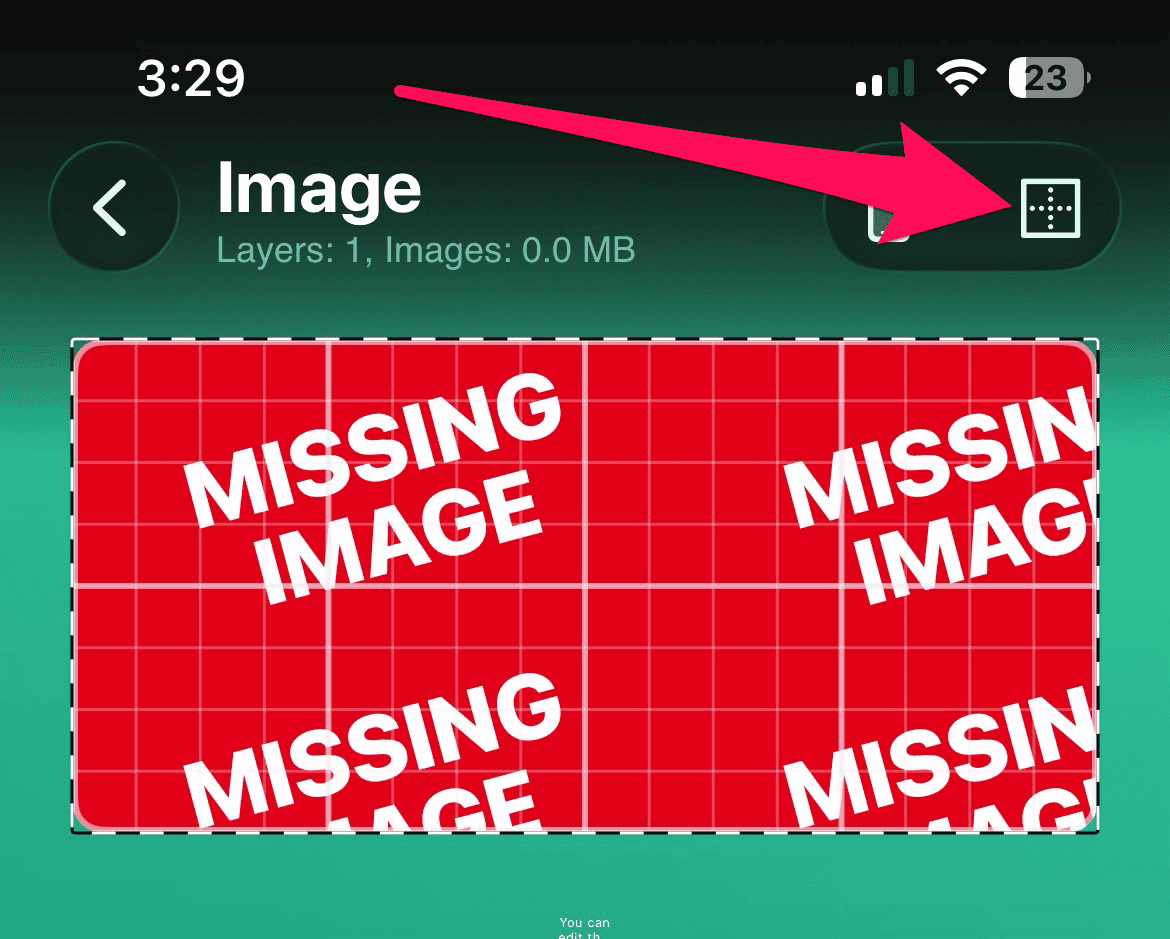
- Tap the square icon in the top-right corner.
- Tap Widget Position.
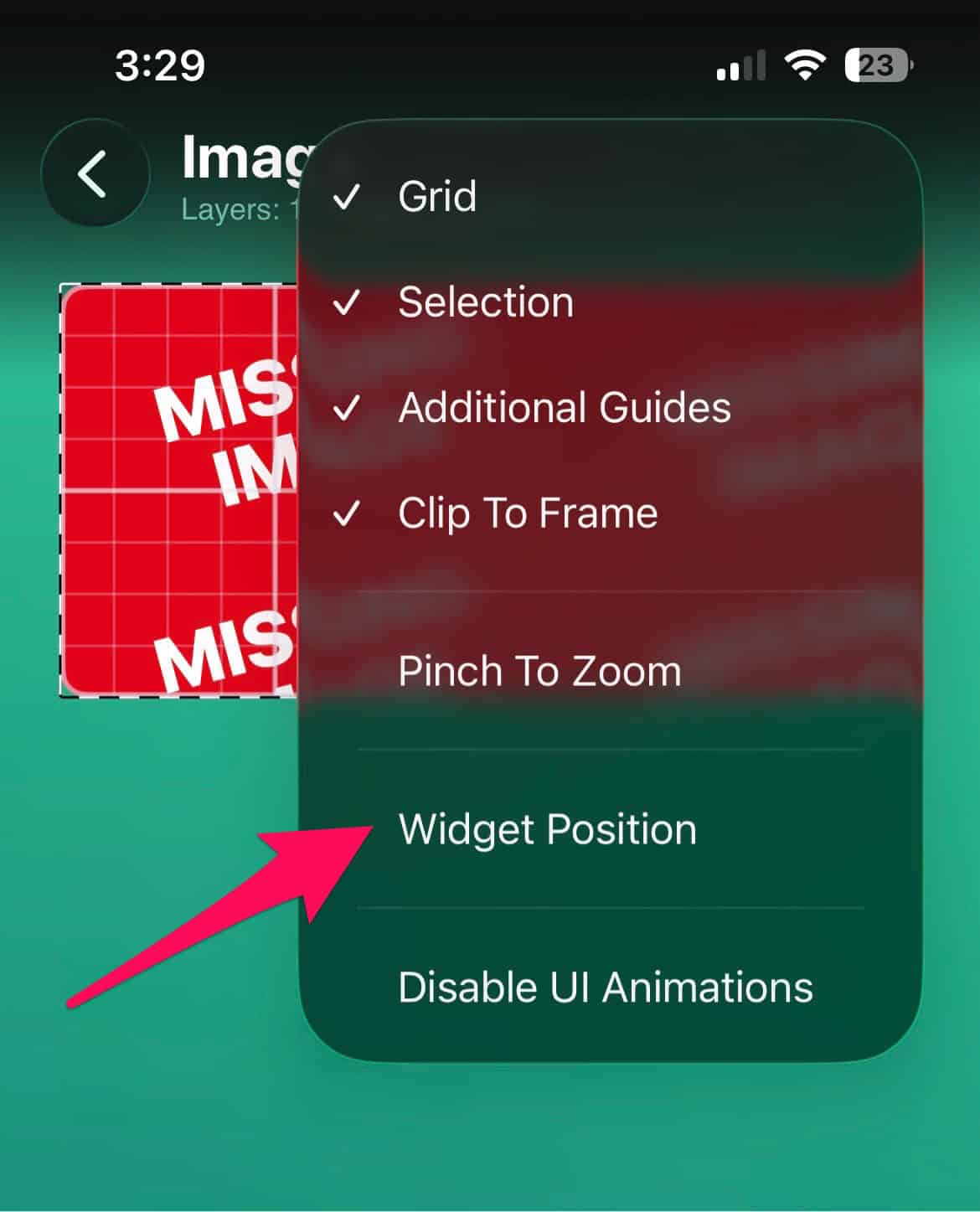
- Match it to your main Widgy’s location.
- Exit the editor.
- Open the widget, but don’t edit it.
- Tap Share Widget > Share Image Preview.
- Save the image to your photo library.
Part 2: Apply the Helper Image to Your Main Widgy
- Open your main Widgy.
- Delete the current background.
- Tap New Layer.
- Tap Image.
- Tap System.
- Tap Image Library.
- Select the saved image from your Helper Widgy.
- Save and apply the updated widget to your home screen.
This layered image acts as a custom backplate, restoring readability while preserving the Liquid Glass aesthetic.
Don’t miss the best of The Mac Observer
Set us as a preferred source and our Apple reporting ranks higher in your Google Search results and Discover feed — one tap, no account changes.
FAQ
The new Liquid Glass UI introduces deep translucency across system elements, which interferes with widget rendering.
Yes, as long as your widget size and position remain unchanged. You can reuse the same background image across multiple widgets.
Absolutely. This fix only affects the background layer and does not interfere with widget interactivity.
Yes, just ensure the Helper and main Widgy share the same dimensions and placement.
Restoring Widget Clarity with Design Precision
The Helper Widgy fix offers a clean, non-invasive solution to iOS 26’s transparency issue. By layering a custom background image, you can maintain both aesthetic appeal and functional clarity. You can maybe even use Widgy with these home screen ideas to enhance your iPhone experience on iOS 26.




Discussion