

When a HomePod mini will not connect to an iPhone, the most common causes are Bluetooth settings, Wi-Fi conflicts, iCloud permissions, or a setup that never completed. The fastest way to solve the issue is to confirm those basics first. Below, I break down the steps you can use to get your HomePod mini and iPhone connected again.
Table of contents
Verify Bluetooth and Wi-Fi
The HomePod mini relies on Bluetooth to start the connection and Wi-Fi to maintain it. If either one is off or unstable, the pairing prompt will not appear.
Check wireless settings on your iPhone
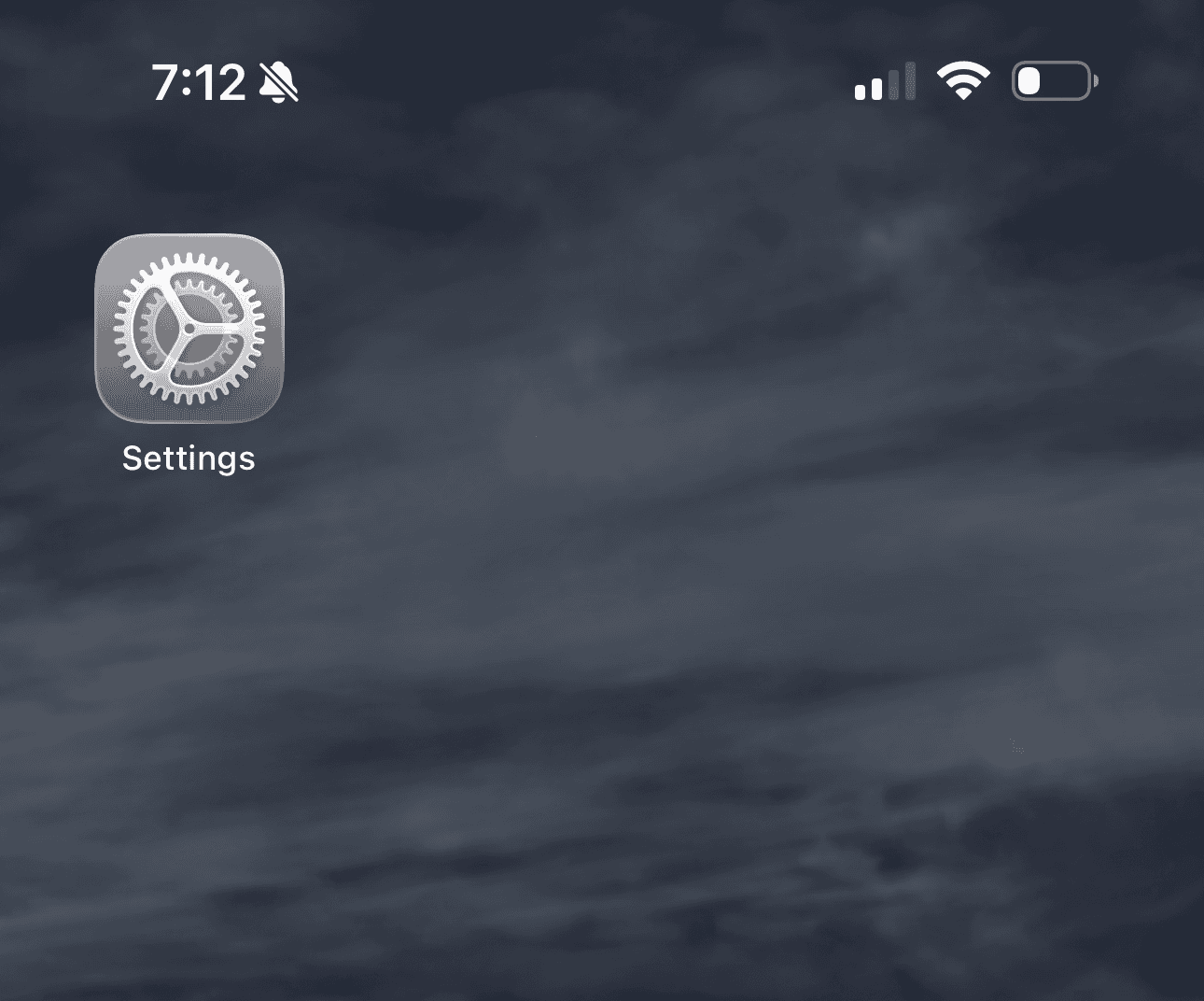
- Open Settings.
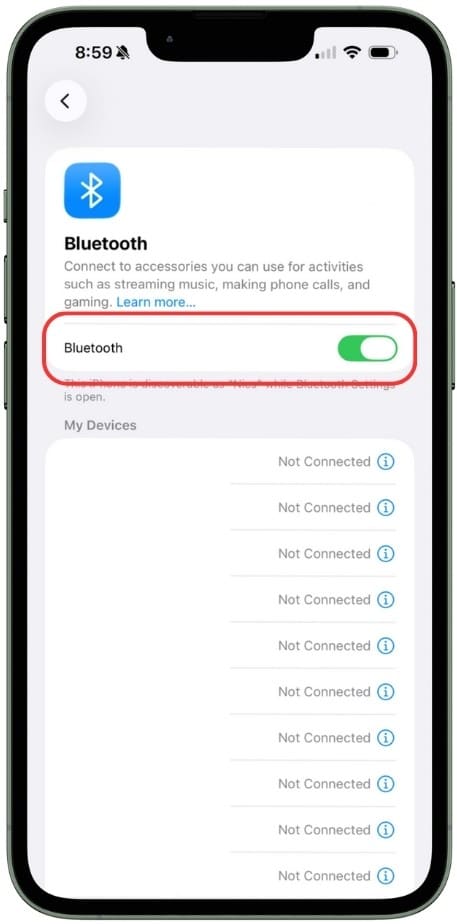
- Turn on Bluetooth.
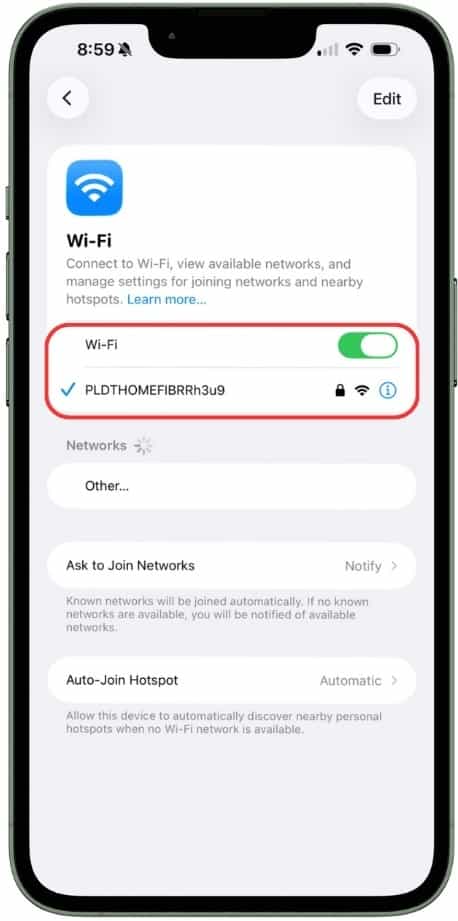
- Select Wi-Fi and make sure you are connected to your primary home network.
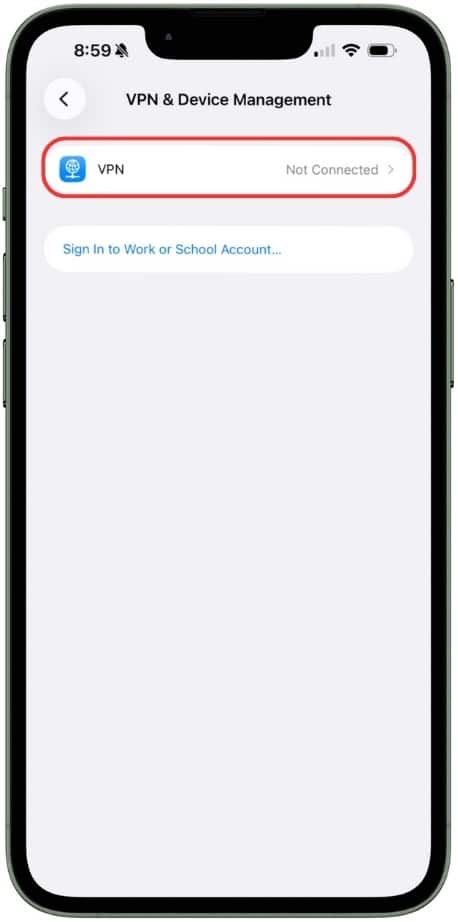
- Turn off any active VPN, which can block local device communication.


Bring the iPhone close to the HomePod mini
- Hold your iPhone near the top of the speaker.
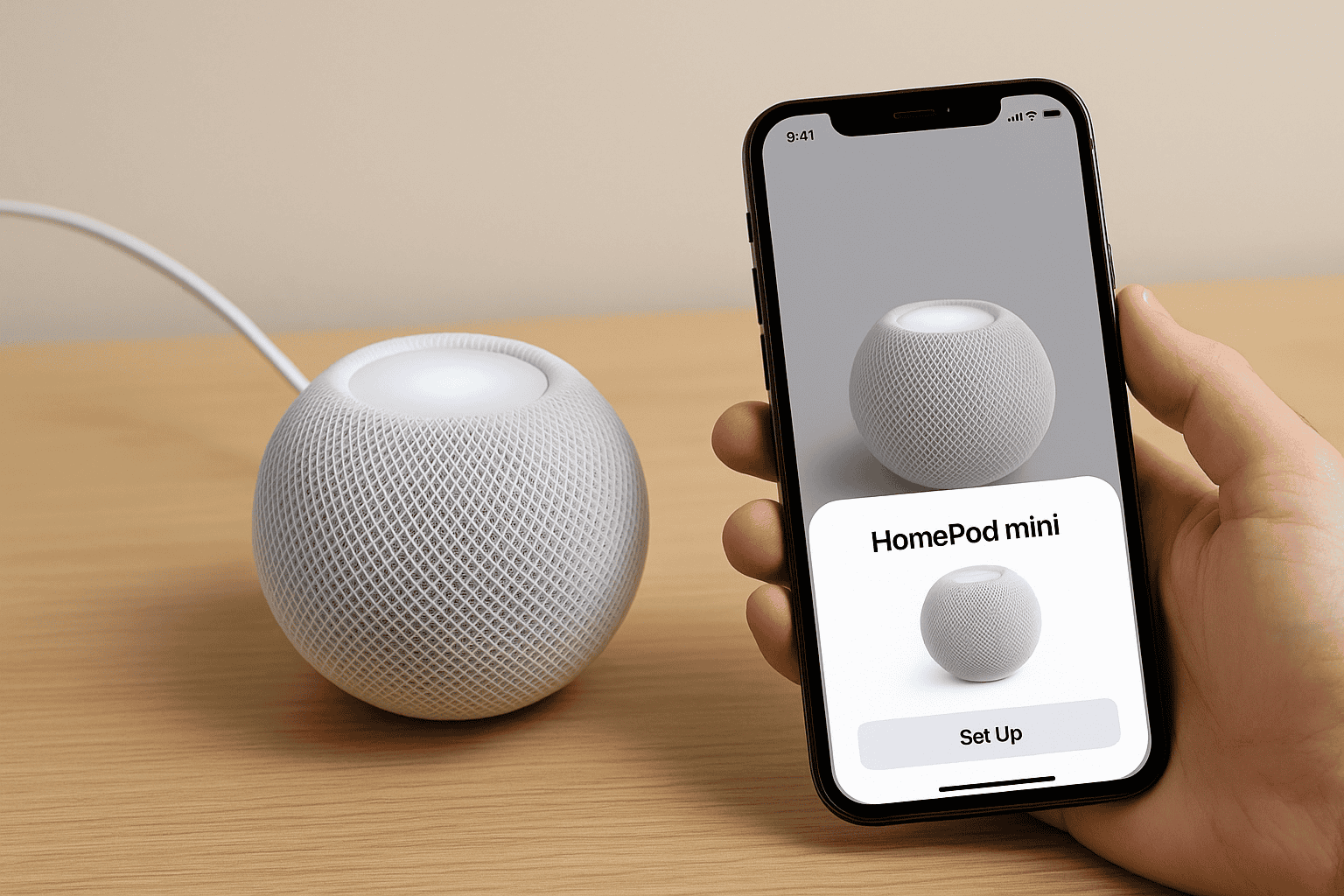
- Wait a moment for the setup card to appear.
- If it does not show up, lock and unlock the iPhone and try again.

Confirm Apple ID and iCloud status
The HomePod mini needs iCloud to sync Home settings, authenticate your devices and allow the Home app to manage accessories. An interrupted iCloud session can prevent the connection from completing.
Don’t miss the best of The Mac Observer
Set us as a preferred source and our Apple reporting ranks higher in your Google Search results and Discover feed — one tap, no account changes.
- Open Settings.
- Tap your name to confirm you are signed in with the correct Apple ID.
- Make sure iCloud, Keychain and Two-Factor Authentication are enabled.


Restart both devices
A restart often clears temporary Bluetooth or network conflicts and refreshes pairing capabilities.
1. Restart the HomePod mini
- Unplug the speaker.
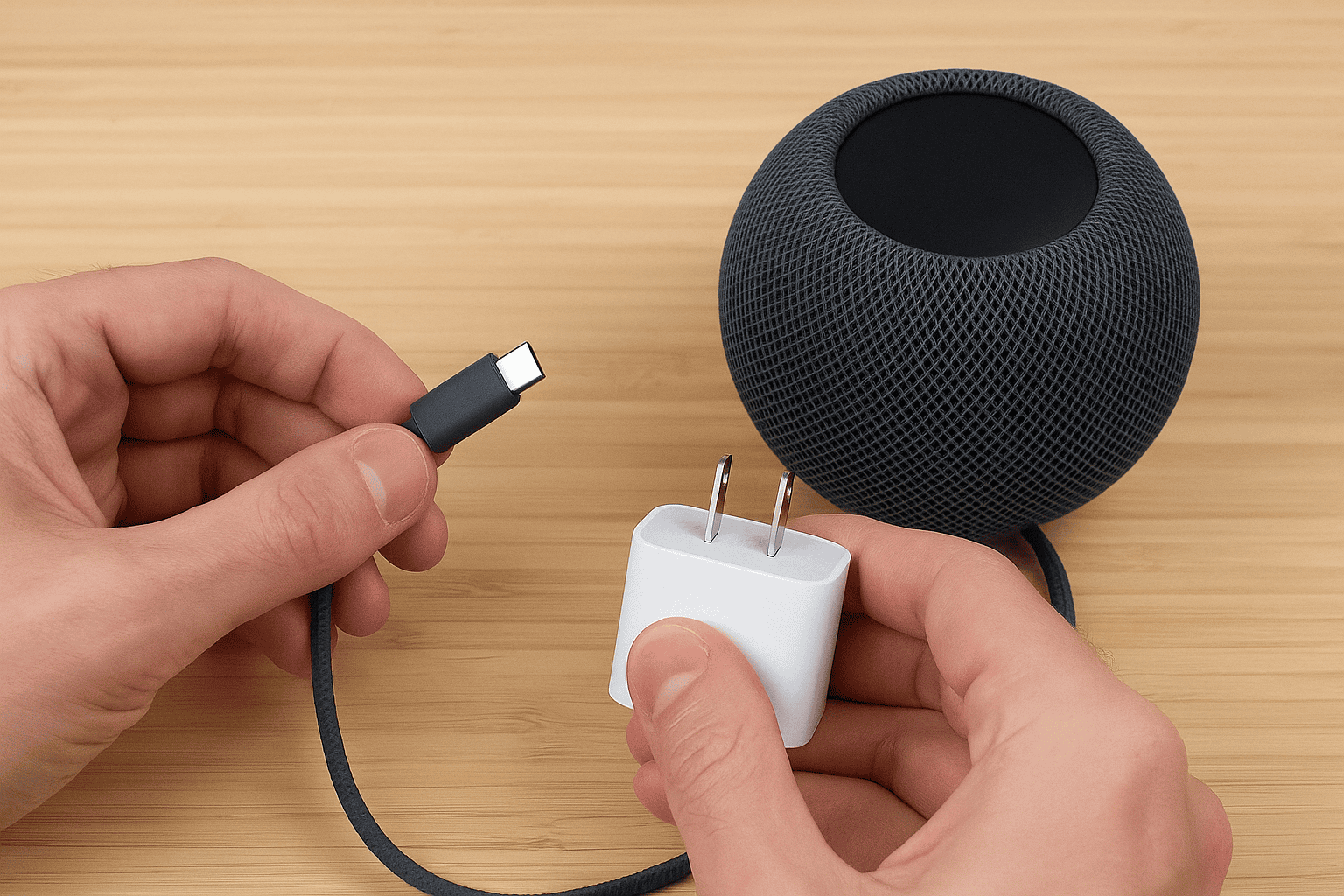
- Wait about 10 seconds.
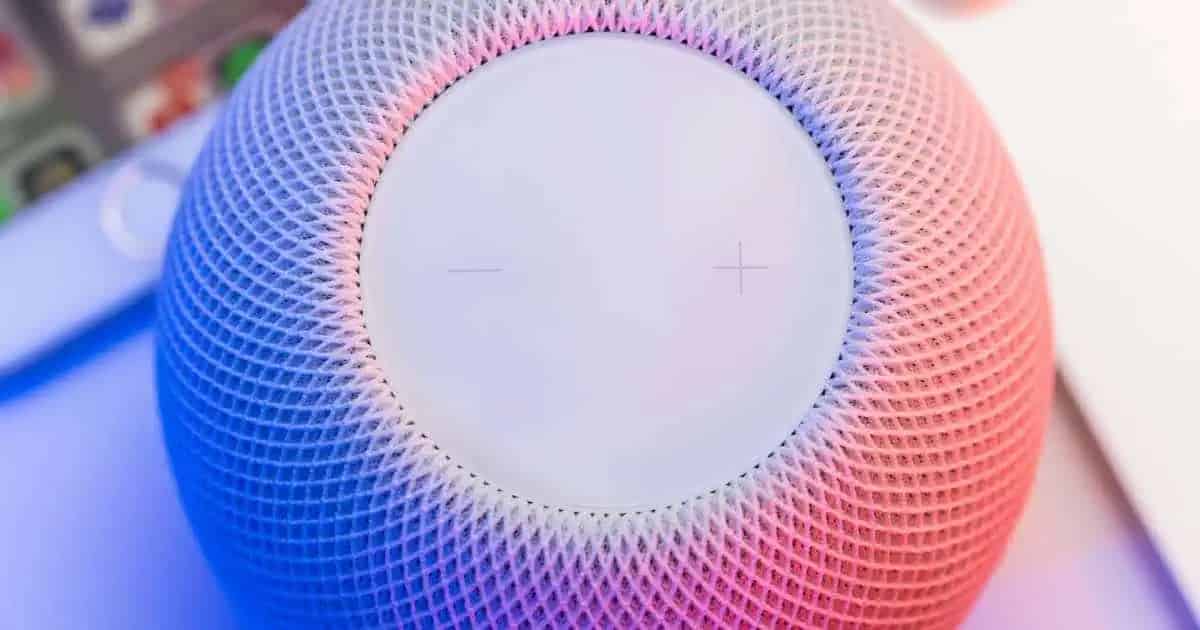
- Plug it back in and wait for the white pulsing light.


Restart the iPhone
- Power off the device.
- Wait a few seconds.
- Turn it back on and try connecting again.
Reset the HomePod mini if pairing still fails
A reset restores the HomePod mini to factory settings. This helps when setup data becomes corrupted or the device gets stuck in a partial configuration.
Reset using the HomePod
- Unplug the speaker.
- Plug it back in and wait for the white light.

- Press and hold the top of the device.
- Continue holding until you hear a tone and the light turns red.
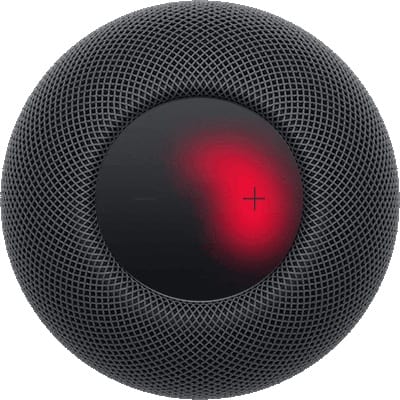
- Release and let the reset finish.


Reset through the Home app
- Open Home.
- Press and hold the HomePod mini tile.
- Tap Settings.
- Choose Reset HomePod.
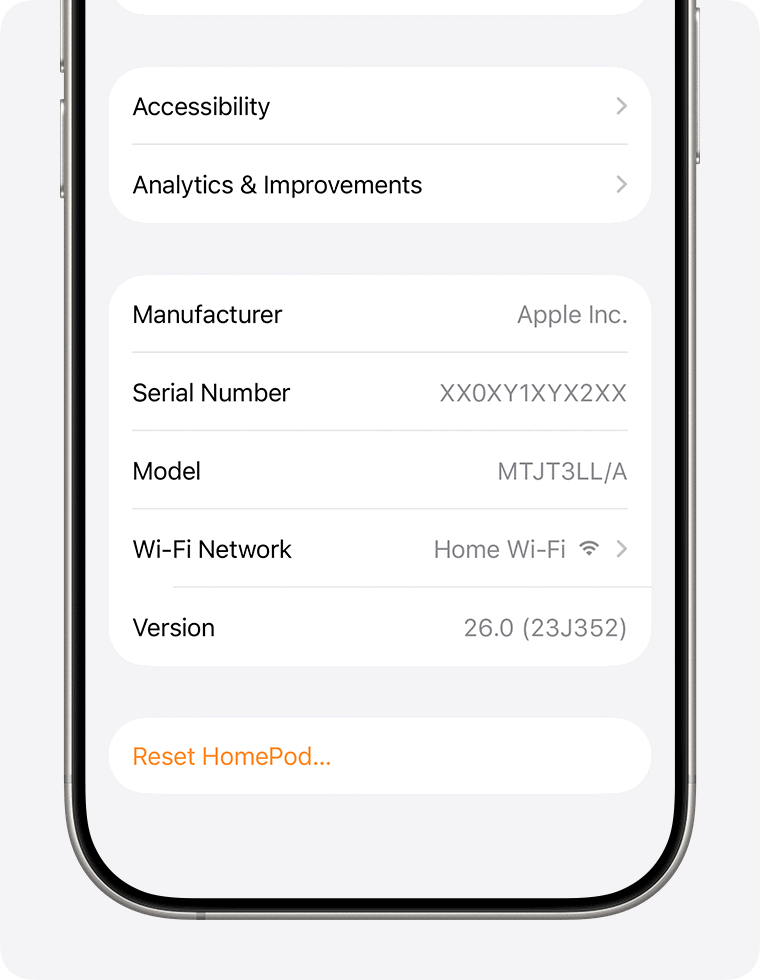
- Select Remove Accessory.

Tips for keeping the connection stable
- Keep Bluetooth enabled at all times.
- Stay within range of your Wi-Fi router when setting up the HomePod mini.
- Update your iPhone and HomePod to the latest software.
- Avoid networks that block device-to-device communication.
- Use only your primary home network, not guest Wi-Fi.
FAQ
Bluetooth may be off, Wi-Fi may be unstable or the HomePod mini may not be powered on fully.
Yes. Bluetooth initiates the connection, but Wi-Fi completes the setup and allows continuing communication.
It can, but it must be added to a Home shared with your Apple ID.
This often indicates incomplete setup data. A reset usually resolves it.
Summary
- Enable Bluetooth and Wi-Fi on the iPhone.
- Bring the iPhone close to the HomePod mini for the setup prompt.
- Check Apple ID, iCloud and Home app permissions.
- Restart both the iPhone and HomePod mini.
- Reset the HomePod mini if connection attempts continue to fail.
Conclusion
A HomePod mini that will not connect to an iPhone usually signals a wireless setting, iCloud permission or setup issue. Once Bluetooth, Wi-Fi and Apple ID settings are confirmed, pairing almost always works as expected. These steps help you identify the problem quickly and restore the connection so your HomePod mini can function normally again.




Discussion