

When a HomePod mini will not turn on, the cause is usually a power supply issue, a damaged cable, or a failed software state that prevents it from booting. Checking these factors first often solves the problem. Below, I break down the steps you can use to bring a nonresponsive HomePod mini back to life.
Check the power source and cable
A HomePod mini depends entirely on a stable USB-C power source. If it does not get enough wattage or the cable is damaged, the device will not power on.
Don’t miss the best of The Mac Observer
Set us as a preferred source and our Apple reporting ranks higher in your Google Search results and Discover feed — one tap, no account changes.
1. Test the outlet and power adapter
- Plug another device into the same outlet and confirm it works.
- Try a different outlet if the first one seems unreliable.
- Use a 20W USB-C power adapter. Lower wattage chargers may not power the HomePod mini correctly.
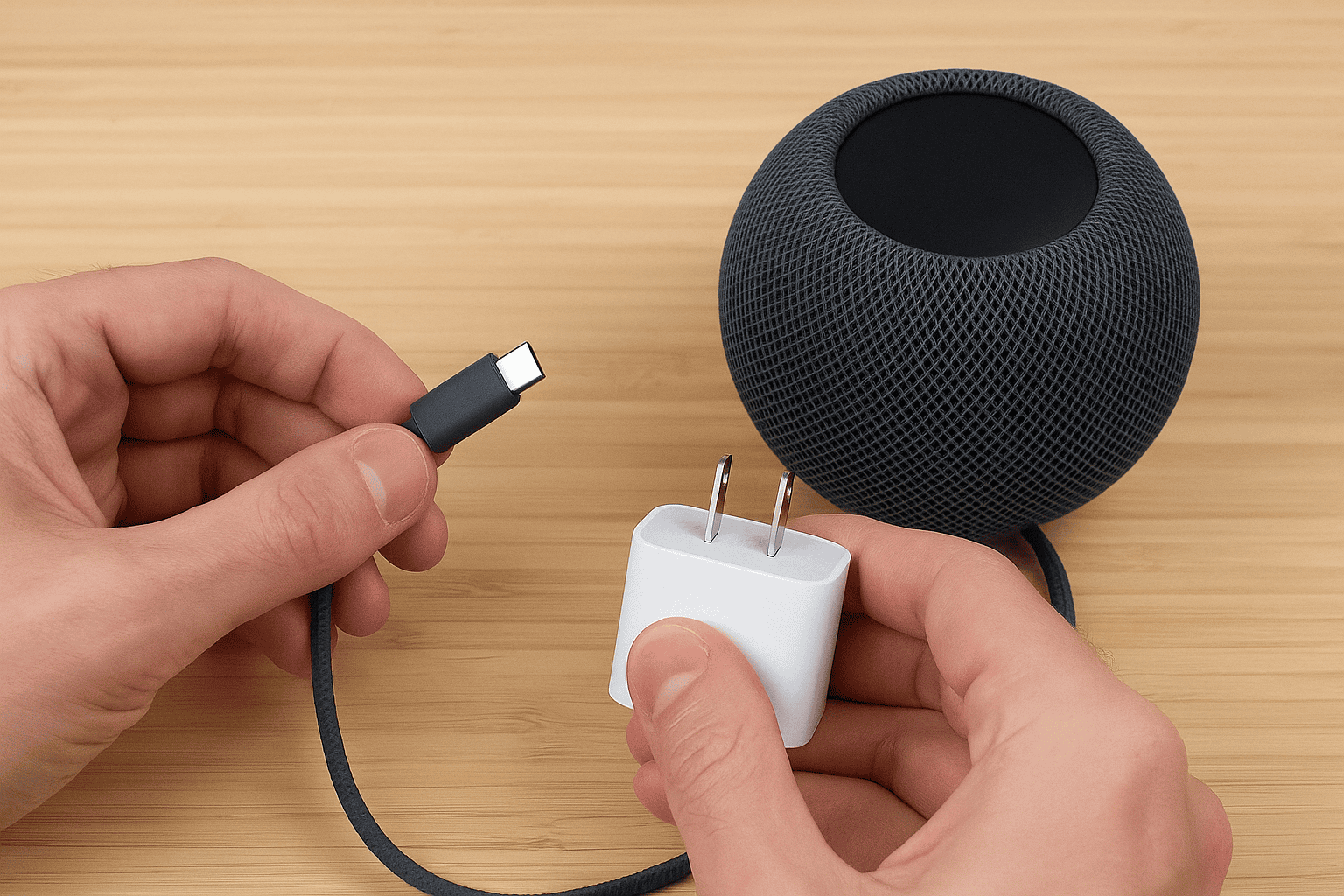

2. Inspect the USB-C cable
- Look for fraying, bent connectors or discoloration.
- Test the cable with another device to ensure it passes power.
- Use an Apple-certified cable to avoid compatibility issues.
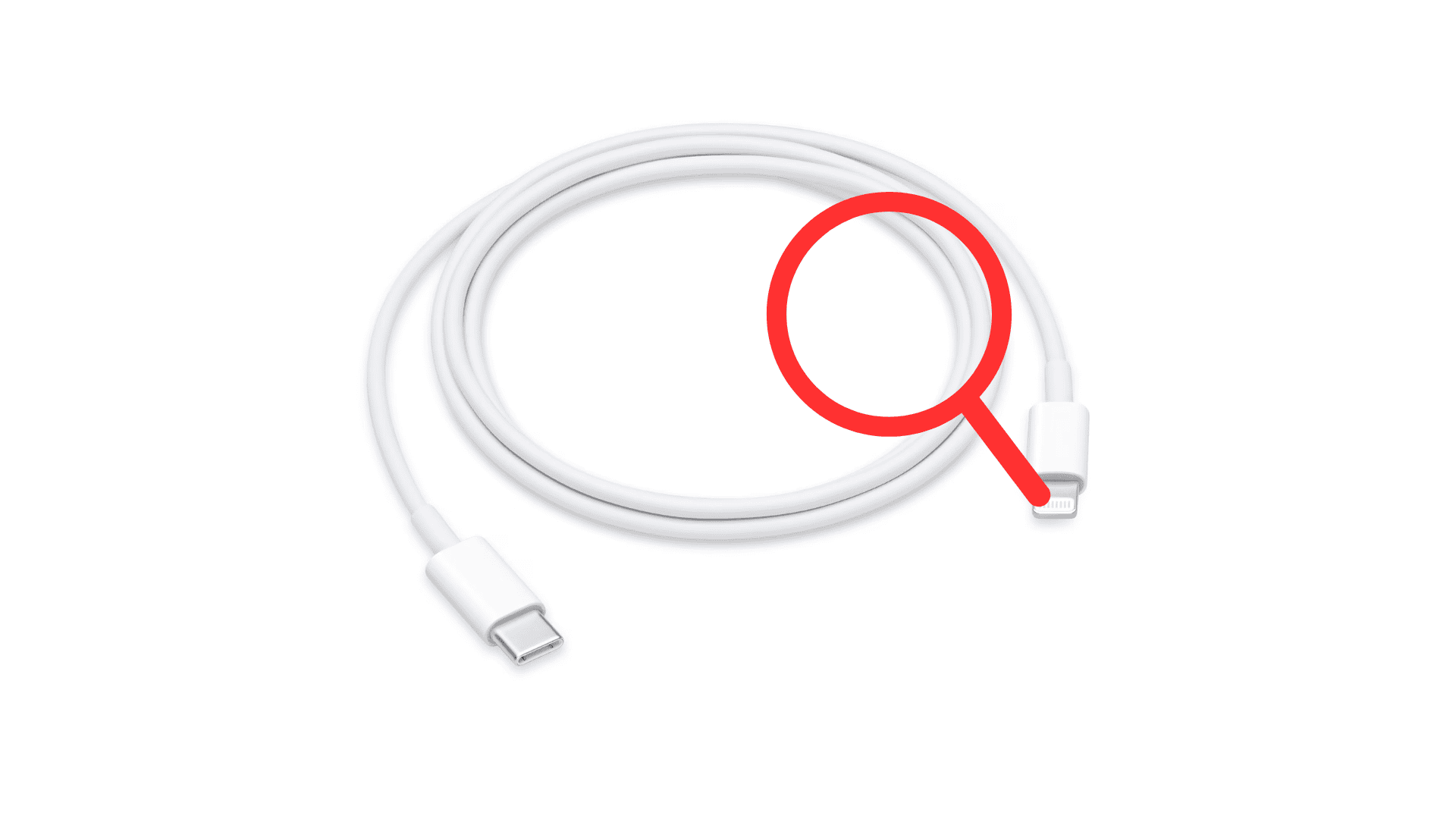

Look for any sign of life from the HomePod mini
Even if the top surface light does not turn on, the device may still respond. A small indicator helps you know whether the speaker is booting or stuck.
1. Check for warmth or vibration
- Place your hand near the top to see if the device feels warm.
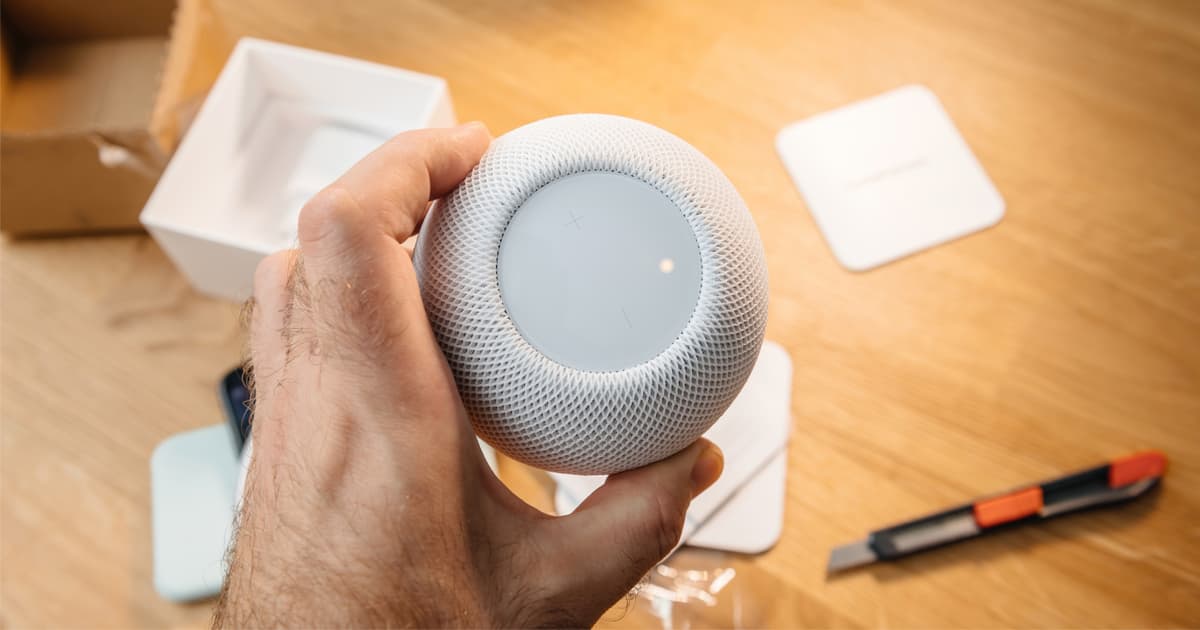
- Light warmth can indicate the device is receiving power.
- If the speaker stays completely cold, it may not be drawing power at all.

2. Watch for a pulsing or solid light
- A white light indicates the device is turning on.
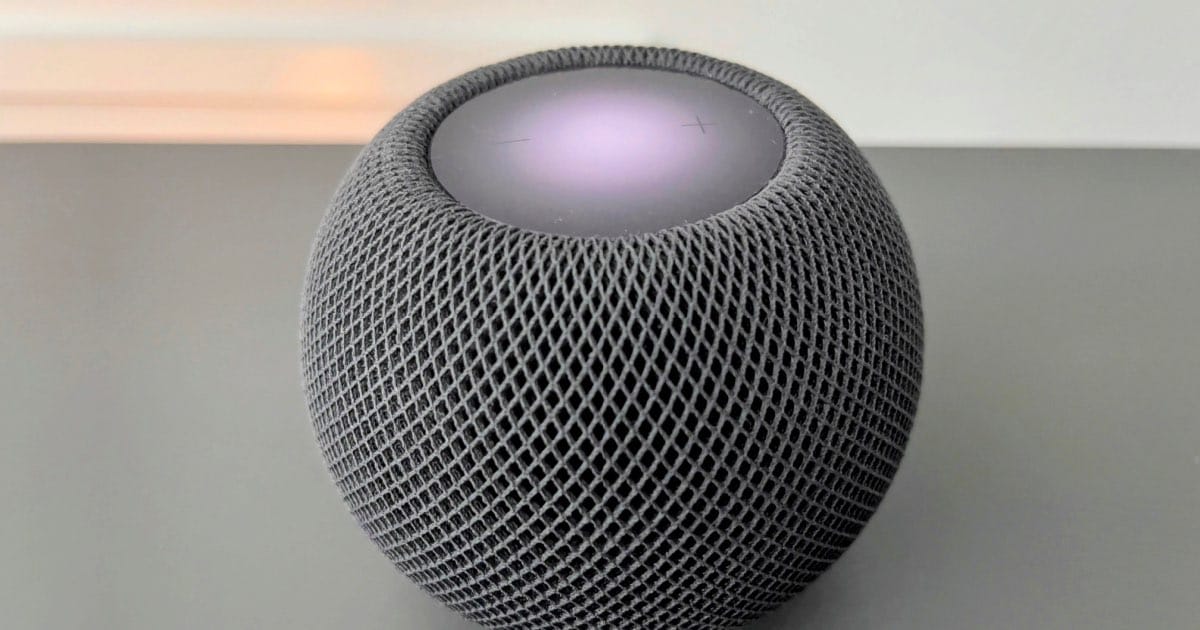
- A spinning orange light means the HomePod mini needs a software restore.
- No light after several seconds usually means a power or hardware failure.

Restore the HomePod mini using a Mac
If the HomePod mini gets power but will not boot, a firmware restore often fixes the issue. You can only do this through a Mac.
How to restore the software
- Connect the HomePod mini to a Mac using a USB-C cable.
- Open Finder and look for the HomePod under Locations.
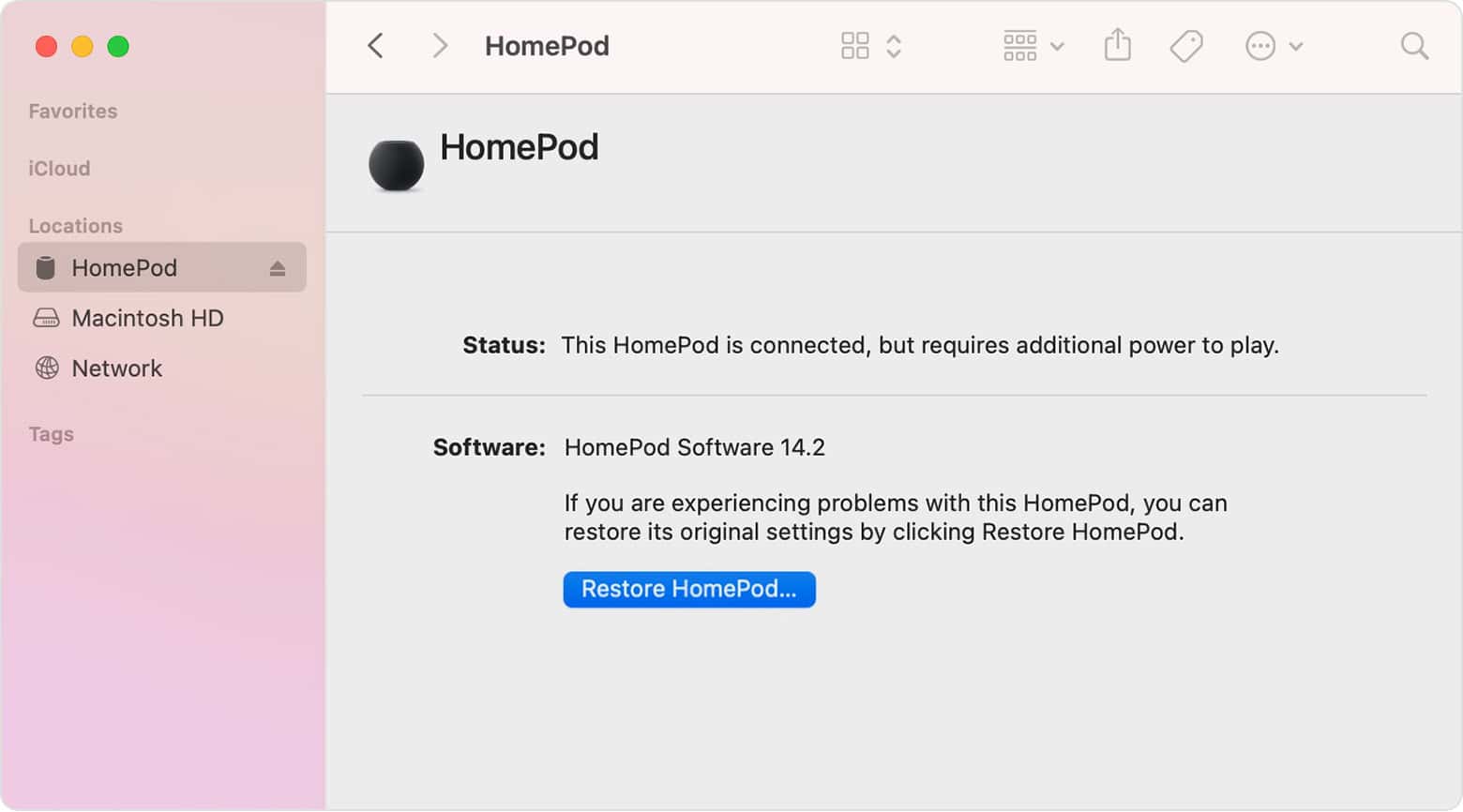
- Select Restore.
- Wait for the firmware to reinstall.
- Test the device again once it reboots.

Reset the HomePod mini if it turns on but does not respond
Sometimes the speaker lights up but will not finish booting. A reset helps return it to factory settings.
Reset using the device
- Unplug the HomePod mini.
- Wait five seconds, then plug it back in.
- Hold your finger on the top while the white light spins.

- Keep holding until you hear a tone and see the red light.
- Release to complete the reset.

Tips to prevent power issues in the future
- Use only a 20W USB-C power adapter.
- Avoid placing the cable under furniture or bending it at the connector.
- Keep the HomePod mini away from heat sources.
- Do not use third-party smart plugs to power the speaker.
- Check cables periodically for wear and replace them early.
FAQ
This usually points to a power issue. The adapter or cable may not be delivering enough power.
It may appear to work temporarily, but Apple recommends a 20W adapter for consistent performance.
This can signal a firmware problem. Restoring the device through a Mac is the next step.
Apple can perform hardware service if internal components fail.
Summary
- Test the outlet, power adapter and USB-C cable.
- Look for any sign of warmth or light from the device.
- Restore the HomePod mini using a Mac if it receives power but will not boot.
- Reset the speaker if it turns on but does not respond.
- Maintain proper power accessories to avoid future issues.
Conclusion
A HomePod mini that will not turn on often has a simple power-related cause. Once you confirm that the cable, adapter and outlet are working correctly, you can move on to software restores or resets. These steps help you identify whether the issue is power, firmware or hardware, so you can get the HomePod mini back to normal operation. If all else fails, Apple support can determine whether the device needs repair or replacement.

![Fix “macOS Cannot Verify That This App is Free from Malware” [2026]](https://www.macobserver.com/wp-content/uploads/2025/05/MacBook-displaying-multiple-macOS-Gatekeeper-icons-under-a-red-X-surrounded-by-Gatekeeper-dialogs-over-the-default-macOS-Sequoia-wallpaper.webp)


Discussion