

When a HomePod stops playing music, podcasts, or anything at all, it feels bigger than a normal tech hiccup. This thing is supposed to just work. You tap it, you say Hey Siri, sound comes out. When that chain breaks, the HomePod can feel useless fast. The good news is most HomePod playback issues come down to a few predictable problems, and none of them are mysterious once you know where to look.
Let’s break it down.
Table of contents
Start With the Home App Alerts

Here’s the thing most people skip. If your HomePod isn’t playing, the Home app usually knows why.
Don’t miss the best of The Mac Observer
Set us as a preferred source and our Apple reporting ranks higher in your Google Search results and Discover feed — one tap, no account changes.
Open the Home app, tap your HomePod, and look for alerts. If you see No Response, a Wi-Fi warning, or an Apple ID issue, that message matters. Apple doesn’t show those alerts unless something specific is wrong, like the speaker losing network access or failing to authenticate your account.
If there’s an alert, tap it and read the details before doing anything else.
Check the Wi-Fi Connection First

HomePod lives and dies by Wi-Fi. If it can’t talk to the internet, it can’t stream music, process Siri requests, or sync with your devices.
In the Home app, open your HomePod settings and look at the Wi-Fi signal indicator. Two bars or fewer means trouble. Move the HomePod closer to your router and keep it away from interference like microwaves or cordless phones.
Also make sure your iPhone or iPad is on the same Wi-Fi network. HomePod automatically mirrors the network your iPhone uses during setup. If your phone jumped to a different network, the HomePod may be stranded.
Restart the HomePod the Right Way
If playback suddenly stopped and everything looks fine, a restart often clears it.
- Open the Home app, tap the HomePod, go to Settings, then choose Reset HomePod and select Restart HomePod.
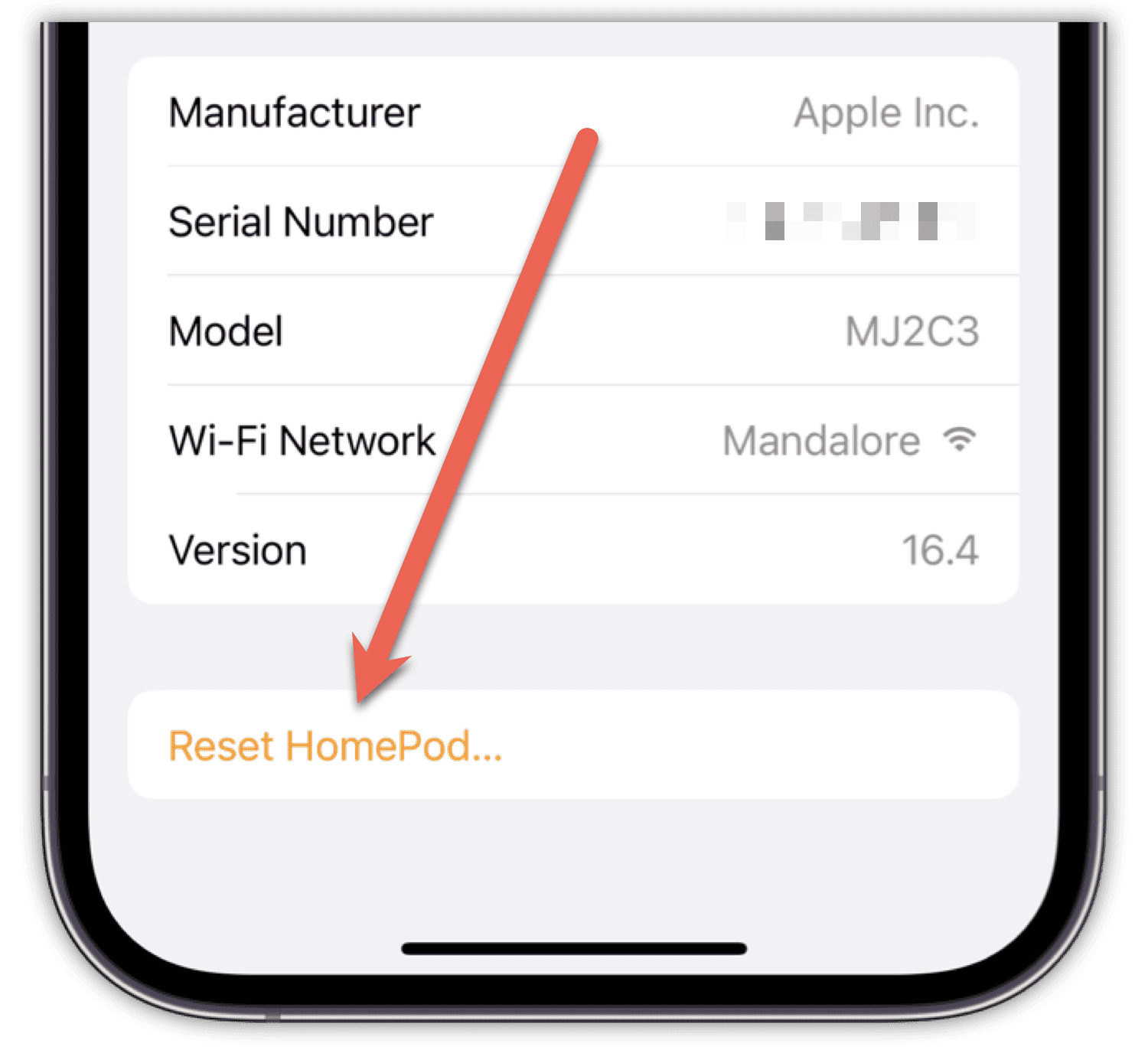
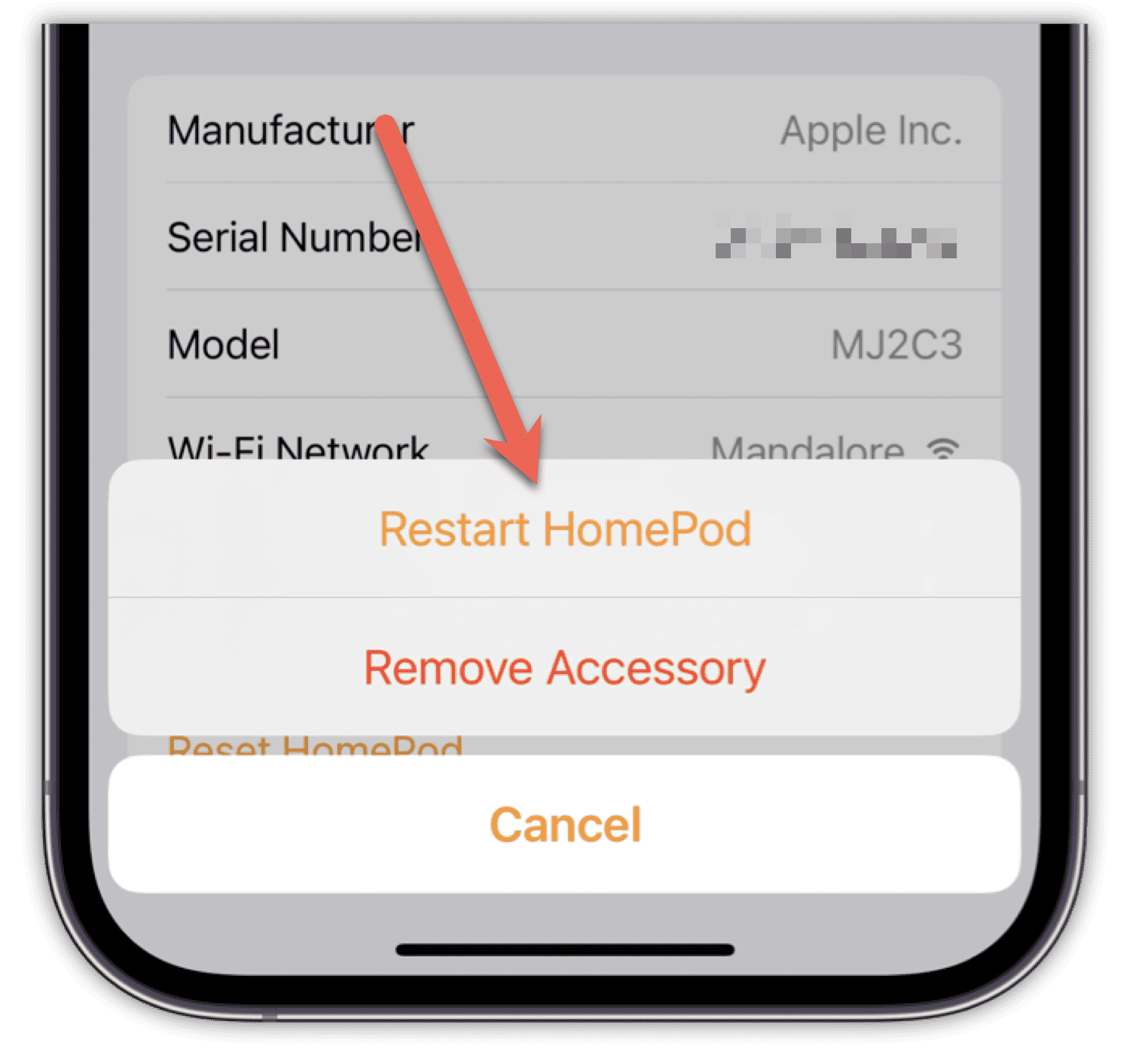
- If that option isn’t available, unplug the HomePod, wait ten seconds, and plug it back in.


This clears temporary software glitches that can freeze playback or cause Siri to ignore requests.
When Siri Responds but Nothing Plays
Sometimes Siri answers you, but music never starts. That usually points to an account or service issue.
Check that you’re signed into the correct Apple ID in the Home app. If you use Apple Music, confirm your subscription is active. If you rely on AirPlay, make sure your iPhone and HomePod are on the same network and AirPlay is enabled.
If Siri says it can’t connect to the internet, that’s a Wi-Fi issue even if other devices seem fine.
HomePod Keeps Disconnecting or Cutting Out
If audio starts and stops, the problem is usually network stability.
Restart your router and modem. This sounds basic, but it works more often than people expect. If your network is overloaded with smart devices, streaming boxes, and laptops, the HomePod may be losing priority.
Updating your router firmware can also help. Older firmware can cause HomeKit devices to behave badly.
When Nothing Works, Reset It
If your HomePod still won’t play anything, a full reset may be necessary.
In the Home app, choose Reset HomePod and select Remove Accessory. Then set it up again from scratch using your iPhone. This clears corrupted settings and reconnects everything cleanly.
Yes, it’s annoying. But it often fixes stubborn playback problems that survive restarts.
Final Take
A HomePod that won’t play audio is almost never broken hardware. It’s usually Wi-Fi, account sync, or a stuck software state. Start with alerts, confirm the network, restart properly, and reset only if needed. Once those basics are solid, HomePod usually goes right back to doing what it was built for: filling the room with sound without you having to think about it.




Discussion