

If you’re using an iPhone 15, Siri is already built in and ready to work. You just need to turn it on the way you want and know the fastest ways to trigger it. Apple changed a few labels and options in recent iOS versions, so if things don’t look exactly like older guides, that’s normal.
Here’s how to activate Siri on iPhone 15, step by step, without overthinking it.
Table of contents
- First, turn Siri on
- How to activate Siri on iPhone 15
- Control how Siri responds
- Adjust how long Siri waits for you to finish speaking
- Make back-to-back requests without repeating yourself
- Type to Siri instead of speaking
- Temporarily stop Siri from listening
- If Siri isn’t working on your iPhone 15
- The short version
First, turn Siri on
Siri won’t respond until you explicitly enable it. If you skipped this during setup, here’s where to go.
Don’t miss the best of The Mac Observer
Set us as a preferred source and our Apple reporting ranks higher in your Google Search results and Discover feed — one tap, no account changes.
- Open the Settings app
- Tap Apple Intelligence & Siri or just Siri depending on your iOS version
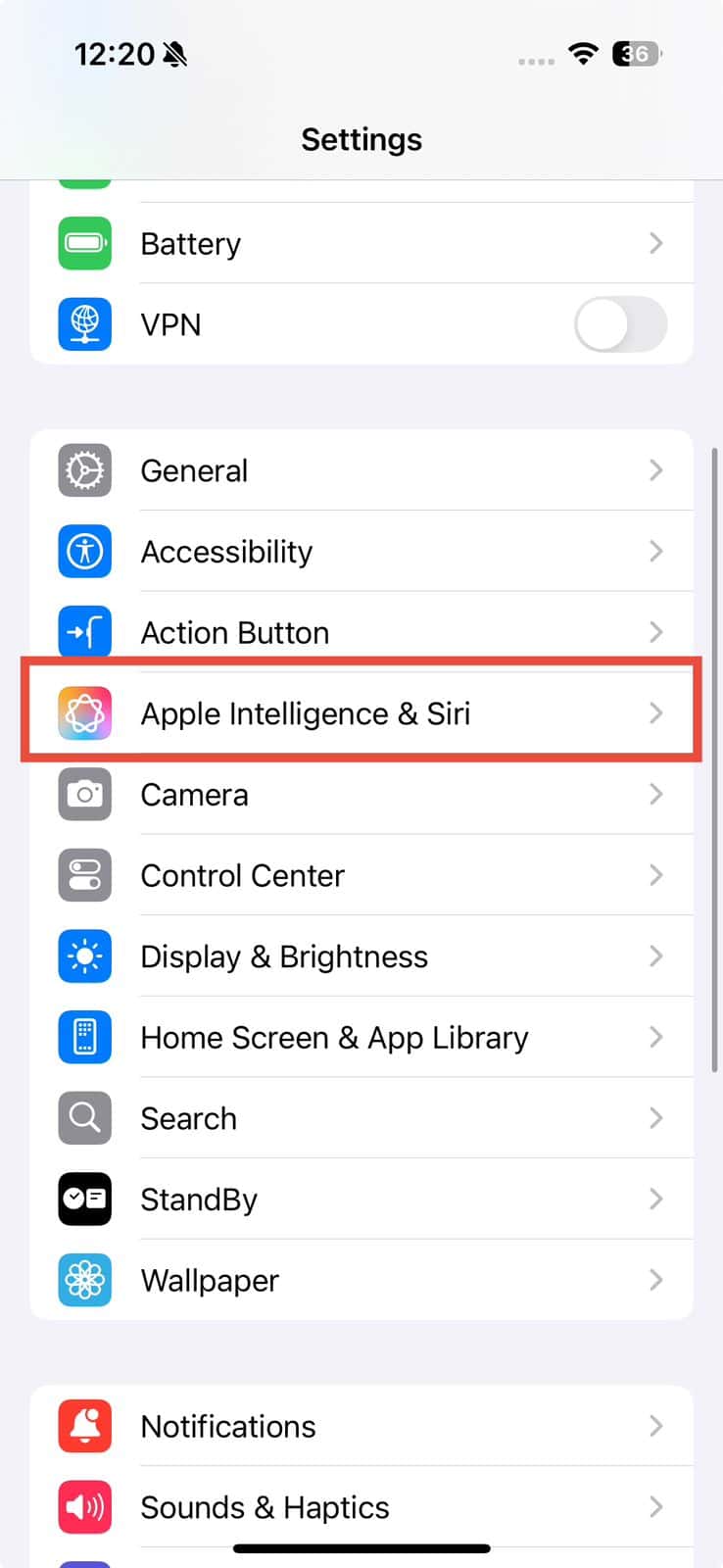
- Tap Talk to Siri
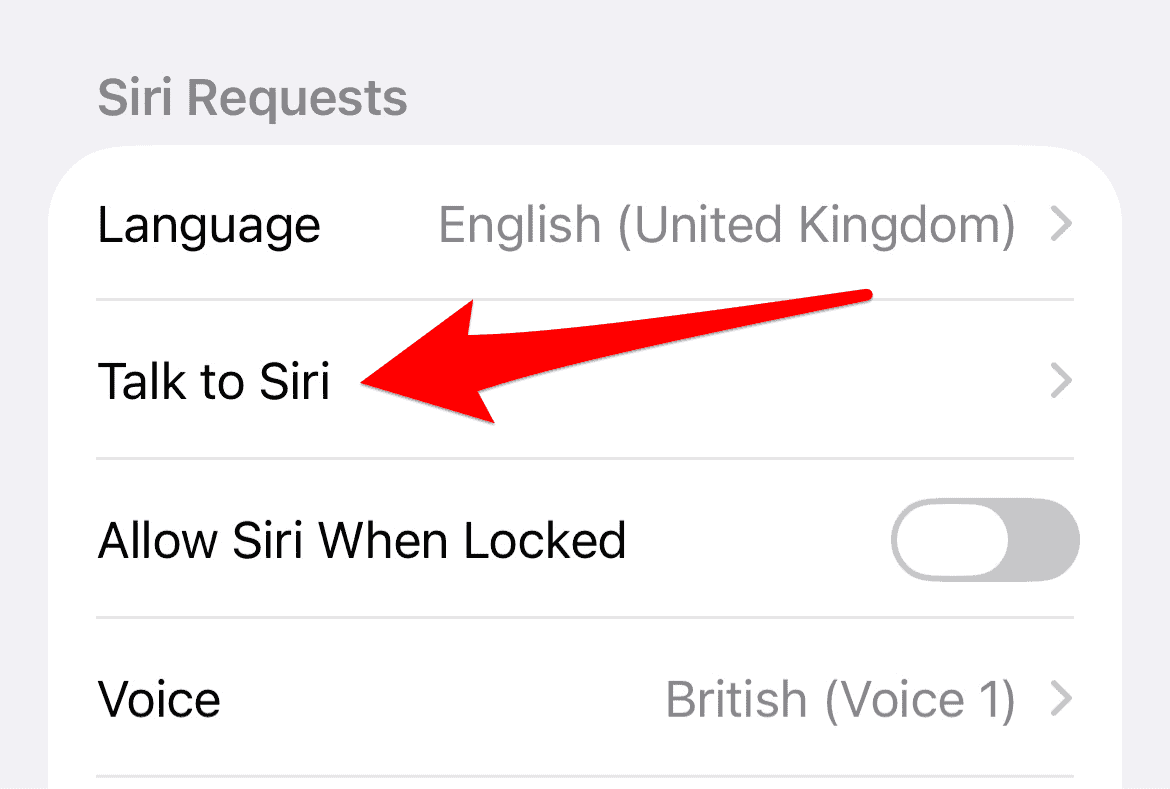
- Choose how you want Siri to listen


You’ll see a few options:
- Siri or Hey Siri lets your phone listen for either phrase
- Hey Siri limits activation to that phrase only
If you want to use the side button, turn on Press Side Button for Siri. On iPhone 15, this button replaces the old Home button method entirely.
How to activate Siri on iPhone 15
Once Siri is enabled, activating it is simple. Pick what feels natural.
Use your voice

Say Siri or Hey Siri, then speak your request right away. Your iPhone needs an internet connection for this to work.
Use the side button

- Press and hold the side button until Siri appears, then talk.
- If you release the button immediately, Siri will listen briefly. If you hold it down, Siri keeps listening until you’re done.
This method works even when your phone is on silent mode.
Control how Siri responds
Here’s the thing. Siri doesn’t always have to talk back.
- If you activate Siri with your voice, it responds out loud
- If you activate it with the side button and your phone is silent, it responds silently
You can change this behavior in Settings if you want spoken responses all the time or never.
Adjust how long Siri waits for you to finish speaking
If Siri cuts you off too fast, this setting helps.
- Open Settings
- Tap Accessibility
- Tap Siri
- Choose Siri Pause Time
- Select Default, Longer, or Longest
This is especially useful if you tend to pause mid-sentence or give more complex requests.
Make back-to-back requests without repeating yourself
On supported regions and devices, iPhone 15 lets you chain requests.
Say something like:
- Siri what’s the weather today?
- What about tomorrow?
You don’t have to say Siri again. Just keep talking while Siri is active.
If Siri misunderstands you, interrupt it and restate the request. No need to start over.
Type to Siri instead of speaking
Sometimes typing is faster or quieter.
To turn it on:
- Open Settings
- Tap Accessibility
- Tap Siri
- Turn on Type to Siri
Now when you activate Siri with the side button, a keyboard appears so you can type your request.
Temporarily stop Siri from listening
If you don’t want Siri responding at all:
- Place your iPhone face down
- Or go to Settings > Siri and turn off Listen for Siri
This is useful in meetings or shared spaces where accidental triggers get annoying.
If Siri isn’t working on your iPhone 15
Check these basics first:
- Make sure you’re connected to the internet
- Confirm Siri is turned on in Settings
- Restart your phone
- Make sure you’re signed into your Apple ID
If things still don’t work, Apple has a dedicated support guide for Siri issues through Apple.
The short version
To activate Siri on iPhone 15, turn it on in Settings, choose voice or side button activation, and adjust the response style to match how you actually use your phone. Once it’s set up, Siri is fastest when you keep requests natural and direct.




Discussion