

Want to factory reset your AirPods fast? Whether you’re troubleshooting connection issues or preparing to give them away, you can reset them in just a few taps using the Bluetooth settings on your iPhone. In this guide, we’ll walk you through the entire reset process for all AirPods models, plus what to do if you’ve bought them secondhand or can’t remove the previous owner.
Table of contents
How to Factory Reset Your AirPods
The steps below apply to all AirPods models, including AirPods Pro and AirPods Max. Resetting clears existing Bluetooth connections and lets you pair your AirPods as if they were new.
Step 1: Unpair your AirPods from your iPhone
1. Place the AirPods in their charging case
Make sure both AirPods are inside the charging case and the lid is closed for at least 30 seconds. This ensures they’re fully powered and ready to reset.
Don’t miss the best of The Mac Observer
Set us as a preferred source and our Apple reporting ranks higher in your Google Search results and Discover feed — one tap, no account changes.
2. Open the lid and check the connection in iPhone settings
Bring the case near your iPhone and open the lid. Open the Settings app, then tap your AirPods’s name in the initial screen.
3. Tap “Forget This Device”
This should disconnect the AirPods from all your Apple devices.
 NOTE
NOTE
Step 2: Restore Your AirPods to Factory Settings
After unpairing, you can reset your AirPods to factory settings. Here’s how to do that:
- AirPods 1, 2, 3, and AirPods Pro 1 and 2: with the lid open, press and hold the setup button on the back of the case for about 15 seconds. The status light will flash amber, then white. This indicates the AirPods have completed a hard factory reset.

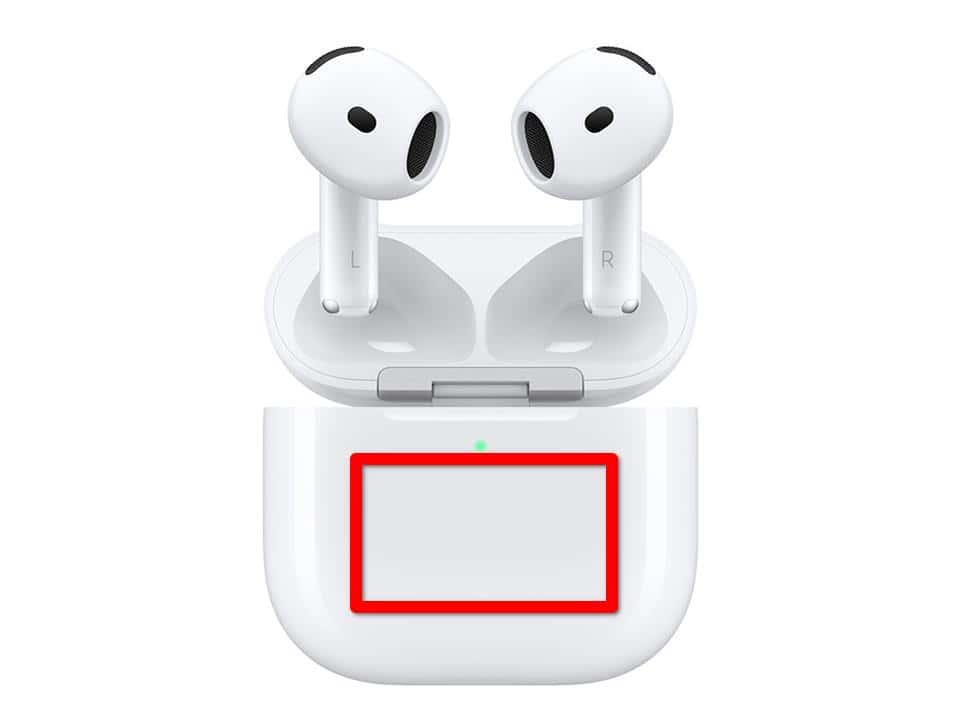
- AirPods 4 (with or without noise cancelling): return your AirPods to the case and close the lid. Wait 30 seconds, then open the lid. Double-tap the front of the case three times.
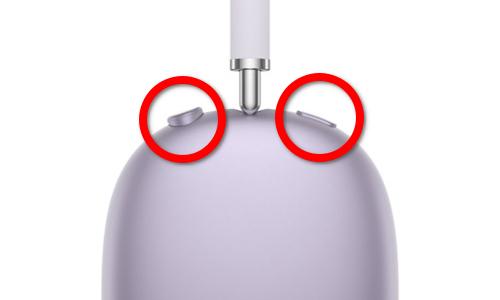
- AirPods Max: press and hold both the Digital Crown and the noise cancelling button at the same time for 15 seconds, or until the status light changes from flashing amber to white.


How to Factory Reset AirPods Bought From Someone Else
If Find My is still enabled, you must ask the previous owner to remove the AirPods from their Apple ID via iCloud.com > Find My > Devices. Otherwise, the reset won’t complete due to Activation Lock.
Forcing AirPods To Update Firmware
While there’s no manual method, placing your AirPods in the case, connected to power, and near a paired iPhone with Wi-Fi typically forces the update automatically. You can check the version by going to Settings > Bluetooth, then tapping the ⓘ next to your AirPods.
Tips for Resetting AirPods

- Charge the case before attempting a reset to avoid interruptions.
- Remove your AirPods from all previously paired devices to ensure a clean setup.
- Find My lock stays active after reset if not removed from iCloud.
- Clean the AirPods and case contacts with a microfiber cloth for better detection.
- Rename your AirPods after reset in Bluetooth settings for easier identification.
AirPods Factory Reset: Frequently Asked Questions
You can still reset them by using the setup button on the case and following the light sequence. However, you’ll need an Apple device to reconnect them afterward.
Make sure the case is charged, the lid stays open during reset, and you’re holding the setup button long enough. If Find My is still active, the reset may not complete.
Yes, but only after the previous owner removes the device from their iCloud account. Otherwise, Activation Lock will block pairing.
No, the reset doesn’t update firmware. Updates occur automatically when AirPods are charging near a paired iPhone connected to Wi-Fi.
Yes, any saved names, noise control settings, or spatial audio configurations will return to factory defaults.
Summary
- Place AirPods in their case
- Open lid, go to Bluetooth settings
- Tap “Forget This Device”
- Hold setup button until white light flashes, or tap the case three times for newer models
- Reconnect to iPhone
Conclusion
Resetting your AirPods can solve most pairing or audio issues and prepares them for a fresh start with a new device. Whether you’re gifting them, troubleshooting Bluetooth bugs, or just want a clean setup, following these quick steps can save you time and hassle.
If you’ve bought AirPods secondhand, make sure the previous owner unlinks them from iCloud first — otherwise, the factory reset won’t work. Once reset, enjoy a smoother, more stable listening experience across all your Apple devices.


Discussion