

The release of iOS 26 brought exciting new features, but for many iPhone users, it also amplified a long-standing frustration: the creeping expansion of System Data storage. This nebulous category, previously known as “Other,” is where your iPhone stashes caches, logs, Siri voices, and temporary files. When this section balloons to tens of gigabytes, your available storage plummets, prompting a desperate search for solutions to reclaim valuable space. This persistent issue is why many iPhone owners are fed up with iOS taking over their storage.
Table of contents
Diagnosing and Reducing Excessive iPhone System Data
The key to resolving the System Data overflow is understanding that it is a dynamic category that can only be effectively managed by forcing iOS to clean up after itself. Persistent clearing of caches and regular maintenance routines are essential to keep this section from spiraling out of control and consuming your entire device capacity. These simple steps are part of the broader routine for effective ways to get more storage on your iPhone.
1. Optimize Message History Settings
Often, one of the biggest hidden culprits for the System Data buildup is how your iPhone handles old text and media messages. By default, iOS keeps your entire message history forever, accumulating large amounts of data over time, which contributes heavily to the “System Data” classification. Adjusting this setting is a fast way to trim the fat.
Don’t miss the best of The Mac Observer
Set us as a preferred source and our Apple reporting ranks higher in your Google Search results and Discover feed — one tap, no account changes.
- Go to Settings > Apps > Messages.
- Tap Keep Messages.
- Change the setting from Forever to 30 Days or 1 Year.
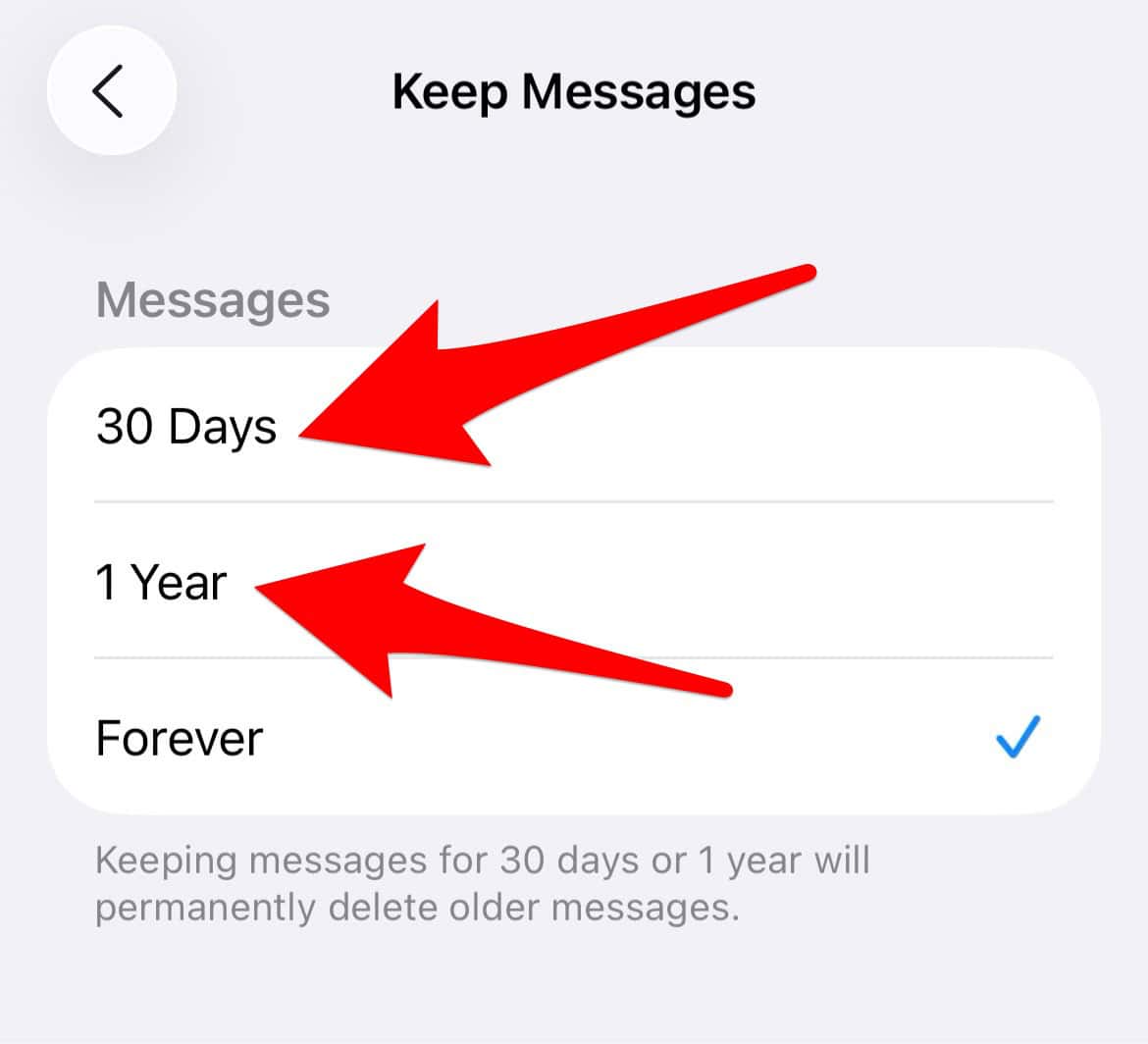
- Confirm the deletion when prompted.

2. Clear Safari Cache and Website Data
Your web browser is constantly caching images, cookies, and other files to speed up browsing, but these temporary files are grouped under System Data. Regularly clearing this accumulated data is a necessary maintenance step that provides immediate relief for storage woes. It is a simple, non destructive fix that every user should employ.
- Navigate to Settings > Apps > Safari.
- Tap Clear History and Website Data.
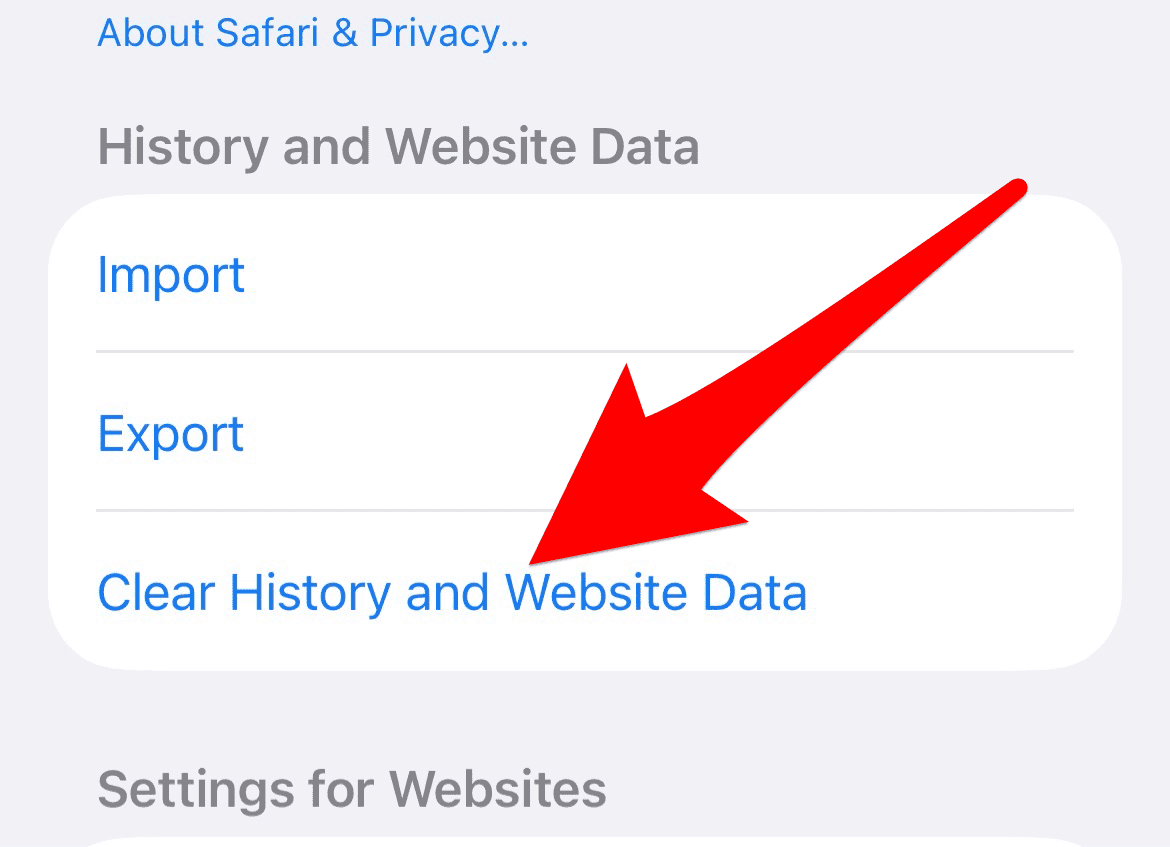
- Confirm by tapping Clear History and Data.

3. Offload Unused Applications
While Offloading Apps does not delete the app’s data (which is part of System Data), the act itself can sometimes trigger a system-level cleanup of associated caches and temporary files. This is particularly useful for large apps that you rarely use, allowing you to free up space without losing your documents and settings. This is a great feature to reclaim space temporarily.
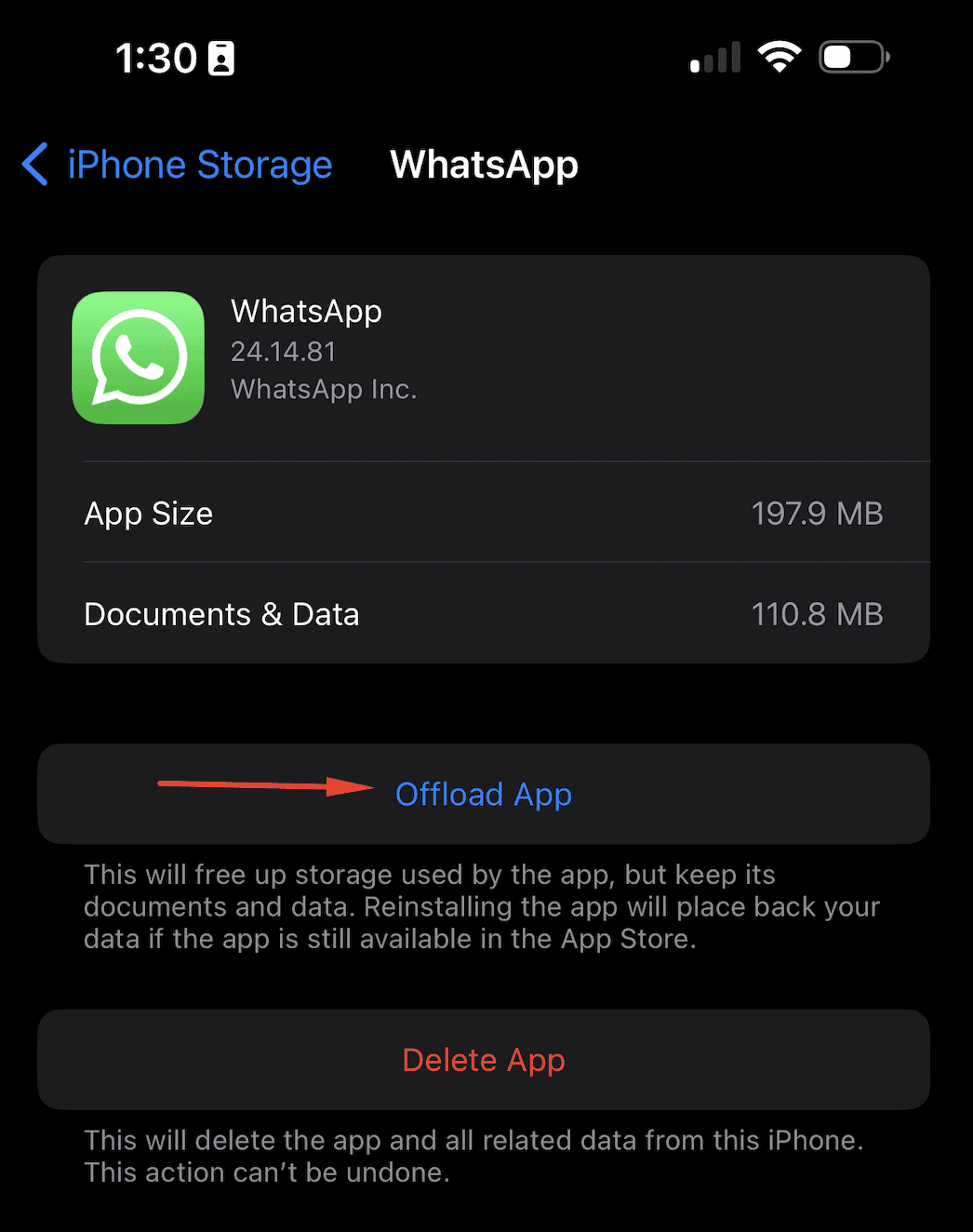
- Go to Settings > General > iPhone Storage.
- Review the list of apps and tap on a large, infrequently used one.
- Select Offload App.

4. Review and Manage Local Downloads
Downloaded media, such as episodes from streaming services, songs in Apple Music, or maps in third-party navigation apps, are significant storage users. Although this data often falls under “Media” or the app itself, its associated temporary files and indexing can swell the System Data category. Directly managing these downloads is key.
- Check apps like Apple Music or Podcasts for downloaded content.
- Delete entire downloaded albums or episodes.
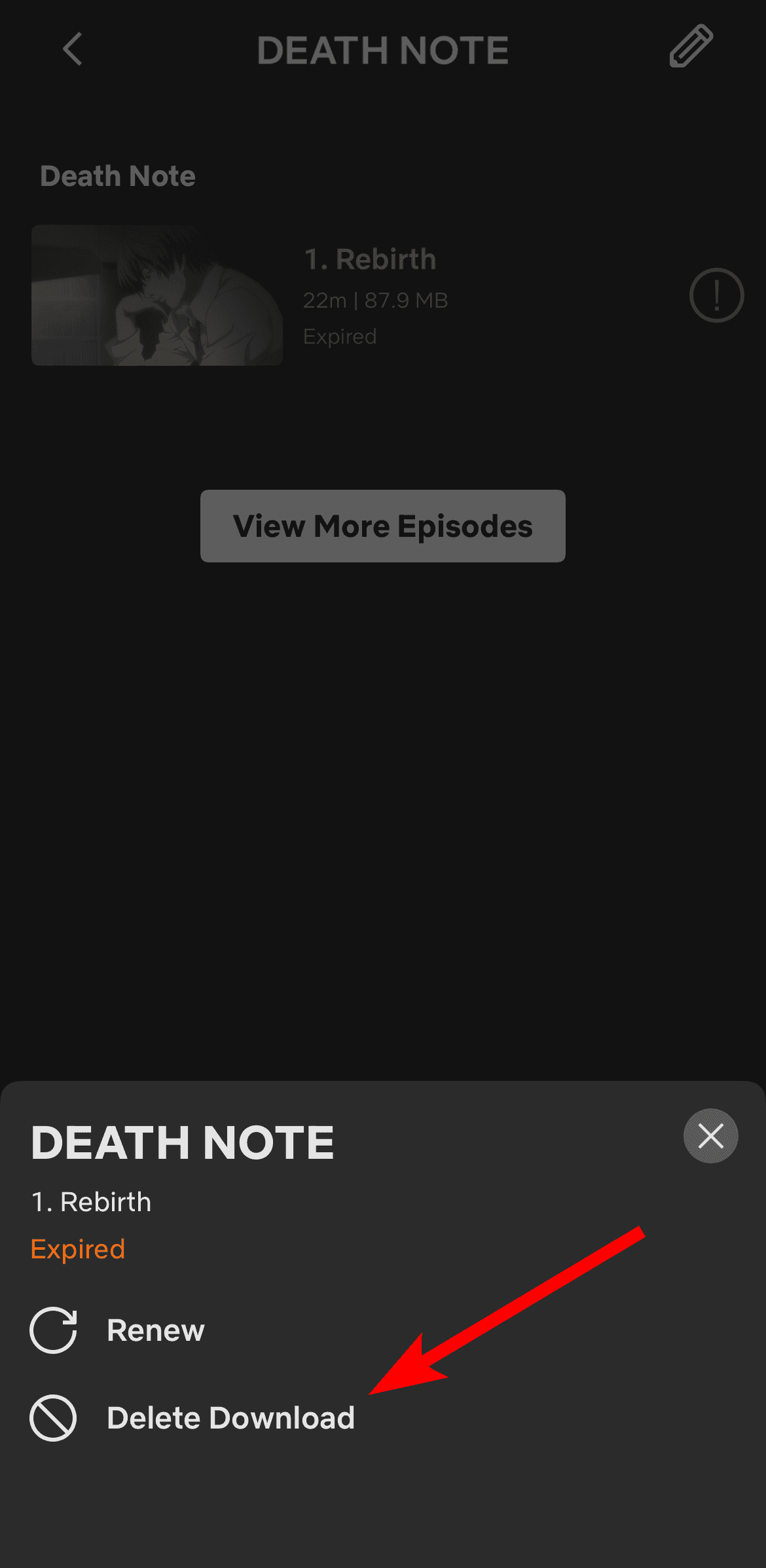
- In Video or streaming apps (like Netflix), manually delete downloaded movies or shows.

5. Perform a Full Backup and Restore
The most drastic, yet often the most effective, solution for an out-of-control System Data issue is a complete device refresh. A backup and restore forces the system to rebuild its entire storage index from scratch, permanently clearing many corrupted or excessive temporary files that it otherwise refuses to touch. This is the last resort when all other fixes fail to shrink the System Data.
- Back up your iPhone to iCloud or your computer.
- Go to Settings > General > Transfer or Reset iPhone.

- Tap Erase All Content and Settings.
- Once the erase is complete, restore your data from the backup.

FAQ
Yes, in modern iOS versions like iOS 26, the category previously labeled “Other” storage in the iPhone Storage settings is now renamed to System Data. It serves the same purpose of holding non-app and non-media files.
A simple restart can sometimes clear a small amount of temporary cache files, offering minor relief. However, it will not resolve a persistent issue where System Data is consuming multiple gigabytes of storage.
No, Apple does not allow users direct access to the iOS file system to manually delete the contents of the System Data category. You must use the methods above, which trigger iOS to perform the cleanup internally.
Taking Control of Your iPhone’s Storage Capacity
The challenges posed by iOS 26 and ballooning System Data are manageable with proactive maintenance. By regularly clearing your caches, optimizing messaging settings, and managing media downloads, you can prevent storage anxieties and ensure your iPhone operates smoothly. For users constantly facing storage limits, consider solutions like external drives to get affordable ways to expand your iPhone storage. Ultimately, understanding your capacity needs is critical before an upgrade; decide how much iPhone storage you need for a better experience.



Is not us who need to fix this. It is Apple who needs to fix their space-leak bug. It is amazing this is going on for years. I am afraid I am also moving to Andorid.
I transferred to Android and have my phone, iPad, and watch up for sale on Facebook marketplace. Tim Cook did this before to people have older iPhones. To increase sales Apple slowed down all iPhones Tim Cook thought were to old. There was a class action lawsuit and Apple lost. i hope history repeats itself,
Had to restore after my system data made my iPhone full before updating to 26.1, and a month later its already ballooned back to 180GB. Obviously its not user error but a major bug in 26 that Apple seriously needs to fix, or its negatively gonna impact future iPhone sales.
It’s terrible! I agree they need to do something about it. Suddenly I’m at full capacity after installing 26.1 and I regret it.
So I think I found an actual fix that doesn’t require a full restore. Basically, just update to a newer version of iOS before the data clogs up your phone again, or it will hang on update and require a restore. It cleared quite a bit of mine when updating without a restore. Of course though, Apple doesn’t release enough final release versions frequently before system data gets too high, so you may want to consider a beta release if your system data is clogging too fast waiting for a final release since betas come more frequently. And while on the beta, send Apple a report on the Feedback app every time the system data balloons above 29 or 30 gen, because the more we are a pain in Apple’s rear, the more they will try to fix it to stop our complaints.