

If your iPhone 17 won’t turn on, you’re not alone. Many users report black screens, unresponsiveness, or charging issues shortly after setup or during routine use. Fortunately, most causes are minor, ranging from battery drain to software glitches, and can be resolved without a trip to the repair shop.
Table of contents
Common Reasons Your iPhone 17 Won’t Power On
Before diving into fixes, it’s helpful to understand what might be causing the issue. Your iPhone 17 may not turn on due to:
- A fully drained battery
- A faulty charger or cable
- Software crashes or freezes
- Overheating or moisture exposure
- Physical damage from drops or impacts
Fixes to Try When Your iPhone 17 Won’t Turn On
Force Restart Your iPhone 17
A frozen system can make your phone appear dead. A force restart refreshes the device without deleting data.
Don’t miss the best of The Mac Observer
Set us as a preferred source and our Apple reporting ranks higher in your Google Search results and Discover feed — one tap, no account changes.
- Press and quickly release the Volume Up button.
- Press and quickly release the Volume Down button.
- Press and hold the Side button until the Apple logo appears.
This method is safe and effective for resolving minor software glitches.
Charge Your iPhone for at Least 30 Minutes
If the battery is completely drained, your iPhone may take longer to respond.
- Use an Apple-certified charger and cable.
- Plug into a wall outlet (not a computer or power bank).
- Wait at least 30 minutes before trying to power it on.
Inspect the charging port for debris and clean it gently with a soft brush or toothpick.
Check Your Charger and Cable
Charging accessories are often the culprit.
- Test your charger and cable with another device.
- Look for frayed wires, bent connectors, or loose fits.
- Replace damaged accessories with certified replacements.
Restore Your iPhone via Finder or iTunes
If your device remains unresponsive, restoring it might help.
- Connect your iPhone to a computer.
- Open Finder (macOS) or Apple Devices (Windows).
- Select your device and choose “Restore.”
This process reinstalls iOS and can resolve deeper software issues. Learn how to restore your iPhone safely.
Update Your iPhone
Outdated software can cause instability, freezing, or failure to boot. If your iPhone 17 turns on after a restart or restore, updating iOS is a smart preventive measure.
To update your iPhone:
- Connect to Wi-Fi and ensure your battery is at least 50% charged or plugged in.
- Go to Settings > General > Software Update.
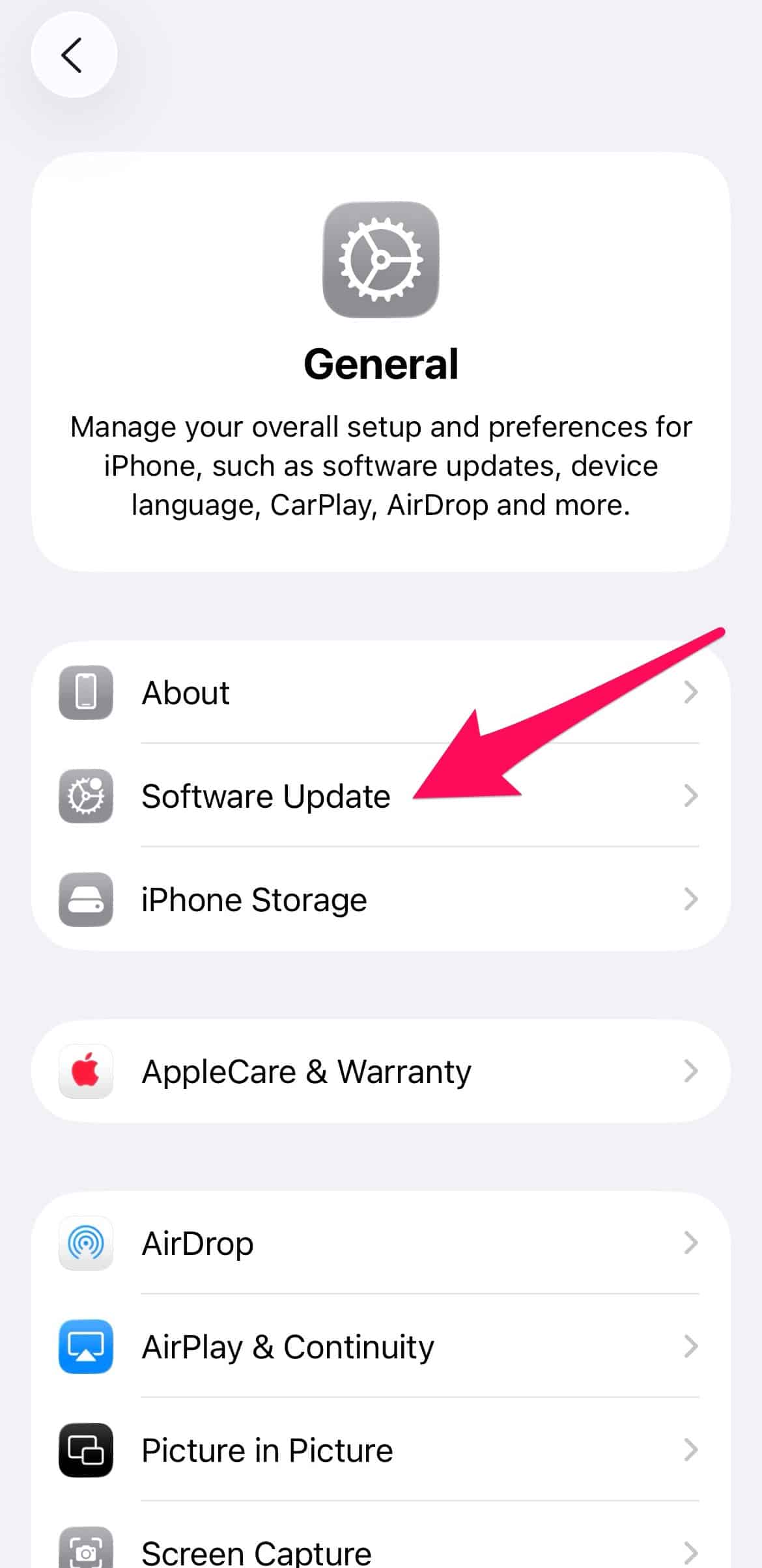
- Tap Download and Install if an update is available.
- Follow the on-screen instructions and wait for the update to complete.

Keeping your device current helps avoid future issues. For a full walkthrough, see how to update your iPhone.
Reset All Settings
If your iPhone 17 powers on but behaves erratically or fails to respond properly, resetting all settings can help without erasing your data.
- Go to Settings > General > Transfer or Reset iPhone.
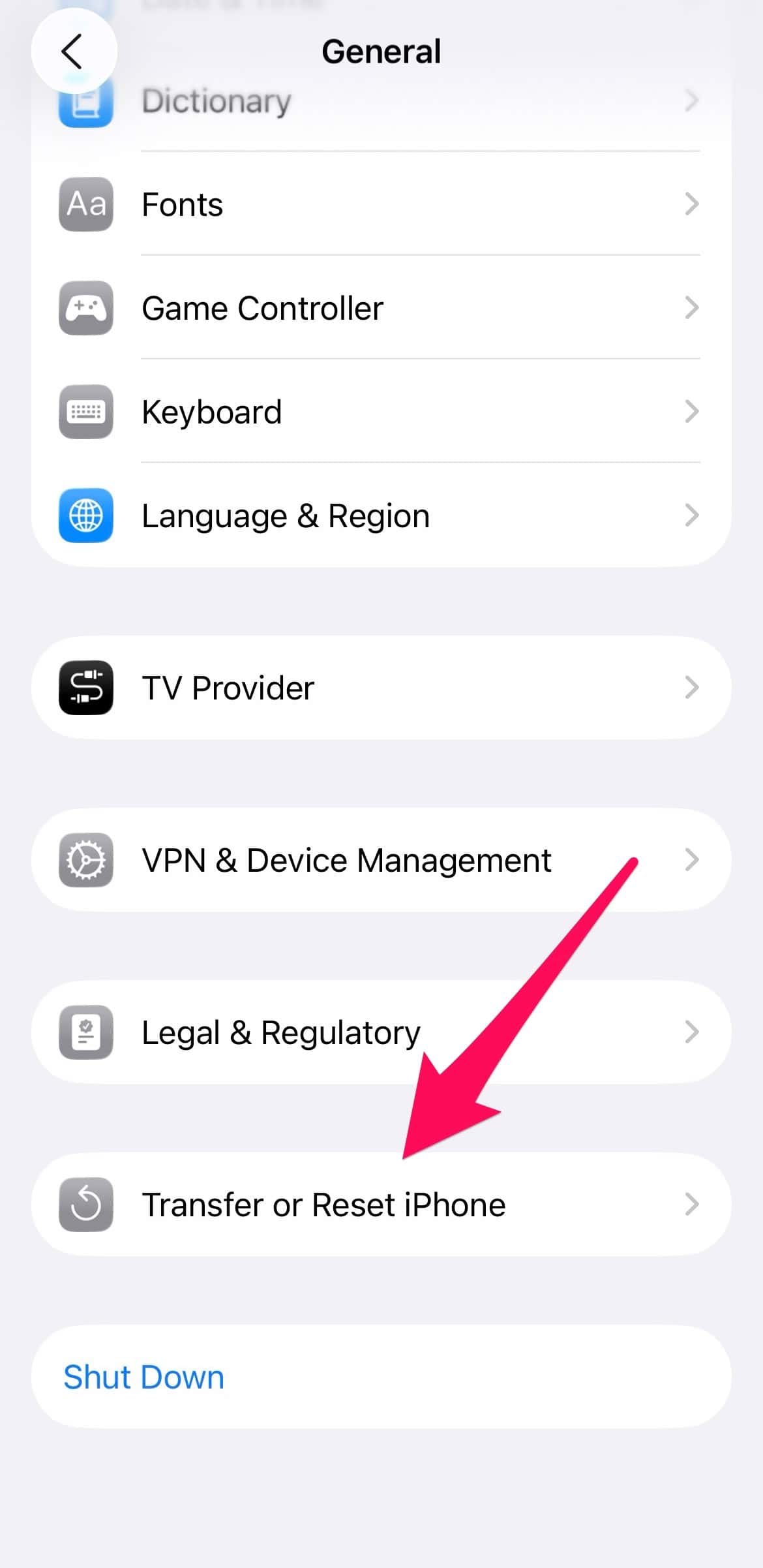
- Tap Reset > Reset All Settings.
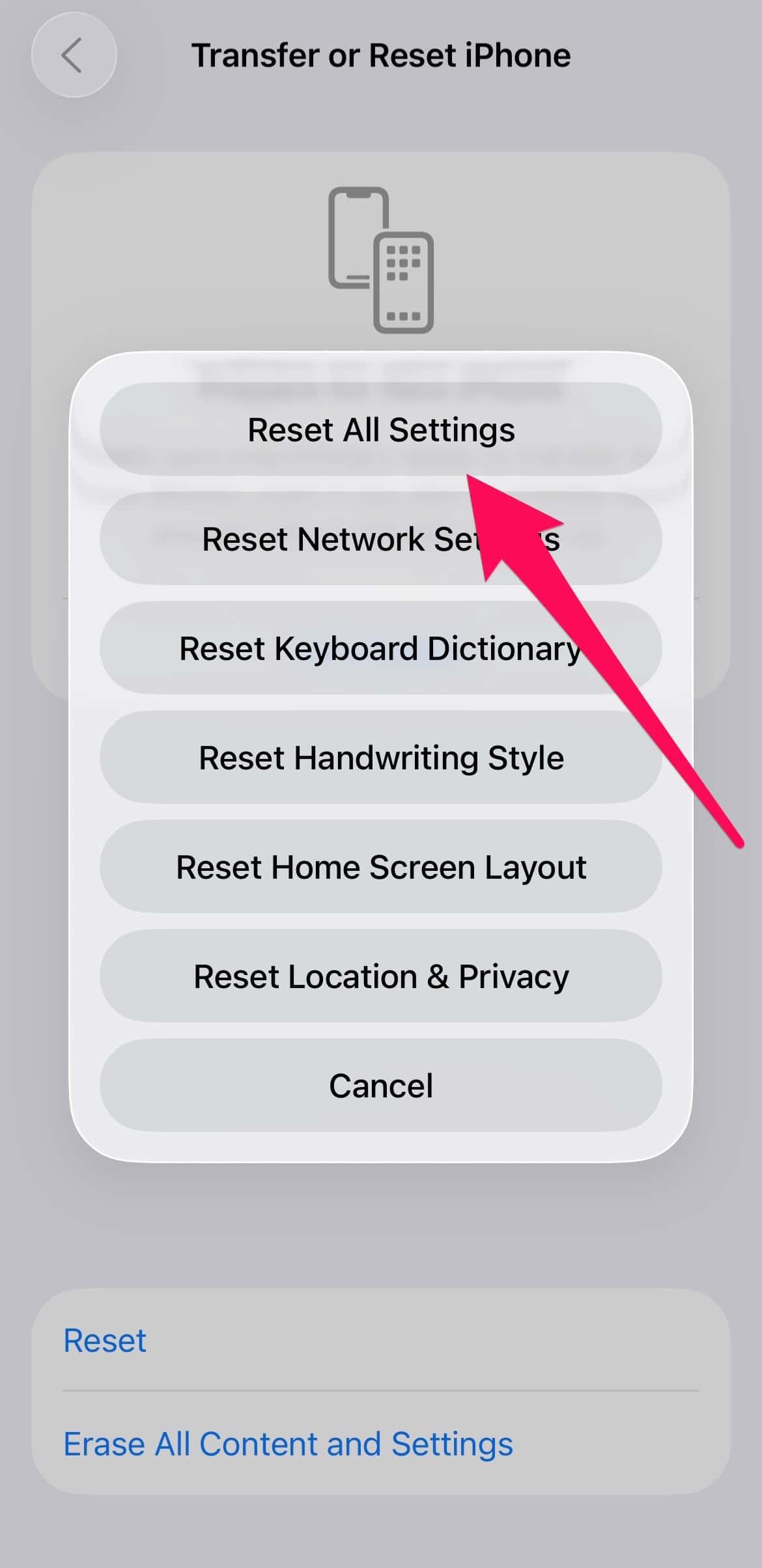
- Enter your passcode and confirm.


This will reset system preferences like Wi-Fi, Bluetooth, and display settings, but your apps and data will remain intact.
FAQ
Yes. A completely drained battery may take 30 minutes or more to respond.
Yes. It won’t erase your data and often resolves software freezes.
Try a different charger, inspect for damage, or consider restoring the device.
If none of the above fixes work, internal damage or battery failure may require professional service.
Don’t Panic and Start Simple
Most iPhone 17 power issues stem from minor glitches or charging problems. Start with a force restart and proper charging. If your screen remains black, remember: at least it’s not the iPhone black screen of death. With patience and the right steps, your device should be back in action soon.


Discussion