

If Apple Music or iCloud Music Library shows error 4007 on your Mac or Windows PC, it usually points to a network or server communication problem rather than a damaged library. A few focused checks on connectivity, software versions, and firewall rules often clear the issue.
Table of Contents
Solutions
Check Apple System Status for Apple Music and iTunes
Before changing anything on your devices, confirm whether error 4007 coincides with a temporary Apple Music, iTunes, or iCloud outage.
Time needed: 2 minutes
- Open a web browser on your Mac or Windows PC.
- Go to Apple’s official System Status page for online services.
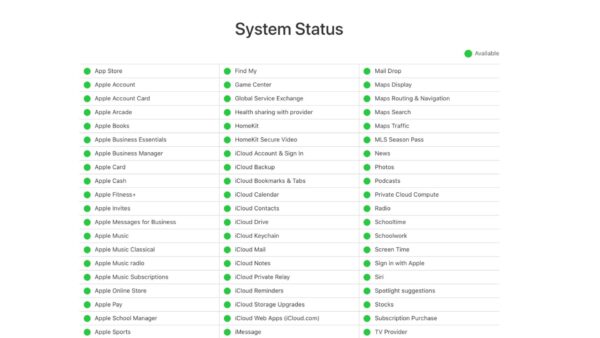
- Look for entries related to Apple Music, iTunes, and iCloud Music Library.
- If they show issues, wait until Apple reports services as restored, then try again.

Test Your Internet Connection and Router
Error 4007 often signals an unstable or filtered connection that stops your computer from reaching Apple’s music servers correctly.
Don’t miss the best of The Mac Observer
Set us as a preferred source and our Apple reporting ranks higher in your Google Search results and Discover feed — one tap, no account changes.
- On your Mac or PC, open a browser and visit several websites.
- Upload a test file to iCloud Drive to confirm stable upstream traffic.
- Turn off any VPN or proxy tool temporarily and keep Apple Music or iTunes closed.
- Restart your router, then reopen Music or iTunes and try syncing again.
Update macOS, Windows, and the Music or iTunes App
Running old system builds or outdated Music and iTunes versions can cause error 4007 after Apple updates backend services.
- On Mac, open System Settings > General > Software Update.
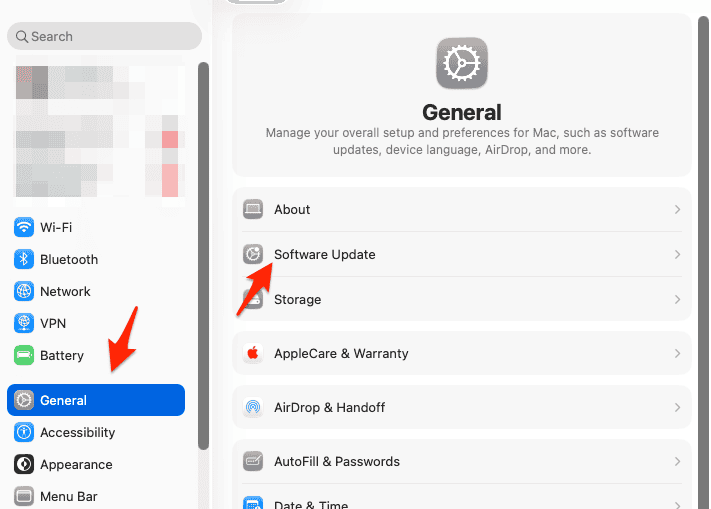
- Install any available macOS updates and restart your Mac when finished.
- On Windows, open the Microsoft Store or Apple Software Update utility.
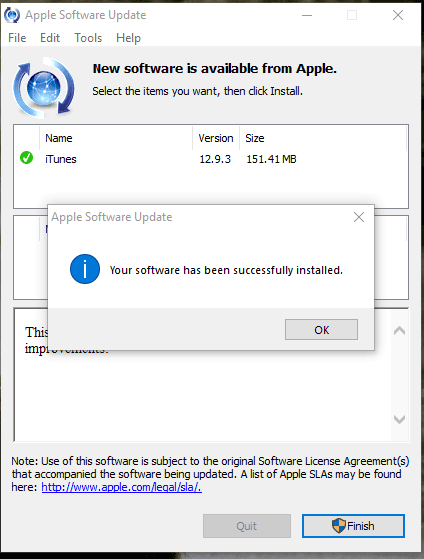
- Update Apple Music and iTunes, then reboot your PC and test again.


Try Apple Music on the Web as a Workaround
If error 4007 persists on desktop, the web player helps confirm whether your library and account function correctly on Apple’s servers.
- Open a browser on your Mac or Windows PC.
- Go to the Apple Music web player site.
- Sign in with the same Apple ID used in the Music app.
- Check whether your playlists, albums, and recent additions appear correctly and play without errors.
Check Firewall, Antivirus, and Network Rules
Strict firewall policies, security software, or corporate networks can block the ports and domains Apple Music needs for cloud syncing.
- On Windows, open Settings > Network & Internet and confirm the network is marked as private or trusted.
- Temporarily disable third-party antivirus or firewall tools, then retry the sync.
- Add Apple Music and iTunes to allowed apps in your firewall settings if the error disappears.
- If on a work network, test again using a personal hotspot or home Wi-Fi connection.
Contact Apple Support With Error 4007 Details
If error 4007 appears across multiple networks or machines, Apple Support can check for account-side or server-side issues affecting your library.
- Take screenshots of the exact error 4007 messages on macOS and Windows.
- Note when the error started and which Music or iTunes versions you use.
- Visit Apple’s support site and start a chat or phone session.
- Share your screenshots, error code, networks tested, and the steps you already tried.
Tips
- Use the same Apple ID on every device linked to your Apple Music subscription.
- Avoid heavy streaming or large downloads when updating your cloud library.
- Keep macOS, Windows, and the Music and iTunes apps updated to current stable versions.
- Use the Apple Music web player when desktop apps have temporary sync problems.
- Record dates and times of error 4007 messages in case Apple Support needs logs.
FAQ
Usually not. Error 4007 is most often linked to connectivity or server communication, while your purchases and uploads stay stored on Apple’s servers.
Desktop apps sometimes hit local network filters or software conflicts that your phone or tablet bypasses, even when they share the same account.
If service status looks normal and error 4007 persists across different networks for more than a day, contact Apple Support with full details.
Summary
- Check Apple service status
- Stabilize your internet connection
- Update desktop systems and apps
- Use the Apple Music web player
- Escalate persistent 4007 cases
Error 4007 on Apple Music, iCloud Music Library, and iTunes usually traces back to temporary network or service problems rather than permanent account damage. By checking Apple’s service status, testing different networks, updating software, and trying the web player, you can narrow down whether the problem is local or on Apple’s side. If the error continues after those checks, detailed information shared with Apple Support helps them confirm the cause and suggest the next steps.


Discussion