

So, you’ve snapped your Apple Pencil onto the side of your iPad, or plugged it in, and… nothing. No lights, no beep, just smooth white plastic staring back at you.
It’s a classic Apple design quirk: the Apple Pencil (even the fancy new Pro model) has zero physical charging lights. If you’re used to third-party styluses that glow blue or green, this can be maddening. Is it charging? Is it dead? Is the magnet just holding it there for moral support?
Don’t miss the best of The Mac Observer
Set us as a preferred source and our Apple reporting ranks higher in your Google Search results and Discover feed — one tap, no account changes.
Table of contents
The “Snap” Test (Apple Pencil Pro & 2nd Gen)
If you own an Apple Pencil Pro or the 2nd Generation model, the confirmation is almost instant, but easy to miss if you blink.
When you magnetically attach the Pencil to the flat edge of your iPad (the volume button side), look at the top center of your screen.

- The “Pill” Pop-up: A small, pill-shaped notification should drop down for about two seconds. It will show the “Apple Pencil” name and a green lightning bolt icon next to the battery percentage.
- No Bolt? If you see the percentage but no lightning bolt, or if the battery icon is grey, it is not charging. It’s just connected.
Does the Apple Pencil work on iPhone?
The Widget Method (The Only Way for USB-C & 1st Gen)
If you are rocking the Apple Pencil (USB-C) or the original 1st Gen, you don’t get the cool magnetic snap animation. Even for Pro users, the pop-up disappears quickly. The most reliable method is the Batteries Widget.
- Swipe Right on your Home Screen (or Lock Screen) to open the “Today View.”
- Look for the Batteries widget. It displays circles for your iPad, iPhone, and connected accessories.
- Check for Green: You should see your Apple Pencil listed.
- Charging: There is a tiny lightning bolt inside the circle, or the circle is green (depending on your wallpaper mode).
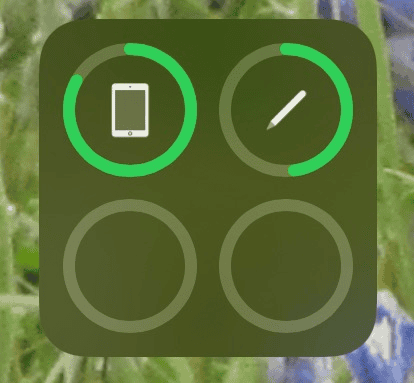
- Not Charging: The percentage is there, but no lightning bolt is visible.
- Charging: There is a tiny lightning bolt inside the circle, or the circle is green (depending on your wallpaper mode).

Pro Tip: If you don’t see the Batteries widget, long-press any empty space on your Home Screen, tap the + in the top left, search for “Batteries,” and add it. It’s a lifesaver.
Using Settings
If the widget is acting buggy (it happens), go straight to the source.
- Open Settings > Apple Pencil.
- At the very top, you will see a large graphic of your Pencil with the current battery percentage.
- Look for the “Charging” text or the lightning bolt icon next to the bar.
FAQ
No. Despite what some knock-off brands on Amazon might lead you to believe, the official Apple Pencil (USB-C) has no LED light. You must check the iPad screen.
No. The wireless charging coils in the Pencil are proprietary and spaced specifically for the iPad’s edge. It won’t charge on your MagSafe iPhone charger.
Yes, especially the magnetic ones. Wireless charging generates heat. However, if it’s too hot to touch, take it off immediately.
Summary
- Watch the Pop-up: Magnetic Pencils (Pro/2nd Gen) show a banner at the top of the screen the moment they attach.
- Use the Widget: The “Batteries” widget in Today View is the most reliable “always-on” indicator for all models.
- Check the Bolt: No lightning bolt icon means no power is flowing.
- Clean the Magnets: Dirt breaks the wireless connection faster than you think.
- Don’t Wait: If a Pencil hits 0% and sits there for weeks, it can permanently die. Charge it regularly!
For further reading, check out every Apple Pencil compared: which one should you buy?
Apple’s minimalism is great for aesthetics but bad for status indicators. Since there’s no glowing LED to give you peace of mind, getting comfortable with the Batteries widget is your best bet. If you just bought a used Pencil and it won’t charge past 0% after trying these steps, it’s likely a dead battery, which, unfortunately, means it’s time for a replacement, as Apple still doesn’t offer battery swaps for these sealed sticks.


Discussion