

After updating to macOS Tahoe 26.1, several users have reported issues with input focus—specifically, that windows and apps lose focus or the cursor jumps out of text fields unexpectedly. This can affect productivity, especially when working with multiple applications or text fields. While no official solution has been provided yet, there are several workarounds you can try to resolve the issue temporarily until a fix is released.
Table of Contents
How to Fix Input Focus Issues After macOS Tahoe 26.1 Update
1. Disable MDM or Security-Related Modifications
If you are using macOS Tahoe 26.1 on a machine that is managed by MDM (Mobile Device Management) or has any security privilege‑management tools, these may be causing the input focus issues. Try disabling or unhooking specific system-level authorization rights related to ServiceManagement. To do this:
Don’t miss the best of The Mac Observer
Set us as a preferred source and our Apple reporting ranks higher in your Google Search results and Discover feed — one tap, no account changes.
- Open your MDM configuration or security tool settings.
- Disable the ServiceManagement policy for modification rights (e.g.
com.apple.ServiceManagement.daemons.modify). - Restart your Mac to apply the changes and see if the input focus issue persists.
2. Test in a Clean User Account
To determine whether the issue is related to your current user settings or profiles, try creating a clean user account on your Mac:
- Go to System Settings > Users & Groups.
- Add a new user account (make sure this account doesn’t have any custom settings or profiles).
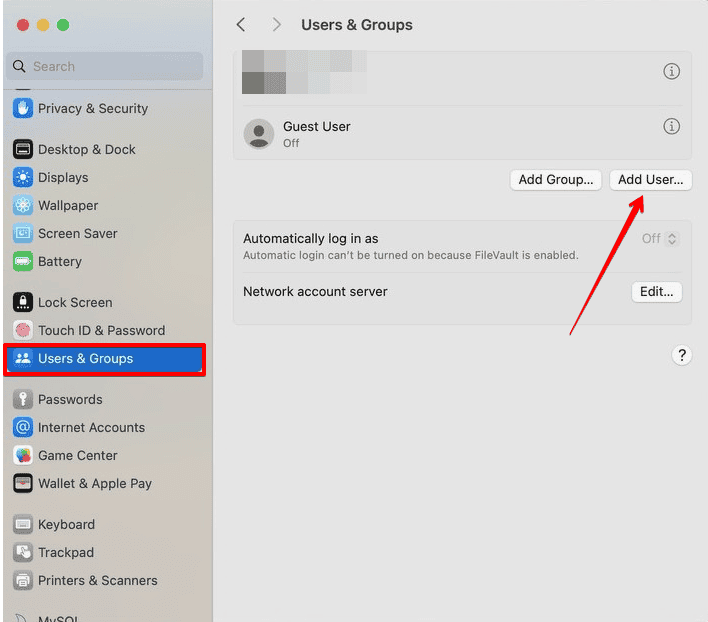
- Log into the new account and test if the input focus issue continues.
- If the issue doesn’t appear in the new account, it’s likely related to your original user settings or profiles.

3. Boot in Safe Mode
Booting your Mac in Safe Mode can help identify if the problem is being caused by third-party software or extensions:
- Shut down your Mac completely.
- Turn it back on and immediately hold down the Shift key until the login screen appears.
- Log in to your account in Safe Mode and check if the input focus issue persists.

- If the problem doesn’t occur in Safe Mode, the issue is likely related to third-party software or extensions running in normal mode.

4. Report the Issue to Apple Support
If none of the above workarounds resolve the issue, it’s likely a bug introduced with macOS 26.1. In this case, it’s important to report the problem to Apple:
- Go to Apple Support > Feedback and submit a report on the input focus problem.
- Be sure to include as much detail as possible, including whether the issue persists in Safe Mode, and which software or configurations you are using.
- Monitor updates to macOS, as Apple may release a patch or system update to address the issue.
macOS Tahoe 26.1 Input Focus Bug: Tips
- Try disabling all unnecessary background services and apps while troubleshooting to isolate the issue.
- Keep your macOS and any third-party software up to date to ensure you get any relevant fixes.
- Consider resetting your PRAM or SMC if the issue is still unresolved after applying the steps above.
Summary
- If using MDM or privilege-management tools, disable the ServiceManagement modify‑hook policy.
- Test the issue in a clean user account or in Safe Mode to isolate the problem.
- If the issue persists, report it to Apple and monitor for official fixes or patches.
For now, while waiting for an official fix from Apple, try disabling certain security settings, booting in Safe Mode, or testing with a clean user account to work around the input focus issue in macOS 26.1.

![Fix “macOS Cannot Verify That This App is Free from Malware” [2026]](https://www.macobserver.com/wp-content/uploads/2025/05/MacBook-displaying-multiple-macOS-Gatekeeper-icons-under-a-red-X-surrounded-by-Gatekeeper-dialogs-over-the-default-macOS-Sequoia-wallpaper.webp)


Discussion