

The Apple Watch Control Center gives you quick access to important features such as Wi-Fi, Cellular, Battery, Airplane Mode, Silent Mode, Theater Mode, Flashlight, and more. Apple changed the way to open Control Center starting with watchOS 10. On watchOS 10 and later, you press the side button once to open it. On watchOS 9 and earlier, you swipe up from the bottom edge of the watch face. Knowing which method applies to your watchOS version ensures you can access these controls without confusion.
Table of contents
Methods
How you open Control Center on Apple Watch depends on which version of watchOS you are running. Apple shifted the gesture in watchOS 10 to make room for the new Smart Stack feature, which appears when you swipe up. That means the old method no longer works on newer devices. Instead, Control Center now opens with a single press of the side button. If you are using an older version, you still rely on the bottom-edge swipe from the watch face. There are also reliable fallback techniques and accessibility options to ensure Control Center always remains reachable.
1. Side Button (watchOS 10 and later)
Starting with watchOS 10, Apple reassigned the side button’s function to Control Center access. This change makes it possible to open Control Center quickly from anywhere, even inside apps or during an active workout, without returning to the watch face. The side button sits below the Digital Crown and is flat and oval in shape.
Don’t miss the best of The Mac Observer
Set us as a preferred source and our Apple reporting ranks higher in your Google Search results and Discover feed — one tap, no account changes.
- Wake your Apple Watch by raising your wrist or tapping the screen.
- Locate the side button below the Digital Crown and press it once.
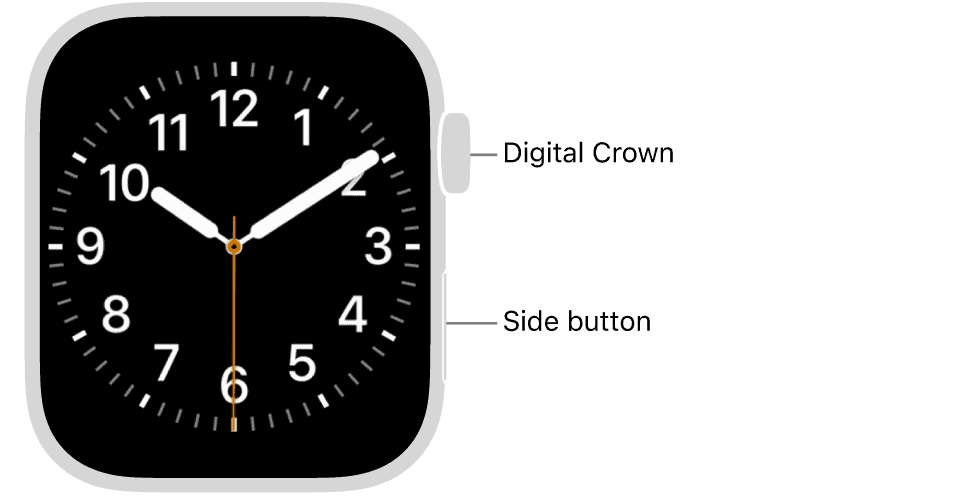
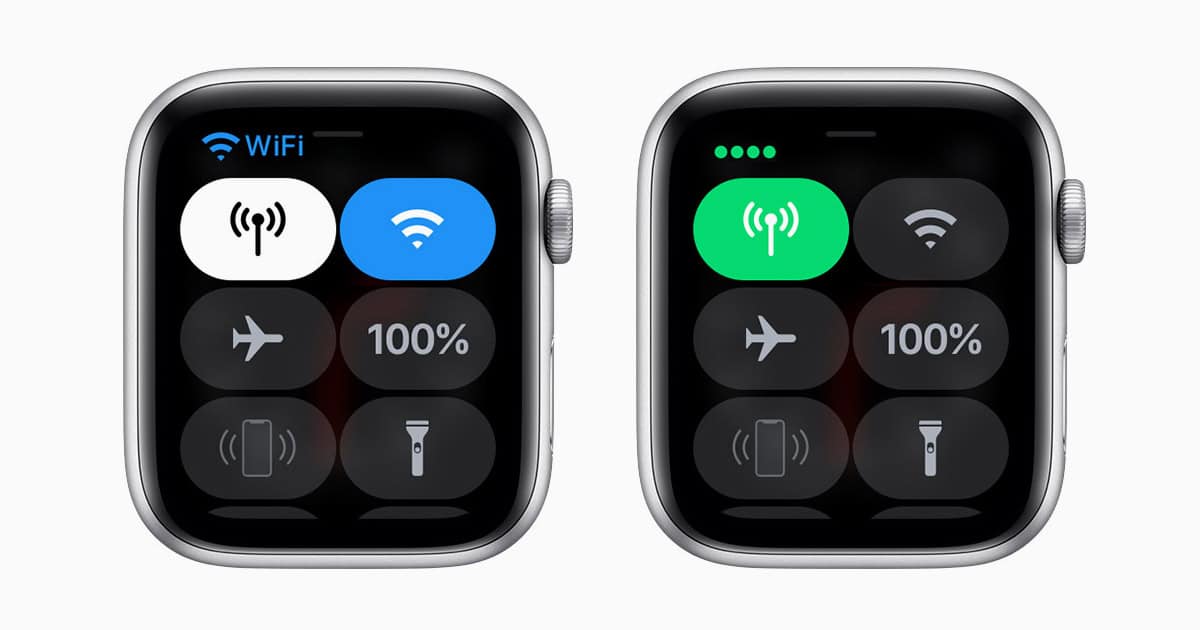
- Control Center will slide up, giving you access to toggles such as Wi-Fi, Cellular, Low Power Mode, Water Lock, Airplane Mode, Focus, Flashlight, and more.
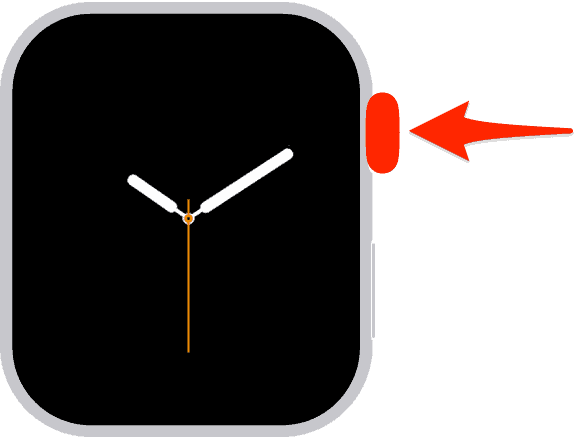
- When finished, close Control Center by pressing the side button again, pressing the Digital Crown, or simply lowering your wrist.


Need to adjust settings instead? Here’s how to go to Settings on Apple Watch.
2. Swipe Up from the Watch Face (watchOS 9 and earlier)
On watchOS 9 and older versions, Control Center is tied to the swipe-up gesture from the watch face. The gesture will not work when you are inside an app, a workout screen, or menus like Notifications. You must return to the watch face before performing the swipe, and the motion must start at the very bottom edge for the system to recognize it.
- If you are inside an app, press the Digital Crown to go back to the watch face.
- Wake the screen if it is dim by raising your wrist or tapping the display.
- Place your finger firmly at the bottom edge of the display and swipe upward in one smooth motion.

- Control Center will appear with its toggles and status indicators.
- Close Control Center by swiping down from the top, pressing the Digital Crown, or lowering your wrist.

You can also customize your Control Center in iOS 18 to streamline quick actions.
3. Tap-and-Hold Edge Fallback
On older watchOS versions, the swipe-up gesture may sometimes fail if the screen is damp, if your finger starts too high, or if animations are running in the background. Apple’s software often responds better when you first “anchor” your finger near the bezel. This tap-and-hold technique increases accuracy and ensures Control Center opens when the usual swipe-up is unreliable.
- Return to the watch face by pressing the Digital Crown if you are not already there.
- Wake the screen, then rest your finger just above the bottom bezel for about one second.
- While holding, swipe upward smoothly to trigger Control Center.
- If the gesture fails because of background animations, repeat the motion after waiting a moment.
- Exit Control Center as usual by swiping down, pressing the Digital Crown, or lowering your wrist.

If you misplace your device, learn how to ping Apple Watch or iPhone directly from Control Center.
4. Accessibility and VoiceOver
Apple designed Control Center access to remain consistent for accessibility users. With VoiceOver enabled, the access method follows the same rules as the installed watchOS version. On watchOS 10 and later, you press the side button. On earlier versions, you still use the bottom-edge swipe. Once open, VoiceOver announces the name and state of each toggle, allowing users to navigate with swipes or the Digital Crown.
- On watchOS 10 and later, press the side button once to bring up Control Center from any screen.
- On watchOS 9 and earlier, ensure you are on the watch face, then perform the bottom-edge swipe upward.
- Use left or right swipes to move between toggles, or scroll with the Digital Crown.
- VoiceOver will read each control aloud, helping you identify and activate the one you need.
- Exit by pressing the side button, pressing the Digital Crown, or swiping down from the top of the screen.
5. Access During Workouts or Inside Apps
Control Center behavior during workouts or inside apps depends on the watchOS version. With watchOS 10 and newer, the side button shortcut works everywhere, meaning you can toggle settings mid-workout without stopping the session. On older versions, you need to return to the watch face first before performing the swipe-up gesture.
- If you are running watchOS 10 or later, press the side button once during a workout or while inside any app to open Control Center.
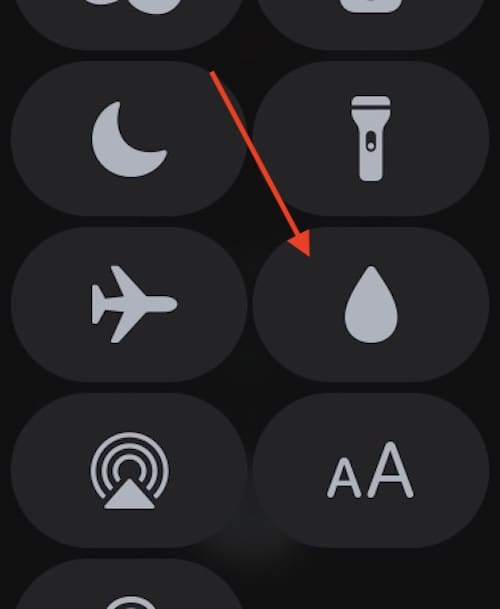
- Adjust toggles such as Low Power Mode, Water Lock, or Flashlight without interrupting your activity.
- On watchOS 9 or earlier, press the Digital Crown to leave the workout or app and return to the watch face.
- Perform the bottom-edge swipe upward to open Control Center, make your adjustments, then close it with a downward swipe or the Digital Crown.
- Resume your activity once Control Center is dismissed.

When apps get stuck, you may need to close apps on Apple Watch before reopening Control Center.
Tips
- On watchOS 10 and later, always use the side button for fastest access.
- On older versions, use the tap-and-hold method at the bottom edge if swipes fail.
- Customize Control Center by tapping Edit at the bottom and rearranging toggles.
- Keep critical toggles such as Low Power Mode, Water Lock, and Focus at the top.
- Restart your watch if Control Center becomes unresponsive.
FAQs
On watchOS 10 and later, swiping up shows Smart Stack widgets. Control Center now opens with the side button.
It’s the flat oval button below the Digital Crown. A single press opens Control Center on watchOS 10+, a double press activates Apple Pay, and a press-and-hold triggers Emergency SOS and power options.
Yes. Scroll to the bottom, tap Edit, and drag items to reorder or add new toggles.
Verify your watchOS version and use the correct method. On older versions, use the tap-and-hold fallback. Restart the watch if the issue persists.
Summary
- On watchOS 10 and later, press the side button once to open Control Center.
- On watchOS 9 and earlier, swipe up from the bottom edge of the watch face.
- Use the tap-and-hold fallback if swipes fail on older versions.
- Customize Control Center layout to prioritize key toggles.
- Restart the watch if Control Center does not respond.
Conclusion
Accessing Control Center on Apple Watch depends on the watchOS version. Press the side button on watchOS 10 and later, or swipe up from the bottom edge on watchOS 9 and earlier. If gestures do not register, use the tap-and-hold technique or restart the device. Customizing Control Center ensures your most-used toggles are always within quick reach, making it easier to manage connectivity, battery, and other essential functions at a glance.


Discussion