

The Beats Solo 3 headphones are designed to connect easily with Apple devices, thanks to Apple’s W1 chip. This chip ensures quick pairing, stable Bluetooth connectivity, and smooth switching between iPhone, iPad, and Mac. Once connected to one Apple device, the headphones automatically appear on others signed in with the same Apple ID. Below are step-by-step instructions for connecting your Beats Solo 3 across all your Apple devices.
Table of contents
How to Pair Beats Solo 3 to Your Apple iPhone and More
How to Pair Beats Solo 3 to your iPhone
Pairing the Beats Solo 3 with an iPhone is one of the easiest ways to get started, as both devices are designed to recognize each other instantly.
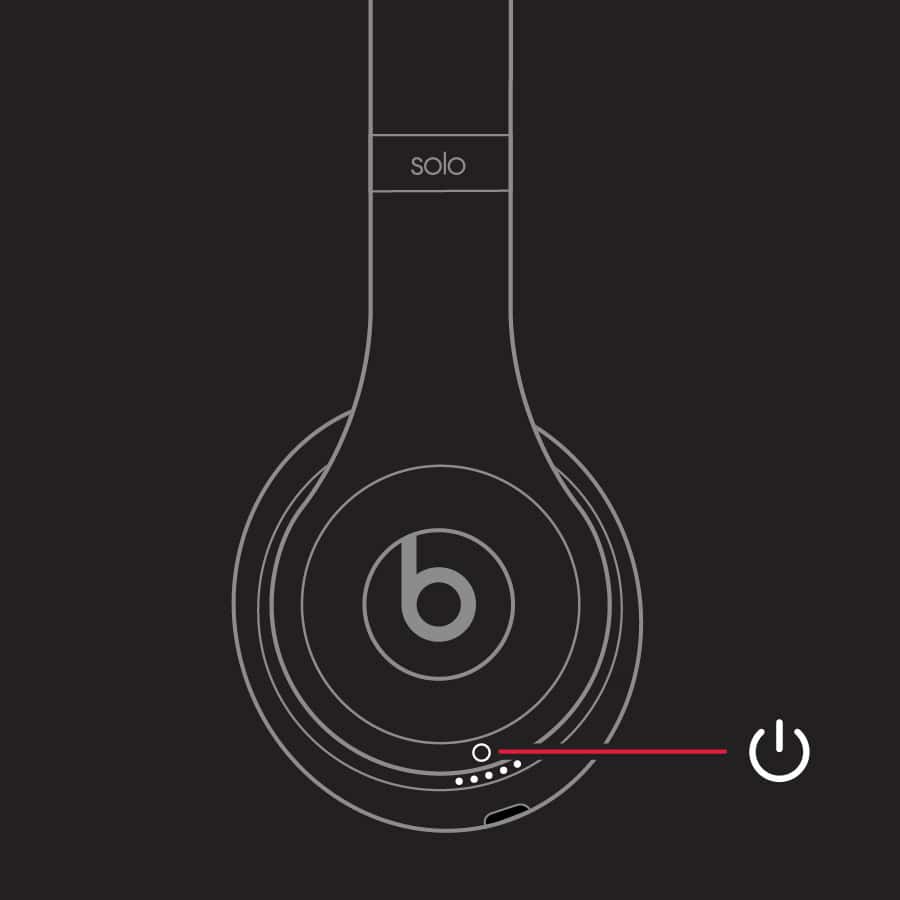
- Turn on the headphones.
- Press and hold the power button on the right ear cup until the LED light starts flashing.
- A flashing LED means your Beats are now in pairing mode.

- Open Bluetooth settings.
- On your iPhone, go to Settings > Bluetooth and ensure Bluetooth is turned on.
- Select Beats Solo 3.
- Under “Other Devices,” tap Beats Solo 3 when it appears.
- Confirm the connection.
- Once connected, the LED will stop flashing.
- Play a song or check Bluetooth settings to confirm pairing.
If you frequently switch devices, you might also find it useful to learn how to connect an Apple Watch to an iPhone or how to activate AirPods pairing mode, as both follow similar steps.
Don’t miss the best of The Mac Observer
Set us as a preferred source and our Apple reporting ranks higher in your Google Search results and Discover feed — one tap, no account changes.
How to Pair Beats Solo 3 with iPad
Connecting the Beats Solo 3 with an iPad works much the same way as with an iPhone, and if both devices share the same Apple ID, the headphones may even connect automatically.
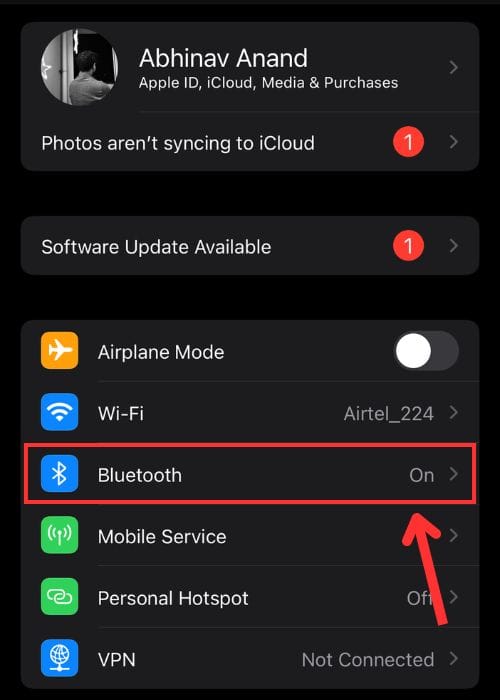
- Enable Bluetooth on your iPad.
- Open Settings, tap Bluetooth, and turn it on.

- Put your Beats Solo 3 in pairing mode.
- Press and hold the power button until the LED indicator flashes.
- This means your headphones are discoverable and ready to pair.
- Select the headphones.
- Under “Other Devices,” tap Beats Solo 3 to connect.
- Wait for automatic syncing (if using the same Apple ID).
- If your iPad uses the same Apple ID as your iPhone, the Beats might connect automatically without manual setup.
- Check the connection.
- Once paired, you’ll see Beats Solo 3 under “My Devices” marked as “Connected.”
- You can adjust sound output or volume from the Control Center.
How to Pair Beats Solo 3 with Mac
To connect the Beats Solo 3 to your Mac:
- Put your Beats Solo 3 in pairing mode.
- Press and hold the power button until the LED light flashes.
- The flashing LED indicates your Beats are ready to pair.
- Open Bluetooth preferences.
- Click the Apple menu, open System Settings, then select Bluetooth.
- Find and connect your Beats.
- Wait for your Mac to detect the headphones, then click Connect next to Beats Solo 3.
- Check for iCloud sync.
- If your Mac uses the same Apple ID as your iPhone or iPad, the Beats may appear automatically in the Bluetooth device list.
- Verify the audio source.
- Go to System Settings > Sound, and select Beats Solo 3 under both Input and Output.
If you’re using other Apple audio devices, you can also see how to connect AirPods Pro 3 to a laptop or how to put AirPods Max in pairing mode.
Tips for Better Bluetooth Performance
- Keep your Beats within 30 feet of your Apple device.
- Avoid thick walls, metal furniture, or other wireless interference.
- Charge your Beats above 20% before pairing.
- Keep your Apple devices updated to the latest software version.
- If pairing fails, reset the Beats by holding power and volume down for 10 seconds.
Final Thoughts
Pairing the Beats Solo 3 with Apple devices is quick and reliable across iPhone, iPad, and Mac. Once connected, the W1 chip keeps them synced automatically, allowing effortless transitions between devices under the same Apple ID.
With proper setup and simple maintenance, you can enjoy stable Bluetooth performance and high-quality audio across all your Apple products.
FAQs
Yes, Beats Solo 3 can connect to any Bluetooth-enabled device, including Android phones and Windows laptops.
Please make sure they’re in pairing mode and sufficiently charged. Restart your Apple device and try again if the issues persist.
If your devices share the same Apple ID, switching happens automatically. Otherwise, disconnect from one before pairing with another.
Yes. On Mac, click the Bluetooth icon in the menu bar and hover over Beats Solo 3. On iPad, open the Control Center to view battery status.



Discussion