

Pairing replacement AirPods or a new charging case requires following Apple’s specific setup process to ensure proper synchronization. I’ll guide you through each step, including how to handle firmware mismatches and troubleshoot common pairing issues that often occur with replacement units.
Table of contents
Before You Begin
Ensure your iPhone, iPad, or Mac runs the latest software version before attempting to pair replacement AirPods. Outdated system software prevents firmware updates and causes pairing failures. Check for updates in Settings > General > Software Update on iOS devices, or System Settings > General > Software Update on Mac.
Charge your replacement AirPod or charging case for at least 20-30 minutes before pairing. Low battery levels prevent proper initialization and can cause the setup process to fail immediately.
Don’t miss the best of The Mac Observer
Set us as a preferred source and our Apple reporting ranks higher in your Google Search results and Discover feed — one tap, no account changes.
Pairing Your Replacement AirPods
Apple’s official pairing process for replacement AirPods works best when followed precisely:
- Place both AirPods in the charging case.
- Connect the case to a power source using a Lightning or USB-C cable.
- Close the lid and wait 20 minutes. This allows the case to charge and prepares the AirPods for pairing.
- After 20 minutes, open the lid while keeping the case connected to power.
- Press and hold the setup button on the back of the case for 15 seconds.
- Watch the status light. It should flash amber, then white. If it flashes white immediately, proceed to step 8.
- If the light still doesn’t flash white after the 15-second hold, close the lid, wait another 20 minutes with the case connected to power, then repeat steps 4-6.
- Once the status light flashes white, close the lid of your charging case.
- On your iPhone or iPad, go to Settings > Bluetooth.
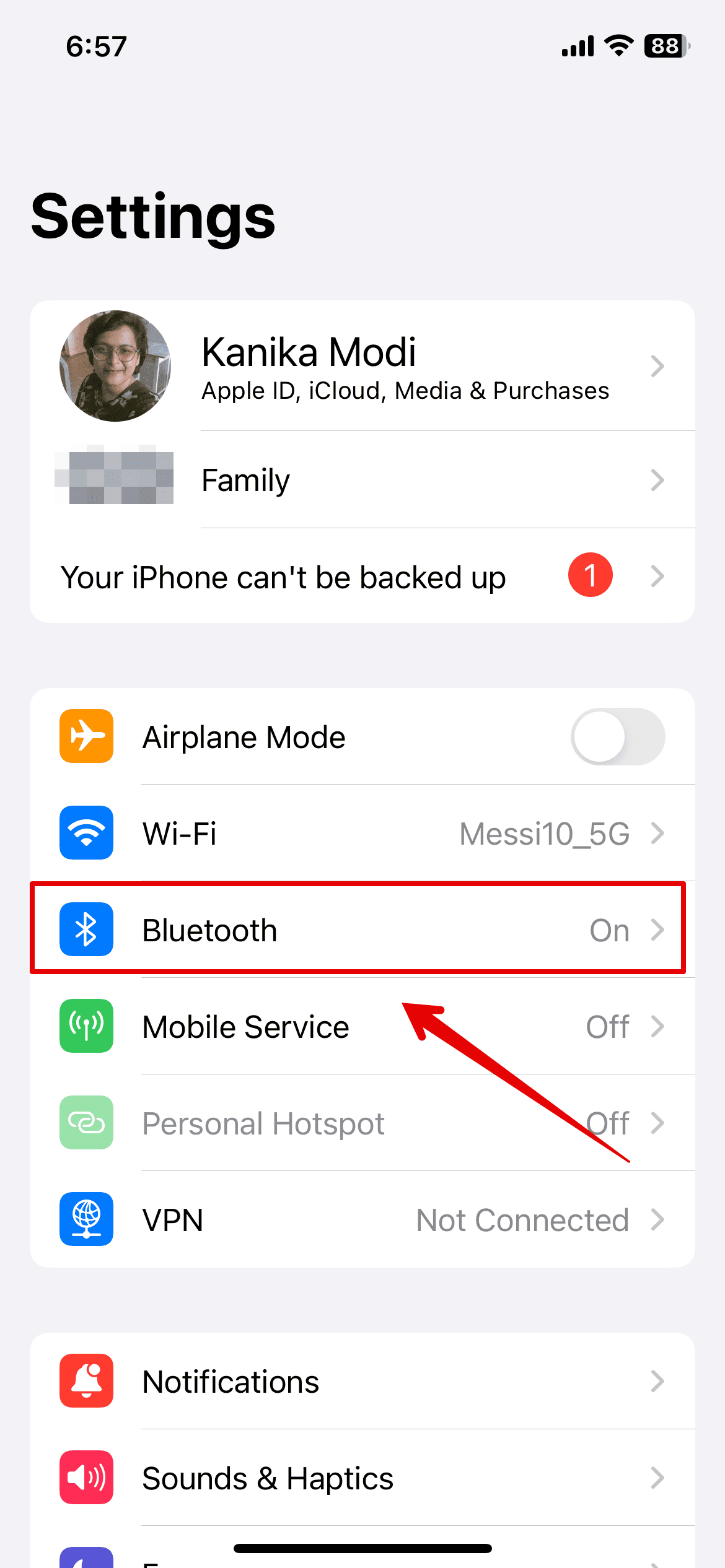
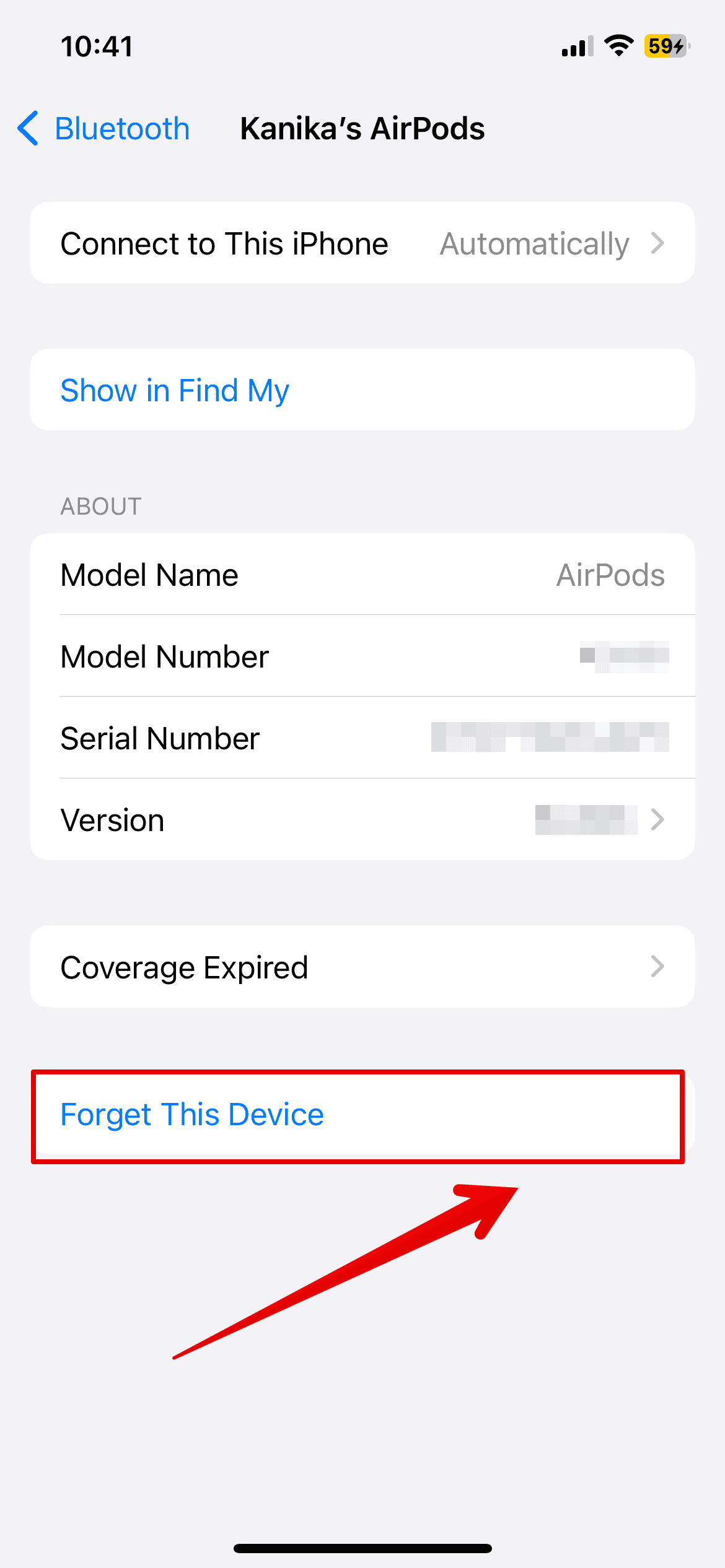
- If your AirPods appear in the list, tap the i button next to them and select Forget This Device. Confirm by tapping Forget Device again.
- Return to your Home Screen.
- Open the lid of your charging case (with both AirPods inside) and hold it next to your iPhone or iPad.
- The setup animation appears on your screen.
- Tap Connect, then tap Done.


Your replacement AirPods should now work properly with your existing AirPod or case.
Pairing a Replacement Charging Case
If you received a replacement charging case instead of replacement AirPods, follow these steps:
- Place both of your existing AirPods in the new charging case.
- Connect the case to power using a Lightning or USB-C cable.
- Close the lid and wait 20 minutes.
- Open the lid while keeping the case connected to power.
- Press and hold the setup button on the back of the case until the status light flashes white (this typically takes 5-10 seconds).
- On your iPhone or iPad, go to Settings > Bluetooth.
- If your AirPods appear in the list, tap the i button and select Forget This Device.
- Close the lid, then open it again.
- Hold the case (with AirPods inside) next to your iPhone or iPad.
- Tap Connect when the setup animation appears.
The new case should now pair successfully with your existing AirPods.
Understanding Firmware Mismatches
Firmware mismatches represent the most common obstacle when pairing replacement AirPods. Your existing AirPod has updated firmware from months or years of use, while your replacement arrives with older factory firmware. These mismatched firmware versions prevent the AirPods from synchronizing properly.
Signs of a firmware mismatch include:
- Status light flashing amber continuously when both AirPods are in the case
- Status light flashing white briefly, then reverting to amber
- “AirPods Mismatch” message appearing on your iPhone
- Each AirPod pairing as a separate Bluetooth device
- Both AirPods working individually but not together
- Three beeps when pressing the setup button
From Apple Community forums, users consistently report that firmware mismatches cause the most pairing headaches. The good news is that firmware updates usually resolve these issues automatically when you follow the correct procedure.
Updating AirPods Firmware
Apple doesn’t provide a manual firmware update option for consumers. Instead, firmware updates occur automatically in the background when specific conditions are met. Here’s how to encourage a firmware update on your replacement AirPod:
Method 1: Standard Firmware Update (Both AirPods Together)
- Ensure your iPhone, iPad, or Mac has the latest software installed.
- Connect your iPhone, iPad, or Mac to Wi-Fi.
- Place both AirPods in the charging case.
- Connect the charging case to power using a cable (wireless charging doesn’t trigger updates reliably).
- Keep the lid closed.
- Place your paired iPhone, iPad, or Mac within Bluetooth range (about 30 feet) of the charging case.
- Leave everything connected and in range for at least 30-60 minutes, preferably overnight.
- After waiting, check your firmware version by going to Settings > Bluetooth, tapping the i button next to your AirPods, and scrolling down to find the firmware version.
Method 2: Individual AirPod Update (For Stubborn Mismatches)
Based on solutions from Apple Community forums and iFixit repair guides, this method helps when standard updates fail:
- Remove both AirPods from the case.
- Take only the left AirPod and place it in the case, leaving the right one out.
- The status light should flash green.
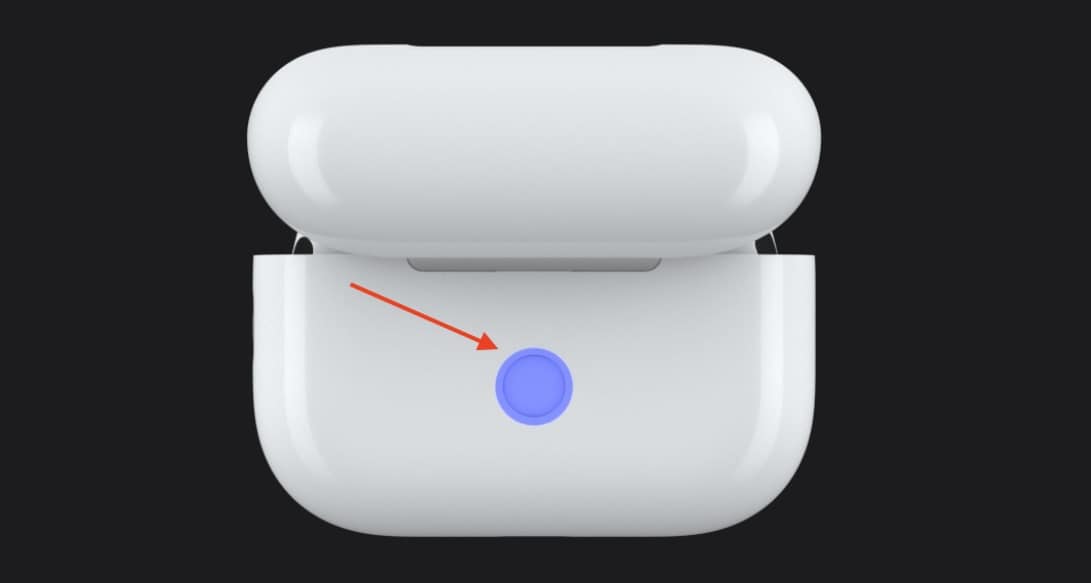
- Press and hold the setup button until the light flashes white.
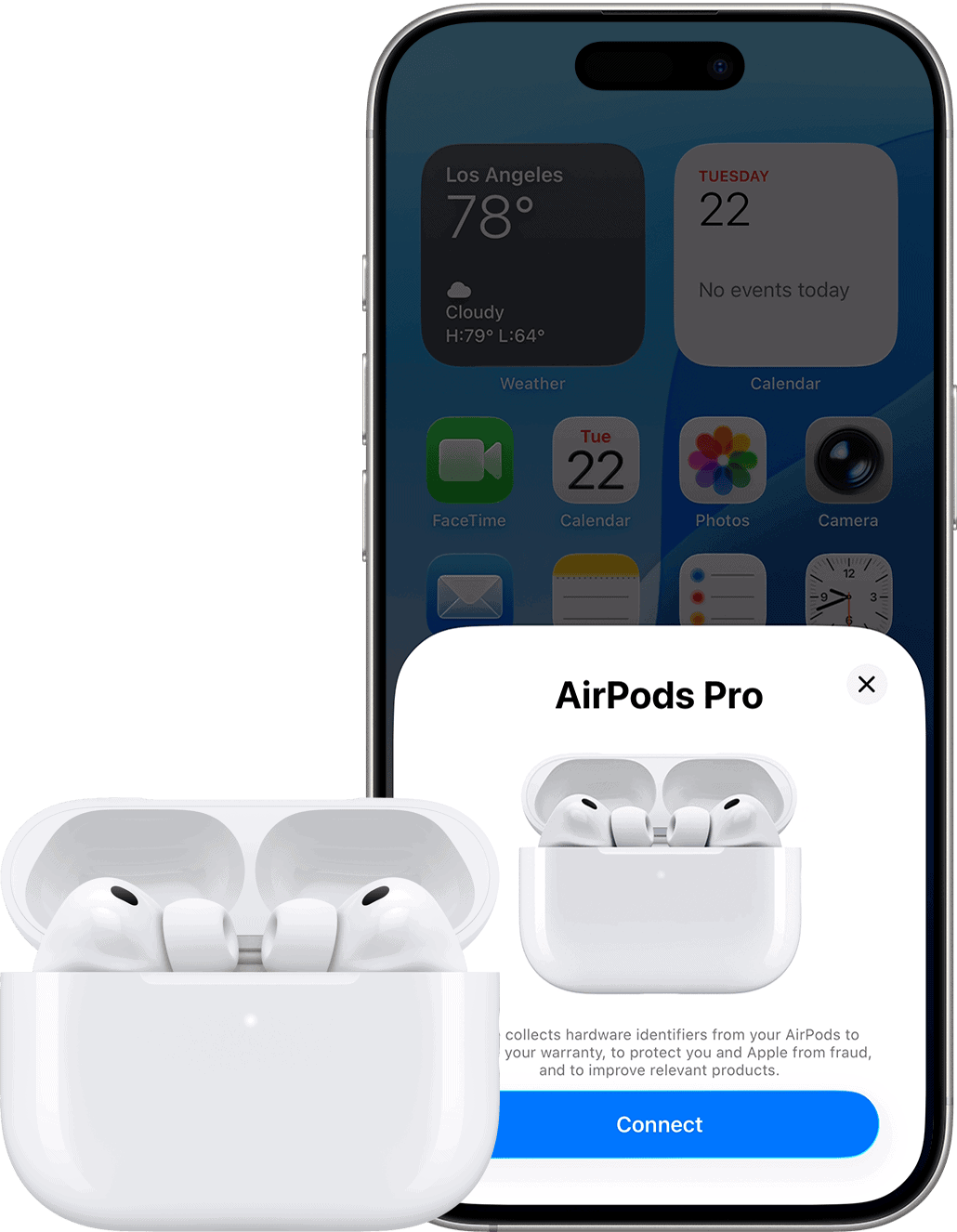
- When the setup animation appears on your iPhone, tap Connect to pair just the left AirPod.
- Once paired, leave the left AirPod in the case, connected to power, with your iPhone nearby and on Wi-Fi for at least one hour.
- After an hour, remove the left AirPod and set it aside.
- Place the right AirPod in the case alone.
- Repeat steps 4-6 for the right AirPod.
- After both have updated individually, place both AirPods in the case together and follow the standard pairing process.


From our findings, this individual pairing method successfully updates firmware when both AirPods together fail to sync. Users on MacRumors forums report that patience is crucial during this process, as firmware updates sometimes take 2-3 hours to complete.
Method 3: Keeping Replacement Unpaired During Update
Some users report success with this alternative approach:
- Keep your original AirPod and case paired to your iPhone.
- Place the replacement AirPod in the case without pairing it.
- Connect the case to power and keep it near your iPhone on Wi-Fi.
- Wait at least 1-2 hours for the replacement to update automatically.
- After waiting, attempt the standard pairing process again.
Troubleshooting Persistent Pairing Issues
Status Light Stays Amber
If the status light continues flashing amber and won’t turn white:
- Connect the case to power and close the lid.
- Wait 20 minutes without opening it.
- Open the lid and press and hold the setup button for 15 seconds.
- If it still flashes amber, try placing only one AirPod in the case and reset it individually using the method described above.
Based on Apple Community discussions, users who couldn’t get the white light found success by moving the original AirPod completely out of Bluetooth range (such as placing it in a car or different floor of the house) before attempting to pair the replacement.
Status Light Flashes White Briefly Then Stops
This indicates the AirPods are trying to pair but encountering a firmware conflict:
- Forget the AirPods completely from all your Apple devices.
- Restart your iPhone or iPad.
- Place both AirPods in the case, close the lid, and connect to power.
- Wait 30 minutes before attempting the pairing process again.
Only One AirPod Produces Sound
If your AirPods pair but only one earbud works:
- Go to Settings > Accessibility > Audio & Visual.
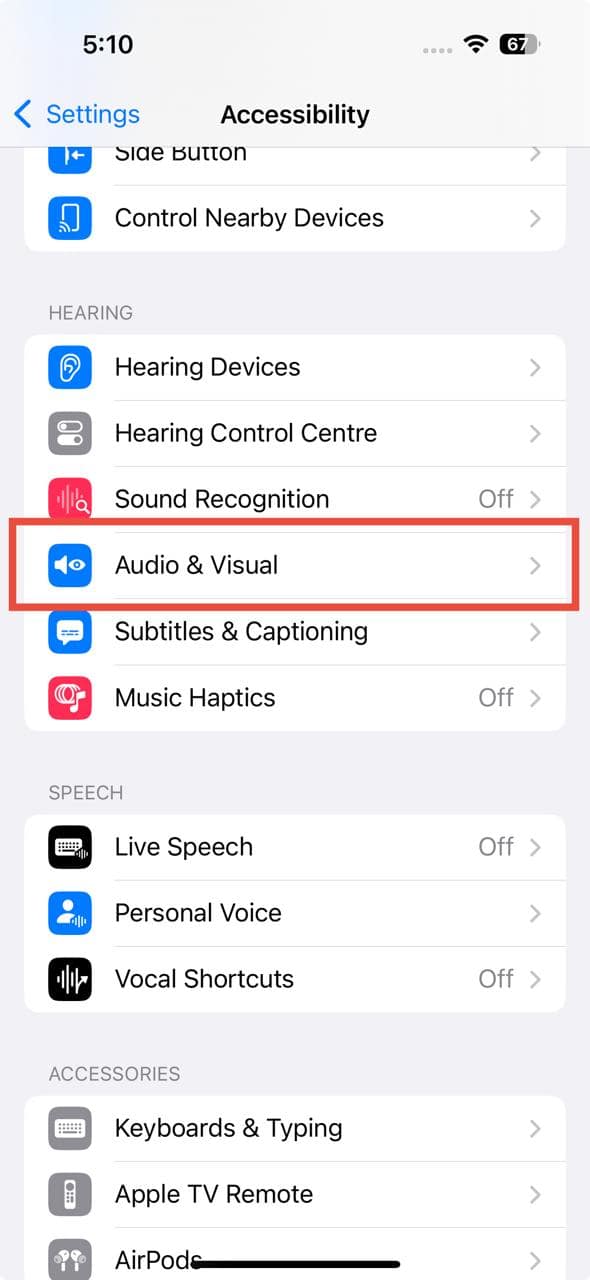
- Check the balance slider and ensure it’s centered.
- If the balance is correct, forget the device and re-pair following the standard process.
- Test each AirPod individually to determine if one has a hardware issue.

AirPods Appear as Two Separate Devices
This commonly occurs when firmware versions differ significantly:
- Forget both AirPod devices from Settings > Bluetooth.
- Place both AirPods in the case, close the lid, and charge for at least one hour near your iPhone on Wi-Fi.
- After charging, reset the AirPods by holding the setup button for 15 seconds until you see amber, then white.
- Pair again following the standard process.
Cannot Get Firmware to Update After Multiple Attempts
When firmware refuses to update despite following all procedures:
- Try using a different Apple device. Sometimes iPads or Macs trigger updates more reliably than iPhones.
- Ensure your Wi-Fi connection is stable and fast enough for downloads.
- Close all apps on your iPhone and restart it before leaving AirPods to charge overnight.
- If problems persist, contact Apple Support or visit an Apple Store. Apple technicians have access to a firmware update tool (Apple Service Toolkit 2) that manually forces firmware updates in cases of persistent mismatches.
From Apple Community and MacRumors forums, multiple users report that Apple replaced their entire AirPod set when firmware mismatches couldn’t be resolved after visiting the Genius Bar. In some cases, this is faster than waiting days for automatic updates that may never occur.
Checking Firmware Versions
To verify if a firmware mismatch exists:
- Connect one AirPod at a time to your iPhone.
- Go to Settings > General > About.
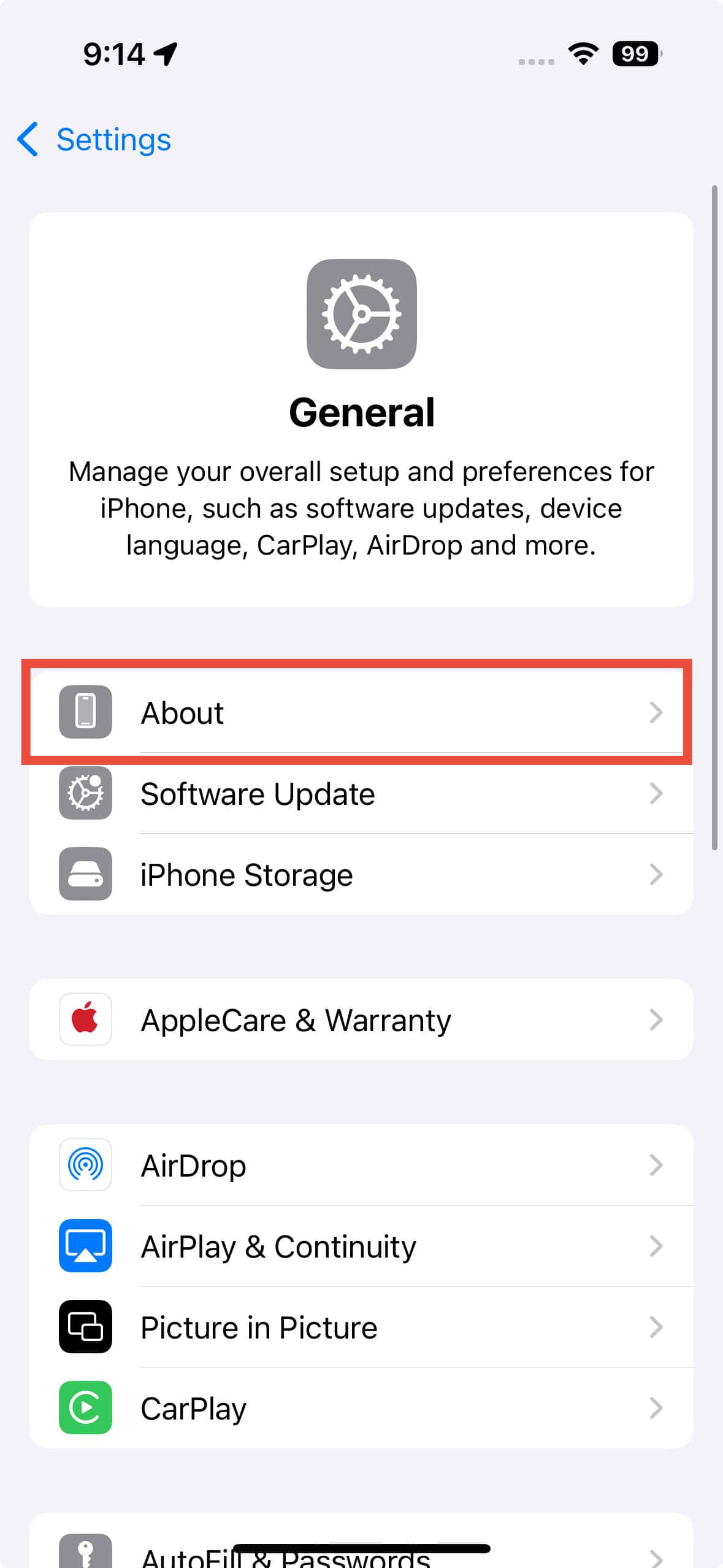
- Scroll down and tap on your AirPods.
- Note the firmware version shown.
- Repeat with the other AirPod.
- If the versions differ, you have a firmware mismatch that needs updating.

You can find current firmware versions for all AirPods models on Apple’s support page for firmware updates.
Tips for Successful Pairing
Based on our tests and Apple Community solutions, these practices improve pairing success rates:
- Always charge replacement AirPods for 20-30 minutes before first use, even if they appear to have battery life.
- Keep your iPhone within 10 feet of the charging case during the entire pairing and updating process.
- Use a wired connection to power rather than wireless charging, as wired charging provides more reliable power for updates.
- Close the charging case lid completely during the 20-minute waiting periods, as opening it resets the timer.
- Disable Bluetooth on other nearby devices to reduce interference during pairing.
- If possible, perform the pairing process in an area with strong Wi-Fi signal and minimal Bluetooth interference.
- Set aside at least 2 hours for the complete process when dealing with firmware mismatches, as updates can take significantly longer than Apple’s stated 30-minute estimate.
Conclusion
Pairing replacement AirPods or a charging case requires patience and attention to Apple’s specific procedures:
- Charge before pairing by placing both AirPods in the case, connecting to power, and waiting 20 minutes with the lid closed.
- Follow the reset procedure by pressing and holding the setup button for 15 seconds until the light flashes amber, then white.
- Forget existing AirPods in Bluetooth settings before attempting to pair the replacement.
- Watch for firmware mismatches indicated by persistent amber flashing or mismatch error messages.
- Allow time for firmware updates by leaving AirPods in the charging case, connected to power, near your iPhone on Wi-Fi for at least 30-60 minutes or overnight.
- Try individual pairing if standard methods fail by pairing each AirPod separately, allowing each to update its firmware individually.
- Contact Apple Support if pairing fails after multiple attempts, as technicians have tools to manually update firmware or can provide full replacements when necessary.
The most common obstacle with replacement AirPods is firmware version differences between your old and new earbuds. While frustrating, these mismatches typically resolve automatically when you provide the proper conditions for background firmware updates to occur. Based on Apple Community reports, most users successfully pair their replacements within a few hours when following these procedures carefully.
FAQs
With matching firmware, pairing takes 2-5 minutes. With firmware mismatches, the process can take anywhere from 30 minutes to several hours, as the firmware must update automatically before successful pairing occurs.
No. You cannot mix AirPods from different generations. For example, you cannot use one AirPod Pro 2 with one AirPod Pro (1st generation). The model numbers must match exactly for the AirPods to work together.
No. Apple doesn’t provide consumers with a way to manually trigger firmware updates. Only Apple Store technicians with access to Apple Service Toolkit 2 can manually push firmware updates using specialized diagnostic equipment.
Contact Apple Support or schedule a Genius Bar appointment. In many cases documented on Apple Community forums, Apple replaces both AirPods (or the entire set, including the case) when firmware mismatches can’t be resolved through normal procedures.


Discussion