

Forgetting your Screen Time passcode is one of those problems that feels small until it completely blocks what you’re trying to do. You set it with good intentions. Fewer distractions. Better habits. Maybe limits for a child. Then days or months later, the passcode is gone from memory, and suddenly your own phone is saying no. Here’s the thing. Apple actually gives you clean, legitimate ways to reset it, as long as you know where to look.
Table of contents
Resetting Screen Time on Your Own iPhone or iPad
If the Screen Time passcode is tied to your Apple Account, you can reset it directly on the device.
- Go to Settings, tap Screen Time, then tap Change Screen Time Passcode.
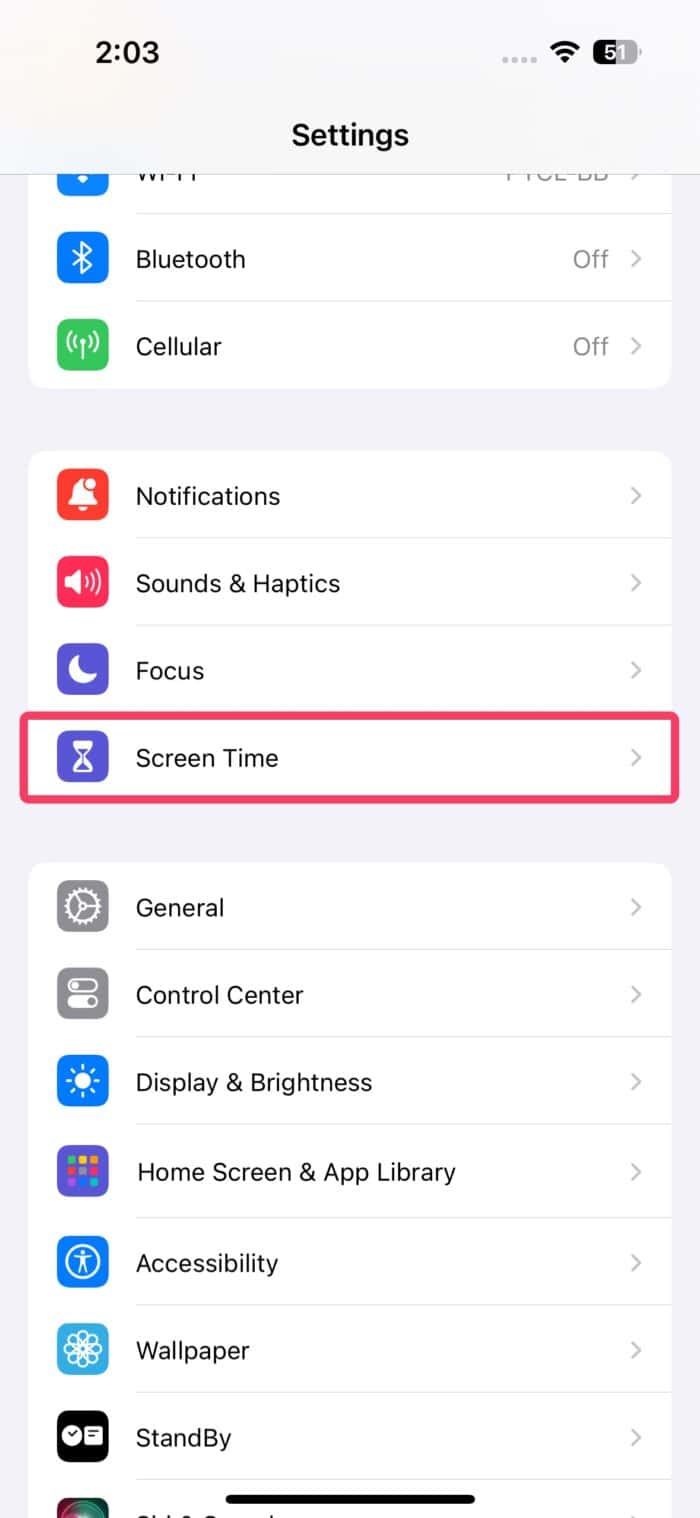
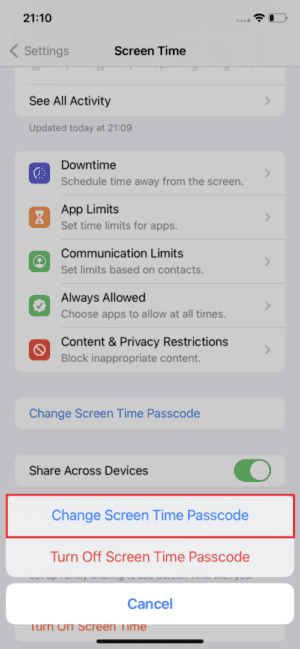
- When prompted, choose Forgot Passcode.
- You’ll need to enter the Apple Account email and password you originally used to set up Screen Time. That detail matters. If you used a different Apple Account back then, this step won’t work.
- Once authenticated, you can set a new four digit passcode and confirm it. If Share Across Devices is enabled, the new passcode syncs automatically to your other Apple devices.


If this option isn’t showing up, it usually means one of three things. You’re signed into the wrong Apple Account, the device is managed by Family Sharing or MDM, or the iOS version is outdated.
Don’t miss the best of The Mac Observer
Set us as a preferred source and our Apple reporting ranks higher in your Google Search results and Discover feed — one tap, no account changes.
Resetting Screen Time for a Child’s Device

If Screen Time is set up through Family Sharing, only the family organizer can reset it. The child can’t do this themselves.
- On the organizer’s iPhone or iPad, open Settings, tap Screen Time, scroll to the child’s name, and select Manage Screen Time.
- From there, tap Change Screen Time Passcode and authenticate with Face ID, Touch ID, or your device passcode.
- Set a new Screen Time passcode and you’re done.
This change also syncs across the child’s devices if Share Across Devices is enabled.
Resetting Screen Time on a Mac
On a Mac, Screen Time is managed through System Settings.
- Open System Settings, click Screen Time in the sidebar, and scroll down.
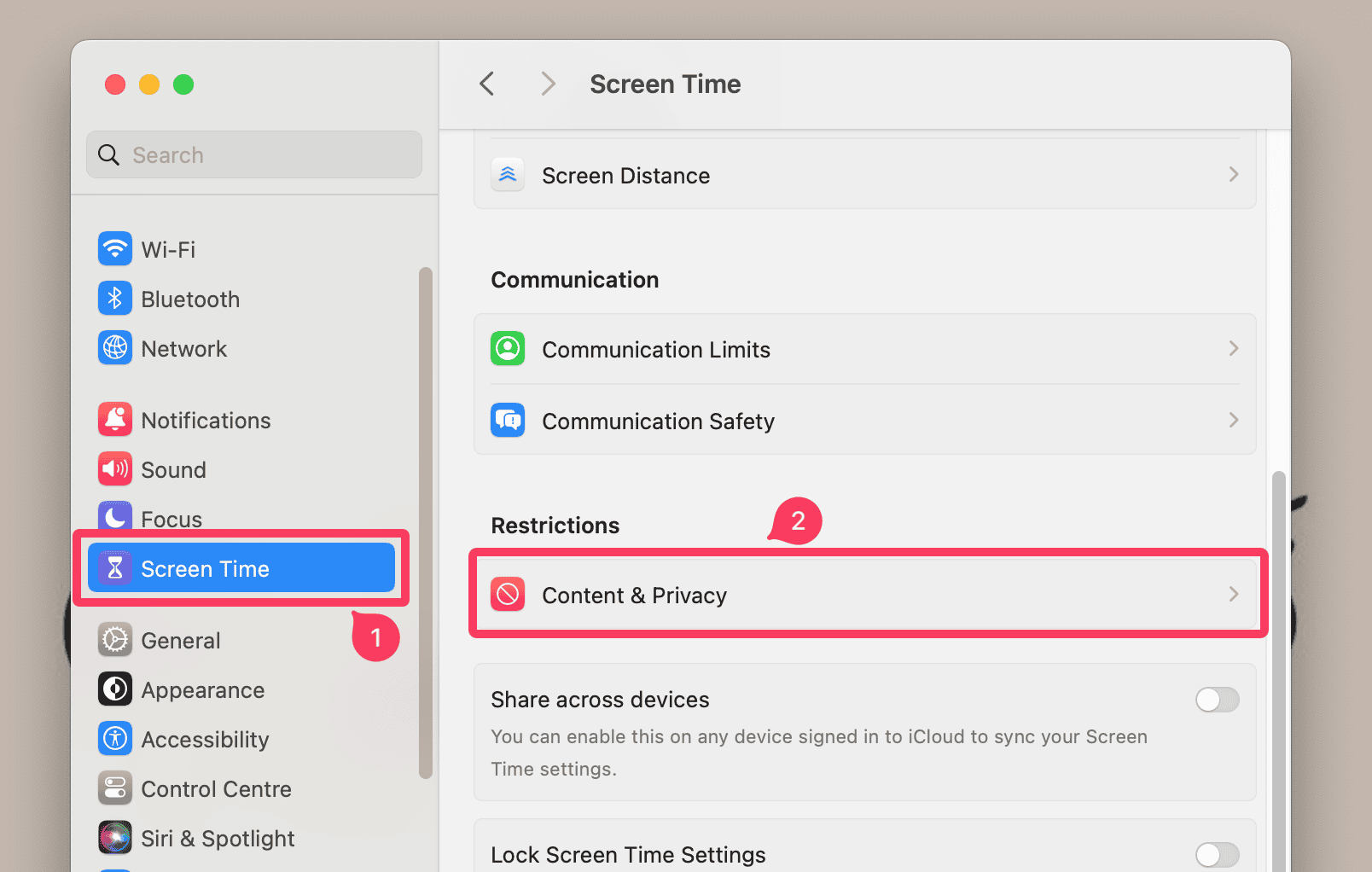
- For your own Mac, click Change Passcode. For a child, choose their name from the Family Member menu, then click Manage Screen Time and Change Passcode.
- You’ll need the current passcode or your Apple Account credentials to proceed.

You can also remove the Screen Time passcode entirely by turning off Lock Screen Time Settings, if you no longer need it.
When Resetting Doesn’t Work
If you can’t reset the passcode, double check that you’re using the exact Apple Account that was used when Screen Time was first set up. This is the most common blocker.
If all else fails, erasing the device and setting it up again will remove Screen Time restrictions, but that should be a last resort. Always back up first.
Final Thoughts
Screen Time is useful, but only if you’re not locked out of your own settings. Apple’s reset process is secure by design, which means it can feel rigid when something goes wrong. Once you know which Apple Account controls the passcode and who has organizer access, the fix is straightforward. Set a new passcode, store it somewhere safe, and move on without the headache.


Can’t erase without screen time passcode