
If you want to unhide apps on iPhone, it’s easy to do so, especially on iOS 18. Even on older versions like iOS 16 and iOS 17, unhiding apps is straightforward.
In this article, I will walk you through simple ways to unhide apps, share tips that many guides miss, and answer common questions to help you feel confident again.
Table of contents
How to unhide apps on your iPhone?
1. Check the Hidden folder in App Library
With iOS 18 or later, Apple introduced a Hidden folder in the App Library. Apps you hide go here and stay out of sight until you unlock them.
Don’t miss the best of The Mac Observer
Set us as a preferred source and our Apple reporting ranks higher in your Google Search results and Discover feed — one tap, no account changes.
- Swipe left past all Home Screen pages until you reach the App Library.
- Scroll down to the bottom and find the Hidden folder.
- Tap it and authenticate with Face ID, Touch ID, or your passcode.
- Touch and hold the app icon, then tap Don’t Require Face ID (or Touch ID/passcode).
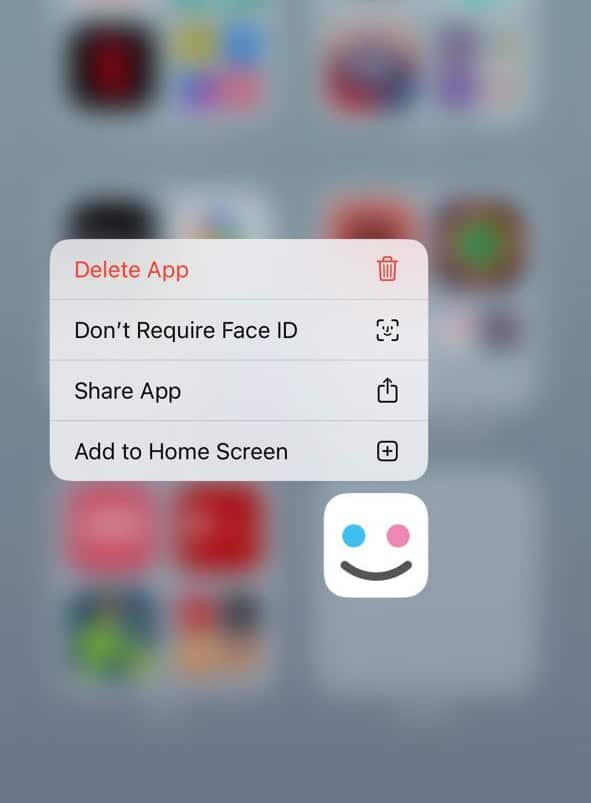
- The app will return to your App Library. Find the app, hold it, and select Add to Home Screen.
2. Bring back apps from App Library to the Home Screen
Sometimes your app is not hidden but simply missing from your Home Screen pages.
- Swipe left to open the App Library.
- Search for the app or browse through the list.
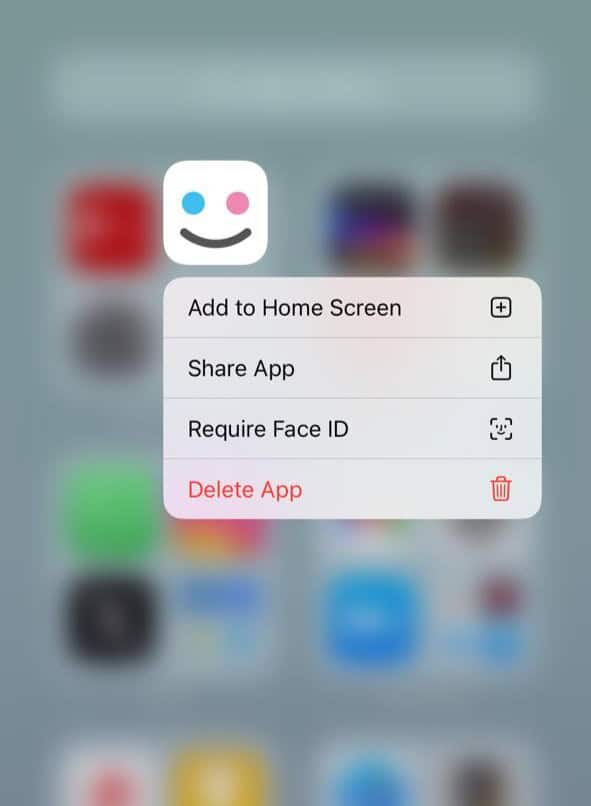
- Long-press the app, then:
- On iOS 14 to 17: Choose Add to Home Screen to bring it back.
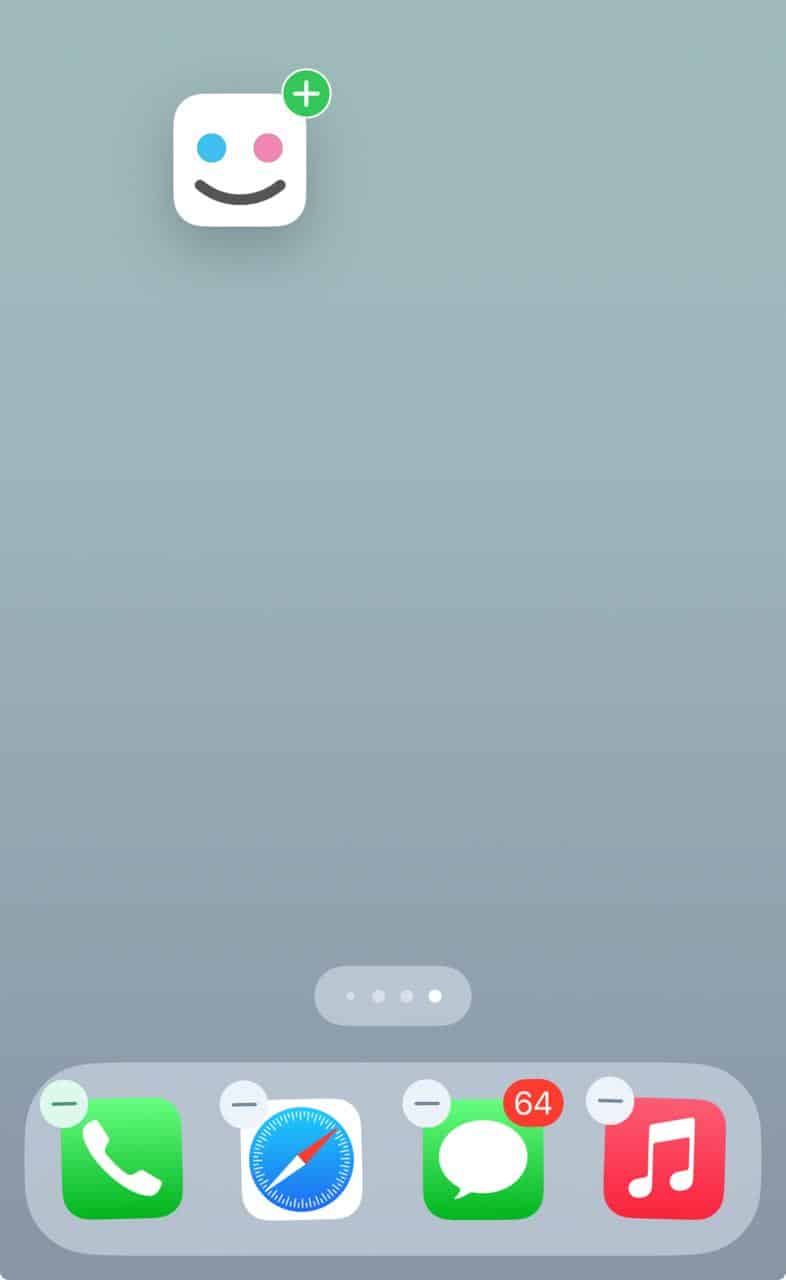
- On iOS 18 or later: Drag it to the Home Screen while in jiggle mode.
3. Unhide Home Screen pages you may have hidden
Sometimes the entire Home Screen page is hidden instead of just the app.
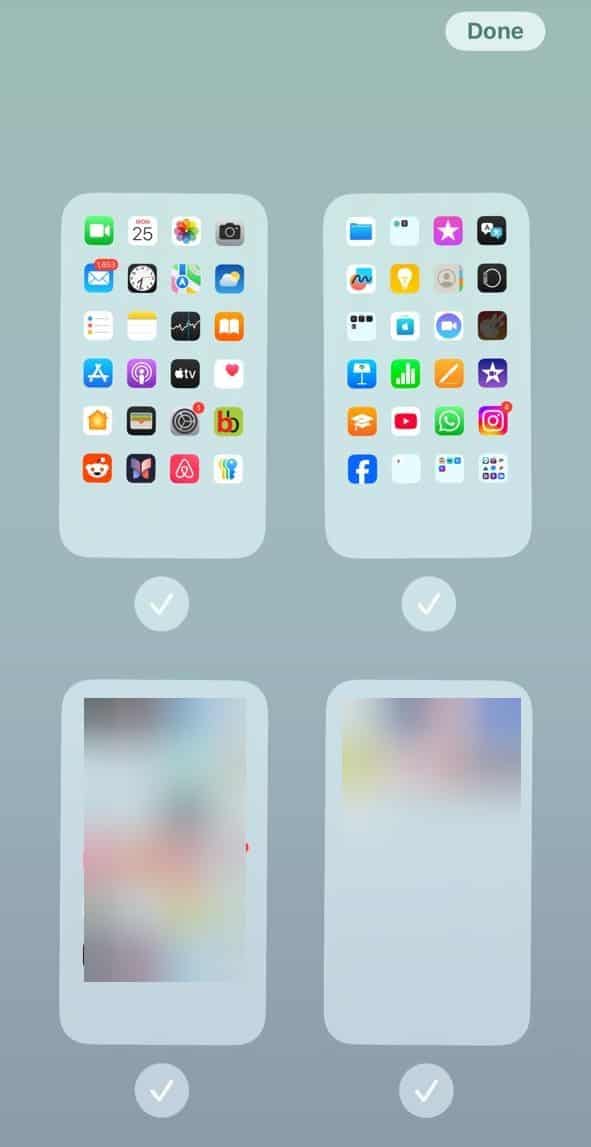
- On the Home Screen, long-press an empty space until the apps start to jiggle.
- Tap the row of dots at the bottom of the screen.
- You will see page thumbnails. Unchecked ones are hidden.
- Check the pages you want back, then tap Done, and verify whether the missing app is back.
4. Check Siri settings
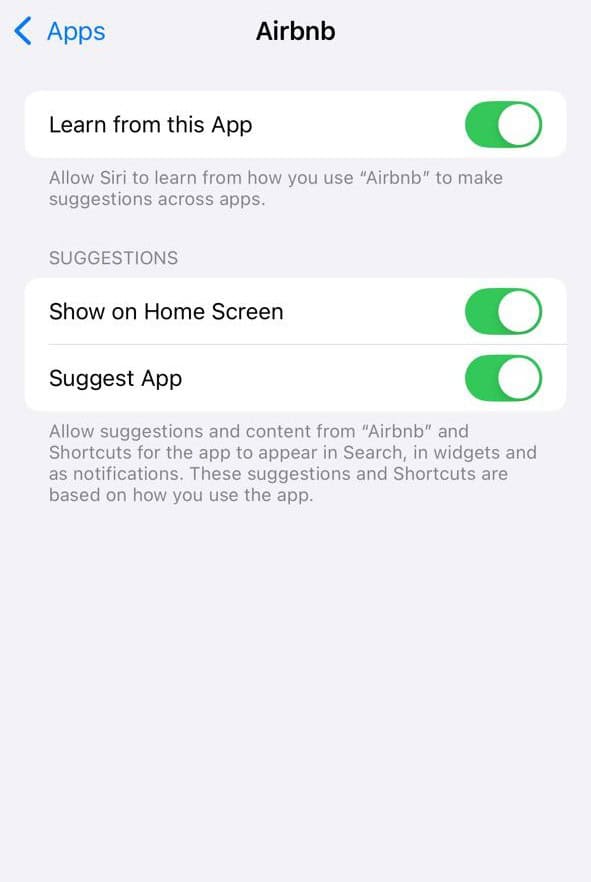
If an app does not appear in search results or in the App Library list, it may be disabled in Siri.
- Open Settings > Siri > Apps.
- Find the hidden app in the list.
- Toggle on Show on Home Screen and Suggest App.
5. Reset home screen layout as a last resort
If your apps still feel lost, resetting the layout can help. Use this only when nothing else works.
- Go to Settings > General > Transfer or Reset iPhone > Reset.
- Tap Reset Home Screen Layout.
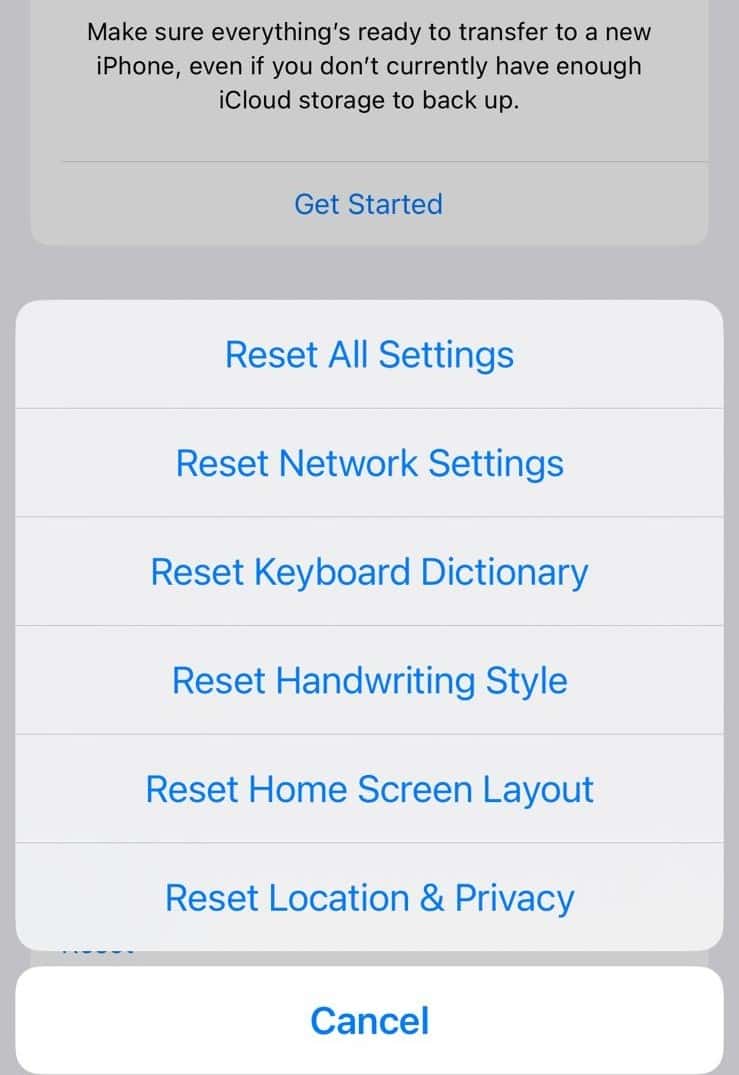
Your default layout will return, and you can reorganize your apps from there.
Tips
- Check Settings > Screen Time > Content & Privacy Restrictions to confirm the app is not blocked.
- Use Spotlight search by swiping down on the Home Screen to find apps hidden in folders.
- If the app was deleted, open the App Store and reinstall it from your purchased list.
- If Face ID keeps blocking you, try unlocking with your passcode instead.
Frequently Asked Questions
If you are on iOS 16 or earlier, the Hidden folder does not exist. It was introduced with iOS 18. Also, if the app was deleted, it will not appear until you reinstall it.
On iOS 18, go to App Library, open the Hidden folder, authenticate, long-press the app, then tap Don’t Require Face ID. Move it back to the Home Screen from the App Library.
No. If an app is hidden with biometric lock, it will not appear in search until you unhide it or adjust Siri settings.
No. Notifications stop while the app is hidden, but the data stays intact. Once you unhide it, everything will be as it was.
Summary
- Use the Hidden folder in the App Library to restore apps.
- Bring apps back from App Library to the Home Screen manually by dragging.
- Unhide entire Home Screen pages if needed.
- Adjust Siri settings so apps appear again.
- Reset the Home Screen layout if nothing else works.
Conclusion
Unhiding apps on your iPhone does not have to be complicated. With iOS 18, the Hidden folder is where your apps go when you hide them, and you can bring them back in seconds.
If your apps are not hidden but just misplaced, the App Library and Home Screen settings will help. In rare cases, reinstalling or resetting the layout is the solution.
Before you leave, find out what to do if apps are missing after an iOS update!




Discussion