

How to unpause an Apple Watch is one of the most common questions among Apple Watch users. Many people pause workouts accidentally, while others rely on the auto-pause feature.
The good news is that there are multiple ways to unpause, and newer updates even add smart reminders and improvements. In this guide, I’ll show you every possible way to unpause on Apple Watch so you never miss out on accurate tracking!
Table of contents
How to Unpause Your Apple Watch Workout?
1. Slide-to-Resume on the Screen
- When your workout is paused, simply swipe right on the workout screen and tap Resume. This is one of the fastest ways to get back on track and works for most workout types.
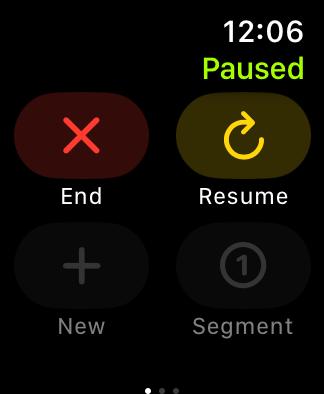
2. Press Both Buttons (Digital Crown + Side Button)
- Another common method is pressing the side button and the Digital Crown together. This is the same shortcut you use to pause, so pressing it again will unpause.
3. Force Touch (Older WatchOS Versions)
- If you’re on an older Apple Watch model or using an older watchOS version, Force Touching the workout screen can reveal the Resume option.
Apple removed Force Touch in newer watchOS updates, so this method only applies to older devices.
Don’t miss the best of The Mac Observer
Set us as a preferred source and our Apple reporting ranks higher in your Google Search results and Discover feed — one tap, no account changes.
4. Use Auto-Pause and Auto-Resume
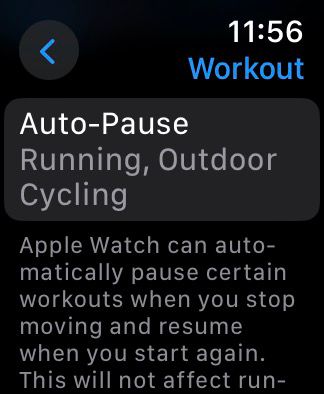
Apple includes an Auto-Pause setting, especially useful for running or cycling. When it’s turned on, the watch automatically pauses when you stop and resumes as soon as you start moving again.
- On Apple Watch: Go to Settings > Workout > Auto-Pause.
- On iPhone: Open the Watch app > My Watch > Workout > Auto-Pause.
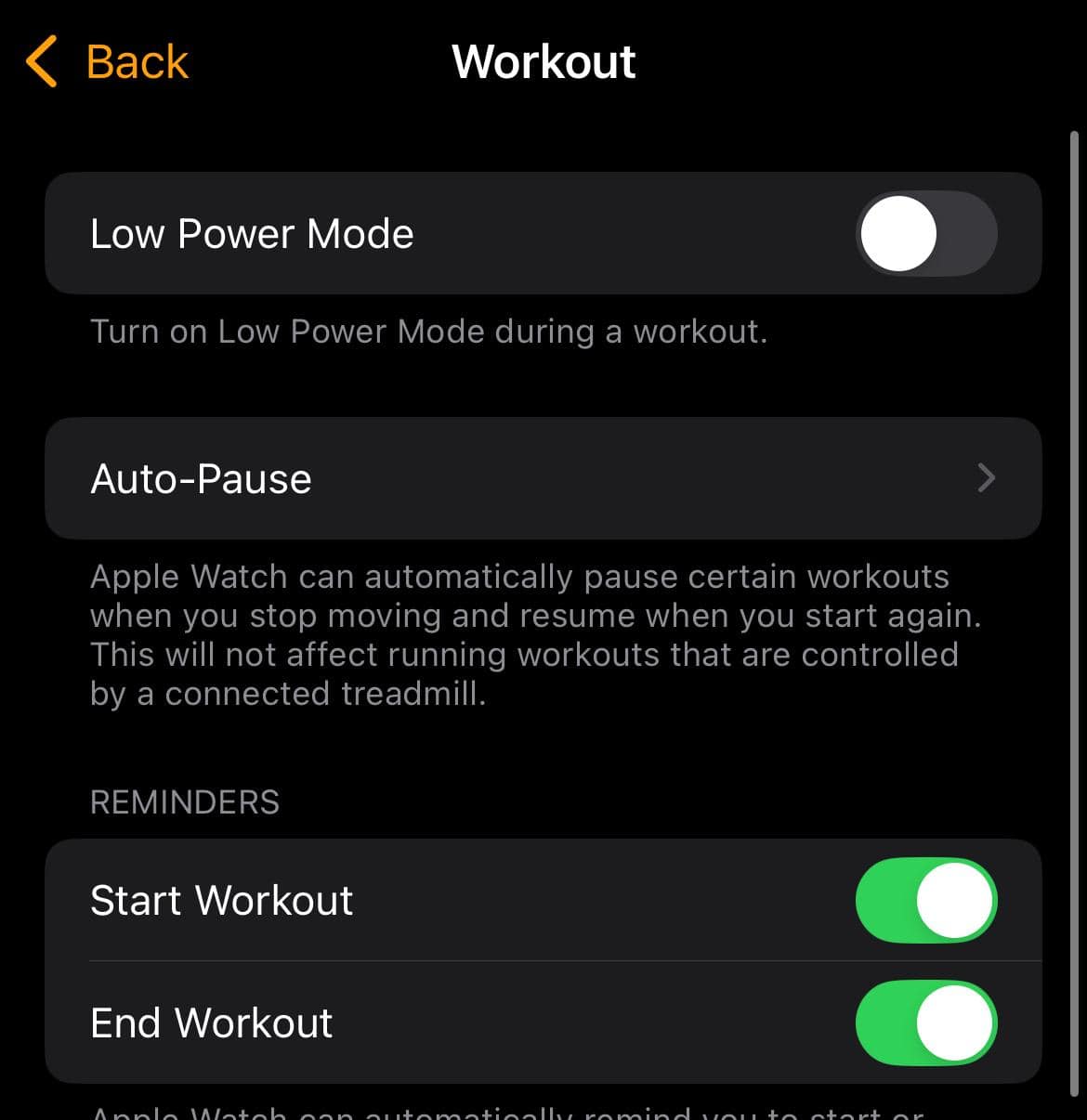
This setting makes workouts more seamless, especially for people who stop often at lights or for short breaks.
5. Reconfigure Workout Reminders
Apple Watch includes helpful workout reminders related to starting and ending activities, but not specifically for resuming paused workouts.
To manage these reminders:
- On Apple Watch: Open Settings > Workout > Reminders > toggle Start Workout Reminder or End Workout Reminder on or off.
- On iPhone (Watch app): Open the Watch app > My Watch > Workout > Reminders > toggle Start Workout Reminder or End Workout Reminder on or off.

This setup controls when your watch alerts you to start a workout you have begun moving in or end one you are cooling down from.s.
6. Unpause in Fitness+ or Meditation Workouts
- If you’re using Apple Fitness+, you can unpause not just from the watch but also from your iPhone, iPad, or Apple TV. Simply tap Resume on the device you’re following the workout on. The Apple Watch will sync with your session and continue tracking right away.
7. Update-Based Improvements
In recent watchOS updates, Apple made unpausing smarter. If you resume a workout after pausing for too long, the watch may attempt to restore lost workout time or even keep your route map consistent.
Keeping your Apple Watch and iPhone updated ensures you benefit from these improvements and avoid unpause glitches.
8. Force Restart if Stuck
- If your watch is unresponsive and none of the usual methods work, perform a force restart. Press and hold both the side button and the Digital Crown for about 10 seconds until the Apple logo appears. This should fix temporary issues with pausing and resuming workouts.
Tips
• Keep your Apple Watch and iPhone updated to enjoy better unpause features.
• If the watch keeps pausing mid-workout, turn off Auto-Pause.
• If you’re often distracted by reminders, disable workout notifications.
• For Fitness+ users, remember you can unpause directly from your phone or tablet.
• Clean your screen to make swiping smoother.
Frequently Asked Questions
This usually happens if Auto-Pause is turned off. Turn it on in Workout settings, or update your watchOS to fix detection issues.
Yes, in newer watchOS versions the watch may restore lost workout time or keep your route map intact when you resume.
Yes. If you paused a Fitness+ workout, just tap Resume on your iPhone, iPad, or Apple TV. Your Apple Watch will sync instantly.
Try a force restart. If the issue continues, check for software updates or contact Apple Support for help.
Summary
- Swipe right and tap Resume to unpause quickly.
- Press the Digital Crown and side button together to resume.
- On older models, Force Touch can bring up Resume.
- Use Auto-Pause to let your watch auto-resume when you move.
- Enable or disable workout reminders as needed.
- Update your Apple Watch for smarter unpause features.
- For Fitness+ workouts, unpause directly from your iPhone, iPad, or Apple TV.
- If stuck, perform a force restart.
Conclusion
Unpausing your Apple Watch workout is simple once you know all the methods. From swiping and button shortcuts to smart reminders and Fitness+ controls, Apple gives you plenty of ways to resume smoothly. Keep your watch updated, choose the method that suits your workout, and enjoy uninterrupted tracking.
If you are new to it, learn how to use an Apple Watch and make the most out of it!




Discussion