

If you want to download and use Apple’s Freeform on Windows, it’s easy to do so. Although Freeform is not available natively for Windows, you can use remote access or run macOS in a virtual environment to access the powerful digital whiteboard for brainstorming, planning, and collaboration.
And if that doesn’t work well for you, did you know there are Freeform alternatives for Windows!
This guide will walk you through everything you need to know.
Don’t miss the best of The Mac Observer
Set us as a preferred source and our Apple reporting ranks higher in your Google Search results and Discover feed — one tap, no account changes.
Table of contents
How to use Freeform on Windows?
1. Use remote access to an Apple device
If you already have Freeform installed on an iPhone, iPad, or Mac:
- Install a remote desktop app such as TeamViewer or AnyDesk, or the built-in Microsoft Remote Desktop.
- Open Freeform on your Apple device.
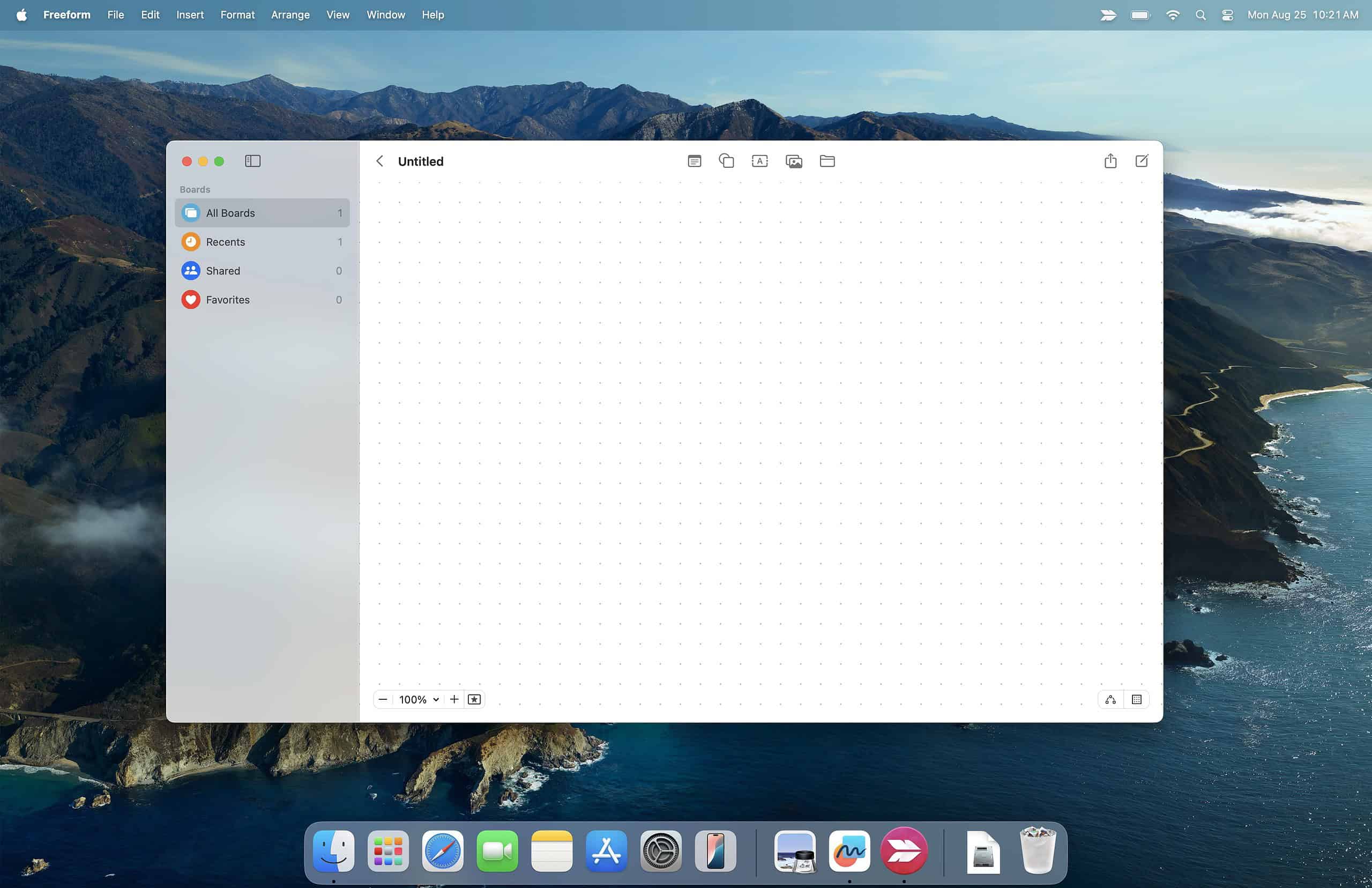
- Connect remotely from your Windows PC.
- You can now view and interact with Freeform boards from your Windows machine.

This is the simplest method if you own both devices!
2. Run macOS virtually on Windows
For advanced users, you can set up a macOS environment inside Windows:
- Use virtualization software (such as VMware or VirtualBox).
- Install macOS in a virtual machine.
- Sign in with your Apple ID and download Freeform from the App Store.
This approach is technical, but it gives you full access to Freeform as if you were on a Mac. With a virtual machine, you can also run Xcode on Windows.
3. Use cross-platform alternatives
Since Freeform does not support Windows directly, many users prefer switching to apps that work across all platforms. Some great options are:
- Microsoft Whiteboard – Free and integrates with Office 365.
- Miro – Ideal for team collaboration, supports Windows, macOS, and the web.
- Obsidian Canvas – A flexible whiteboard for brainstorming, with unique embedding options.
These alternatives allow you to collaborate without worrying about device restrictions.
Tips
- Always keep iCloud sync enabled on your Apple device so Freeform updates are saved across devices.
- If using remote access, ensure both devices have a stable internet connection.
- Try Microsoft Whiteboard if you need a free and simple solution on Windows.
- For teams, Miro provides the closest experience to Freeform with added features.
- Remember that iCloud.com does not support Freeform, so you can’t open it directly in a browser.
Frequently Asked Questions
No, Freeform is only available on iPhone, iPad, Mac, and Vision Pro.
No, Freeform is not supported on iCloud.com. Although you can access Apple’s Numbers using iCloud on Windows.
The easiest option is remote access to an Apple device where Freeform is installed.
Microsoft Whiteboard, Miro, and Obsidian Canvas are popular choices.
Summary
- Freeform is Apple-only and not directly available on Windows.
- Remote access lets you control Freeform from your PC.
- Virtual machines can run macOS on Windows for direct Freeform use.
- Cross-platform apps like Microsoft Whiteboard or Miro are the most practical option for collaboration.
- Freeform is not supported on iCloud.com.
Conclusion
While Apple’s Freeform doesn’t have native Windows support, there are reliable ways to access it. You can either use remote access, set up macOS virtually, or switch to powerful cross-platform alternatives.
If collaboration across devices is important, using Microsoft Whiteboard or Miro is the most hassle-free solution. This way, you’ll get the flexibility of Freeform’s features without being tied to Apple hardware!


Discussion