

macOS already includes a strong set of built-in tools, but the right third-party apps can completely change how your Mac feels to use every day. Some apps save time by automating repetitive tasks, while others fix long-standing macOS limitations like weak window management or the lack of clipboard history.
After testing many of these apps across daily work, multitasking, writing, browser-heavy workflows, and file management, a few utilities consistently stand out because they solve real problems without making your Mac feel bloated.
Why these Mac apps actually matter
A lot of Mac app roundups throw dozens of recommendations at you without explaining what problem each app solves. That usually leads to cluttered systems, subscription fatigue, and apps you stop using after a week.
Don’t miss the best of The Mac Observer
Set us as a preferred source and our Apple reporting ranks higher in your Google Search results and Discover feed — one tap, no account changes.
The better approach is simpler:
- Keep macOS features that already work well
- Replace weak built-in limitations
- Add tools that remove friction from daily tasks
That’s exactly where these apps fit.
Alfred

At first glance, Alfred looks like an upgraded version of Spotlight. After a few days of use, it becomes one of those apps you instinctively trigger dozens of times a day without thinking about it.
You can launch apps, search files, perform calculations, control system settings, search websites, and create advanced workflows entirely from your keyboard.
The Powerpack version pushes it much further with:
- Clipboard history
- Text expansion
- Workflow automation
- Custom hotkeys
- Quick file actions
For example, you can create a shortcut that opens Slack, Safari, Notes, and Spotify together every morning. You can also build workflows that rename screenshots, upload files, or generate repetitive text instantly.
Alfred becomes especially useful once you stop reaching for the trackpad constantly.
Paste

macOS still limits clipboard history to one copied item at a time, which feels outdated once you start juggling links, screenshots, snippets, and files throughout the day.
Paste fixes that immediately.
It stores everything you copy and presents it in a searchable visual timeline. You can organize copied items into pinboards, sync clipboard history through iCloud, and quickly paste older content without interrupting your workflow.
This becomes extremely useful during research work, article writing, coding, or moving files between apps because you stop losing copied content every few minutes.
Magnet

Apple improved window tiling in recent macOS versions, but power users still hit limitations quickly when working with multiple windows.
Magnet solves that with fast keyboard-based window snapping.
You can instantly move apps into:
- Half-screen layouts
- Four-corner grids
- Vertical columns
- Top-and-bottom stacks
- Multi-monitor arrangements
It sounds simple, but once you start using keyboard shortcuts to organize windows, going back to manual resizing feels painfully slow. Reddit users still regularly mention Magnet as one of the first apps they install on a new Mac because macOS window handling still feels limited for multitasking.
Swish

Swish takes the same idea as Magnet but replaces keyboard shortcuts with trackpad gestures.
Instead of memorizing shortcuts, you can move windows around the screen using natural swipe and pinch gestures on the MacBook trackpad or Magic Mouse.
That sounds gimmicky until you actually use it for a few hours.
Dragging windows into corners, minimizing apps, entering fullscreen mode, or switching layouts starts feeling surprisingly fluid because the gestures blend naturally into macOS itself.
Swish works particularly well on MacBooks where users already rely heavily on trackpad navigation.
Keyboard Maestro

Keyboard Maestro is one of the deepest automation tools available on macOS.
The interface looks intimidating initially, but the practical use cases are straightforward:
- Launch work apps together
- Rename batches of files
- Generate templates
- Move windows automatically
- Trigger actions with shortcuts
- Automate repetitive browser tasks
Keyboard Maestro stands out because it handles advanced automation without requiring coding knowledge. Many Mac power users still rely on it heavily even after Apple expanded Shortcuts and Automator.
If your work involves repetitive actions throughout the day, this app saves serious time.
Hazel

Downloads folders become disasters fast.
Hazel quietly fixes that problem in the background.
You create rules once, and Hazel automatically handles file organization afterward. It can:
- Rename files
- Sort downloads by type
- Archive older documents
- Move screenshots
- Delete temporary files
- Apply tags automatically
For example, PDFs can instantly move into a Documents folder, screenshots can move into project folders, and old ZIP files can auto-delete after a week.
Hazel feels boring until you realize your Mac stays organized without manual cleanup anymore.
BetterTouchTool
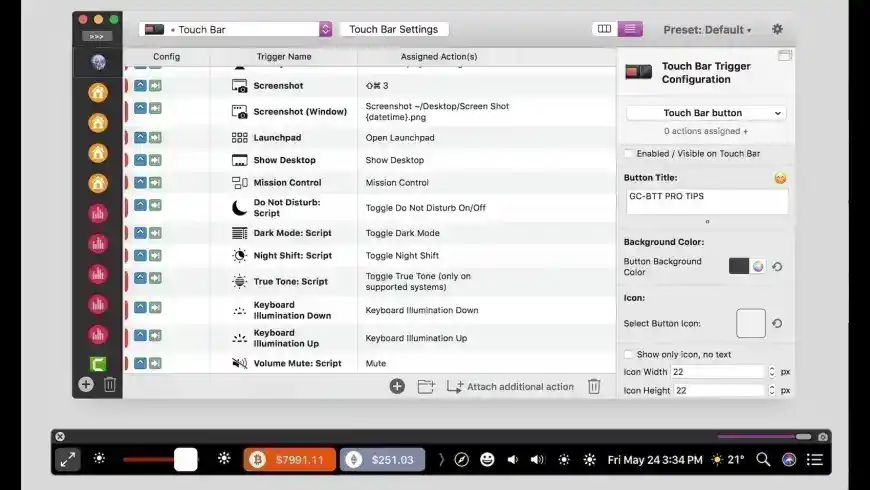
macOS gestures are already good, but BetterTouchTool takes customization far beyond Apple’s defaults.
You can create custom gestures for:
- Volume controls
- Browser navigation
- Screenshot capture
- App switching
- Window management
- Keyboard shortcuts
- Touch Bar customization
One useful example is assigning a three-finger tap to instantly launch Notes or creating swipe gestures to move between browser tabs.
The app gives you an unusual level of control over how your Mac responds to input devices.
Bartender

After installing several utilities, your Mac’s menu bar usually turns into a crowded mess.
Bartender fixes that by letting you hide, rearrange, or temporarily reveal menu bar icons whenever needed.
This becomes especially useful on smaller MacBook displays where menu bar space disappears quickly.
You can:
- Hide inactive icons
- Keep important apps visible
- Reveal hidden icons on hover
- Create cleaner workspaces
It sounds minor, but reducing visual clutter genuinely improves focus during long work sessions.
iStat Menus

When your Mac suddenly gets hot, loud, or slow, iStat Menus helps you understand why immediately.
It places detailed system information directly in the menu bar, including:
- CPU usage
- RAM usage
- SSD activity
- Temperature monitoring
- Fan speeds
- Network speeds
- Battery health
This is especially useful for video editing, gaming, exporting projects, or diagnosing background apps that consume excessive resources.
Amphetamine

Amphetamine does one thing extremely well: it keeps your Mac awake when you need it awake.
That becomes useful during:
- Long downloads
- Video exports
- File transfers
- Server activity
- Presentations
- Remote sessions
You can set timers, triggers, or app-based rules so your Mac stays active automatically during specific workflows.
It removes the constant annoyance of macOS sleeping halfway through long tasks.
Wipr

Modern websites often feel overloaded with ads, trackers, cookie popups, autoplay elements, and aggressive scripts.
Wipr keeps Safari cleaner without requiring endless configuration.
Once enabled, it quietly blocks:
- Ads
- Trackers
- Crypto miners
- Cookie banners
- GDPR popups
The biggest advantage is simplicity. You turn it on and mostly forget it exists.
HiddenMe

Some people treat their desktop like temporary storage. Eventually screenshots, files, folders, and downloads pile up everywhere.
HiddenMe instantly hides desktop icons with a single click.
That sounds trivial, but it becomes genuinely useful during:
- Screen sharing
- Presentations
- Screenshot capture
- Recording videos
- Focus sessions
It gives your desktop a clean look without forcing you to reorganize everything permanently.
Subscription bundles are becoming more common
One noticeable shift in the Mac app ecosystem is the growing number of subscription bundles that package multiple premium apps together.
Services like Setapp gained popularity because users increasingly prefer paying one monthly fee instead of buying utilities individually.
Bundle platforms and curated app collections also became more common for Mac users looking to test productivity tools without committing to full standalone prices.
Still, many long-time Mac users continue preferring one-time purchase utilities like Magnet, Hazel, Keyboard Maestro, and Bartender because they remain reliable for years without recurring costs.
Which apps actually make the biggest difference?
If you only install a few utilities, these are the ones that noticeably change macOS fastest:
| App | Biggest Benefit |
|---|---|
| Alfred | Faster navigation and automation |
| Magnet | Better multitasking |
| Paste | Clipboard history |
| Hazel | Automatic file organization |
| Bartender | Cleaner menu bar |
| Wipr | Cleaner browsing |
| Amphetamine | Prevent sleep interruptions |
The biggest productivity improvements usually come from eliminating small repetitive annoyances rather than adding flashy new features.
That’s why these apps continue showing up in Mac communities, productivity setups, and power-user workflows year after year.




Take a look at Raycast.