
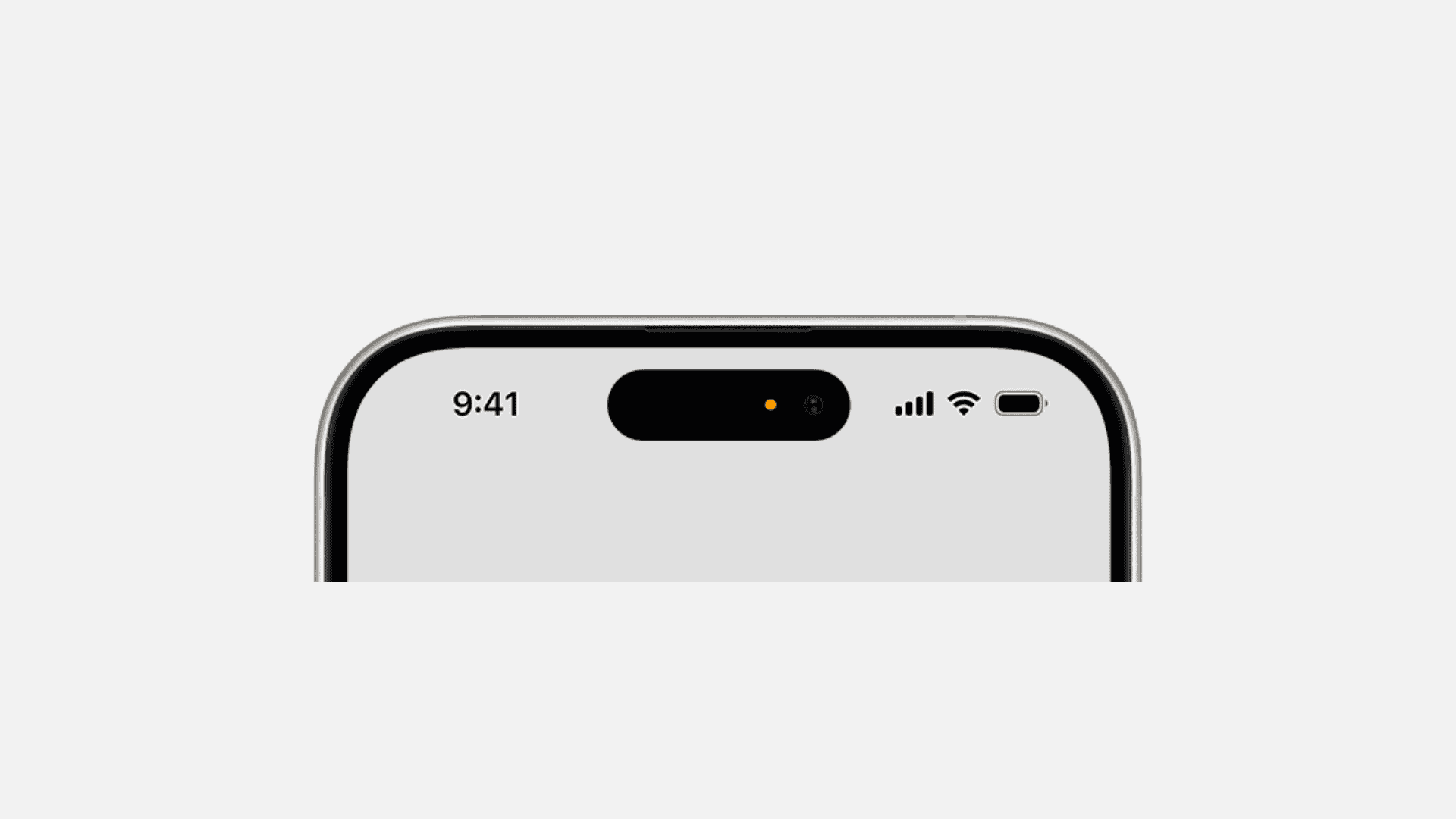
Those little symbols at the top of your iPhone screen, next to the clock and battery, carry a lot of meaning. They tell you about network strength, Wi-Fi, Bluetooth, alarms, location use, and more. If you’ve ever wondered what they all mean, this quick guide breaks down the most common iPhone status bar icons so you can understand your device at a glance.
Table of contents
Before you start
- Location varies: On iPhone X and later, symbols appear around the notch; on earlier models, they’re across the top.
- Control Center shows more: Swipe down from the top-right to see expanded details for Wi-Fi, Bluetooth, and battery.
- Symbols can change: iOS updates sometimes tweak the look of icons.
- Icons reflect activity: Many symbols only appear when that feature is active.
iPhone Symbols Explained
Network & Connectivity
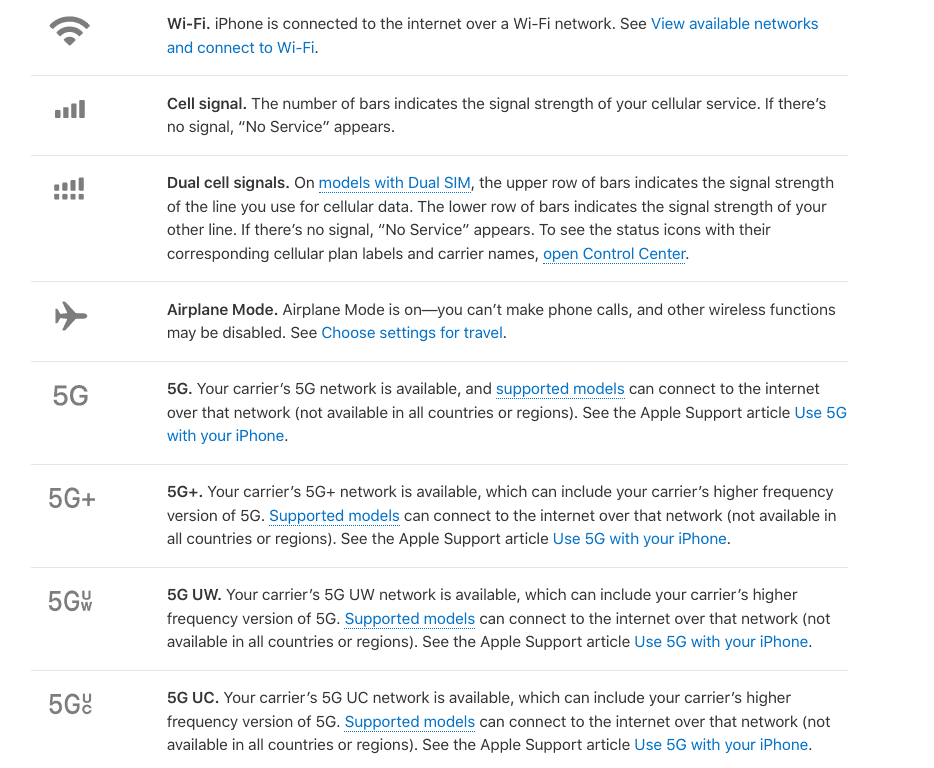
- Signal bars / dots: Show cellular signal strength.
- 5G / LTE / 4G / 3G / E / GPRS: Indicates which cellular data network you’re on.
- Wi-Fi symbol: Connected to a Wi-Fi network.
- Airplane icon: Airplane Mode is on (wireless connections off).
- Personal Hotspot link (2 chain links): Another device is using your iPhone’s internet.
Device & Activity
- Battery icon: Shows remaining battery. If yellow, Low Power Mode is on. Green with a lightning bolt = charging.
- Battery percentage: Optional—toggle on in Settings ▸ Battery.
- Alarm clock icon: An alarm is set.
- Headphones / AirPods icon: Audio is playing through connected headphones.
- CarPlay symbol: iPhone is connected to CarPlay.
Services & Privacy
- Location arrow: An app is using your location. Solid = active, hollow = recently used.
- Microphone icon (orange dot): An app is using your mic.
- Camera icon (green dot): An app is using your camera (or both camera + mic).
- VPN box: A VPN is connected.
- Lock with arrow (rotation lock): Portrait orientation is locked.
- Do Not Disturb / Focus (moon or custom icon): A Focus mode is active.
Other Situational Icons
- Blue bubble with person silhouette: Screen Mirroring is active.
- Blue location bubble: An app is actively tracking your location (e.g., Maps navigation).
- Red bubble / recording indicator: Your screen or audio is being recorded.
- Call in progress (green bubble): You’re on a phone call.
- Hotspot activity (blue bubble): iPhone is sharing its cellular data.
Check out Apple’s official website to learn more about the most common iPhone status bar icons.
Tips
- Swipe down Control Center for details on Wi-Fi, Bluetooth, Focus, and Battery.
- If you see an unfamiliar symbol, check Apple’s official icon list under Settings ▸ Control Center Help.
- Customize what you see by adjusting Focus modes, status bar visibility, and battery settings.
FAQs
Low Power Mode is turned on. You can toggle it off in Settings ▸ Battery or Control Center.
It means your camera (or camera + mic) is being used by an app.
That shows you’re connected to a VPN service for secure browsing.
Solid = currently in use. Hollow = app used your location recently.
Don’t miss the best of The Mac Observer
Set us as a preferred source and our Apple reporting ranks higher in your Google Search results and Discover feed — one tap, no account changes.
Summary (ordered steps)
- Network symbols show your signal, Wi-Fi, hotspot, and airplane mode.
- Battery icons tell you charge status and power mode.
- Privacy indicators (green/orange dots, location arrow, VPN) alert you to app activity.
- Situational icons like call bubbles, recording indicators, and alarms appear only when active.
Conclusion
The symbols at the top of your iPhone may be small, but they deliver essential information at a glance. From your signal strength to whether an app is using your camera or microphone, these icons help you stay aware of what your iPhone is doing. Once you know what they mean, your status bar becomes a powerful little dashboard.

This is not a “Full” list!
What does the symbol by the time on top left that looks like a bust with head mean
I was wondering the same thing …. Can’t find any info on what that symbol means.
I still don’t know why there is a red dot on the right side of the microphone icon on my android phone. It looks like my phone is recording me. I click in it and it goes off. Thanks
So what does the little square inside the window at the top of the phone mean?