

I recently updated my iPhone, and now lightning to HDMI does not seem to work anymore. I tried restarting my TV and reconnecting the cables as well, but I have been stuck for hours now. However, after some research, I finally figured out a few tricks that got it up and running again. Let’s dive in.
What To Do If Lightning to HDMI Is Not Working With iOS Update
1. Reset Network Settings
Time needed: 5 minutes
If your iPhone or a connected device experiences any network-related issues, you might experience connectivity issues. This includes HDMI glitches, especially if they’re linked to network-based settings like screen mirroring. Simply reset the network settings to fix the error. Here’s how you can do it.
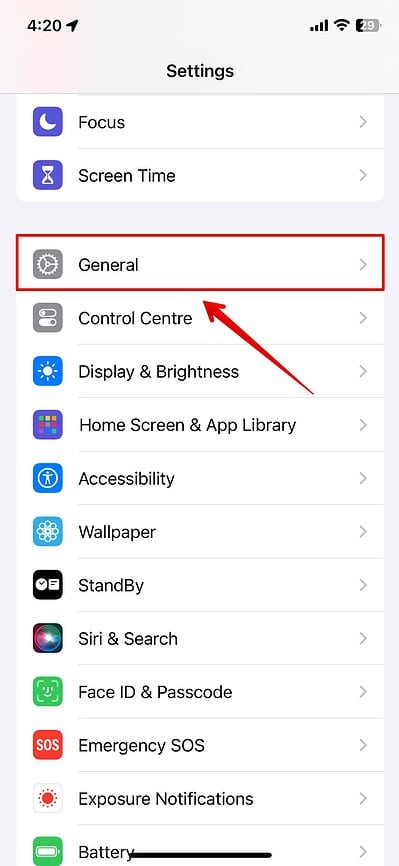
- Open the Settings app on your iPhone and go to General.
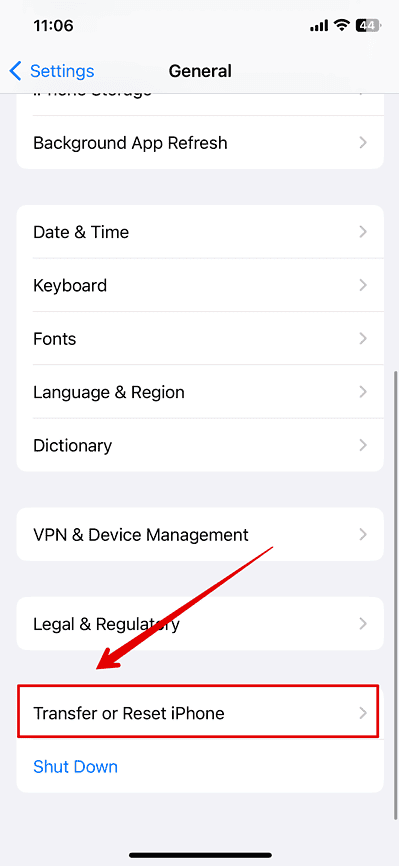
- Scroll down and tap on Transfer or Reset iPhone
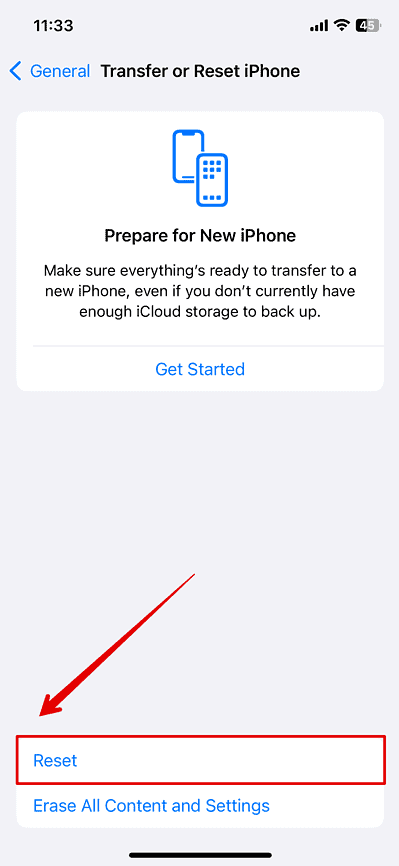
- Then, tap on Reset again at the bottom.
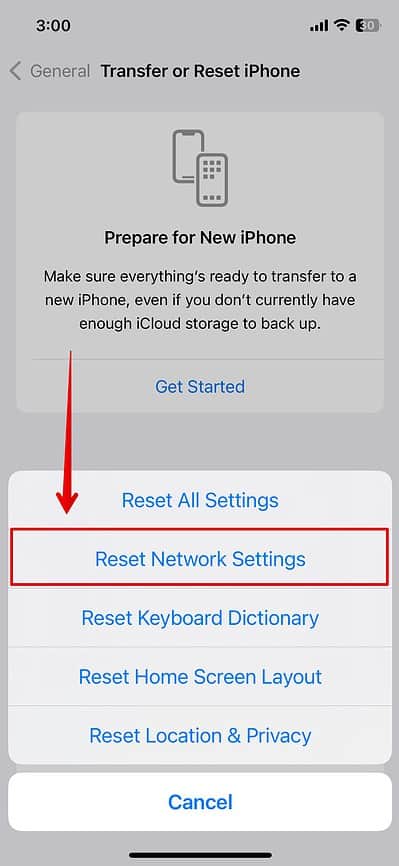
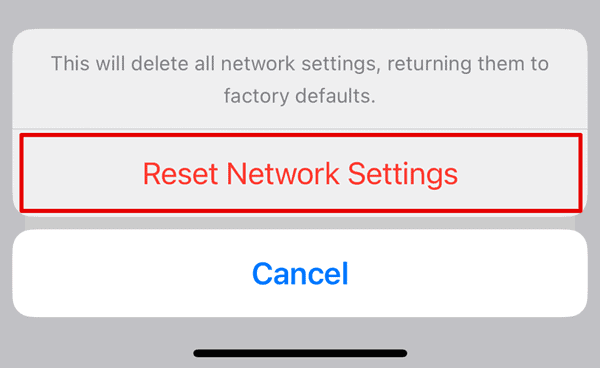
- Select Reset Network Settings from the list.
- Enter your iPhone Passcode.
- Again, tap on Reset Network Settings to confirm.


2. Update iOS
The error could also be due to bugs or errors with the iOS update. Hence, updating to the latest version of iOS is crucial because Apple often releases updates to fix bugs and compatibility issues that emerge with new software versions.
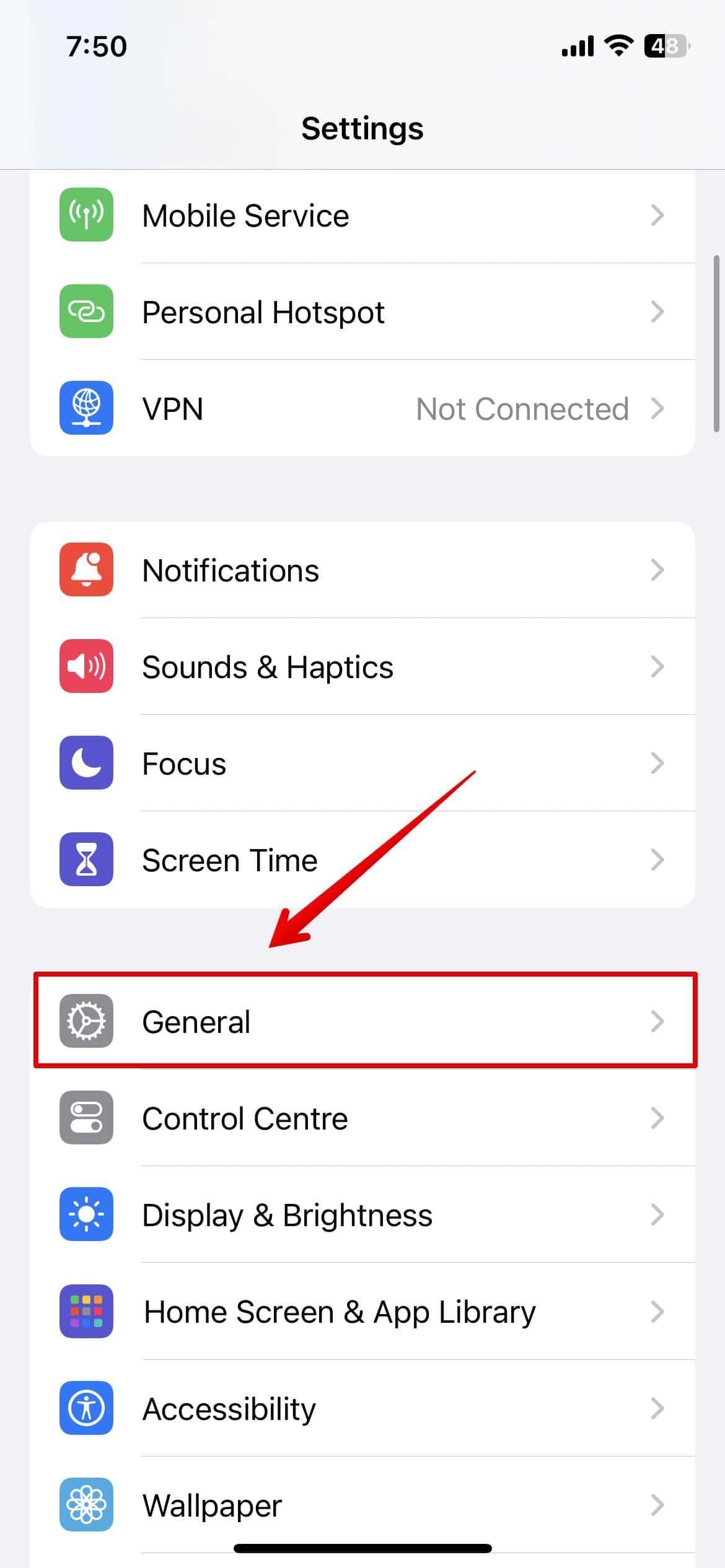
- Open the Settings app on your device.
- Then, go to General.
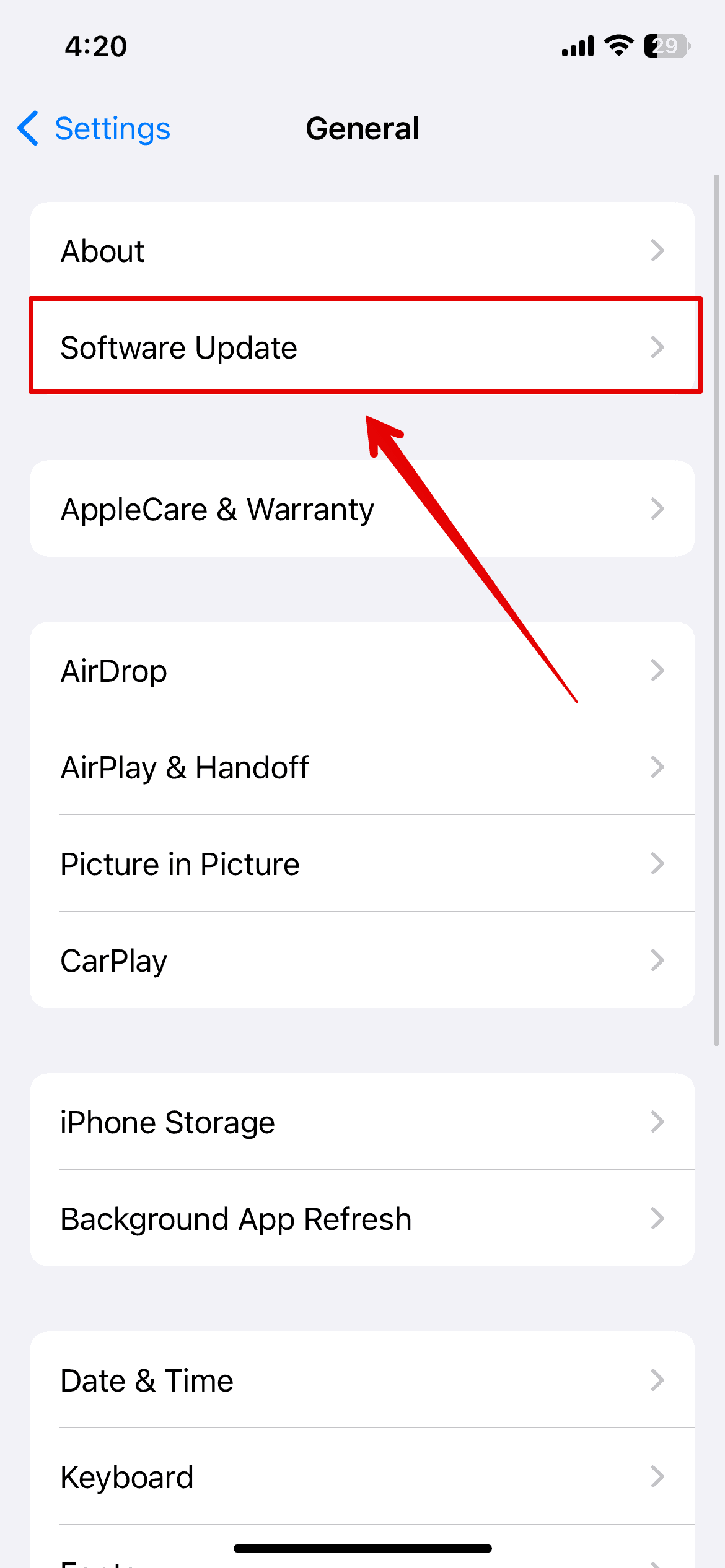
- Tap on Software Update.
- Wait for a few seconds for the system to check for any updates if available.
- Go ahead and tap on Download and Install to get new updates on your iPhone.


3. Force Restart iPhone
Force restarting the iPhone can help eliminate any temporary glitches or bugs on your device. Here is what you can do.
- Press and release the Volume Up button.
- Press and release the Volume Down button.
- Then, press and hold the side button.
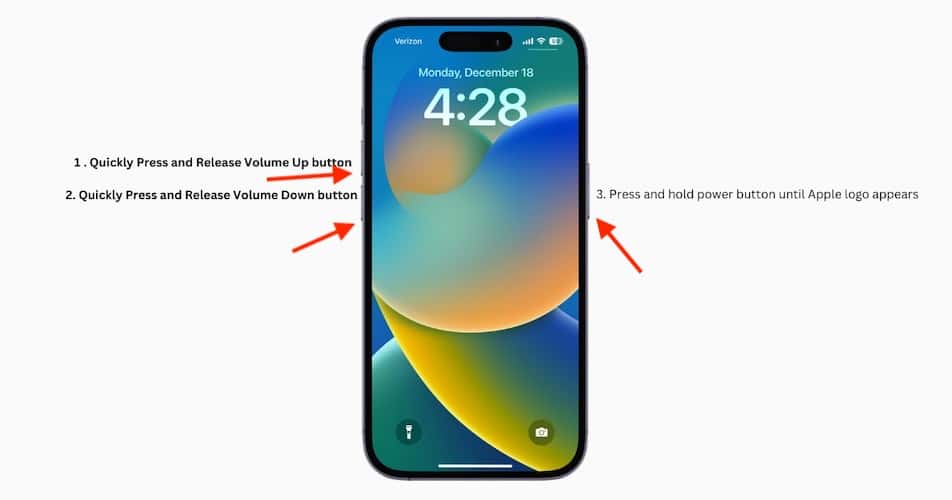
- Release the button once you see the Apple logo on the screen.
- Your device is now force restarted.

4. Check Adapters and Cables
Your device’s HDMI connector might not be working due to faulty adapters or cables. Even if they worked before the update, the iOS update could have introduced stricter compatibility checks. It’s best to check for any damages to the cables you are using or replace them with certified Apple cables and adapters to rule out any compatibility issues.
If none of the methods are working, try contacting Apple Support for further troubleshooting steps. It could be due to an internal error that needs assistance.


For me, this worked to restore mirroring after an iOS update to 26.4. I hope it works for you too. A little history might be helpful. After updating my iPhone 12 to the latest version of iOS, screen mirroring to my video projector quit working. I could still mirror from my iPad Pro and an old iPhone 6 both of which were backlevel on iOS updates, so I suspected 26.4 was the culprit and didn’t suspect any coincidental hardware problems. I decided to call Apple. The support person was aware of the “Network Reset” trick but apparently wasn’t aware of the forced restart requirement and we ended the call without a resolution. After searching thru tons of fruitless posts and trying many well well-intentioned suggestions, I finally happened on this post! My many thanks to Kanika and macobserver.com.
Note: While the “Forced Restart” procedure did not work on my iPhone, a regular shutdown from Settings>General>Shut-Down then a regular restart worked just fine.