

The fastest and most common way to force quit The Sims 4 on a Mac is to use the menu bar at the top of the screen. Alternatively, you can use keyboard shortcuts, Activity Monitor, Dock, or Terminal commands to force quit it. Here are the step-by-step instructions:
1. Use Keyboard Shortcuts
Time needed: 3 minutes
- From the top menu bar, click the Apple icon, and select Force Quit.
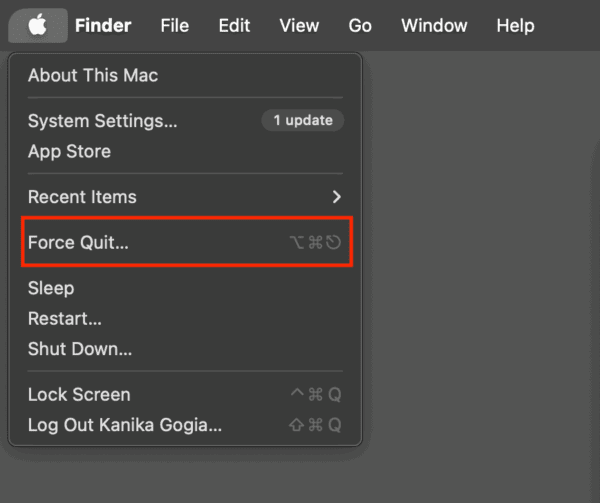
- You can also press Command + Option + Esc to open the Force Quit window.
- From the Force Quit Applications window, choose The Sims 4.
- Click the Force Quit button on the bottom right.

2. Force Quit from Dock
The Dock offers quick access to your favorite apps, and it also helps you understand what’s currently running on your Mac. If The Sims 4 is stuck but your Mac is responsive, you can also force quit an app from your Dock.
- Locate The Sims 4’s icon in your Mac’s dock.
- Right-click (or Control + click) the icon.
- Press the Option key.
- Now, click on the Force Quit button to close the game.
3. Use Activity Monitor
Apple also offers a built-in tool to quit apps that won’t close normally. Besides allowing you to force quit apps, Activity Monitor also offers insights and important information concerning your device, such as your CPU and RAM consumption.
Don’t miss the best of The Mac Observer
Set us as a preferred source and our Apple reporting ranks higher in your Google Search results and Discover feed — one tap, no account changes.
- Open Activity Monitor. You can go to Applications > Utilities or simply press Command + Space and use Spotlight search to find it.
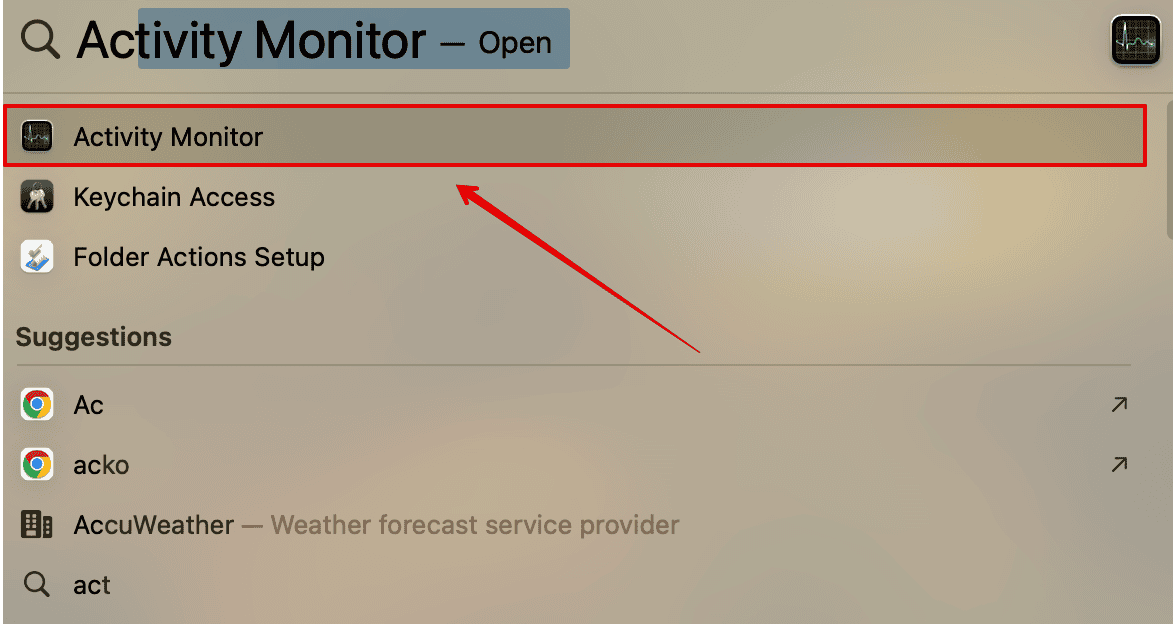
- Now, search for The Sims 4 using the search bar in the top-right.
- Select the process, then hit the (X) button in the top left.
- In the pop-up that appears, choose Force Quit.

4. Use Terminal
If the above steps didn’t work, you can use Terminal to kill an app on your Mac. This method is particularly useful when the app or program throws problems while closing.
- Press Command + Space to open Spotlight Search.
- Start typing Terminal. When it appears, hit Return.

- You can also find Terminal in Applications > Utilities.

- Now, type the following command and hit Return.
killall -9 "The Sims 4" - This will immediately close the game.

5. Restart your Mac
In case you’re still stuck with an unresponsive app, try restarting your Mac. Besides closing the app, it will wipe off minor software glitches and give a fresh start to the system.
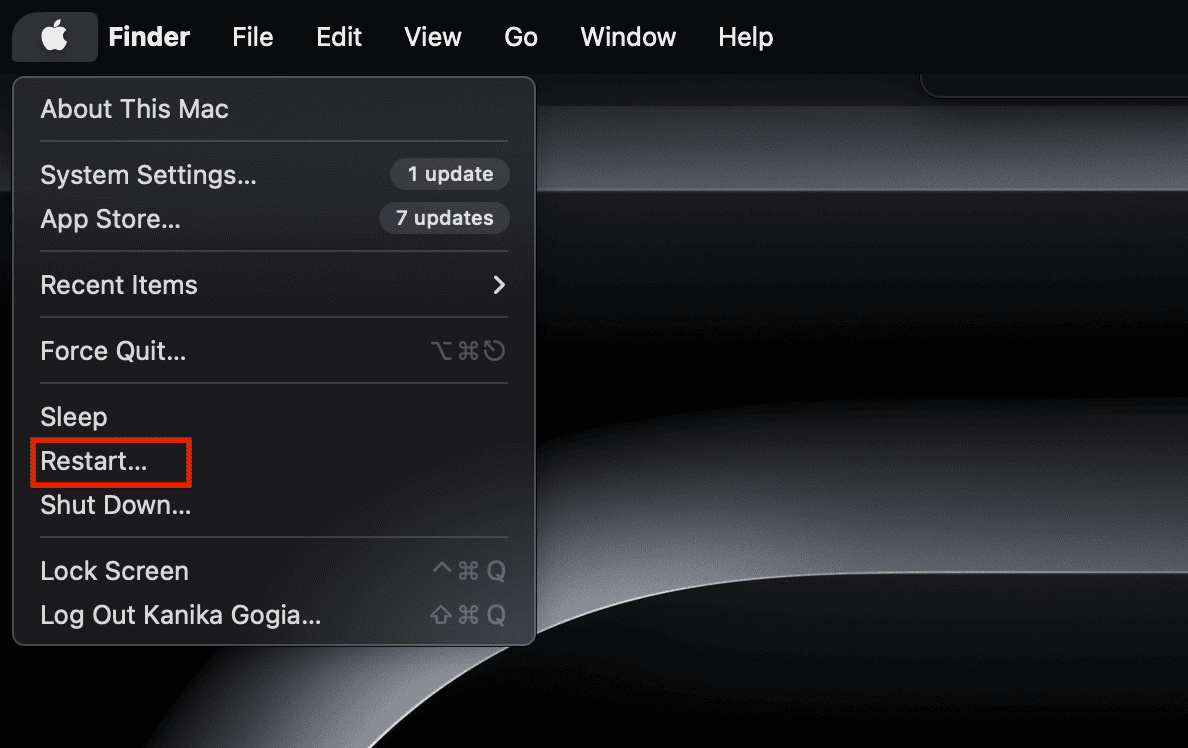
- Click on the Apple Menu in the top left corner.
- Select Restart.

In case your Mac is completely frozen, simply press and hold the Power button until your Mac turns off. Wait a few seconds, then turn it back on.
How To Force Quit The Sims 4 on the Loading Screen on Mac?
If The Sims 4 is stuck on the loading screen on your Mac, you can use a keyboard shortcut to force close it. Here’s what you need to do:
- On your Mac’s built-in keyboard, press Command + Option + Esc to open the Force Quit window.
- From the list that appears, choose The Sims 4.
- Finally, click the Force Quit button on the bottom right.
You can also use the Activity Monitor to force close The Sims 4 app on your Mac.


Discussion