

Resetting an iPad can mean different things depending on the issue you face. Sometimes a simple restart is enough to clear temporary glitches. In other cases, you may need to force restart, reset settings, or completely erase and restore the device to factory defaults. The right choice depends on whether your iPad is frozen, you forgot your passcode, or you want to prepare the device for sale or transfer. Back up your data first whenever possible.
Before resetting your iPad, make sure you properly back up your data. The best way to do this is with the help of professional software such as Tenoshare iCareFone.
Don’t miss the best of The Mac Observer
Set us as a preferred source and our Apple reporting ranks higher in your Google Search results and Discover feed — one tap, no account changes.
Table of contents
Methods to Reset
There are several ways to reset an iPad. Some methods preserve your data, while others erase everything and restore the device to its original state. Here are the main approaches.
1. Restart iPad (soft reboot)
A soft reboot simply powers the iPad off and back on. It clears temporary glitches, slowdowns, or minor UI issues. This method doesn’t delete apps, data, or settings, and should be your first step before deeper resets.
Without Home button models (Face ID iPads, iPad Pro 2018 and later):

- Press and hold either Volume button and the Top button together.
- When the power slider appears, drag it to turn the device off.
- Wait about 30 seconds.
- Press and hold the Top button until the Apple logo appears.
With Home button models (older iPads):

- Press and hold the Top button until the power slider shows up.
- Drag the slider to shut down.
- After 30 seconds, press and hold the Top button until the Apple logo appears.
2. Force restart (hard reboot)
A force restart forces the device to power-cycle when it’s frozen or unresponsive. Unlike a factory reset, it doesn’t erase any data. Use it when the touchscreen or buttons stop responding.
Without Home button models:
- Quickly press and release Volume Up.
- Quickly press and release Volume Down.
- Press and hold the Top button until the Apple logo appears, then release.
With Home button models:
- Press and hold the Home button and the Top (or Side) button at the same time.
- Keep holding until the Apple logo appears.
- Release both buttons.
3. Reset settings (without deleting content)
Reset options let you fix configuration problems such as Wi-Fi issues, layout glitches, or incorrect privacy settings without erasing personal data, apps, or media.
- Open Settings > General > Transfer or Reset iPad > Reset (Choose any one option).
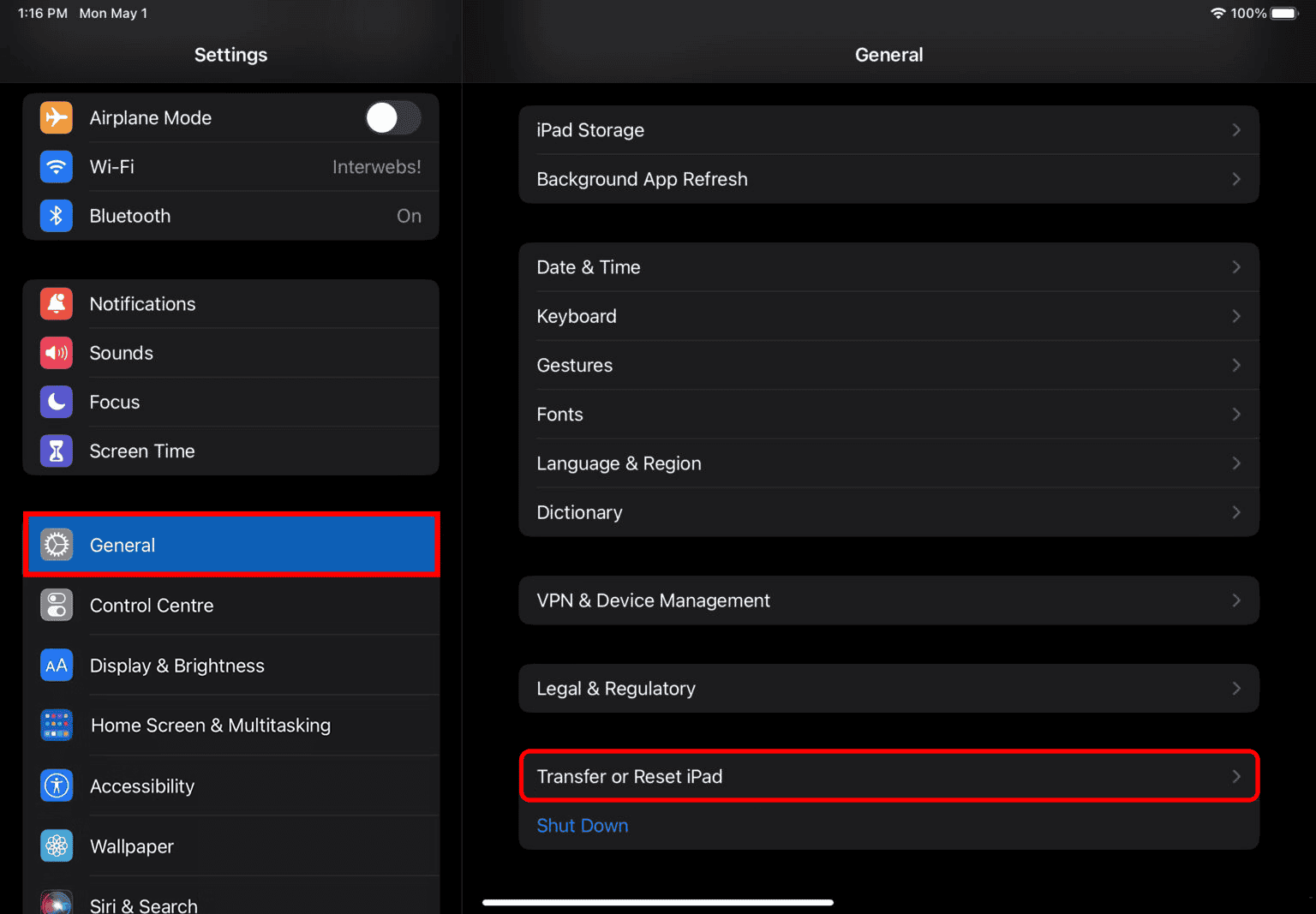
- Reset All Settings: Restores all system settings (Wi-Fi, keyboard dictionary, privacy, location, Apple Pay cards) without deleting data.
- Reset Network Settings: Deletes Wi-Fi networks, VPN, and APN settings, resets device name, and may disable roaming.
- Reset Keyboard Dictionary: Clears custom dictionary entries.
- Reset Home Screen Layout: Restores default app layout.
- Reset Location & Privacy: Reverts privacy and location permissions.
- Confirm the reset and authenticate if prompted.
- The iPad restarts automatically.

4. Erase all content and settings on-device (factory reset from Settings)
This is the most complete reset you can do from the iPad itself. It erases all apps, media, and personal data, returning the device to factory settings. Use it when selling, giving away, or starting fresh.
- Go to Settings > General > Transfer or Reset iPad > Erase All Content and Settings.
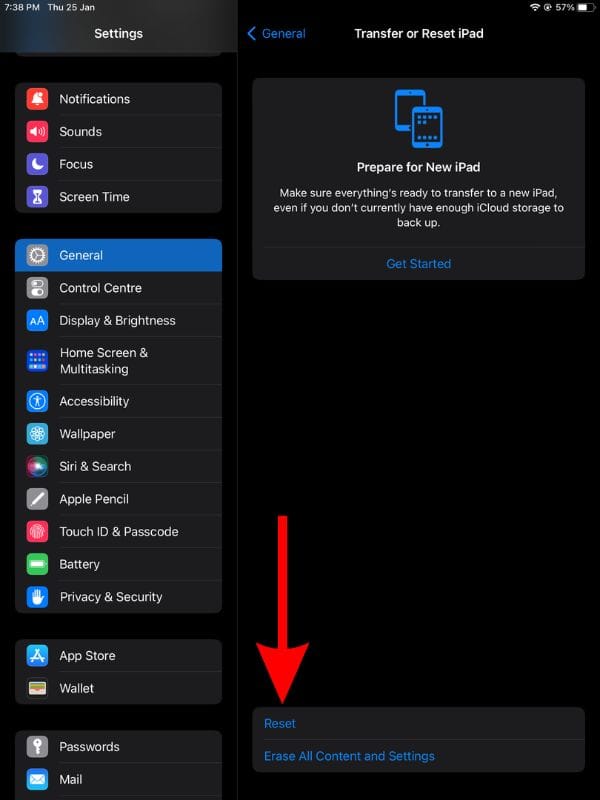
- Follow the on-screen Erase Assistant instructions.
- Enter your device passcode if asked.
- If Find My is enabled, enter your Apple ID password to disable Activation Lock.
- On cellular iPads, decide whether to erase or keep the eSIM.
- Confirm erase. The iPad wipes completely and restarts at the setup screen.

For a complete walkthrough of erasing everything, see our detailed factory reset guide.
5. Restore using a Mac or Windows PC (Finder, Apple Devices app, or iTunes)
If you forgot the passcode or the iPad is disabled after too many failed attempts, recovery mode lets you erase and restore the device using a Mac or PC. This wipes the iPad, but you may still need the Apple ID to bypass Activation Lock.
- Connect iPad to a Mac or Windows computer.
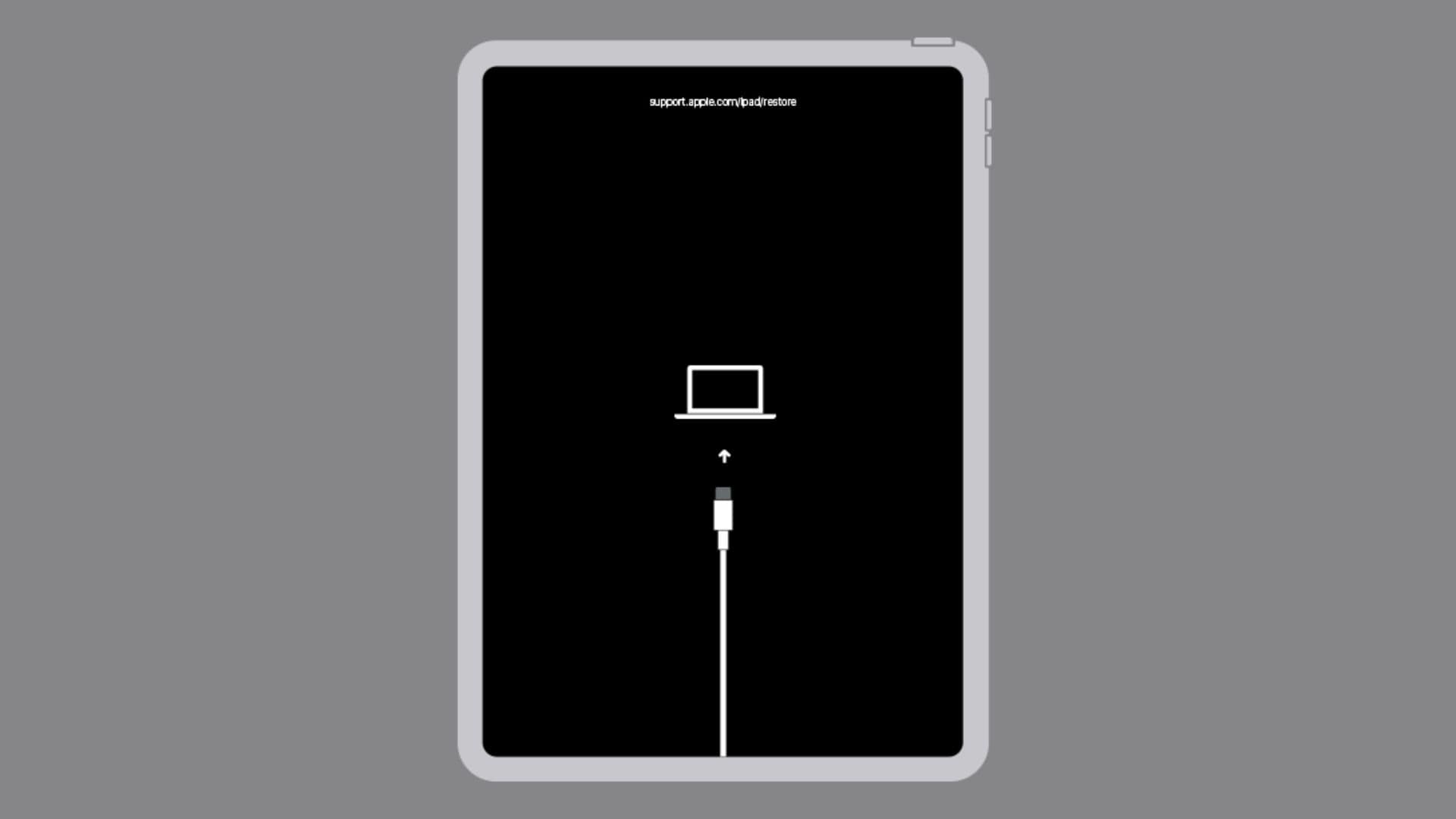
- Enter recovery mode.
- Without Home button: Quickly press Volume Up, then Volume Down, then hold the Top button until the recovery screen appears.
- With Home button: Hold Home and Top together until the recovery screen appears.
- On the computer, locate the iPad in Finder or iTunes.
- Choose Restore to erase and reinstall iPadOS.
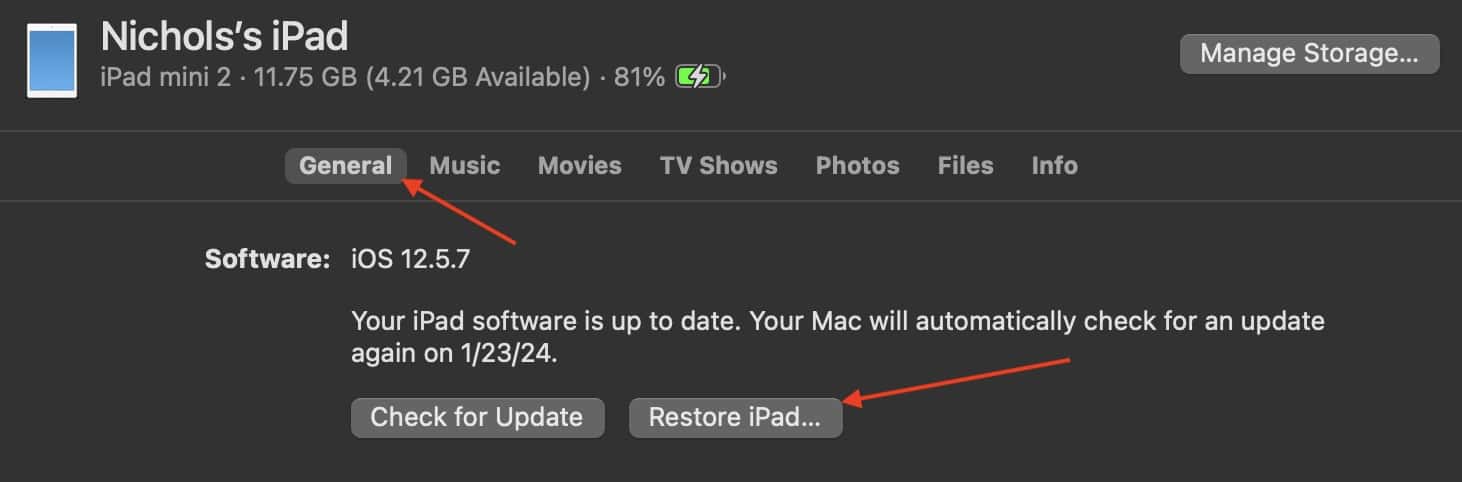
- After restore, set up the iPad or restore from a backup.


Read more about how to unlock a disabled iPad using iTunes.
6. Erase remotely via iCloud (Find My)
Remote erase is useful when you don’t have physical access to your iPad, such as when it’s lost, stolen, or already with its next owner. This erases the device over the internet, provided Find My is enabled.
- Visit iCloud.com and sign in with the Apple ID linked to the iPad.
- Select Find Devices.
- Choose the iPad from the list.
- Click Erase iPad and follow the prompts.
- If the iPad is offline, the erase will start automatically when it connects to the internet.
- To complete a transfer, remove the iPad from your account afterward.

If you only need to track or erase your device remotely, check our guide on How to use Find My iPad.
Tips
- Back up your iPad before erasing.
- Use a force restart if the device is frozen; it won’t delete your data.
- For transfers, sign out of Apple ID and remove eSIM if applicable.
- If Restore is unavailable, disable Find My iPad before trying again.
- Have your Apple ID and password ready to bypass Activation Lock.
If you’ve forgotten your Apple ID, here’s how to factory reset an iPad without Apple ID.
FAQs
No, it only reboots the system.
Reset All Settings preserves data but restores system settings. Erase All Content and Settings wipes everything to factory defaults.
Yes, through recovery mode with a Mac or PC. Activation Lock still requires the Apple ID.
Sign in at iCloud.com, open Find Devices, select the iPad, and choose Erase iPad.
Connect to Mac or Windows, open Finder or iTunes, select the iPad, and choose Restore iPad.
Summary
- Restart or force restart to fix freezes without data loss.
- Reset settings to solve configuration issues while keeping content.
- Erase All Content and Settings for a clean factory reset.
- Use Mac/Windows restore for full reinstallation.
- Enter recovery mode restore when locked or disabled.
- Erase remotely through iCloud if Find My is enabled.
Conclusion
Resetting an iPad is not a single action but a set of options, each suited to different situations. For quick fixes, start with restart or force restart. For persistent issues or when preparing a device for sale, perform a full factory erase or computer restore. If you are locked out, use recovery mode or iCloud. With the right method and a backup in place, you can reset your iPad securely and continue using it without disruption.



Stupid not to have a reset button
Minimalism can go too far and is often confused with simply doing things the cheap way.
I have an iPad. I’m on the 4th update since I bought it. The first two updates “bricked” my iPad making it inoperable, unuseable. I had to go to the Apple store to get it working again.
The third update went okay.
The 4th update bricked my computer. Now I have to go the the Apple store again.
Going through the volume up/down/power buttons is wasted effort.
My opinion of Apple products can’t be printed here.