

If you are new to Apple Watch, knowing how to go to Settings is essential for customizing your device, managing apps, and controlling notifications.
This guide will walk you through all the ways to access Settings on your Apple Watch and give useful tips to make your experience smoother!
Table of contents
How to Go to Settings on Apple Watch?
1. Using the Home Screen
- Press the Digital Crown on your Apple Watch to open the Home Screen.
- Look for the gray gear icon, which represents Settings. Tap the icon to open the Settings app.
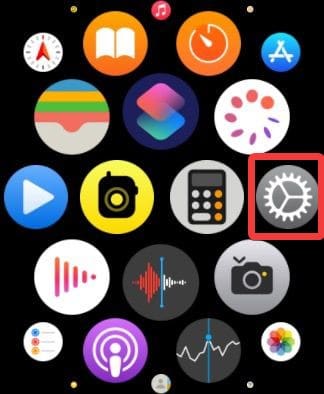
- From here, you can navigate different categories such as Display & Brightness, Sounds & Haptics, and General.

2. Using Siri to Open Settings
- Raise your wrist or press and hold the Digital Crown to activate Siri.
- Say Open Settings.

- Siri will automatically open the Settings app.
- You can then browse and adjust your preferences.

3. Accessing Settings from Notifications
- Swipe down from the top of your Apple Watch face to view notifications.
- Scroll to a notification that offers quick actions, such as Wi-Fi or Bluetooth alerts.
- Tap the Settings option if available to go directly to the relevant menu.
You might also want to learn about muting notifications on your Apple Watch.
Don’t miss the best of The Mac Observer
Set us as a preferred source and our Apple reporting ranks higher in your Google Search results and Discover feed — one tap, no account changes.
4. Using Your Paired iPhone
- Open the Watch app on your iPhone.
- Tap the My Watch tab at the bottom.
- Scroll to find specific settings like General, Notifications, or App Layout.
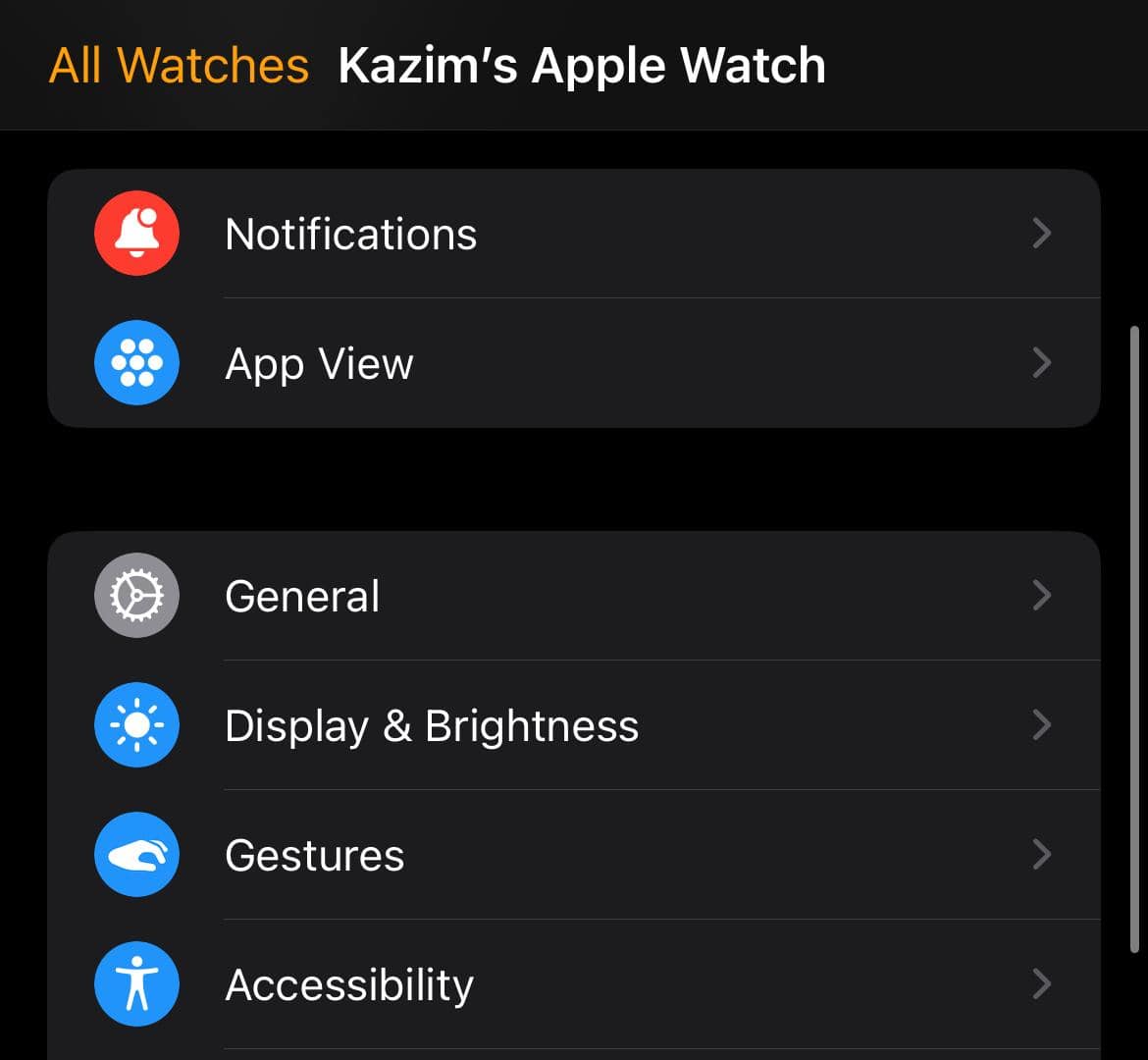
- Changes made here sync automatically to your Apple Watch.

Tips for Using Settings Efficiently
- Use the Digital Crown for smooth scrolling through long menus.
- Customize the Control Center for quick access to Wi-Fi, Airplane Mode, and Do Not Disturb.
- Organize apps in the Home Screen for faster navigation to Settings.
- Regularly update your Apple Watch software to access new settings features.
- Enable haptic feedback for alerts to ensure you do not miss notifications.
Frequently Asked Questions
Press the Digital Crown to go to the Home Screen, then tap the gray gear icon. You can also ask Siri to “Open Settings.”
Yes, you can use Siri by pressing and holding the Digital Crown or raising your wrist and saying “Open Settings.”
Yes, open the Watch app on your iPhone, tap the “My Watch” tab, and access most settings, which sync to your Apple Watch.
Try restarting your Apple Watch by holding the side button. If it still does not open, ensure your watchOS is updated.
Summary
- Press the Digital Crown to access the Home Screen and tap the gear icon.
- Activate Siri and say “Open Settings.”
- Use notifications for quick access to certain settings.
- Adjust settings from the paired iPhone’s Watch app.
- Use tips like organizing apps and customizing the Control Center for efficiency.
Conclusion
Knowing how to go to Settings on your Apple Watch is simple once you understand the different methods. Whether you prefer tapping the gear icon, using Siri, or managing settings through your iPhone, you can easily control all features and customize your watch for your lifestyle.
Regularly exploring Settings ensures you make the most of your Apple Watch experience.
If you are new to it, learn how to use an Apple Watch!


Discussion