

Your Apple Watch runs health sensors, apps, and always-on connectivity. Those features help you, and they use power. You can extend daily runtime by cutting display time, limiting background activity, and restricting radios. Use Low Power Mode for big gains and apply selective settings for steady improvements without losing essential functions.
Table of contents
- What you can do
- 1. Low Power Mode
- 2. Background App Refresh
- 3. Display: Always-On and Brightness
- 4. Optimized Charging and Battery Health
- 5. Workouts: Power-Saving During Exercise
- 6. Connectivity: Cellular, Wi-Fi, Bluetooth
- 7. Notifications and Haptics
- 8. Health Sensors and Monitoring
- 9. App Load and Complications
- 10. Usage Patterns and Quick Toggles
- Tips
- FAQs
- Summary
- Conclusion
What you can do
Below are practical, step-by-step methods. Each entry lists what changes, why it saves power, and how to apply it on watchOS 9, 10, and later.
1. Low Power Mode
Low Power Mode reduces background sensors, disables the Always-On display, and limits network activity to save battery. Use it when you need several extra hours or when the charge is low.
Don’t miss the best of The Mac Observer
Set us as a preferred source and our Apple reporting ranks higher in your Google Search results and Discover feed — one tap, no account changes.
- Press the side button to open Control Center and tap the battery percentage.
- Toggle Low Power Mode and choose Turn On or Turn On For (1, 2, or 3 days).
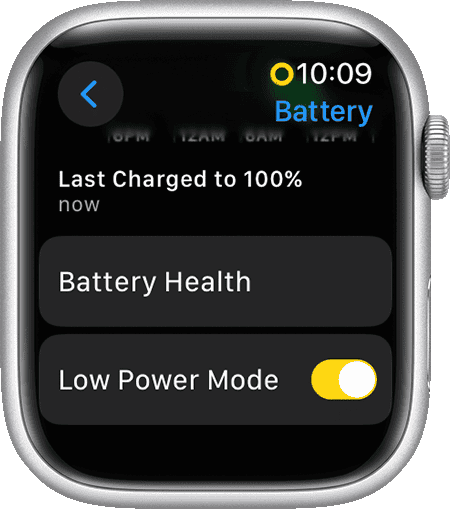
- To exit, open Control Center > battery percentage > turn off Low Power Mode.

2. Background App Refresh
Preventing background refresh stops apps from checking for updates constantly. Complications on the active face can still refresh. Turn refresh off globally, then re-enable only for apps you need.
- On Apple Watch, open Settings > General > Background App Refresh.
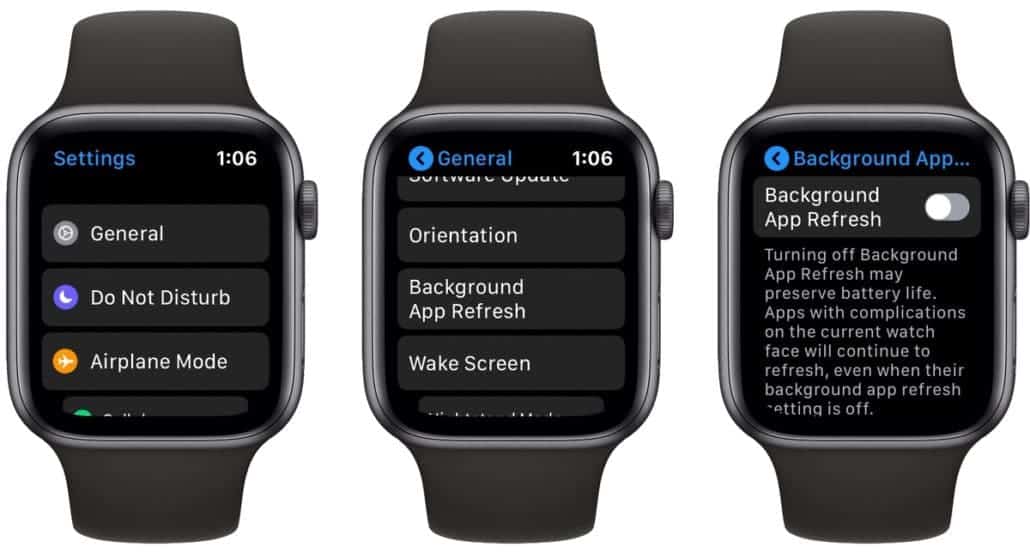
- Disable Background App Refresh globally or turn it off per app.
- Keep it on only for apps that supply essential complications.

Too many apps running can drain power then learn how to delete apps on Apple Watch.
3. Display: Always-On and Brightness
The display is one of the largest drains. Turn off Always-On and lower brightness to cut idle power. Low Power Mode disables Always-On automatically for stronger savings.
- Open Settings > Display & Brightness.
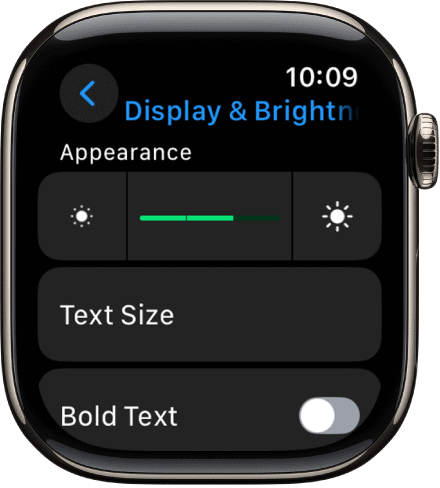
- Toggle Always On off to reduce idle draw.
- Lower brightness and reduce wake-on-wrist sensitivity.

If your battery still drains quickly, see why your Apple Watch dies so fast.
4. Optimized Charging and Battery Health
Optimized Battery Charging reduces the time your watch stays at full charge. That slows battery aging and preserves capacity, which helps day-to-day endurance as the battery ages.
- Open Settings > Battery > Battery Health on your watch.
- Ensure Optimized Battery Charging is enabled.
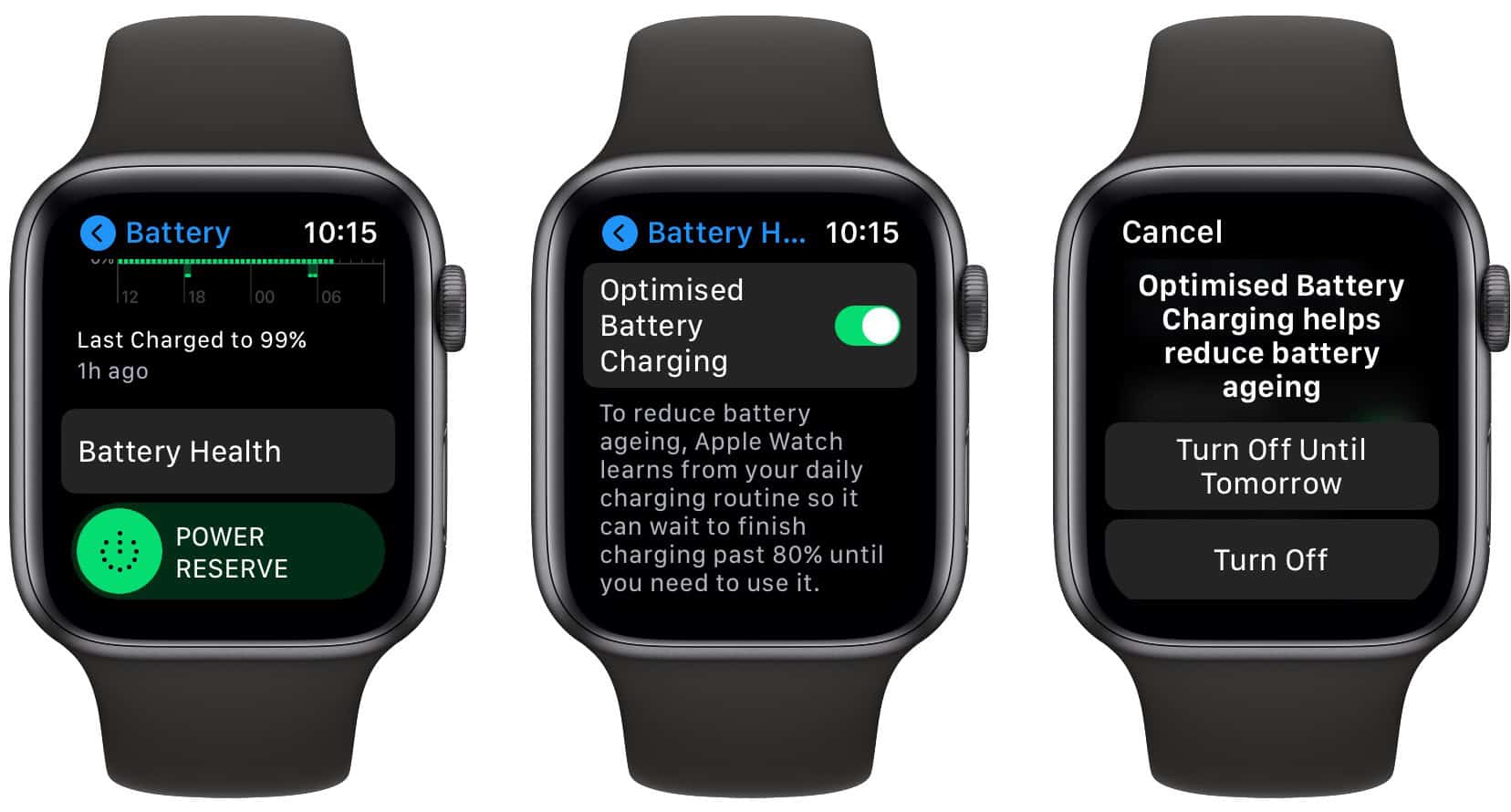
- Charge on a regular schedule so the watch can learn your routine.

5. Workouts: Power-Saving During Exercise
During long workouts, reduce GPS and heart rate sampling to stretch battery life. On Apple Watch Ultra models, choose fewer GPS and heart rate readings when runtime matters more than every data point.
- Open Settings > Workout.
- Enable Low Power Mode for workouts to reduce sensor frequency.
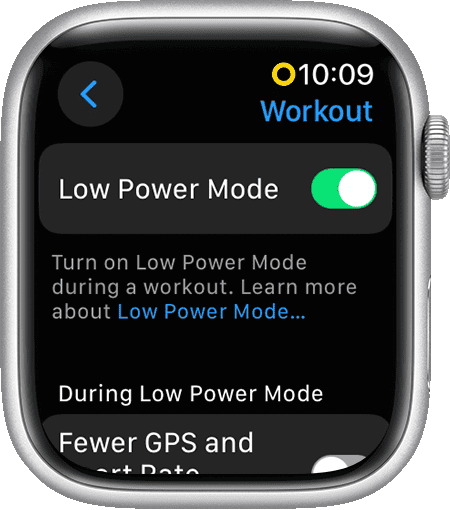
- On Ultra models, toggle Fewer GPS and Heart Rate Readings for long sessions.

You can also end workouts on Apple Watch promptly to reduce battery strain.
6. Connectivity: Cellular, Wi-Fi, Bluetooth
Radios use power, especially in weak signal areas. Prefer Bluetooth to your iPhone for calls and music when possible. Avoid streaming from the watch if the phone is nearby.
- Use Bluetooth iPhone connection for calls and audio when available.
- Enable Low Power Mode in low-signal areas to limit network activity.
- Avoid unnecessary standalone streaming from the watch.
7. Notifications and Haptics
Each notification can wake the screen and radio. Limit nonessential alerts and use Focus or Silent modes to reduce wake events and save energy.
- On iPhone, open Watch app > My Watch > Notifications and limit alerts.
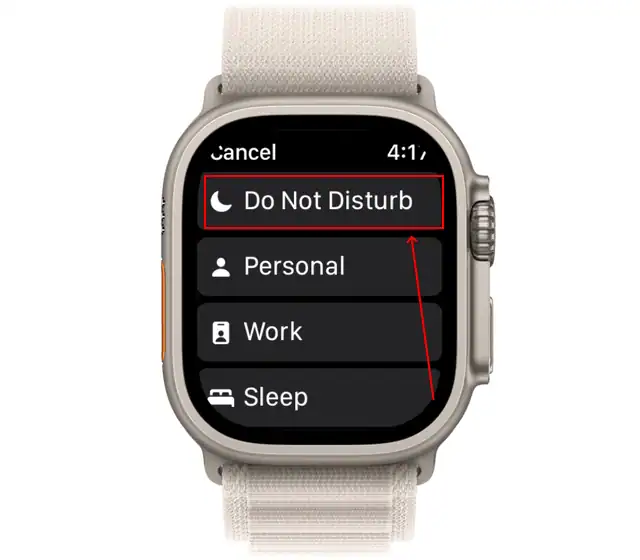
- Use Focus modes such as Do Not Disturb or Sleep to cut frequent wake-ups.
- Use Silent Mode when haptics are not required.
Too many alerts can drain power, here’s how to turn off notifications on Apple Watch.
8. Health Sensors and Monitoring
Background heart rate and SpO2 checks use power. Low Power Mode suspends these when you need extra runtime. Turn monitoring back on once you charge.
- Enable Low Power Mode during low-battery periods to suspend background health checks.
- Avoid long continuous monitoring sessions when data is nonessential.
- Re-enable normal monitoring after recharging to restore alerts and trends.
9. App Load and Complications
Remove unused apps and keep complications few and simple. Fewer active complications means fewer background refreshes.
- Delete rarely used apps from the Watch app or directly on the watch.
- Choose watch faces with fewer complications.
- Use data-heavy complications only on a single face you switch to when needed.
Large files add extra load; see how to remove media from Apple Watch.
10. Usage Patterns and Quick Toggles
Small, timely changes add up. Check battery in Control Center and enable Low Power Mode when you see charge trending low. Temporarily cut streaming and GPS-heavy tasks until you can recharge.
- Open Control Center and check battery regularly.
- Enable Low Power Mode during long days or travel.
- Reduce brightness and notifications for the rest of the day if needed.
For workout efficiency, learn how Power Saving Mode works during exercise.
Tips
- Turn on Low Power Mode before long meetings, travel, or events.
- Disable Background App Refresh globally, then re-enable only for critical apps with complications.
- Turn off Always-On display and lower brightness to cut idle drain.
- Use Focus or Silent Mode to reduce frequent wake events.
- Prefer iPhone connections over standalone streaming when your phone is nearby.
- Keep Optimized Battery Charging enabled to preserve long-term capacity.
- Use workout power-saving options for long runs, hikes, or endurance events.
FAQs
Yes. Low Power Mode suspends background heart rate and blood oxygen measurements and may delay some notifications. Use it with those trade-offs in mind.
No. Apps still work when opened. They just stop fetching updates in the background. Complications on the active watch face can still update.
Yes. Reducing the display on-time and brightness has a large impact on daily runtime. Low Power Mode disables Always-On for maximum savings.
It reduces time spent at high charge levels, which slows battery aging and helps maintain capacity over months and years. That supports better daily endurance as the battery ages.
Enable Low Power Mode for workouts and, on Ultra models, choose fewer GPS and heart rate readings to extend battery life while still capturing core activity data.
Summary
- Enable Low Power Mode for the biggest, immediate battery gains.
- Turn off Background App Refresh except for essential complication apps.
- Disable Always-On display and lower brightness to cut idle drain.
- Use workout power-saving settings on long activities to reduce sensor sampling.
- Keep Optimized Battery Charging on to preserve long-term battery capacity.
Conclusion
You can materially improve Apple Watch runtime with deliberate, targeted changes. Use Low Power Mode when you need extra hours. For everyday savings, limit background refresh, simplify complications, and reduce display time. Keep Optimized Battery Charging enabled to protect long-term battery health. These steps let you maintain core features while getting the most from a single charge.


Discussion