

Many iPhone users report that iMessage has stopped working properly updating to iOS 26.2, which Apple released on November 3, 2025. The issues range from activation failures to complete service disruptions. Apple’s System Status page still shows all services as normal, but user reports tell a different story.
Table of contents
Primary Causes of iMessage Problems
Even in the public release, problems arise from:
- Server communication failures (blocking activation/delivery)
- Apple ID authentication issues during upgrade
- Network configuration corruption
- Carrier settings incompatibility with iOS 26’s new messaging stack
Troubleshooting iMessage on iOS 26.2
1. Basic Checks
- iMessage Activation: Settings > Apps > Messages and toggle on iMessage. Check Send & Receive to confirm your number.

- Apple ID Sign-in: Ensure you’re logged into the correct Apple ID.
- Network Stability: Test both Wi-Fi and mobile data. iMessage activation works best on Wi-Fi.
- Date and Time: Settings > General > Date & Time > Set Automatically.

If the basic checks don’t solve your iMessage issues, try these advanced troubleshooting steps. Each one targets a different possible cause of failure.
Don’t miss the best of The Mac Observer
Set us as a preferred source and our Apple reporting ranks higher in your Google Search results and Discover feed — one tap, no account changes.
2. Do a Full iMessage Reset
This clears glitches that occur during the update process.
- Open Settings > Messages.
- Toggle iMessage off.
- Perform a hard restart:
- Press Volume Up, then Volume Down, then hold the Side (Power) button until you see the Apple logo.
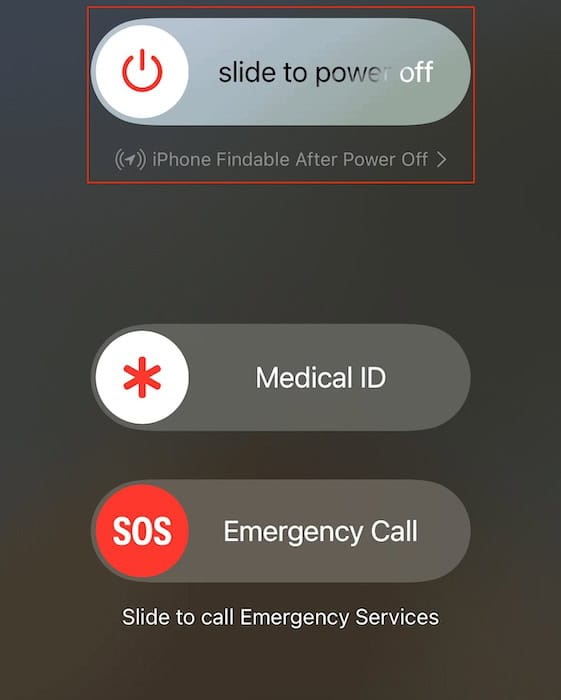
- Press Volume Up, then Volume Down, then hold the Side (Power) button until you see the Apple logo.
- Once your iPhone reboots, return to Settings > Messages.
- Toggle iMessage back on.
- Wait for the activation message to disappear.

3. Reset Network Settings
Corrupted or outdated network settings are a common reason for iMessage activation issues.
- Go to Settings > General.
- Scroll to the bottom and tap Transfer or Reset iPhone.
- Tap Reset.
- Select Reset Network Settings.
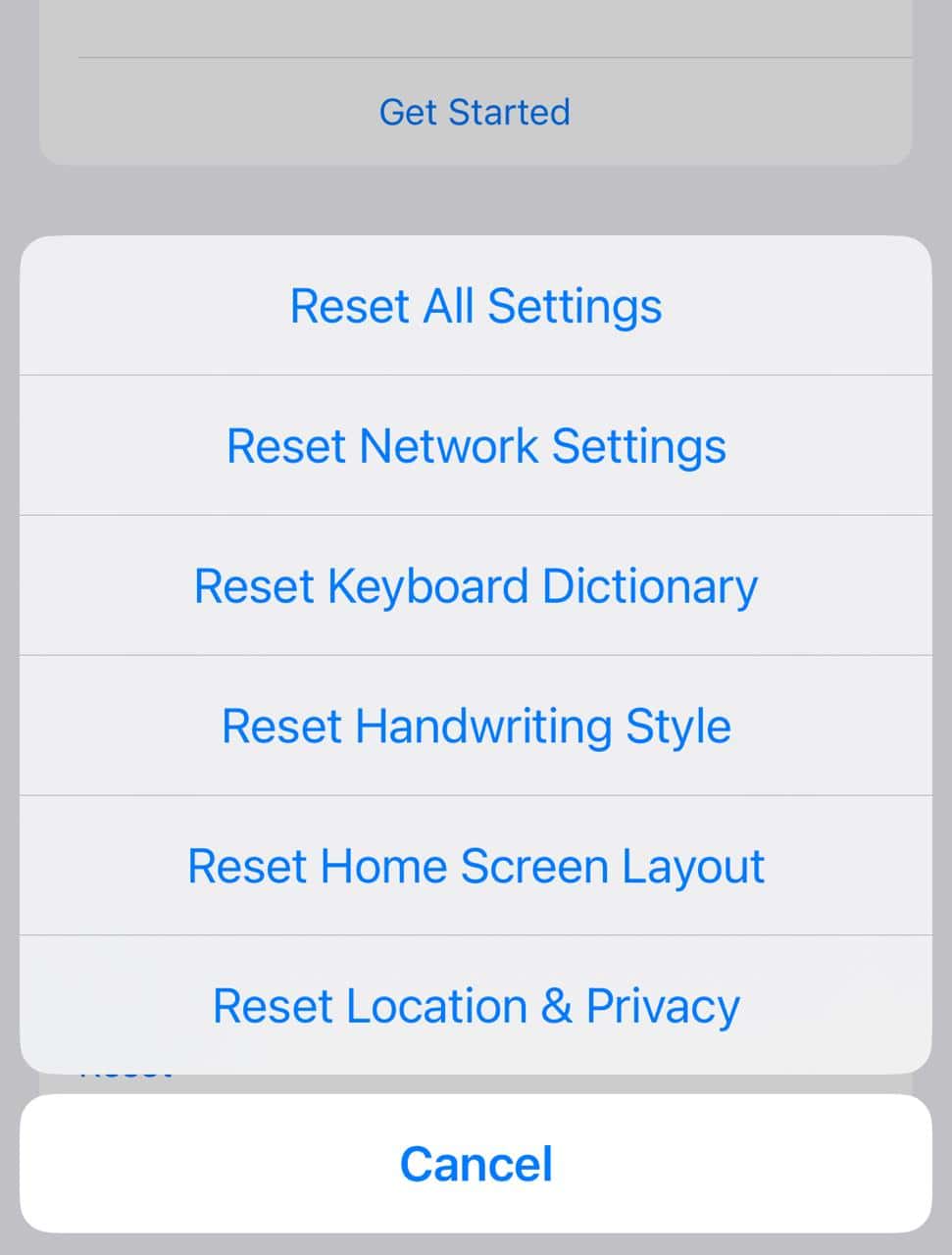
- Enter your passcode if prompted.
- Your iPhone will restart. Reconnect to Wi-Fi and test iMessage again.

⚠️ This will remove saved Wi-Fi networks and VPN settings, so make sure you know your passwords.
4. Re-authenticate Your Apple ID
If your Apple ID login was interrupted during the update, iMessage may fail.
- Open Settings.
- Tap your Apple ID banner at the top.
- Scroll down and select Sign Out.
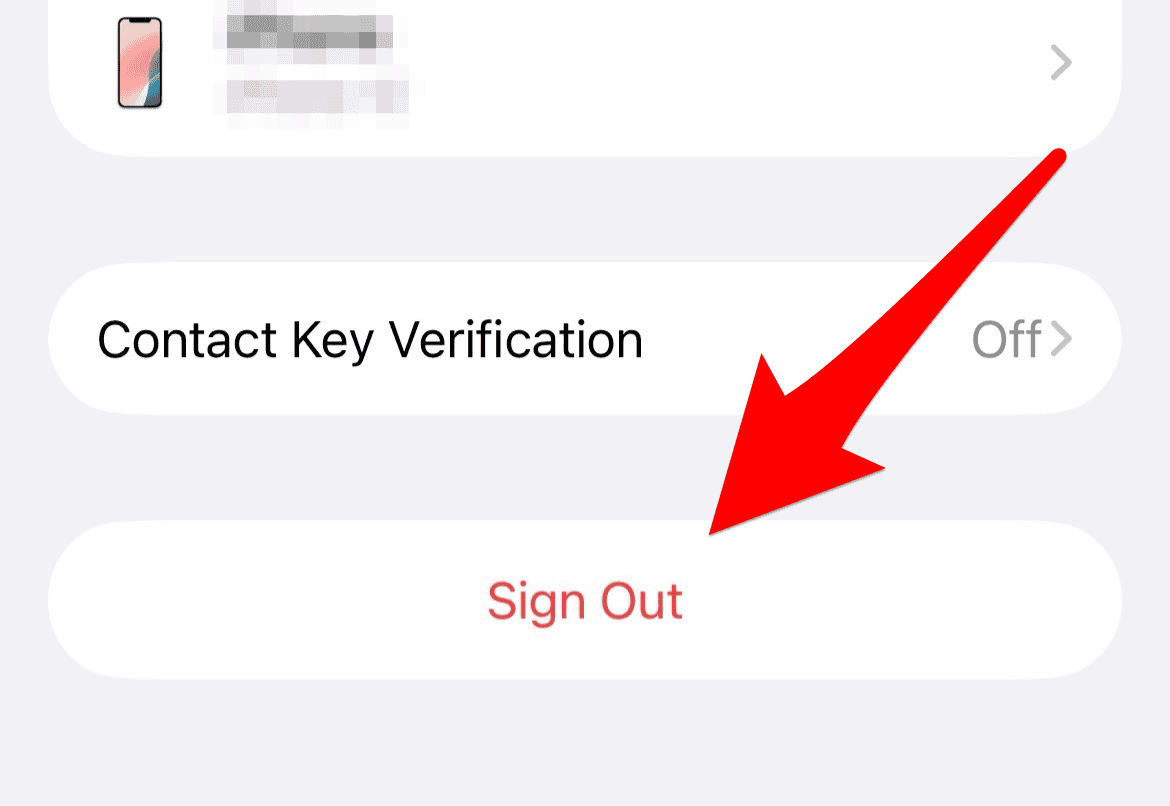
- Restart your iPhone.
- Return to Settings and sign back in with your Apple ID.
- Open Messages and enable iMessage.

5. Update Carrier Settings
Your carrier may need to push new settings for iOS 26.
- Go to Settings > General > About.
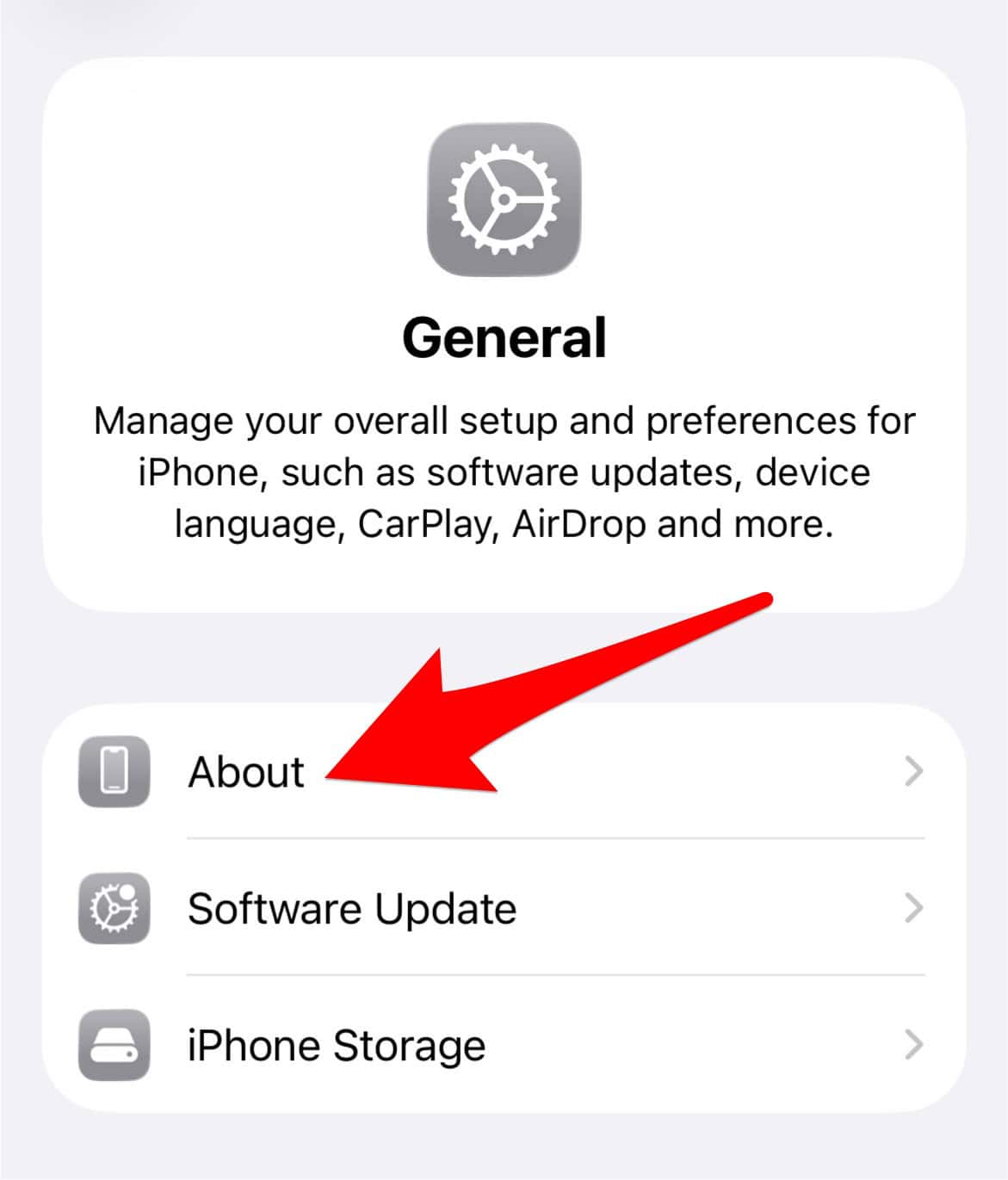
- Stay on this screen for a few seconds.
- If a carrier update is available, you’ll see a prompt to install it.
- Tap Update and follow the instructions.

6. Try the Background Processing Fix
This method bypasses conflicts caused by iOS 26.2’s background tasks.
- Swipe down from the top-right and turn on Airplane Mode.
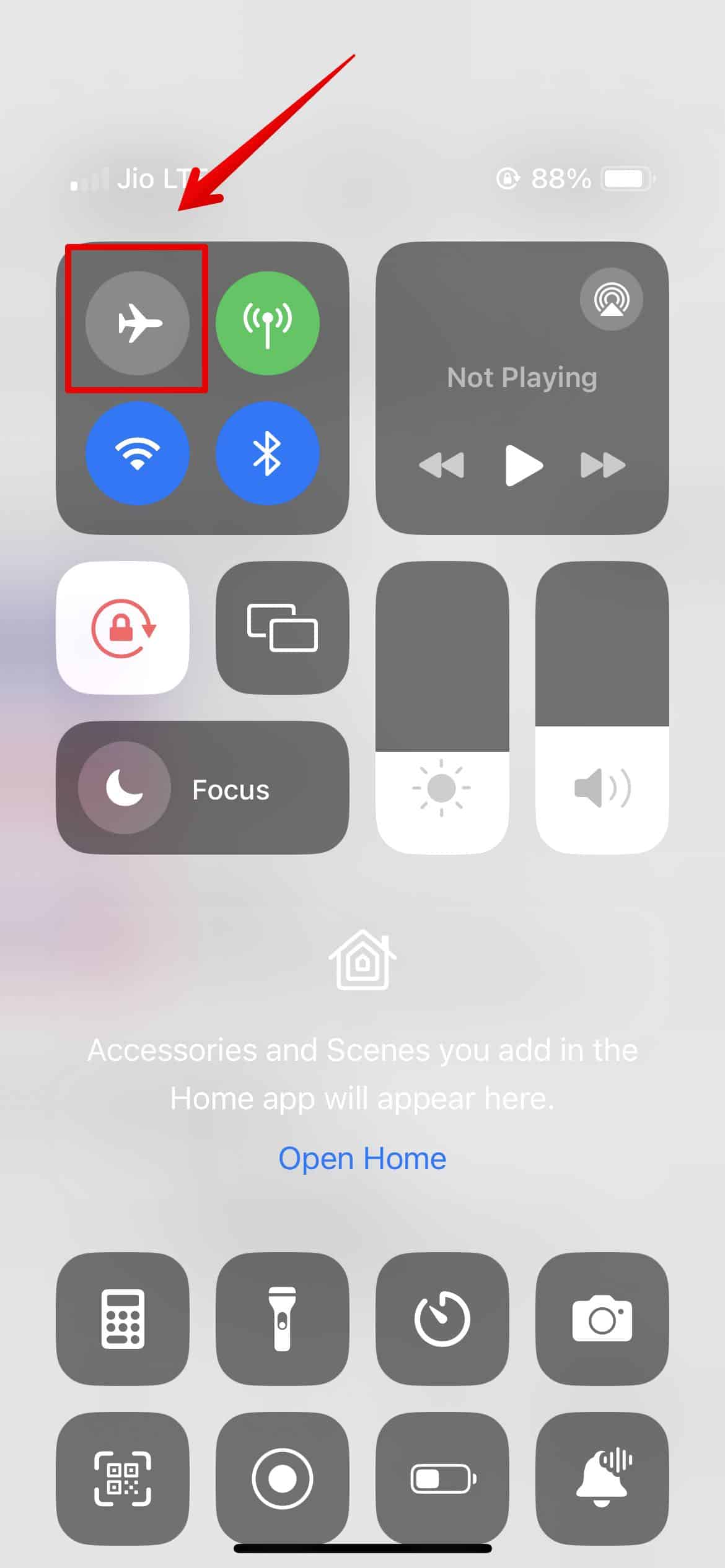
- While in Airplane Mode, enable Wi-Fi and connect to a network.
- Go to Settings > Messages and toggle iMessage on.
- Leave your iPhone idle for a few minutes to let it process activation.
- Turn off Airplane Mode when finished.

Common Problems and Solutions
| Problem | Likely Cause | Fix |
|---|---|---|
| “Waiting for Activation” | Server or Apple ID issue | Sign out/in Apple ID, reset network |
| Messages not sending | Carrier incompatibility | Update carrier settings |
| Images not delivering | Network corruption | Reset network settings |
| Group messages failing | Beta-related bug | Hard reset, apply latest iOS patch |
FAQ
The main purpose of the iOS 26.2 update is to deliver essential security patches for vulnerabilities that were actively exploited. It also introduced quality-of-life enhancements, such as new AirDrop verification codes for better security, “Urgent” reminders with alarms, and improved customization options for the Liquid Glass clock display. This update prioritizes user safety and refined existing features.
Yes, one of the key fixes in iOS 26.2 is an improved activation protocol designed to resolve intermittent server communication failures and Apple ID authentication issues that commonly caused the “Waiting for Activation” error on iOS 26.
The iOS 26.2 update added several new features. These include setting full-screen alarms for urgent reminders, mandatory AirDrop verification codes for unknown contacts, a slider to customize the Lock Screen’s “Liquid Glass” clock effect, enhanced safety alerts, and improved functionality within the Podcasts, Music, Games, and Freeform apps.
Restoring iMessage Reliability with iOS 26.2
The arrival of iOS 26.2 marks a necessary stabilization point following the initial complexities of upgrading to iOS 26. By addressing critical bugs, particularly those affecting iMessage activation and network stability, this update aims to restore the reliable messaging experience iPhone users expect. If the troubleshooting steps failed to resolve your issues, installing iOS 26.2 is likely the most direct and effective path to ensuring your messages send without fail.


I have tried everything Imessage is still not working
None of this worked for me. I have tried everything listed multiple times as well as many many other “fixes”. Every few days iMessage stops working and I am blocked “due to spam”. I have to file a report and wait 24 hours for it to “resolve” but then it gaping adding few days later. I am furious and leaving Apple products altogether!
Thank you, I’ve been struggling with this since the update. Your suggestion regarding the airplane mode fixed it!
None of those fixes worked:(
Me either
The Messages section isn’t there under settings after doing the update.
I was trying to find it as well last night. Go to settings, Apps then Messages. If you don’t see it there, go to settings and type “Messaging” in the search bar.
Go to apps at the bottom of the page messages in there.
there is no place to find “apps” in system settings on my mac after updating to macos 26