
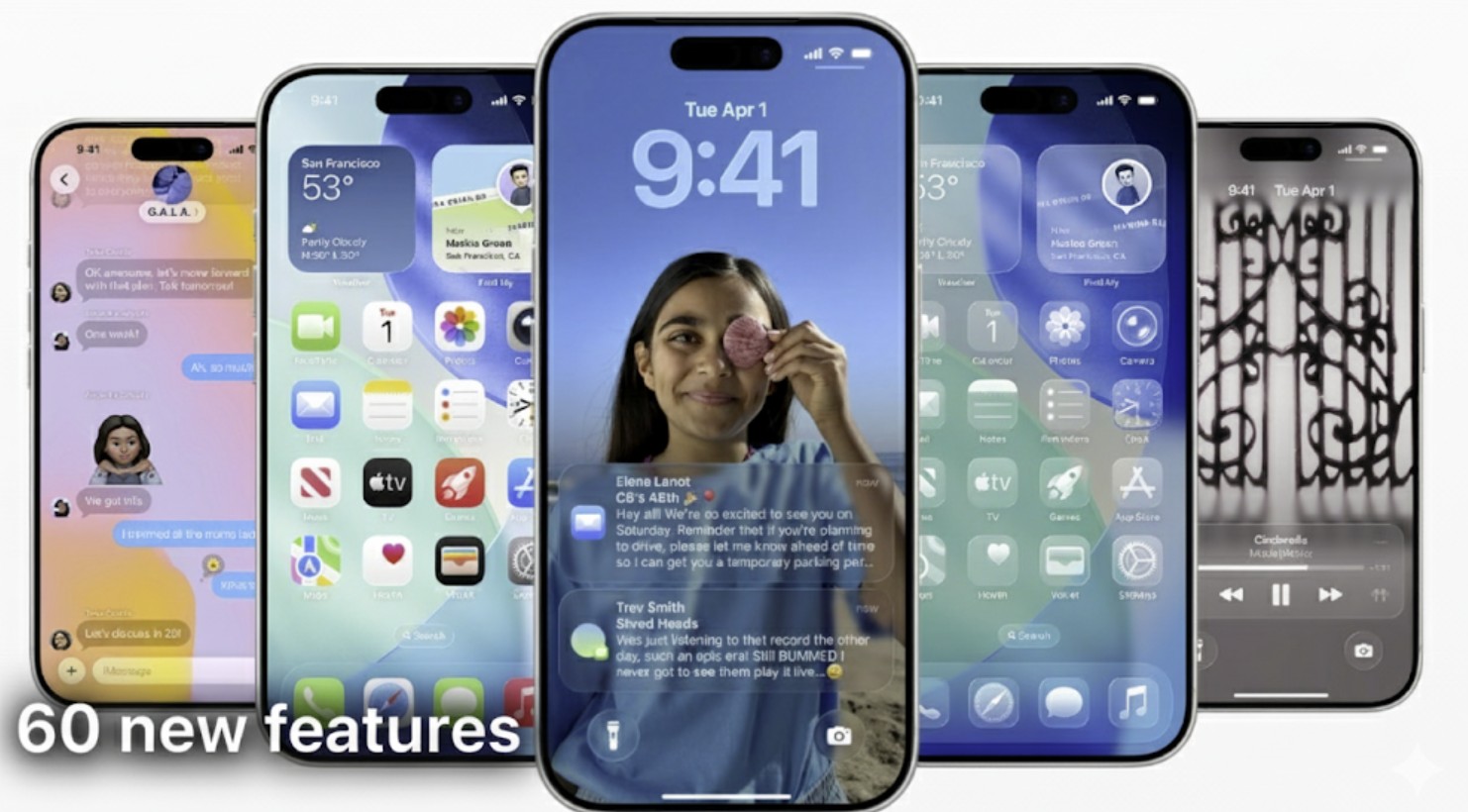
iOS 26 brings a wave of innovative updates that transform everyday interactions into seamless experiences, from smarter privacy controls to enhanced personalization options. Tweaking these settings ensures that you tailor the iPhone experience to your liking. Let’s look at the best iOS 26 settings to optimize battery life, boost security, and customize your interface. You may just discover some hidden features in the process.
Table of contents
Top 5 iOS 26 Settings to Master Right Now
1. Adaptive Power Mode for Smarter Battery Management
This intelligent feature learns your usage patterns, automatically activating Low Power Mode during low-battery scenarios without manual intervention. It extends runtime by up to 20% for heavy users, balancing performance and longevity effortlessly. Go to Settings > Battery > Power Mode and toggle on Adaptive Power Mode (available on iPhone 15 Pro and later).
2. Screening Unknown Callers in the Phone App
In iOS 26, the upgraded AI politely greets callers, transcribing their responses so you decide whether to answer. This reduces spam interruptions by 40%, keeping your focus intact during busy days. Navigate to Settings > Apps > Phone, and turn on Screen Unknown Callers. The Messages app has a similar setting, but it’s enabled by default.
Don’t miss the best of The Mac Observer
Set us as a preferred source and our Apple reporting ranks higher in your Google Search results and Discover feed — one tap, no account changes.

3. Custom Snooze Times in the Clock App
The default snooze time for iPhone is nine minutes, but now you can finally change it. This is a huge relief because you used to need a workaround to change the snooze timer on iPhone. Paired with new Reflection ringtones, it creates a personalized morning routine that feels intuitive and restorative.
To do that, follow the steps below:
- Open the Clocks app.
- Select the Alarms tab.
- Tap Snooze Duration.
- Set the time between your sleep cycle—opt for 9 minutes for a gentle wake-up or 12 for deeper rest.

4. Safari’s Classic Address Bar
The default Compact view hides it during scrolling for a cleaner view, but Bottom placement speeds up one-handed typing on larger screens. On top of putting Safari on your home screen, this simple change enhances browsing efficiency without cluttering your workflow. Under Settings > Apps > Safari, choose Bottom under the Tabs section.

5. AutoMix for Seamless Music Transitions
If you turned off Crossfade on your iPhone, you might like AutoMix instead. It intelligently blends tracks like a pro DJ, fading out beats smoothly. It analyzes your library for tempo matches, eliminating abrupt stops and elevating commutes or workouts with uninterrupted vibes. To enable it, go to Settings > Apps > Song Transitions and select AutoMix under Transition Styles.
FAQ
Go to Settings > General > Software Update and download if compatible.
Most are optimized for efficiency. You can monitor them via Settings > Battery.
Yes, all toggles are reversible in their respective menus.
Check Apple’s support site or community forums for patches.
Elevate Your iPhone Experience Today
Mastering these iOS 26 settings unlocks a more intuitive, secure, and enjoyable iPhone journey, from effortless battery tweaks to creative customizations. As you experiment, remember that small adjustments yield big rewards—your device will feel brand new. Dive deeper into optimizations and keep your setup glitch-free for years ahead.




Discussion