

In the fast-paced world of mobile communication, grabbing a snippet from a lengthy iMessage and text message without copying the whole thing has long been a frustration for iPhone users. Prior versions of iOS forced workarounds like forwarding or pasting into Notes, but iOS 26 changes that with a seamless partial text selection tool right in the Messages app. Here’s how to use it.
Table of contents
How to Select and Copy Part of a Text Message in iOS 26
Apple’s latest iOS release makes editing messages intuitive, building on advanced iPhone writing tools for smoother interactions. The process is straightforward and works across iMessage and SMS threads. Before you proceed, ensure you’ve updated your iPhone to the latest version.
Afterward, follow the steps below:
Don’t miss the best of The Mac Observer
Set us as a preferred source and our Apple reporting ranks higher in your Google Search results and Discover feed — one tap, no account changes.
- Open the Messages app.
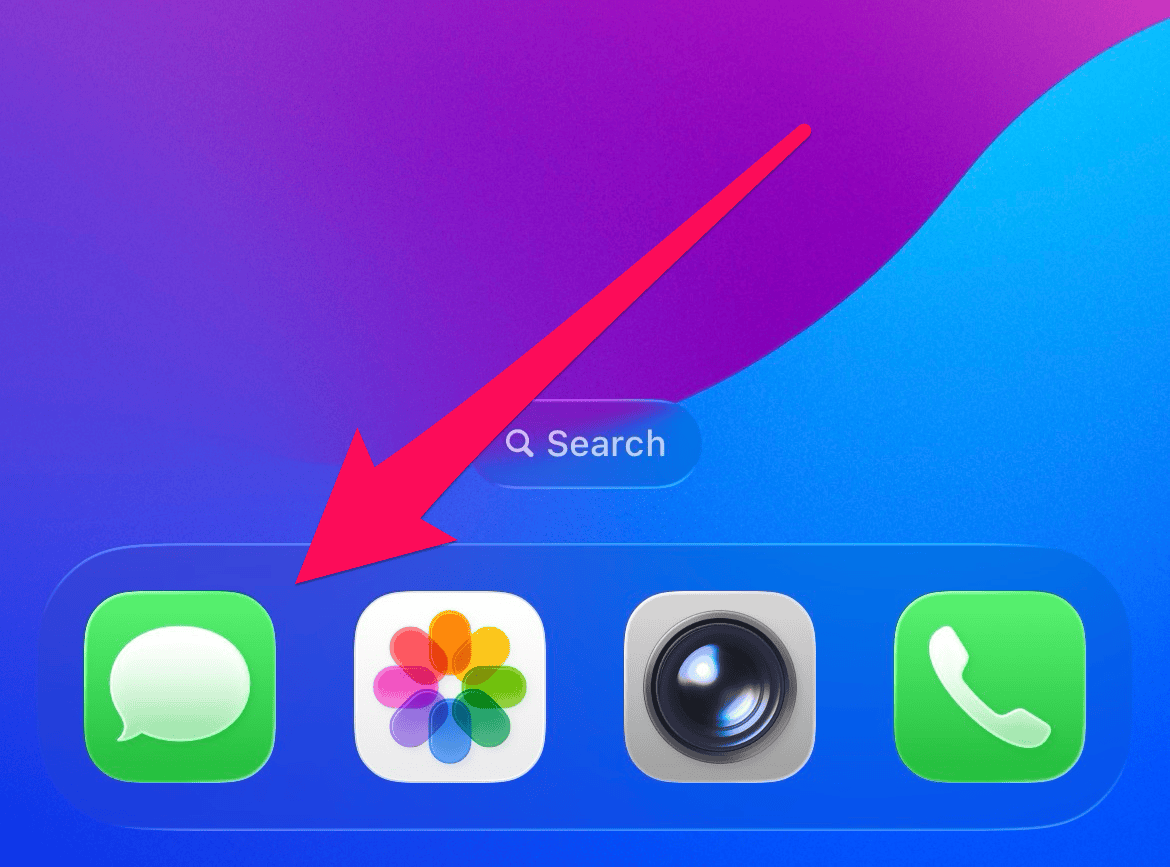
- Open the conversation you want to select the text from.
- Long-press the message bubble until a quick menu pops up.
- Tap Select from the menu.
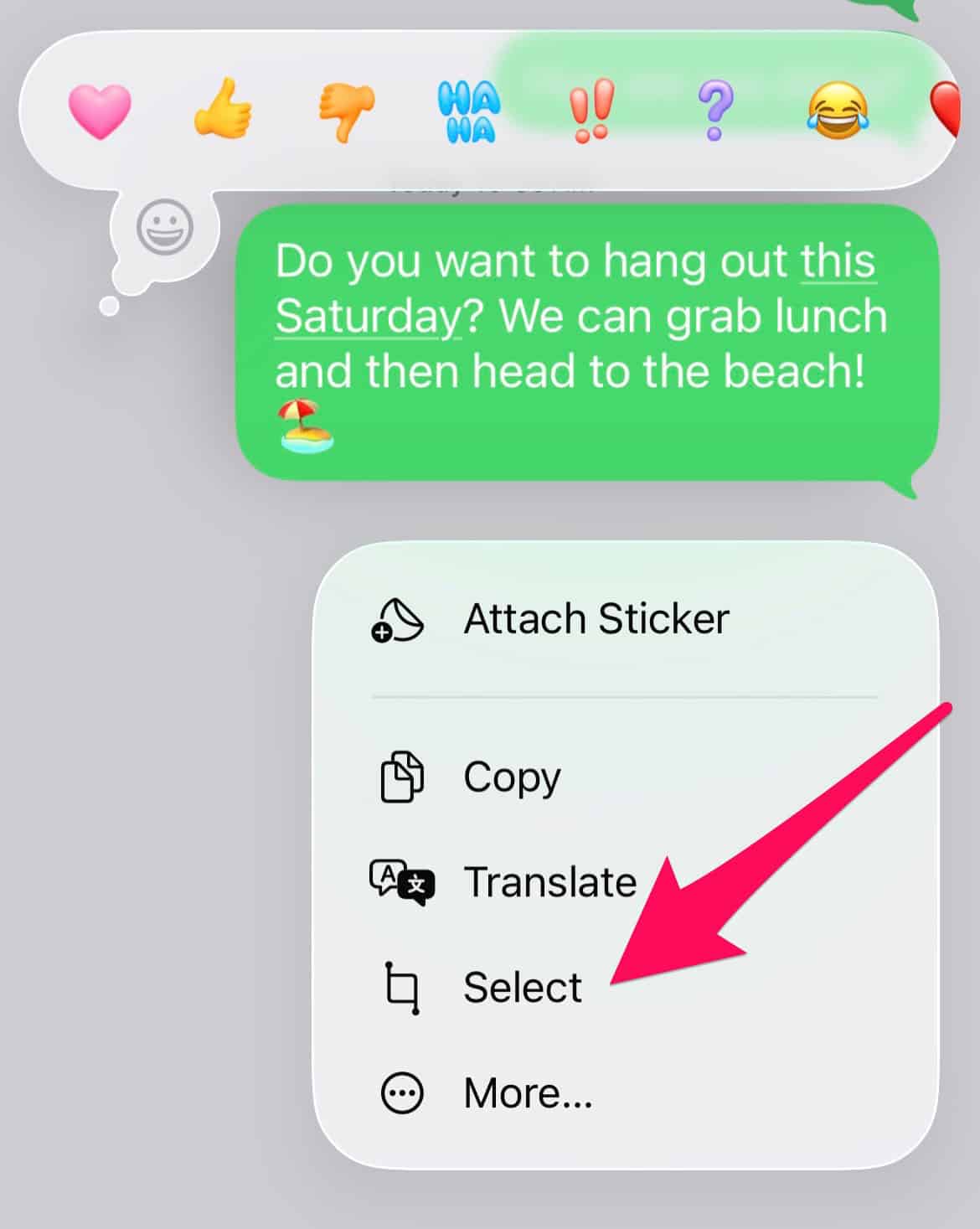
- Adjust the selection handles to highlight the text snippet you want to select.
- Tap Copy in the floating toolbar above the selection.
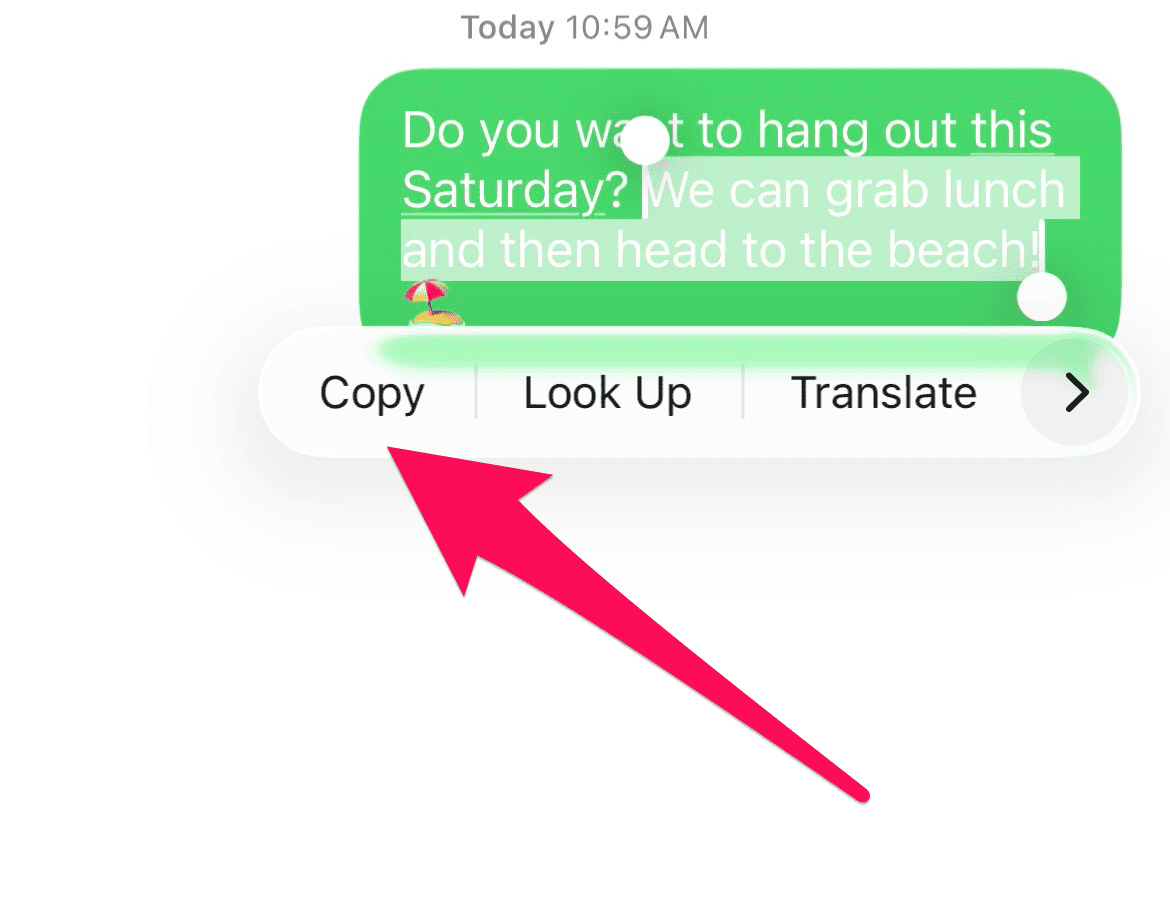
- Paste the text where needed.


For extra flair, integrate it into a schedule text message on iPhone or use Live Text for images. Also, to enhance privacy, pair this with options to lock messages on iPhone, keeping sensitive snippets secure.
FAQ
Yes, iPadOS 26 supports the same partial selection in Messages for a consistent experience across devices.
Double-check you’re on iOS 26. If issues persist, restart the Messages app or your iPhone.
Scheduled drafts allow selection during editing, but locked conversations require unlocking first via Face ID.
Copying a Text Message Is No Longer All or Nothing
Embracing partial text selection in iOS 26 transforms how you handle conversations, eliminating clunky detours and letting you focus on what matters. Whether sharing a recipe line or an event detail, this tweak elevates your daily flow. Dive deeper into messaging mastery with guides on iPhone writing tools to compose, proofread, and innovate like a pro. Update today and copy smarter, not harder—your chats will thank you.


doesn’t work on an iphone 16 pro with ios 26.1