

Apple’s iOS 26 rollout introduced a sleek Liquid Glass UI and several under-the-hood improvements, but many users have reported persistent Wi-Fi drops across iPhone 17, iPhone Air, and iPhone 17 Pro models. These connectivity issues range from intermittent disconnections to complete loss of network access, often occurring after the update. Fortunately, Apple released iOS 26.0.1 to address several bugs, including Wi-Fi and Bluetooth instability, but there are also things you can do.
Table of contents
Why iOS 26 Wi-Fi Drops Are Affecting Users
Wi-Fi issues in iOS 26 are typically linked to software glitches, network misconfigurations, or conflicts introduced during the update process. Some users also experience cellular data failures, which can compound the problem. If you’re facing both, you may want to review how to fix cellular data not working on iOS 26.
Apple’s quick-turn patch in iOS 26.0.1 resolved many of these issues, but not all users have seen improvements. If your iPhone keeps disconnecting from Wi-Fi, you’re not alone. For recurring issues, see why your iPhone keeps disconnecting from your iPhone.
Don’t miss the best of The Mac Observer
Set us as a preferred source and our Apple reporting ranks higher in your Google Search results and Discover feed — one tap, no account changes.
How to Fix iOS 26 Wi-Fi Drops on iPhone
Restart Your iPhone
A soft reset clears temporary memory conflicts and refreshes network settings.
- Press and hold the Volume button and Side button until the power slider appears.
- Slide to power off, wait ten seconds, then press the Side button to turn your iPhone back on.


Toggle Wi-Fi and Airplane Mode
Resetting radio signals can help re-establish a stable connection.
- Open the Control Center and toggle Wi-Fi off.
- Enable Airplane Mode from Control Center.
- Wait 30 seconds, disable Airplane Mode, and turn Wi-Fi back on.
Forget and Reconnect to the Network
Reconnecting to your Wi-Fi network can resolve configuration mismatches.
- Go to Settings > Wi-Fi.
- Tap the i icon next to your network and select Forget This Network.
- Reconnect by selecting the network and entering your password.
Reset Network Settings
This clears all saved networks and resets network configurations.
- Navigate to Settings > General > Transfer or Reset iPhone.
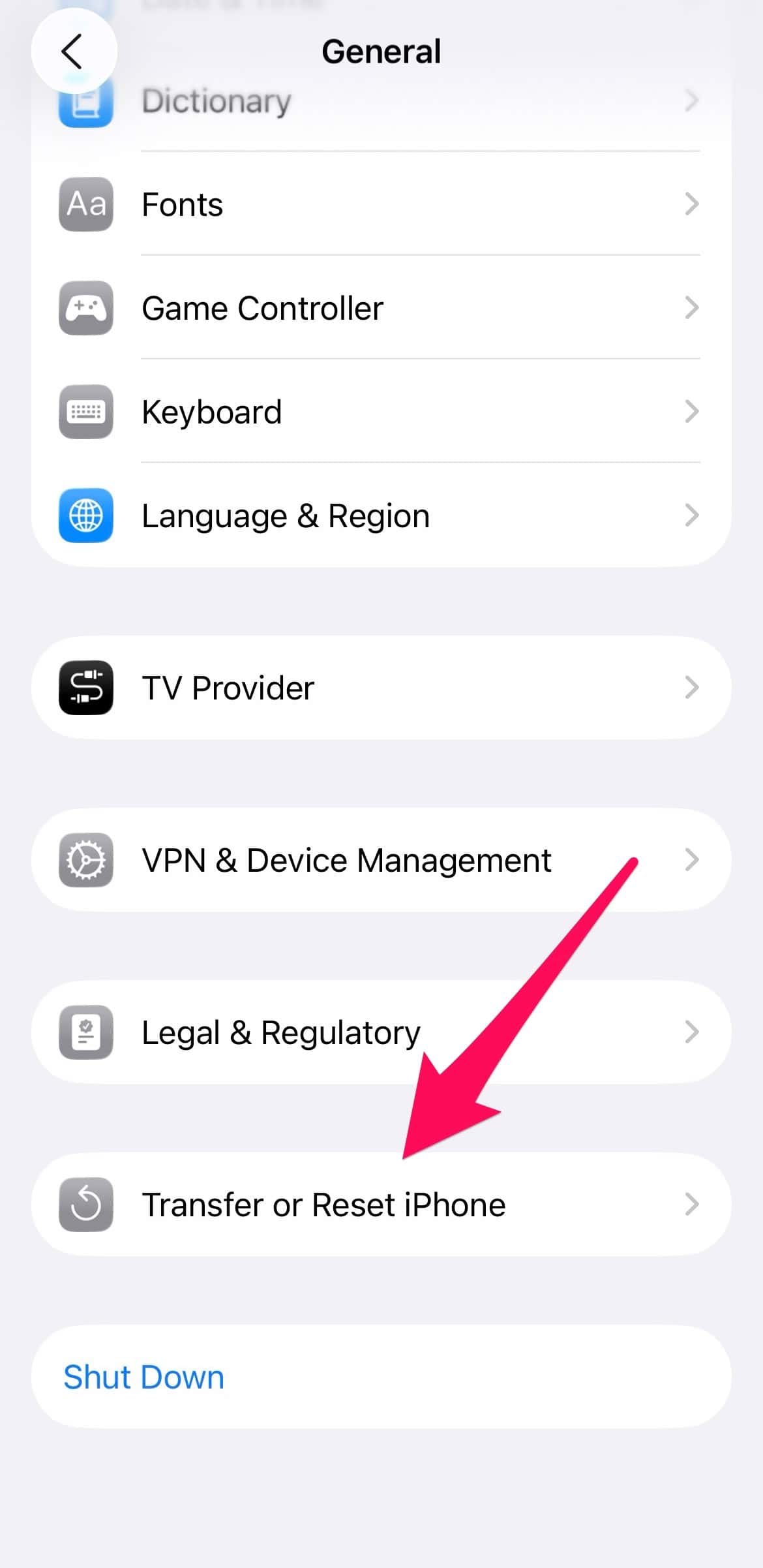
- Tap Reset > Reset Network Settings.

- Confirm and allow the device to reboot.


Update to iOS 26.0.1
Apple’s patch includes fixes for Wi-Fi and Bluetooth instability.
- Go to Settings > General > Software Update.
- Tap Download and Install for iOS 26.0.1.
- Restart your device after installation.
Enable Wi-Fi Aware
Some users benefit from activating Wi-Fi Aware on iOS 26, which enhances device-to-device communication and may stabilize local connections.
- Open Settings > Privacy & Security > Location Services. Scroll down and tap System Services.
- Enable Networking & Wireless.
- Return to Settings > Wi-Fi, and ensure Wi-Fi Aware is toggled on (available on supported devices).
FAQ
Software conflicts, outdated caches, and network misconfigurations are common causes.
Reports mainly involve iPhone 17, iPhone Air, and iPhone 17 Pro, but older models may also be affected.
Yes, Apple addressed Wi-Fi drops in the iOS 26.0.1 patch.
No, it only removes saved Wi-Fi networks and VPN settings.
Should You Update to iOS 26 Despite Wi-Fi Issues?
Despite early bugs, you should upgrade to iOS 26 for its security patches, UI enhancements, and long-term stability improvements. Wi-Fi drops are frustrating, but most users find relief through the steps above or by installing the latest patch.


Discussion