

Automix is a popular Apple Music feature designed to seamlessly blend the end of one track into the beginning of the next, creating a smooth, DJ-like experience. When this function fails to work as expected, it can disrupt listening flow. This guide explores common reasons why the Automix function may be inactive or failing and provides practical steps to restore your continuous music playback on iOS.
Table of contents
Troubleshooting Common Automix Issues
1. Verify You Have Enabled the Core Automix Setting
The first and most crucial step in resolving any Automix failure is confirming you have actually switched on the feature within your device’s music application settings. It is often a simple toggle of a disabled switch during a software update or configuration change, making this a quick check for resolution. Therefore, it’s just a matter of turning it back on.
- Open the Settings app on your iPhone.
- Scroll down the menu and tap Apps.
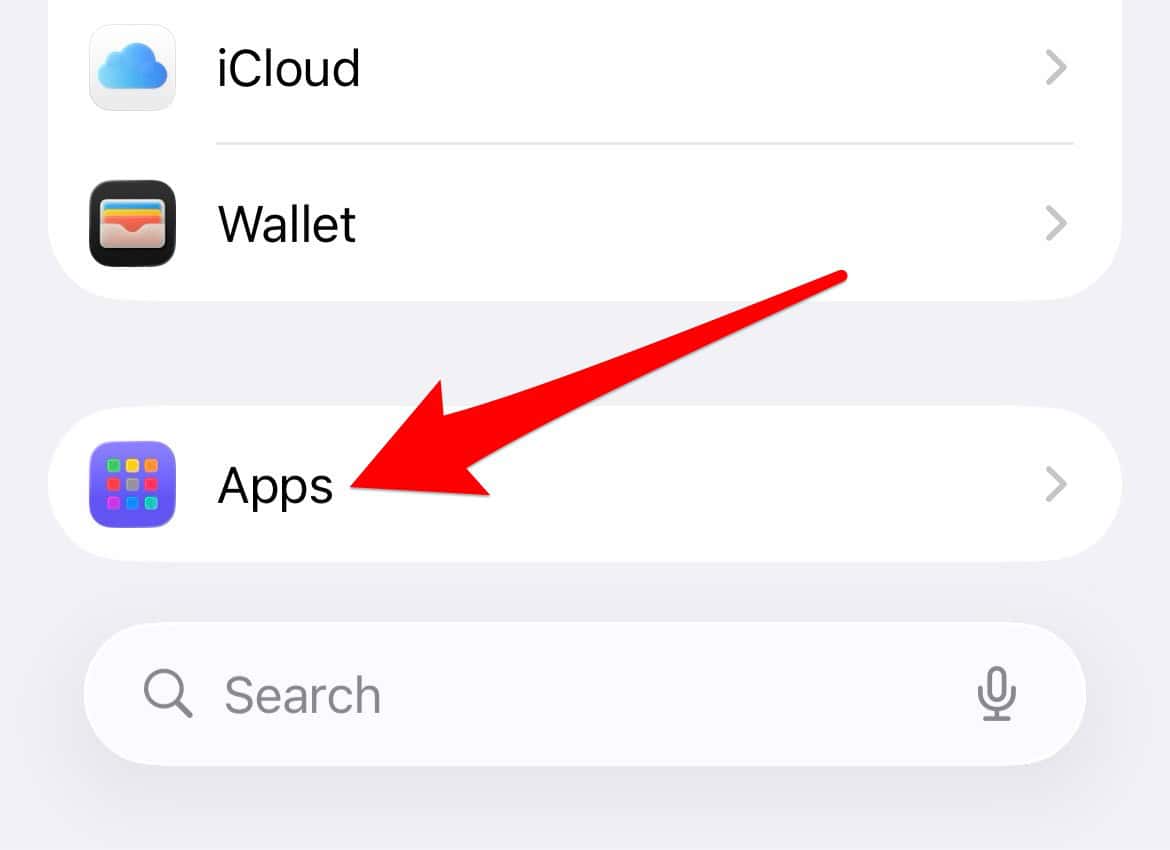
- Scroll down again and tap Music.

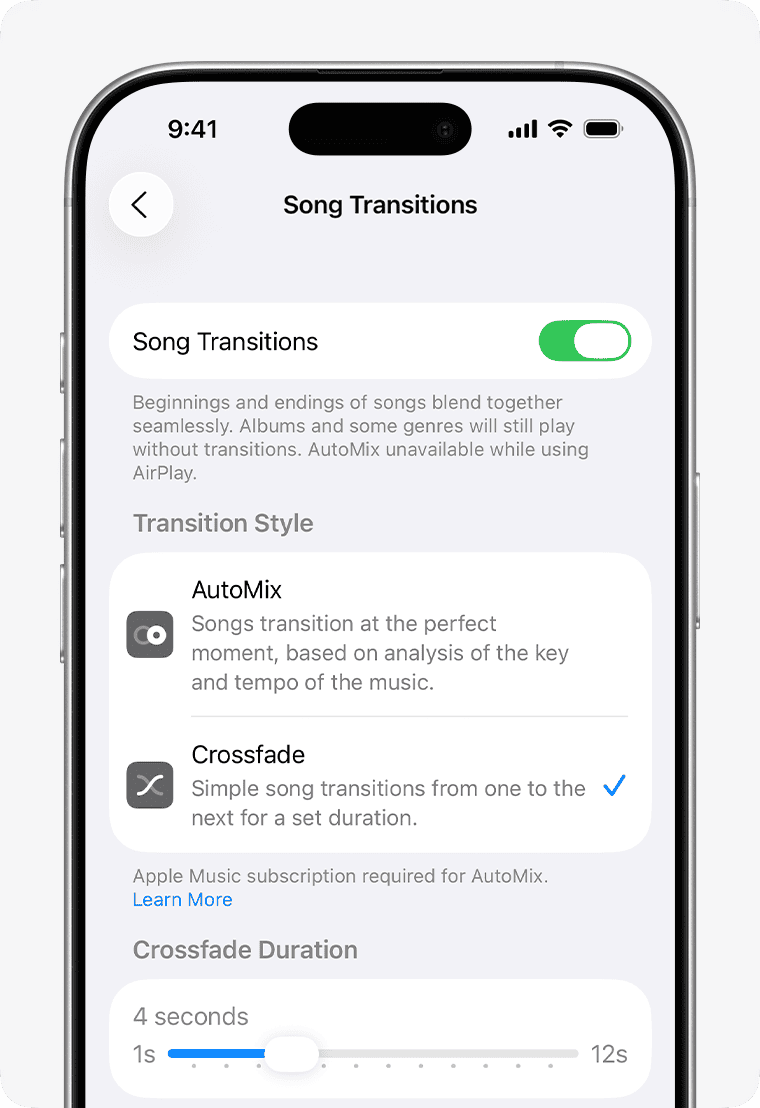
- Locate the Automix toggle switch and ensure it is set to the on position (green).


2. Check Content Compatibility and Playlist Status
Automix does not function universally across all content types in Apple Music. It is primarily designed for playlists and standard library albums where track data is readily available. Single tracks, downloaded podcasts, or internet radio stations typically bypass this feature. For better results, ensure you are playing supported content, and start by understanding what Automix is.
Don’t miss the best of The Mac Observer
Set us as a preferred source and our Apple reporting ranks higher in your Google Search results and Discover feed — one tap, no account changes.
- Confirm you are actively playing an album or a user-created playlist from your library.
- If using a playlist, ensure the tracks are fully downloaded or cached for seamless transition.
- Avoid playing content that has incompatible digital rights management (DRM) restrictions, as this can interrupt the blending.
3. Disable Competing Crossfade or DJ Modes
Sometimes, a similar or adjacent setting can conflict with Automix, causing it to fail silently. In recent iOS versions, features like standard Crossfade or the related DJ Mode can interfere with the specific, smart blending logic of Automix. Check your playback preferences for any conflicts, and learn how to disable DJ Mode on Apple Music.
- Navigate back to the main Music settings menu within the iOS Settings app.
- Look for a Crossfade option and temporarily disable it to eliminate potential conflict.
- Verify that any enhanced “DJ Mode” features, which may supersede Automix, are also currently turned off.
4. Perform a System Reboot and App Refresh
When sophisticated software features stop working, a fresh start can often clear up temporary software glitches and memory issues that might be preventing the transition effect from firing correctly. A simple restart of the device and the music application itself can refresh internal processes and reinitialize the Automix function back to its intended operational state.
- Close the Music app completely by swiping up from the bottom of the screen to view open apps, then swiping up on the Music app card to close it.
- Hold the side button and either volume button (or the top button for older devices) to access the power off slider.
- Restart the device and relaunch the Music app to test the Automix functionality with a clean system slate.
5. Sign Out and Back Into Apple Music
Issues with account syncing or corrupted session data can sometimes prevent advanced features like Automix from authenticating properly with your library. Logging out of your Apple ID in the Music settings and logging back in forces a fresh sync of your library and subscription status, often resolving deep-seated account-related playback problems.
- Open the Settings app and scroll to your Apple ID at the very top (your name).
- Tap on Media & Purchases and choose Sign Out.
- After signing out, go back to Media & Purchases and sign back in using your Apple ID credentials to re-authenticate your subscription.
FAQ
Major operating system updates, such as the transition to iOS 26, can sometimes reset application-specific settings. It is a common troubleshooting step to recheck the Automix toggle switch in the Music settings after any substantial software installation.
Automix works best with locally stored or fully buffered tracks. While it may attempt to work with streamed content, a slow or intermittent internet connection can cause delays or outright failure of the seamless transition effect.
No. Crossfade is a simple overlap of two tracks for a fixed duration, usually set in seconds. Automix is a much smarter, native feature that uses metadata and audio analysis to determine the optimal blending point, offering a more professional and dynamic transition.
Restoring Seamless Music Playback
Resolving an Automix failure requires checking the dedicated setting, ensuring content compatibility, disabling conflicts like Crossfade, and performing troubleshooting steps like a device reboot or signing in and out of your account. Always ensure you have updated iOS to patch known bugs. You can also explore other underrated iOS features to enhance your experience or consider optimizing your overall iOS settings for better system performance.


Discussion