

Before trading in an iPhone, it’s important to deactivate the Find My iPhone feature to protect personal data and ensure a smooth exchange. The feature connects the device to an Apple ID for security, but leaving it active can prevent a trade-in partner from resetting or refurbishing the phone.
Deactivating it removes the device from Apple’s Activation Lock and prepares it for safe resale or recycling. Come along, as we’ll show you how to turn off Find My iPhone as part of your device trade-in preparation.
Table of contents
Why Deactivating Find My iPhone Matters
Find My iPhone is part of Apple’s Activation Lock system, designed to protect against theft and unauthorized access. While this is essential for privacy, it becomes an obstacle when trading in your device.
Don’t miss the best of The Mac Observer
Set us as a preferred source and our Apple reporting ranks higher in your Google Search results and Discover feed — one tap, no account changes.
If Find My iPhone stays on, the iPhone remains linked to your Apple ID, preventing others from activating or using it. According to Apple, all trade-in partners and recycling programs require the feature to be turned off before accepting a device.
If you’re curious how Apple’s security layers work together, you can learn more about Stolen Device Protection for iPhone.
Here’s How You Can Deactivate Find My iPhone
1. Back Up Data
Before making any changes, it’s best to create a full backup. This ensures your files, messages, and photos remain safe and easy to restore later.
- Go to Settings > [Your Name] > iCloud > iCloud Backup.
- Tap Back Up Now.
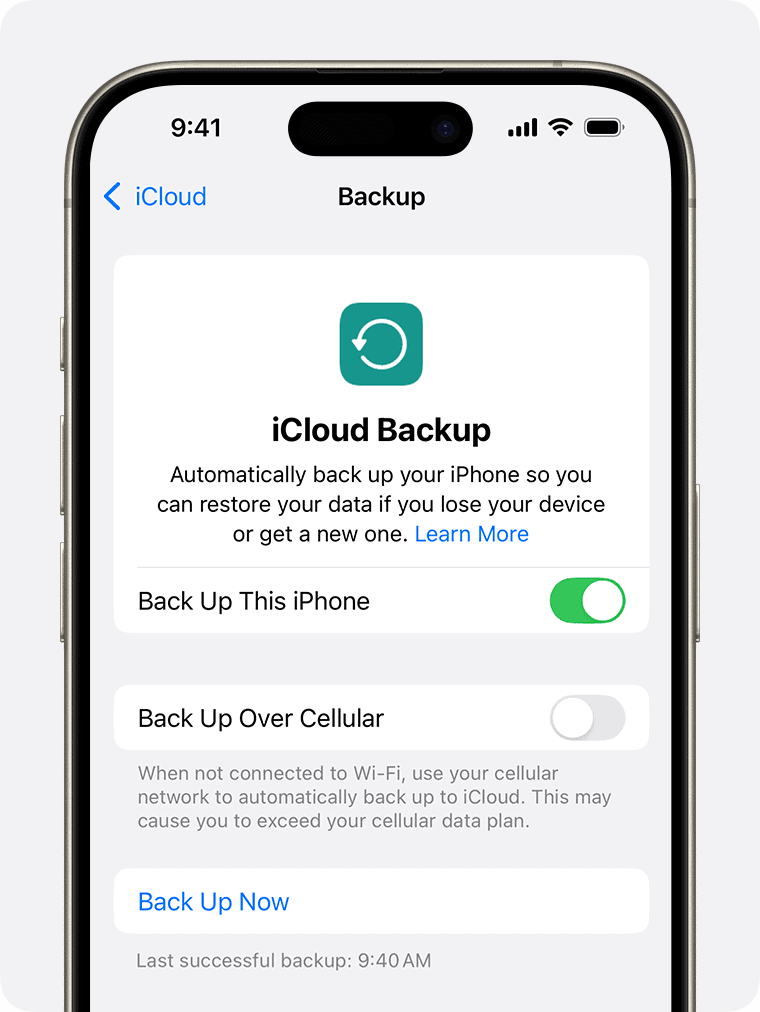
- Wait for the backup to complete before proceeding.

If your iPhone’s location services have been unreliable lately, see how to fix it using our guide on Find My location turning off automatically.
2. Sign Out of Apple ID and iCloud
Signing out ensures that the iPhone is no longer tied to your iCloud account. This disables iCloud syncing, Messages, and other linked Apple services.
- Open Settings and tap your Apple ID name at the top.
- Scroll down and choose Sign Out.
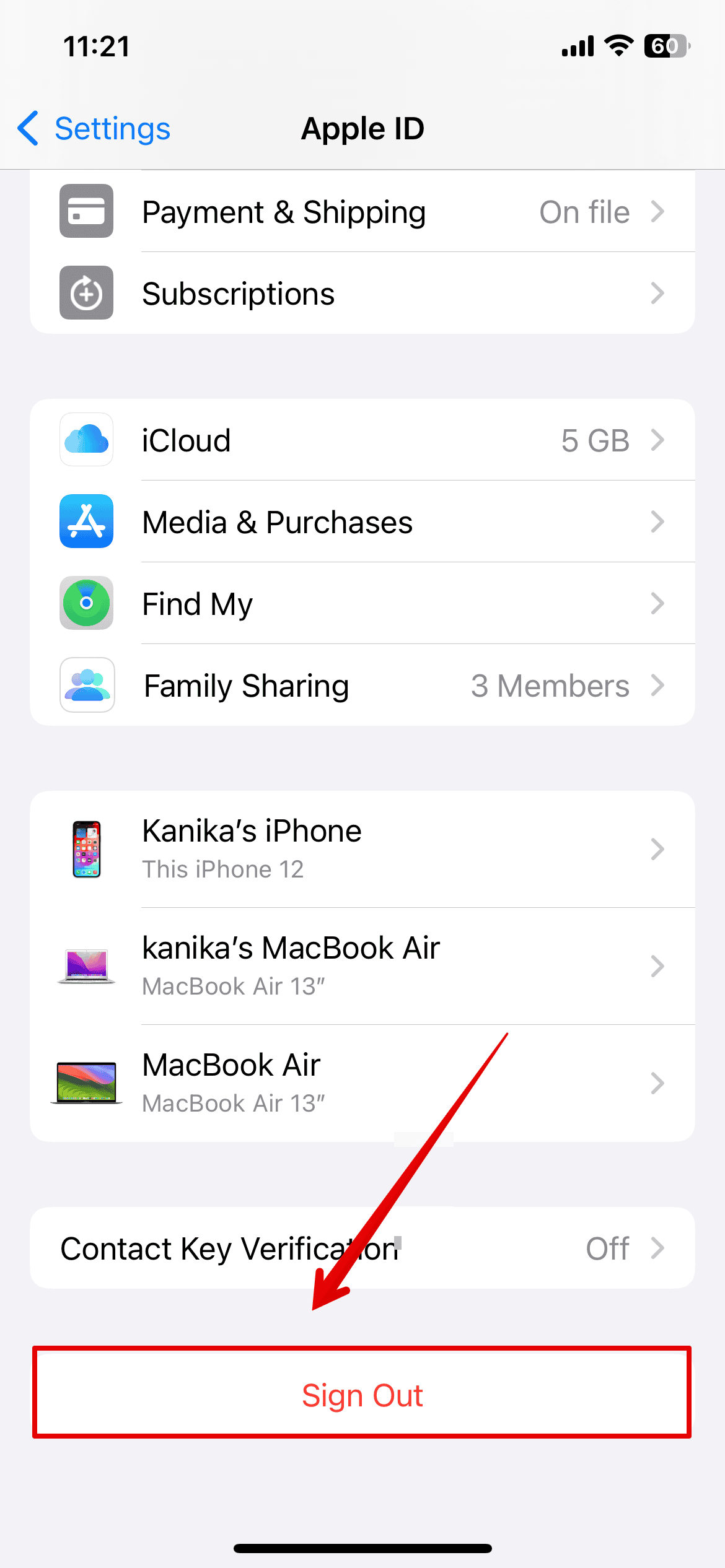
- Enter your Apple ID password when prompted.
- Confirm to remove the device from iCloud.

If you ever manage multiple iPhones or help others, you can also use the Find My iPhone from another device feature—explained here.
3. Turn off Find My iPhone on the Device
Next, disable Find My iPhone to remove Activation Lock.
- Go to Settings > [Your Name] > Find My > Find My iPhone.
- Toggle Find My iPhone off.
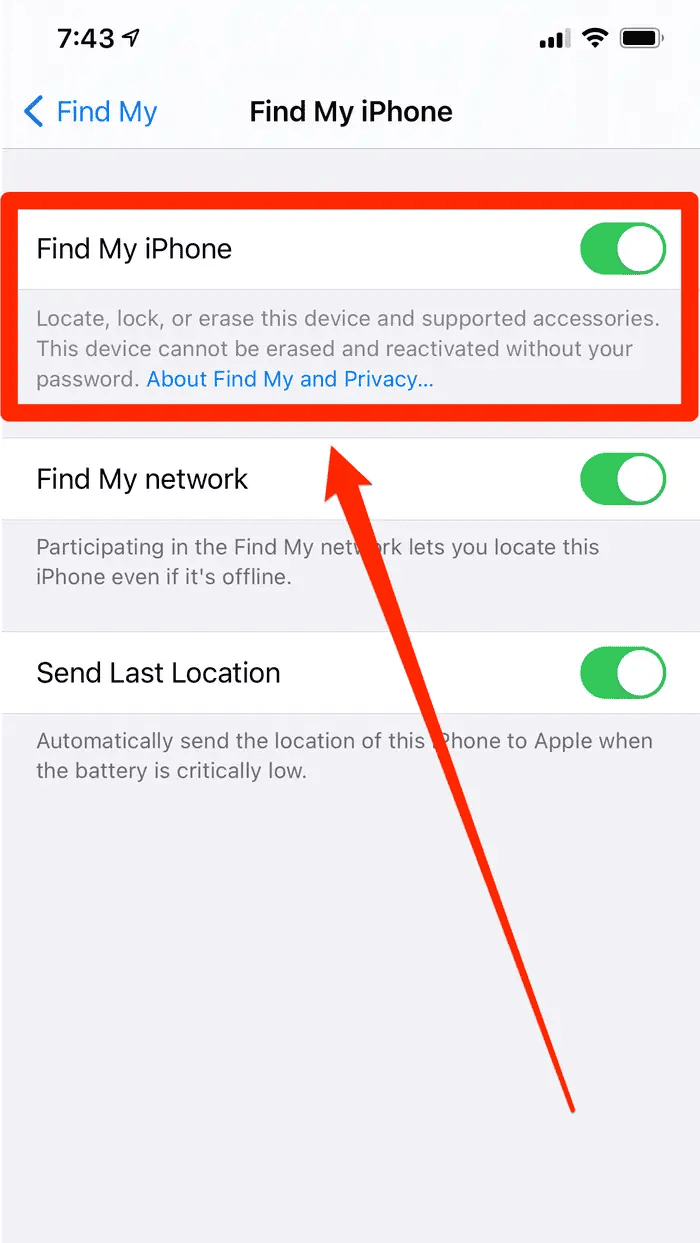
- Enter your Apple ID password to confirm.

After this step, your iPhone will no longer be associated with your Apple account, allowing the trade-in process to move forward smoothly.
4. Deactivate Find My iPhone Remotely
If you’ve already sent your iPhone for trade-in or no longer have it, you can remove it from your account remotely.
- Visit iCloud.com and log in with your Apple ID.
- Select Find My iPhone.
- Choose All Devices and select the iPhone you want to remove.
- Click Remove from Account.
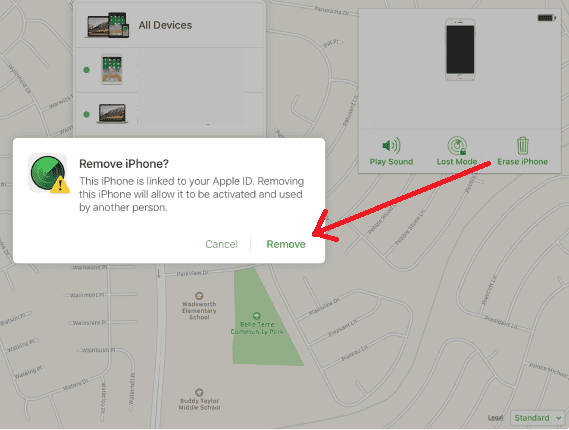

This is also helpful if your device isn’t appearing in Find My. To troubleshoot that, check out our guide on fixing “no active device used for your location” error.
Tips Before Trading In Your iPhone
- Double-check that Find My iPhone is completely turned off.
- Erase your device: go to Settings > General > Transfer or Reset iPhone > Erase All Content and Settings.
- Remove your SIM card or eSIM if you’re keeping your number.
- Back up photos and contacts before erasing.
- Sign out of iMessage and the App Store to avoid sync issues later.
Summary
Deactivating Find My iPhone before a trade-in ensures the device is secure, accessible, and ready for reuse. It protects personal data and prevents trade-in rejections caused by Activation Lock. Following these simple steps makes the trade-in process smooth and worry-free.
FAQs
No. Devices with Find My iPhone enabled are usually rejected during trade-in because they remain linked to your Apple ID.
The new owner or retailer won’t be able to activate or refurbish the device due to Activation Lock.
Yes, log in to iCloud.com, open Find My, and remove the device from your account.
Yes. Erasing removes all data and ensures privacy before handing the device over.
Go to Settings > [Your Name] > Find My > Find My iPhone. If the toggle is off, the feature is deactivated.


Discussion