

Are your AirPods Pro 3 emitting a sudden whine or squeal when noise-canceling or in Transparency mode? This guide gives you clear steps to fix it. Check below!
Table of Contents
Solutions for the AirPods 3 High Pitch Noise Issue
1. Update Firmware and iOS
If the issue is software-related, a firmware update may fix it. Usually, they happen automatically, but there’s a way to force a firmware update in Apple’s AirPods.
Time needed: 30 minutes
- On your iPhone go to Settings > Bluetooth, tap the “i” next to your AirPods Pro 3, and check that the firmware version is the latest. Here’s Apple’s official version list.
- Then go to Settings > General > Software Update and install any available iOS update.
- Restart your iPhone, put your AirPods Pro 3 back in the case, and close the lid for 30 seconds.
- Put the case to charge using a cable.
- Any available firmware update should be downloaded and installed whithin 30 minutes.
- Reconnect your AirPods Pro 3 to your iPhone and check the firmware version again.
2. Verify Ear-Tip Seal and Physical Fit
If high-pitch noise persists after updates, or if there aren’t any updates available, you can try adjusting the seal and fit of your AirPods Pro 3. Here’s how to do that:
Don’t miss the best of The Mac Observer
Set us as a preferred source and our Apple reporting ranks higher in your Google Search results and Discover feed — one tap, no account changes.
- With your AirPods Pro 3 connected on your iPhone, navigate to Settings > Bluetooth, tap the “i” next to your device, then Acoustic Seal Test.

- Try all included tip sizes to achieve a snug fit. If one ear shows a poor seal, feedback can result.
- Clean the ear-tips and both microphones gently using a dry cotton swab — any obstruction of the mic can reduce ANC performance and cause unwanted noise.
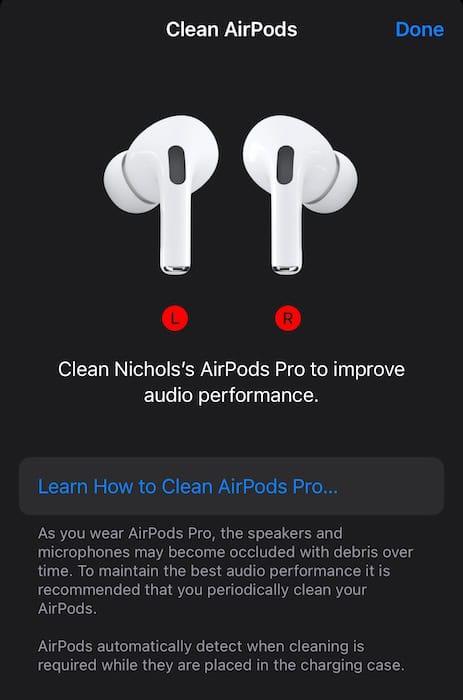
- An Apple Support page indicates that blocked microphones can cause feedback or squeals, including high-pitched noises.


3. Turn Off Adaptive Audio and Toggle ANC Modes
- With your AirPods in your ears, go to Settings > Bluetooth, tap the “i” next to your AirPods Pro 3.
- Disable any Adaptive Audio mode if present.
- In the Control Center (swipe down from the top-right), tap the volume slider for your AirPods and toggle between Noise Cancellation, Transparency, and Off.
- If the high-pitch noise disappears when you turn off ANC or Transparency mode, this suggests the issue lies with the noise-canceling system, and you’ll want to contact Apple Support.
4. Reset Your AirPods Pro 3
Though uncommon, corrupt settings may cause your AirPods Pro 3 to emit high-pitch noises. You can try resetting them to factory defaults, to fix that.
- Place both AirPods in their case and close the lid for at least 30 seconds.
- On your iPhone, go to Settings > Bluetooth, tap the “i” next to your AirPods Pro 3, then tap Forget This Device.
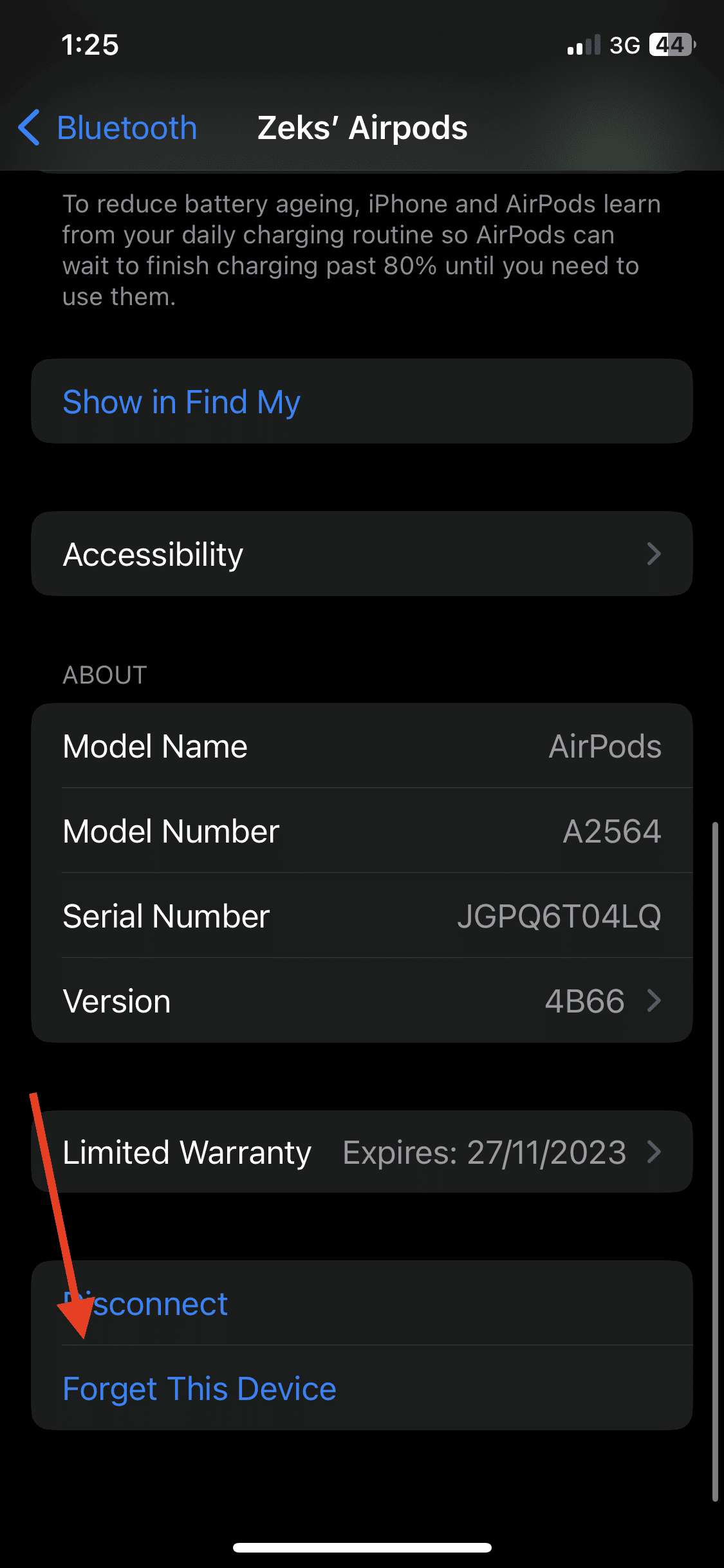
- With the lid open, press and hold the setup button on the case until the LED flashes amber, then white.
- Re-pair the AirPods Pro 3 to your iPhone and test again. This often clears software glitches that cause feedback or squealing.

5. Check for Service or Replacement
If you still experience the AirPods Pro high pitch noise after trying the above, especially in both ears or under many conditions:
- Make an appointment at an Apple Store or authorized service provider.
- While Apple’s current service-program information doesn’t list the AirPods Pro 3 explicitly for a known defect, earlier generations faced similar complaints.
- When you contact Apple Support, mention the frequency of the noise, modes in which it happens, and whether it occurs in both ears.
AirPods 3 Emitting High-Pitch Noise: Tips
- Use the correct ear-tip size; a poor seal often triggers whistling or feedback.
- Avoid covering or pressing the microphones — they sit on the stem and outside the ear-tip region.
- On flights or in high-altitude environments, you may notice more feedback due to pressure changes; adjusting the fit helps.
- If you use your AirPods for hearing-aid purposes (via headphone accommodations), ensure those settings don’t interfere with ANC.
- Keep your software current — Apple may release a firmware update that resolves remaining noise issues.
FAQ
That occurs because the external microphones change mode and may pick up internal feedback if the seal is not ideal or mic ports are blocked.
No. Similar complaints existed with earlier models, but we focus here on third-generation-specific fixes.
Yes. Debris or moisture near the mic or vent systems may cause unwanted audio artifacts.
Summary
- Update your iPhone and AirPods Pro 3 firmware.
- Ensure a proper ear-tip fit and clean microphones.
- Toggle ANC/Transparency settings and disable Adaptive Audio if needed.
- Reset your AirPods Pro 3 and re-pair them.
- Seek service if noise persists despite trying the above.
The high-pitch squeal in your AirPods Pro 3 often stems from a poor seal, blocked microphones, or software conflicts. Step through the solutions above in order, and you should reduce or eliminate the noise. If none of these steps work, service support remains your best next move.


Discussion