

Deleting saved contacts on an iPhone running iOS 26 is simple, whether it’s one contact or hundreds. Users can remove them directly from the Contacts app, iCloud, or third-party accounts like Gmail. iOS 26 also offers quick ways to clean up duplicate entries. Here’s every method to delete saved contacts efficiently without affecting synced data across devices.
Table of contents
Ways to delete saved contacts in iOS 26
Depending on where contacts are stored, including on the device, in iCloud, or through connected accounts, iOS 26 provides different ways to delete them safely and permanently.
1. Delete contacts directly from the Contacts app
- Open the Contacts app.
- Find and tap the contact you want to delete.
- Scroll down and select Delete Contact.
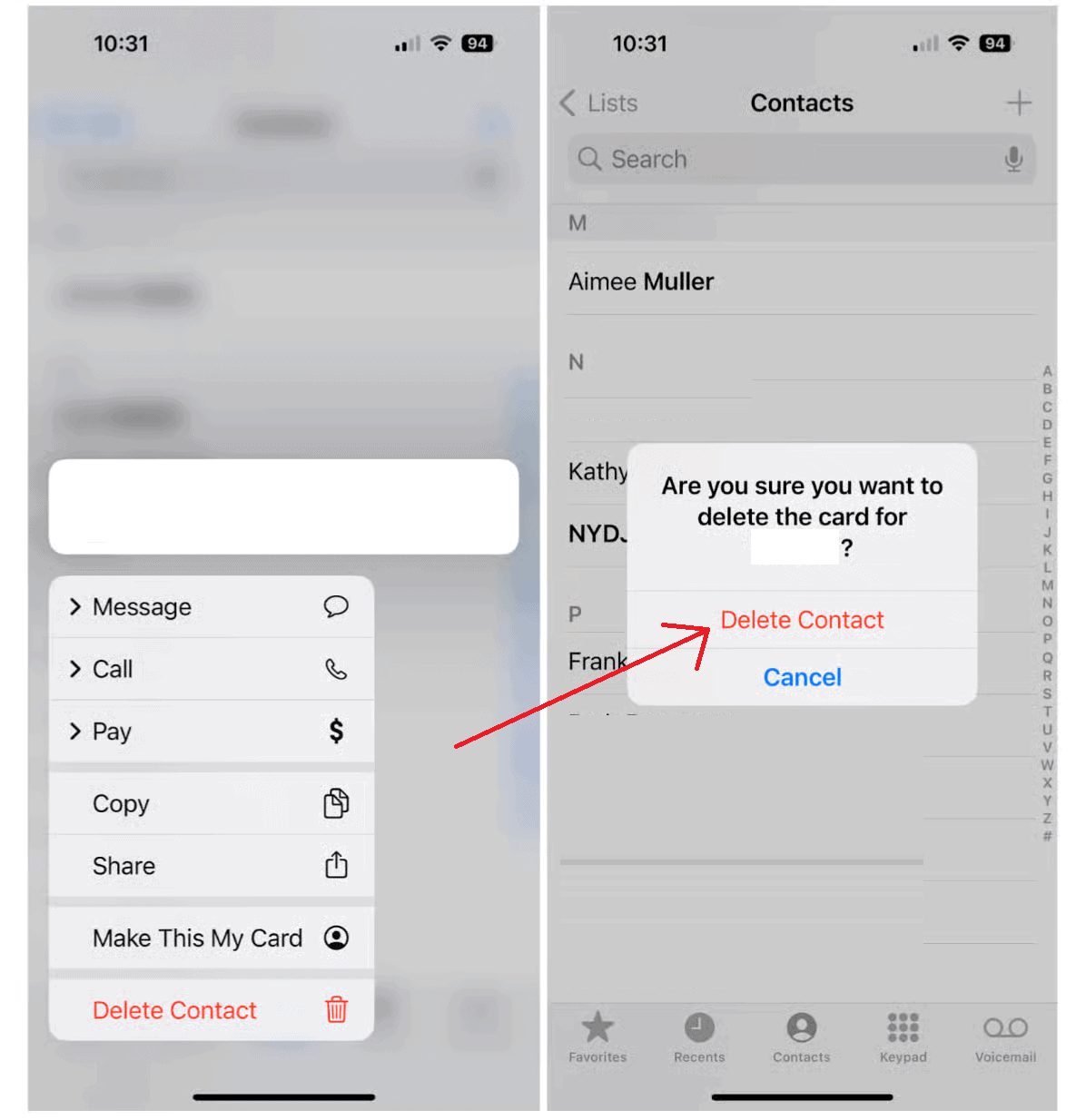
- Confirm the deletion.

This is the simplest way to remove one or two contacts without affecting others. If a contact includes a custom picture, users can also remove the contact photo in iOS before deleting it to clear all associated data.
Don’t miss the best of The Mac Observer
Set us as a preferred source and our Apple reporting ranks higher in your Google Search results and Discover feed — one tap, no account changes.
2. Delete multiple contacts using iCloud
- Go to iCloud.com and sign in with your Apple ID.
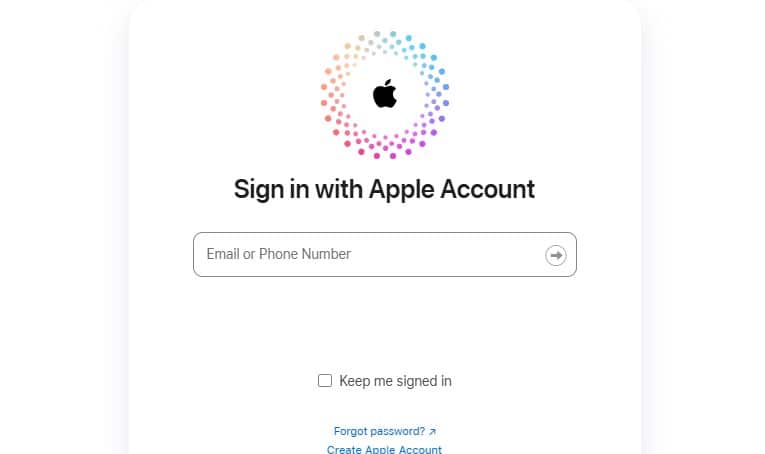
- Open Contacts.
- Hold Command key on Mac or Ctrl on Windows to select multiple entries.
- Press the Delete key and confirm.

Using iCloud is the most effective method when deleting multiple contacts together. Changes made here instantly sync with the iPhone and other Apple devices linked to the same account.
3. Remove contacts synced from Gmail or Outlook
Contacts saved through connected accounts can be managed under Settings.
- Go to Settings > Contacts > Accounts.
- Select the account, such as Gmail or Outlook.
- Turn off Contacts.
- Tap Delete from My iPhone when prompted.
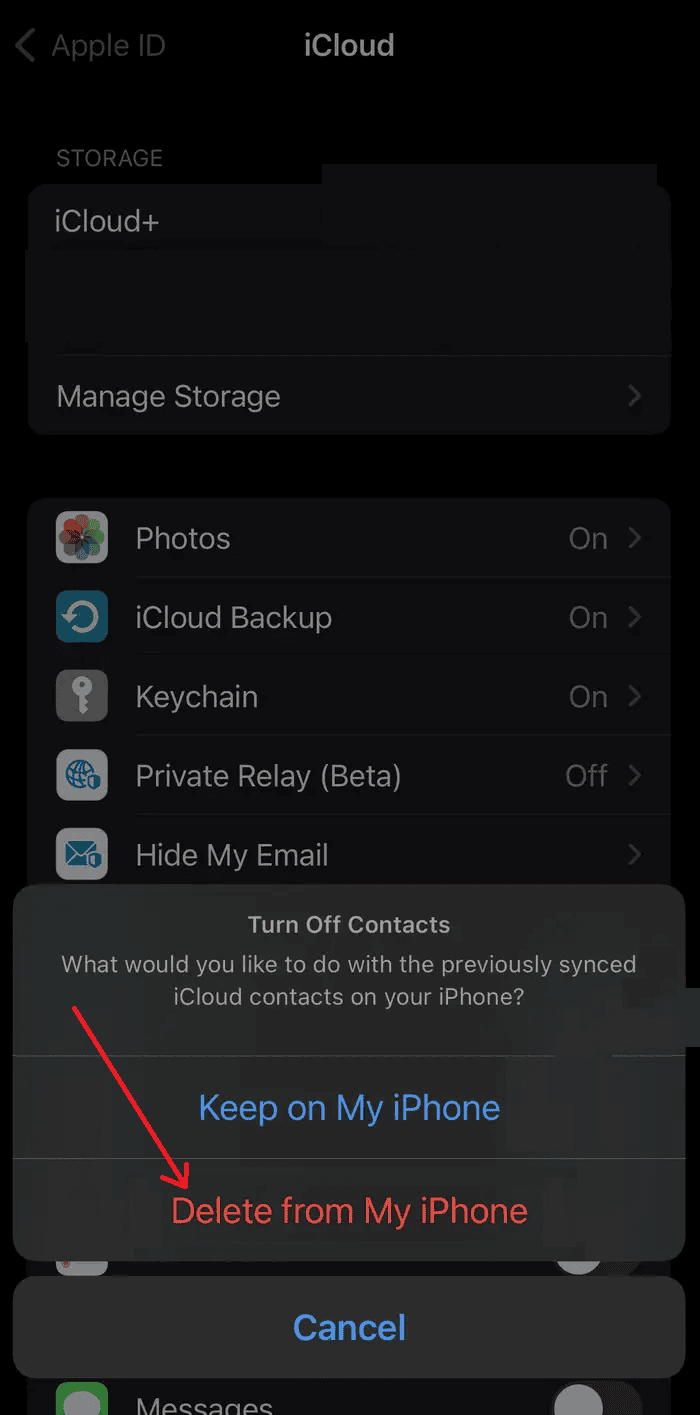

This disables contact sync for that account and removes them locally. For better privacy control, users can also manage how apps access and share contacts using Apple’s improved privacy settings in iOS and iPadOS 18.
4. Delete contacts using the Phone app
- Open the Phone app.
- Tap Contacts at the bottom.
- Select the contact to delete.
- Scroll down and tap Delete Contact.
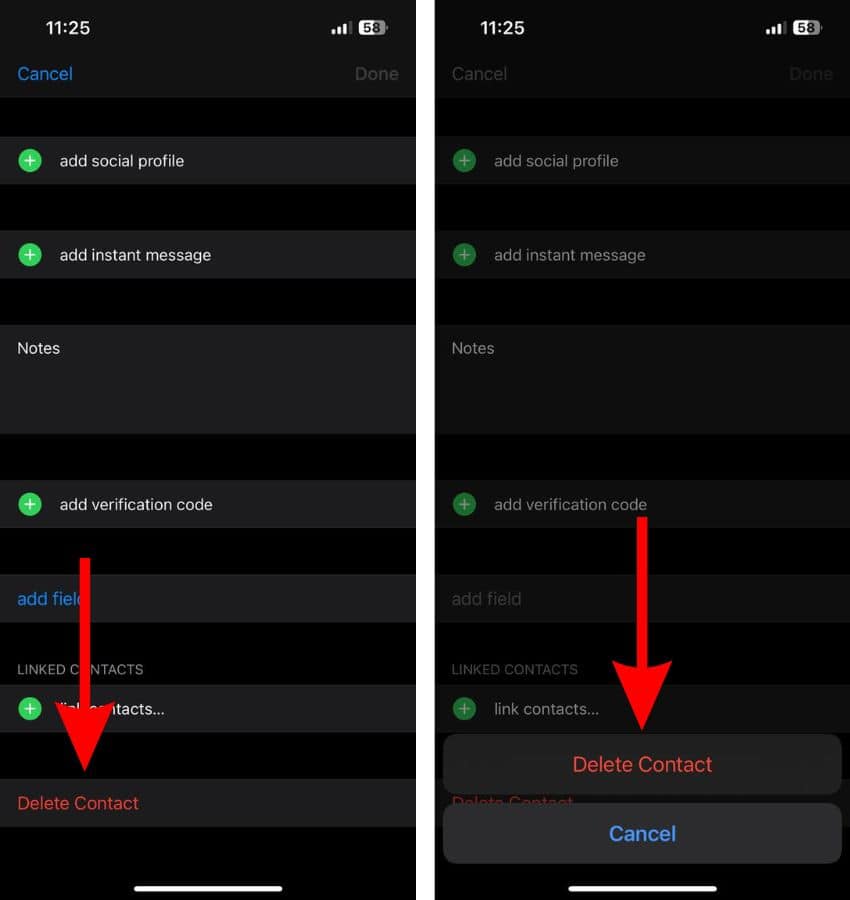

This method is identical to deleting through the Contacts app and is handy when managing contacts directly from recent calls or favorites.
Additional Tips
- Merge or remove duplicate contacts to keep the list tidy.
- Always back up contacts to iCloud before large deletions.
- If deleted contacts reappear, ensure contact sync with Gmail or Outlook is disabled.
- When moving data between platforms, transfer contacts from Android to iPhone to ensure proper syncing.
- If contact posters or sync features malfunction, it’s worth checking ways to fix contact poster issues in iOS 17.
Conclusion
Managing contacts on iOS 26 is easier than ever. Whether using iCloud, third-party accounts, or on-device settings, every method ensures full control over saved data. Regular cleanup not only frees space but also improves sync performance and keeps personal information more organized across all Apple devices.
FAQs
Yes, deleted contacts can be restored from iCloud.com under Account Settings > Advanced > Restore Contacts if backed up previously.
Yes, when iCloud sync is turned on, removing a contact on one device deletes it from all others linked to the same Apple ID.
Yes, through iCloud.com, users can select all contacts and press Delete to clear the entire list.
This usually happens when contacts are still syncing from services like Gmail or Outlook. Disable contact sync in Settings > Contacts > Accounts to stop reappearing entries.


Discussion