

Apple Notes has evolved far beyond a basic scratch pad. It now handles checklists, photos, PDFs, web links, and shared projects that sync instantly across iPhone, iPad, and Mac through iCloud. Whether you’re new to it or ready to go deeper, here’s how to make the most of what Notes can actually do.
Table of contents
1. Start a Note and Keep It Organised
When you open Notes on your device, tap or click the New Note button and begin typing. The first line becomes the title automatically.
To keep things structured:
Don’t miss the best of The Mac Observer
Set us as a preferred source and our Apple reporting ranks higher in your Google Search results and Discover feed — one tap, no account changes.
- Create folders from the Folders View to separate topics like work, study, or personal projects.
- Drag notes into folders or swipe right to pin important ones so they stay at the top.
- Add hashtags such as
#ideasor#budgetto group related notes; Apple automatically builds a Tag Browser around them.
You’ll find more folder and tagging options explained in Apple’s Notes user guide for Mac and its iPhone and iPad version.
2. Add Checklists, Photos, and Documents

Image Source: Apple Support
Notes can handle far more than plain text.
- Tap the checklist icon to create to-dos you can tick off.
- Use the camera button to add photos, record videos, or scan documents.
- Highlight text or apply title, heading, and bullet styles from the formatting menu for quick structure.
Scans you capture are searchable thanks to built-in OCR, and you can mark them up with Apple Pencil or the Markup tool on Mac.
If you often use Notes for quick reminders or research dumps, you can get more out of it by exploring Quick Note on macOS and iPadOS, which integrates directly with Safari.
3. Share and Collaborate
Every note and folder can be shared with others through iCloud. Tap Share, choose Collaborate, and invite people via Messages, Mail, or a link. Everyone can add text, checklists, or attachments, and you’ll see live updates.

You can also lock sensitive notes using Face ID, Touch ID, or a password. This feature stores the lock key securely in iCloud Keychain, ensuring you can unlock it across devices.
Apple’s collaboration and privacy details outline exactly how that works.
4. Sync Everything with iCloud
Turn on Notes in iCloud so your content travels with you.
- On iPhone or iPad: Settings › [your name] › iCloud › Notes.
- On Mac: System Settings › Apple ID › iCloud › Notes.
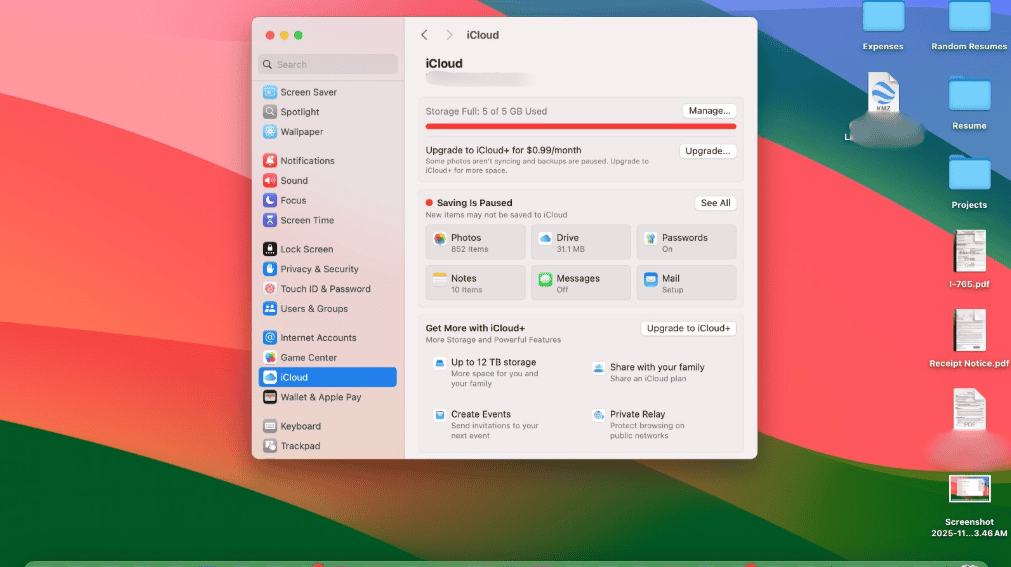

All changes are then updated instantly between devices and on iCloud.com/notes.
For cross-platform users, you can also sync Apple Notes with Gmail or Outlook accounts, so work and personal notes appear together in one inbox-style view.
If you manage schedules or to-dos in Apple Calendar, try aligning your workflow by syncing your Apple Calendar with Google Calendar for unified reminders and deadlines across Notes and Calendar.
5. Use Smart Features You Might Have Missed
Apple keeps adding small upgrades that make Notes genuinely powerful:
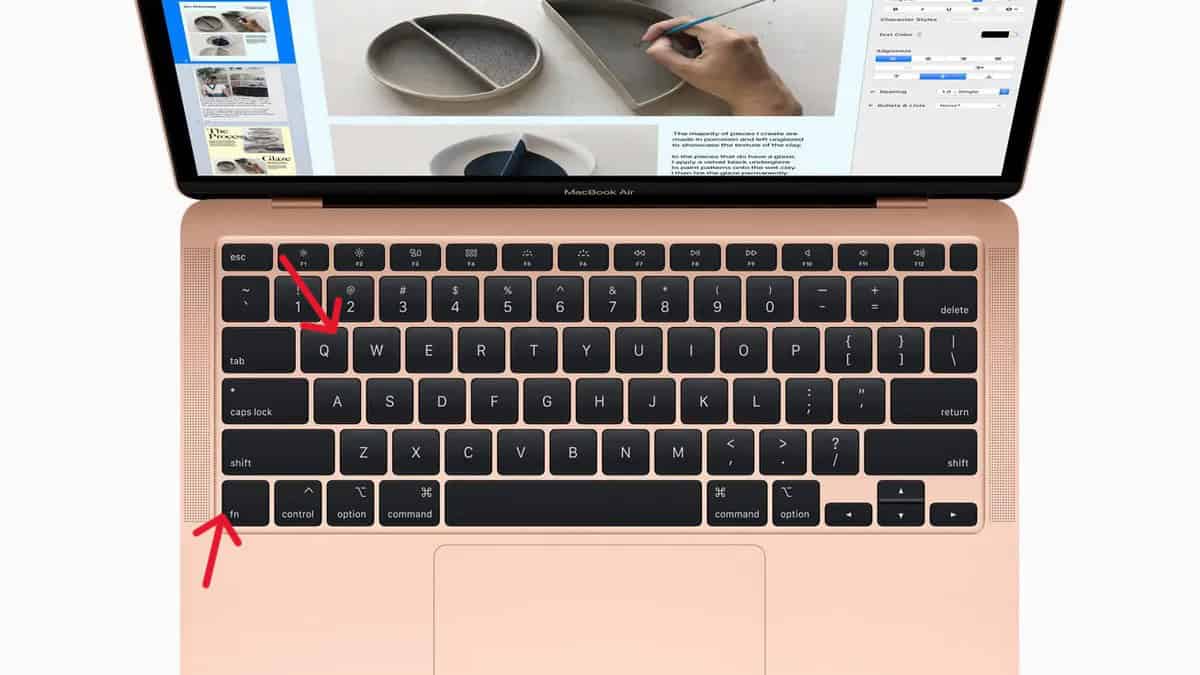
- Quick Note: open it instantly from the bottom corner of the iPad or press Fn + Q on the Mac to jot down thoughts without opening the full app.
- Smart Folders: automatically collect notes with specific tags or dates.
- Handwritten Search: on iPad, handwritten text becomes searchable using on-device machine learning.
- Document Scanner: converts physical pages into PDFs that you can sign or annotate right inside Notes.

These additions, covered in Apple’s latest Notes overview, turn Notes into a full-scale information manager instead of a simple jotter.
If you’re already managing events or study notes through Calendar, you can organise both more efficiently by moving multiple events between calendars in macOS.
Final Thoughts
Apple Notes is one of those apps that feels invisible until you start using it properly. It’s built into every device, syncs through iCloud, and quietly replaces half a dozen third-party tools from checklist apps to document scanners. Once you start grouping notes, adding media, and collaborating, it becomes a daily hub for both ideas and organisation.
For more ways to make Apple’s built-in apps work harder for you, explore how to boost productivity with native macOS tools.


How does the app replace a scanner? I hope you are recommending the camera app as an input device.