

When Apple Mail suddenly refuses to connect to your email server, it throws your entire workflow off balance. Messages won’t load. Outgoing emails pile up in the outbox. The spinning wheel next to your inbox mocks you. And you start wondering whether the problem is your Mac, your network, your email provider, or something you accidentally broke.
Here’s the thing: Apple Mail rarely stops connecting without leaving clues. Once you understand what those clues mean, fixing the issue becomes much more manageable. So let’s break it down clearly, calmly, and in a way that actually helps.
Table of contents
How You Know Apple Mail Isn’t Connecting

Before diving into fixes, it helps to confirm the problem. A few signs usually give it away:
Don’t miss the best of The Mac Observer
Set us as a preferred source and our Apple reporting ranks higher in your Google Search results and Discover feed — one tap, no account changes.
- Emails won’t send or receive at all
- Messages are stuck in the outbox
- Mail loads only a tiny fraction of your inbox
- You see “Cannot connect to server” warnings
- Connection Doctor shows red error messages
When Mail can’t reach the server, it also struggles to sync your email history and contacts, which is why things feel half-loaded or frozen.
Why Apple Mail Loses Connection
There isn’t just one cause. Server connection issues usually come from a handful of predictable places.
Incorrect IMAP/POP Settings
One wrong server address or port number and Mail simply refuses to connect. It’s that strict.
Security Protocol Mismatch
If your provider requires SSL or TLS and Mail isn’t set up correctly, the server rejects the connection immediately.
Password Updates You Forgot to Update in Mail
If you changed your email password recently, Mail won’t magically know. It needs that update manually for both incoming and outgoing servers.
Firewall or Security Software Interference
A strict firewall can block Apple Mail without you realizing it.
Internet Troubles
A weak connection, buggy Wi-Fi, or a misbehaving router can break Mail’s ability to sync.
Server Maintenance
Sometimes the provider is doing maintenance behind the scenes. You can’t fix that — you can only wait.
How to Fix Apple Mail Not Connecting to Server
Let’s jump into the fixes that actually work.
1. Restart the Mail App
Simple, but powerful. Quit Mail completely, reopen it, and press Command + Shift + N to force a fresh sync.
This alone clears many temporary connection errors.
2. Update Your Email Password in Mail
If you changed your account password recently, Mail won’t connect until you update it.
Incoming mail password:
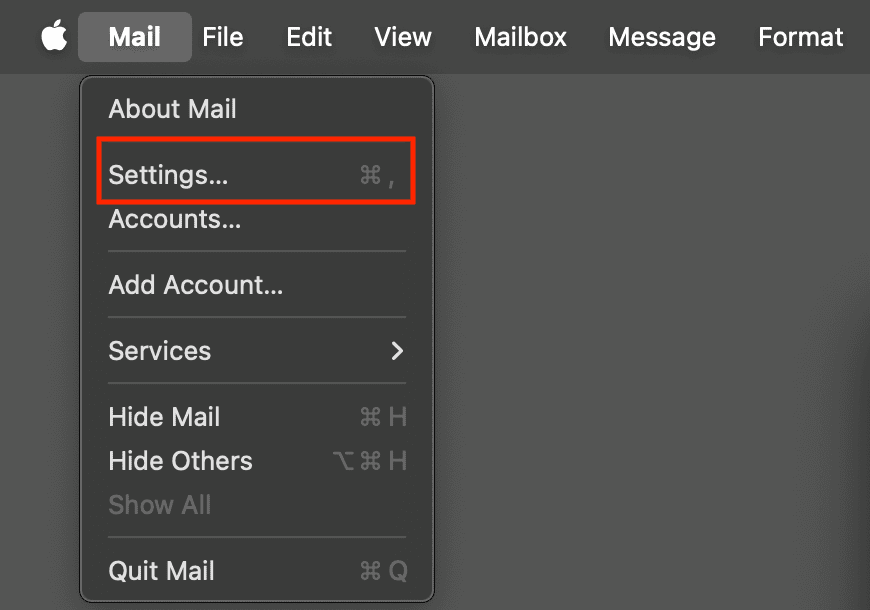
- Mail > Settings
- Accounts
- Select your account
- Enter the new password

Outgoing mail password:
- Mail > Settings > Accounts
- Outgoing Mail Server (SMTP) > Advanced
- Enter the new password
Mail may take a moment to resync after this.
3. Remove the Email Account and Add It Back
When settings get tangled, starting fresh is the fastest fix.
- Go to Mail > Settings > Accounts
- Remove the problem account
- Add it again
Your emails will reload from the server once the connection is restored.
4. Use Connection Doctor
This is Mail’s built-in diagnostic tool.
Find it under Window > Connection Doctor.
It shows:
- Whether your incoming/outgoing servers are connecting
- Whether authentication is failing
- Whether the network is blocking something
If Connection Doctor is full of red, you’ve confirmed a server or settings issue.
5. Reset Firewall and Security Permissions
If Mail is being blocked, you’ll never see a clear error — it just won’t connect.
Check:
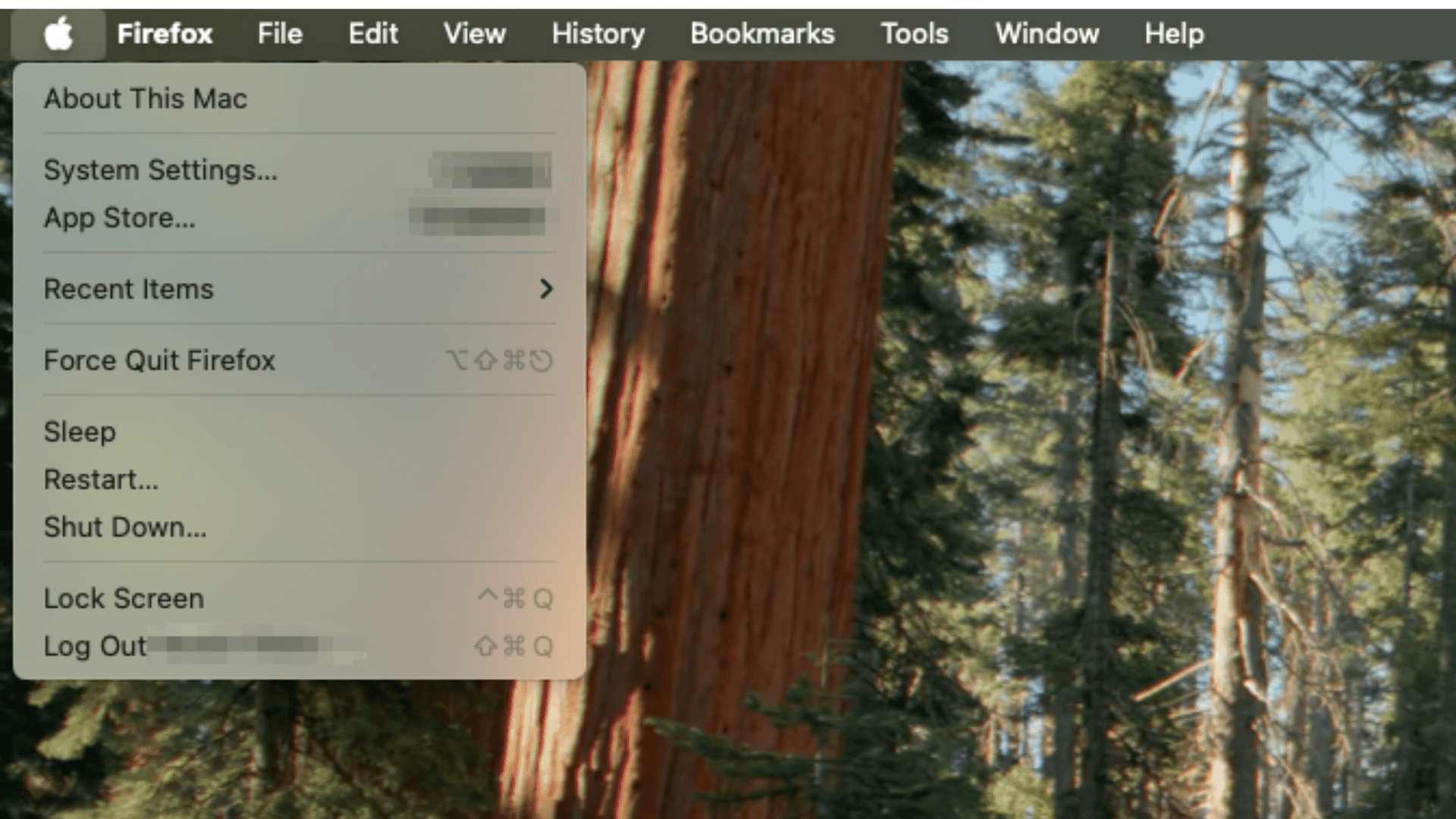
- System Settings > Network > Firewall
- Make sure Mail has permission to connect
- Ensure ports like 143 (IMAP) and 110 (POP) aren’t blocked

Temporarily disabling the firewall can help confirm whether it’s the culprit.
6. Make Sure Your Internet Isn’t the Problem
Test a website in your browser.
Restart your router.
Try switching from Wi-Fi to a hotspot if available.
You’d be surprised how often the “Mail problem” turns out to be a “Wi-Fi problem.”
7. Check Whether Your Provider Is Down
Gmail, Outlook, Yahoo, iCloud — they all have outages occasionally.
A quick look at their system status pages can save you a lot of unnecessary troubleshooting.
When You’re Tired of Fighting Apple Mail
If you’re using multiple accounts and constantly running into sync or connection issues, it may not be you — it may just be the app. Apple Mail has quirks, especially with non-iCloud accounts.
Some users eventually switch to clients like Canary Mail, Spark, or Outlook because they handle multiple accounts and server connections more reliably.
Final Thoughts
Apple Mail not connecting to the server isn’t a mystery problem — it’s usually a settings mismatch, a password issue, a security block, or a temporary server hiccup. When you move through the steps above slowly and intentionally, you’ll almost always uncover the issue.
Take it one fix at a time, test after each step, and don’t assume the worst. Your email isn’t gone — it’s just waiting for the connection to come back.




Discussion